MC4WP Form Structure
Mailchimp for WordPress (MC4WP) is the best free Mailchimp plugin for WordPress.
The theme styles this plugin's forms, so a subscribe form looks right on the front page and in widgets.

However, the theme needs a specific HTML structure when you create the form.
Imported a Foxiz demo? MC4WP > Form already holds a form built this way. Connect your Mailchimp account (step 2), then copy that form's shortcode (the end of this section).
To get started, follow the steps below
-
Install and activate the plugin MailChimp for WordPress (Plugins > Add Plugin, search for Mailchimp for WordPress).
-
Connect the plugin to your Mailchimp account via API:
- Go to MC4WP > Mailchimp. Under API Key, click Get your API key here., sign in to Mailchimp, create a key and copy it.
- Paste the key into API Key and click Save Changes. Status changes from NOT CONNECTED to CONNECTED.
A video walk through: https://www.youtube.com/watch?v=35KjtuDNNZw
-
Navigate to MC4WP > Form and create your form. The structure looks like this:
The plugin's menu is now a single top level item called MC4WP, and the form editor is the Form item under it. What the screen calls a Mailchimp list is now called an audience, so the form's own settings ask which Audiences this form subscribes to: tick your audience there, or every sign up fails with an error.

<div>
<input type="email" name="EMAIL" placeholder="Your email address" required />
<input type="submit" value="Sign Up Now" />
</div>
<div class="agree-to-terms">
<input name="AGREE_TO_TERMS" aria-label="checkbox" type="checkbox" value="1" required="">
<label for="AGREE_TO_TERMS">I have read and agree to the terms & conditions</label>
</div>
The data form: name and type could be changed. However, you need to remove all <p> tags before and after the <input> tag.
That instruction is not cosmetic, and it is not optional on a new install. MC4WP creates every new form with its email field and its submit button each wrapped in their own <p>. Foxiz lays out the direct children of the form as flex rows, so with the paragraphs left in you get the email box on one line and the button on the next, rather than the two side by side in one bar.
The second <div> matters for the same reason. agree-to-terms is the class Foxiz styles the checkbox row with, putting it full width under the input bar in the smaller meta text. Rename it and the checkbox becomes another flex row beside the button. Drop the whole <div> if you do not want a consent checkbox at all.
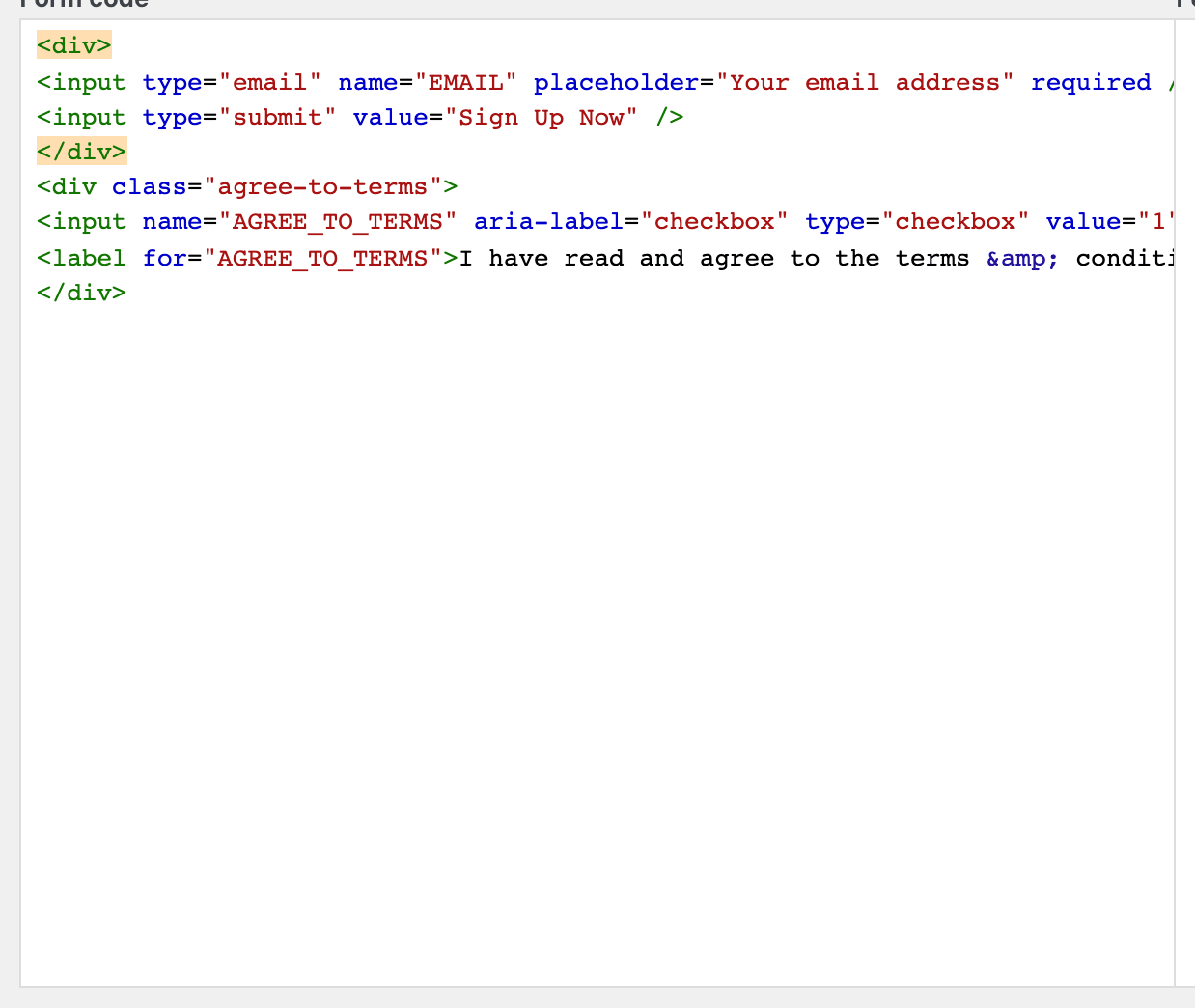
Importing a Foxiz demo writes this exact markup for you. The importer creates a published form called demo form, or, if a published form already exists, replaces that form's content with the block above. So import demo content before you write your form, not after.
Then copy the shortcode of the form you created.

Adding the Form to Your Homepage
To add the form you created to the homepage, follow the steps below:
-
Navigate to Pages > All Pages > Edit Page > Edit with Elementor
-
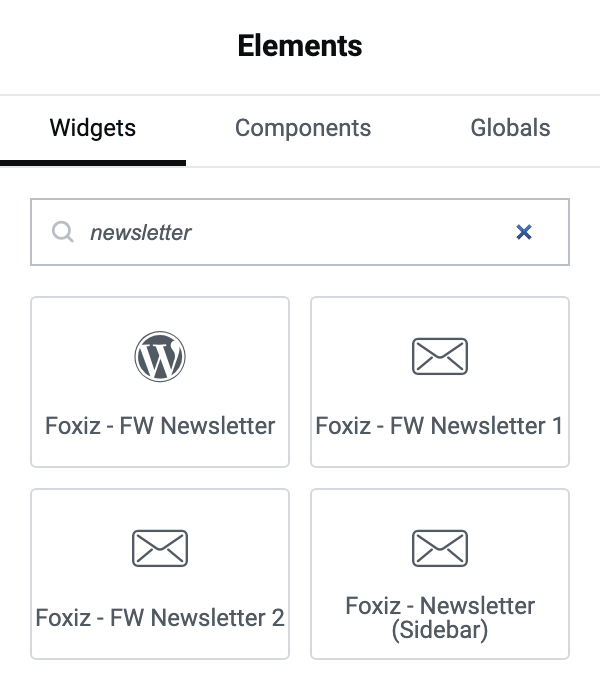
Find the "Newsletter" block, then add it.
Searching for newsletter returns four. Three are under Foxiz - Element: Foxiz - FW Newsletter 1 and Foxiz - FW Newsletter 2 for a full width band, and Foxiz - Newsletter (Sidebar) for a narrow column. The fourth, with a WordPress logo, is Foxiz - FW Newsletter: the footer widget from the section below, which Elementor also offers among its WordPress widgets. All four take the shortcode the same way; on that one the field is called Mailchimp Form Shortcode.
-
Paste the shortcode you copied into the "Form Shortcode" field.
That field already contains
[mc4wp_form], which is MC4WP's own shortcode for the first form you created. If you only have one form you can leave it as it is; paste your own shortcode when you have more than one.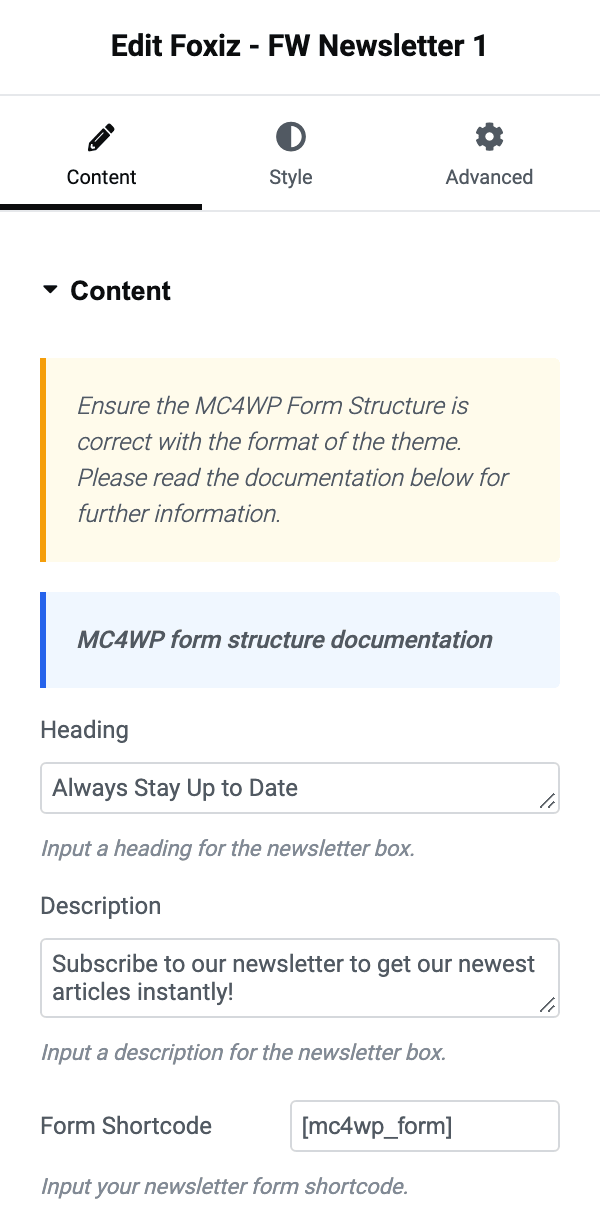
Adding the Form to a Footer - Top Full Width
To add the form you created to the Footer - Top Full Width widget area, follow the steps below:
-
Navigate to Appearance > Widgets
-
Find the widget Foxiz - FW Newsletter in the widget list on the left of the screen.
It is described as "[Full Width Widget] Display a Mailchimp sign-up form in the full width sections." Its shortcode field is called Mailchimp Form Shortcode and it also starts on
[mc4wp_form].
-
Drag and drop it into the Footer - Top Full-Width section.
If Footer - Top Full Width is not on the Widgets screen at all, the footer is set to a Ruby Template. Foxiz registers that widget area only while Theme Options > Footer > Footer Layout is one of the column layouts; choosing Use Ruby Template removes it, and the newsletter goes into the template instead.
Did this answer your question?