Newsletter Popup Options
To setup Popup Newsletter, follow the steps below:
-
Navigate to Theme Options > Popup Newsletter
-
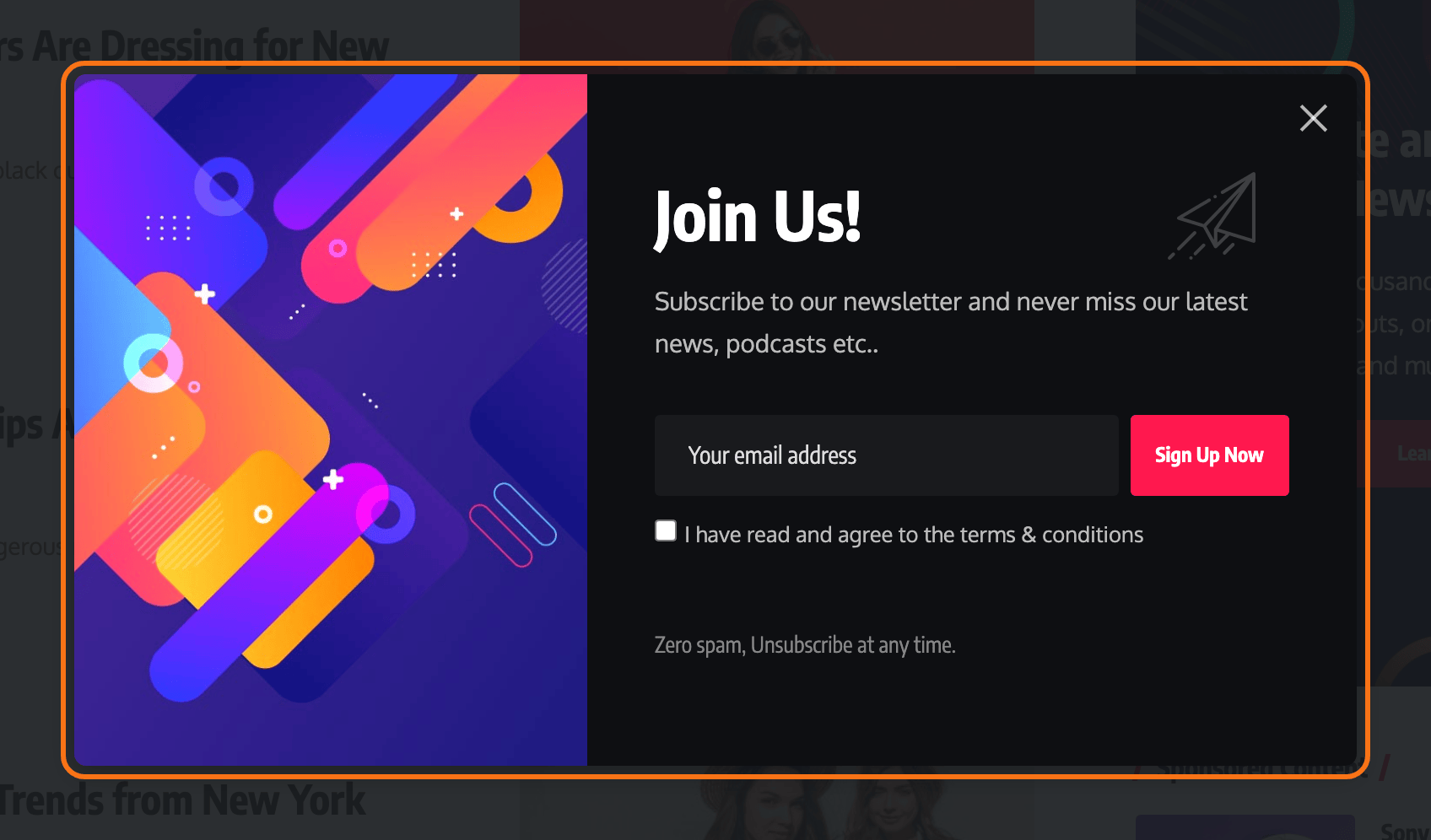
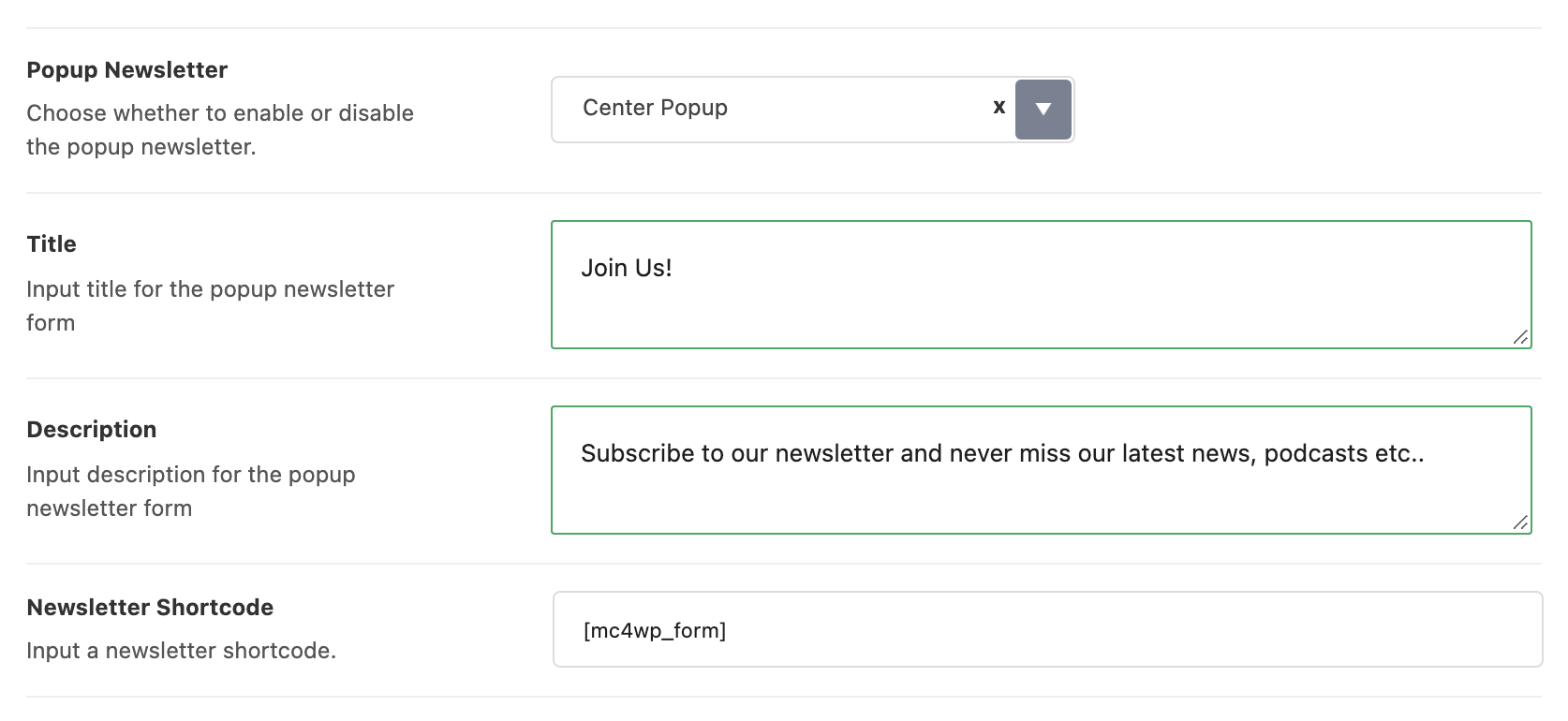
Set Popup Newsletter to Center Popup or Fixed Right.
The panel opens with one field on it. Popup Newsletter is a select offering Disable, Center Popup and Fixed Right, and its default is Disable. Every other field on the panel is hidden until you move it off Disable, so a panel that looks nearly empty is not a broken screen.
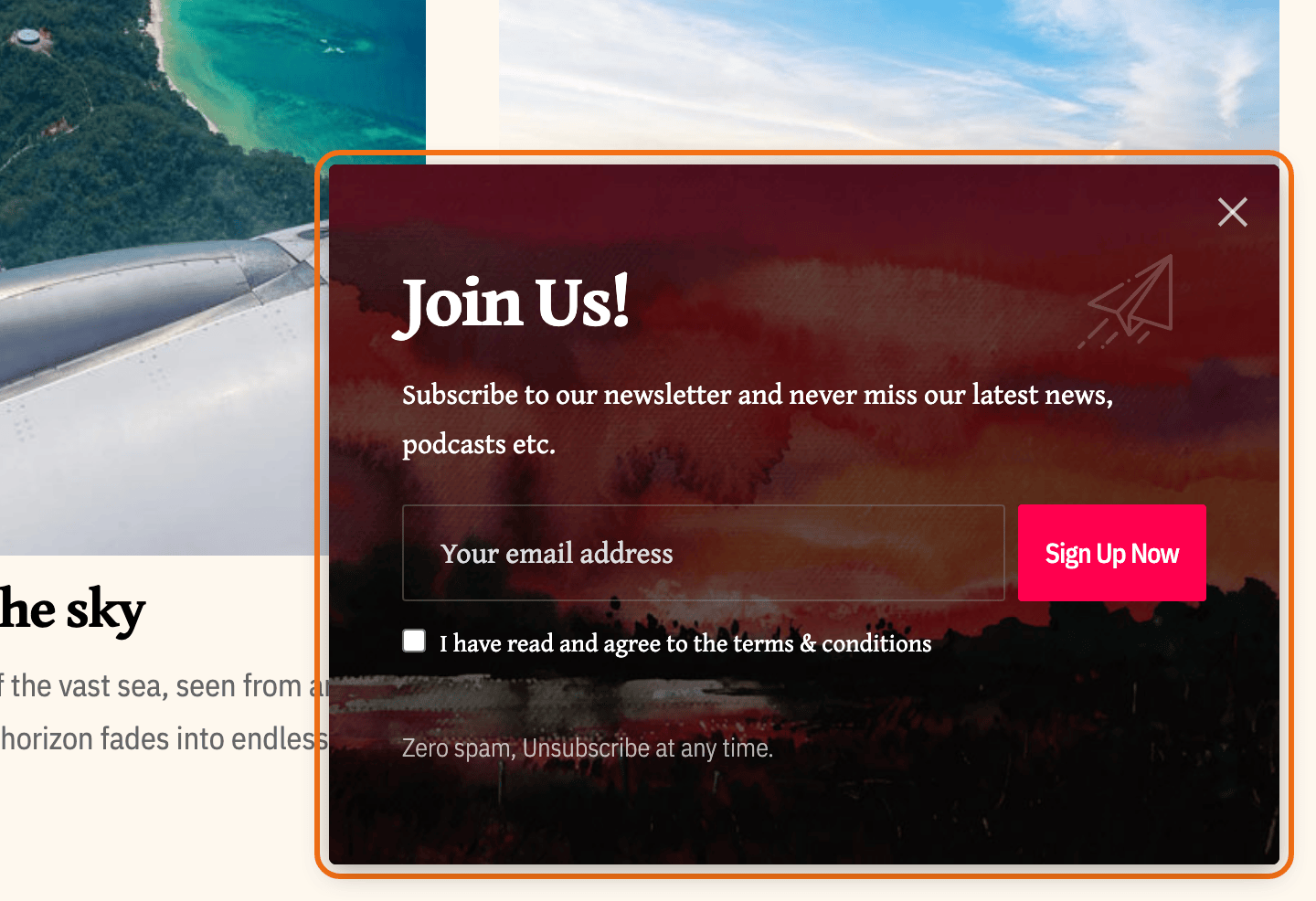
Center Popup opens the box in the middle of the screen over a dimmed page. Fixed Right pins it to the bottom right corner instead and leaves the page usable. Center Popup never opens on screens under 1024 pixels wide, so if you want the popup on phones, pick Fixed Right.
-
Fill out the form and upload your cover image. These fields appear once Popup Newsletter is off Disable:
- Title, which by default reads "Join Us!".
- Description, which by default reads "Subscribe to our newsletter and never miss our latest news, podcasts etc.".
- Newsletter Shortcode, already holding
[mc4wp_form]. Any newsletter plugin's shortcode works here; for the Mailchimp one, the form needs the markup described in MC4WP Form Structure. - Footer Text, the small line under the form, which by default reads "Zero spam, Unsubscribe at any time.". Clear it and the whole footer line is left out rather than rendered empty.
- Footer URL, optional, which turns that line into a link.
- Cover Image, the picture beside the form. Leave it empty and the box renders without the image panel rather than with a gap. Use a dark image if you chose Fixed Right, because the text sits over it.
- Popup Expiration, how long after a visitor closes the box before it may show again. Its default is 1 Day. The longer choices are 2 Days, 3 Days, 1 Week, 2 Weeks, 3 Weeks and 1 Month. The last one, Immediately (for Preview), is for testing.
- Display Mode, Scroll Distance or Time Delay, with Scroll Distance as the default.
- Distance of Scroll, in pixels, used by Scroll Distance. Default: 2000.
- Delay Time, in milliseconds, used by Time Delay and empty by default. Empty means no delay, so the popup opens as soon as the page has loaded. Put a number here if you pick Time Delay.
-
Click Save Changes.
The popup is printed into the footer of every page on the site, so there is nothing to place and no page to assign it to.
Popup Expiration is remembered in the visitor's own browser storage, not in a cookie you can clear from the server, and the timer runs from the moment they close the box. Changing the setting resets it for everyone: the theme compares the saved value with the one on the page and throws the old flag away when they differ. So you can bring the popup back for visitors who have already dismissed it by changing this field.
If the popup does not appear
Four things suppress it, and none of them say anything on screen.
It is off. Popup Newsletter defaults to Disable and nothing else on the panel does anything until that changes.
You already closed it. Once dismissed, the popup stays away for the number of days in Popup Expiration, per browser. Test in a private window, or set Popup Expiration to Immediately (for Preview) while you work and put it back afterwards.
The screen is under 1024 pixels wide. Center Popup is disabled below that width, so it never opens on a phone or a small tablet. Fixed Right does not go through the same code and shows at every width. The popup is also left out of AMP pages entirely.
The ad blocker notice got there first. If AdBlock Detector at Theme Options > AdBlock Detector is set to anything but - Disable - and the visitor is blocking ads, Foxiz closes any open popup and shows its own notice instead, and the newsletter popup is not opened at all for the rest of that page view.
One more, and it is the one that looks like the popup is broken: if the shortcode in Newsletter Shortcode produces nothing, the box still opens, and logged in administrators see the line "The short code is incorrect or empty form. Please check the setting again!" where the form should be. Visitors see an empty space, so if you have ever seen that message, fix the shortcode rather than the popup.
Did this answer your question?