How to Add a Stories on Elementor
Ensure you have the latest version of the Web Stories Plugin installed and activated on your WordPress website.
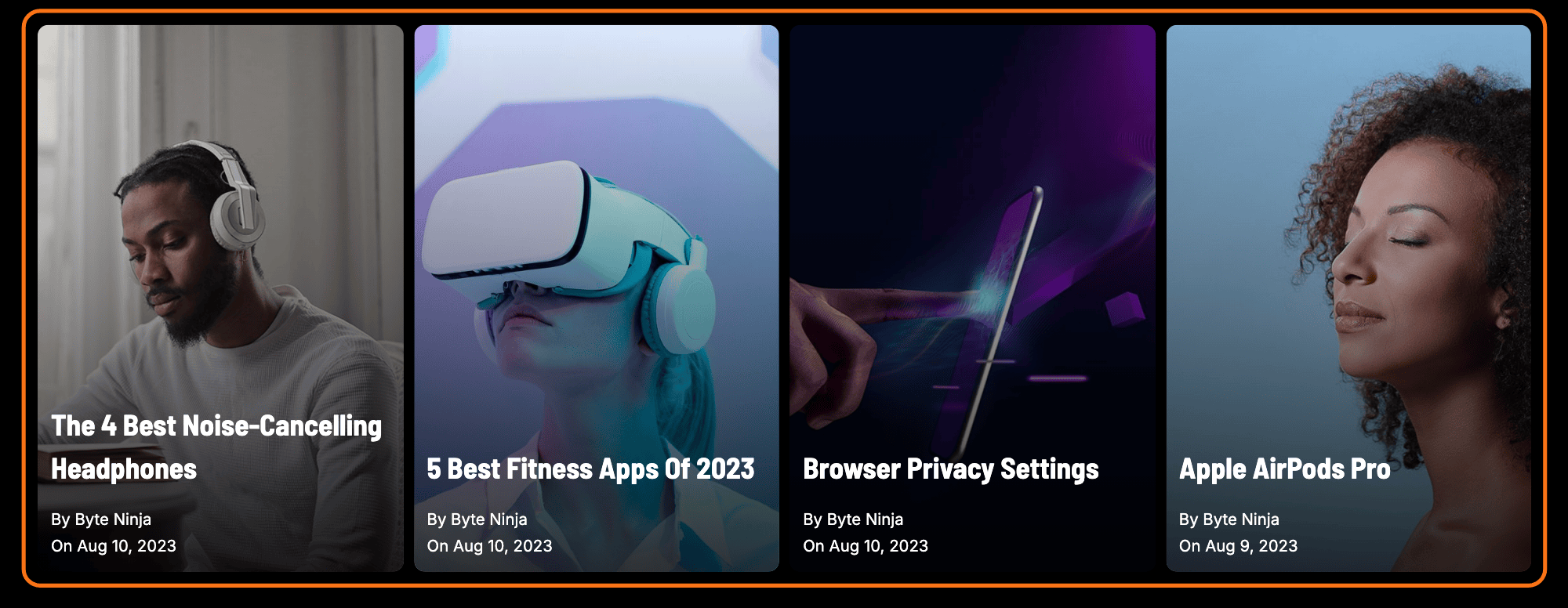
To use the Foxiz - Web Stories block available within Elementor, please ensure that you have installed the Web Stories plugin: https://wordpress.org/plugins/web-stories/
Installed and activated is the whole requirement, and it is not a soft one: Foxiz only loads its two story blocks when web-stories/web-stories.php is active, so until then they are not in the Elementor panel to be searched for.
To create web stories: you can refer to the instructions in this documentation: Creating Web Stories
To get started, follow the steps below:
-
Navigate to Pages > All Pages.
-
Select a page you would like to edit or add a new page, and click on the “Edit with Elementor” link.
-
The website will redirect to another URL and the panel will appear on the page. Then you can search “Foxiz - Web” blocks in the Elementor.
That search returns two blocks, both under the Foxiz - Element category. Foxiz - Web Stories displays a list of stories chosen by a query. Foxiz - Web Single Story embeds one story you pick by name.

-
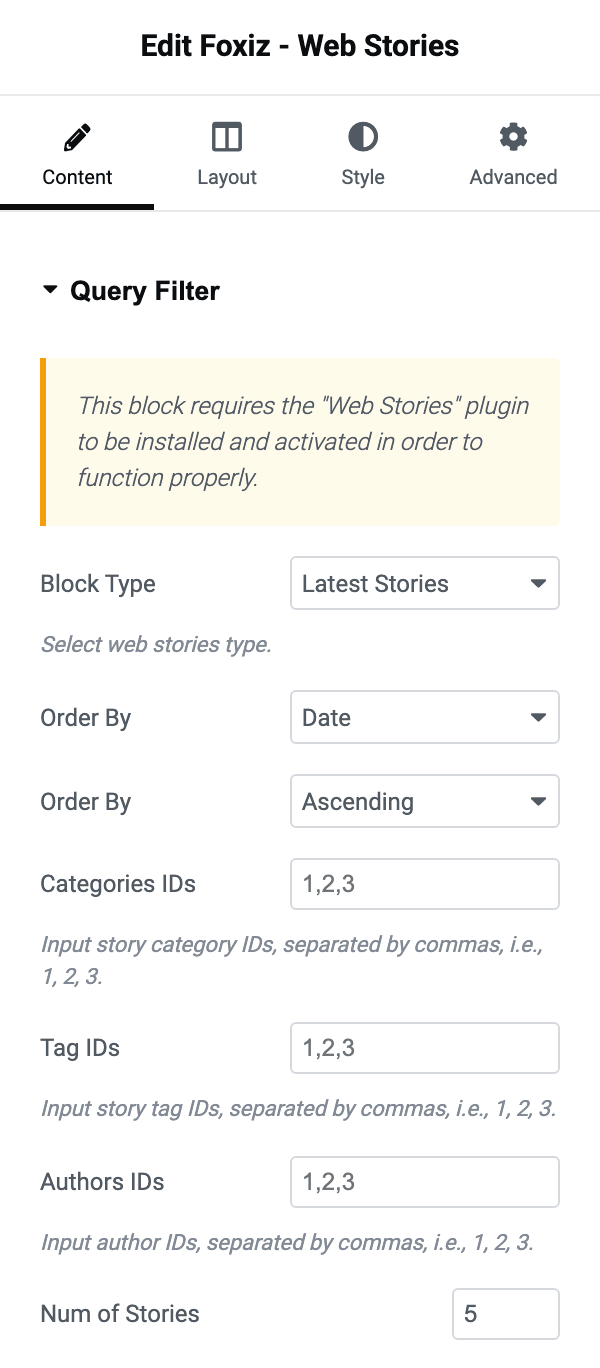
After you search “Web Stories”, you can drag and drop blocks inside. Once the block is on the page, its Content tab opens on Query Filter:
-
Here, you can make your desired changes within the Elementor options through tabs such as Content, Style, Layout, and Advanced.
On Foxiz - Web Stories the Content tab holds one section, Query Filter, which decides which stories are shown:
- Block Type, either Latest Stories or Selected Stories. Its default is Latest Stories.
- Stories, a comma separated list of story IDs such as
1,2,3. It only appears once Block Type is Selected Stories. - Categories IDs, Tag IDs and Authors IDs, each a comma separated list, each narrowing the query further. These take IDs, not names. To see an ID, hover the item in its list (Posts > Categories, Posts > Tags, Users): the number after
tag_ID=oruser_id=in the link is the ID. For a story, open it in the editor and read the number afterpost=in the address. - Num of Stories, 5 by default.
- Two selects both labelled Order By: the first chooses Date or Title, the second chooses Ascending or Descending. The second one is the sort direction despite its label, and its default is Ascending, so the oldest story comes first until you change it. For newest first, which most sites want, set the second Order By to Descending.
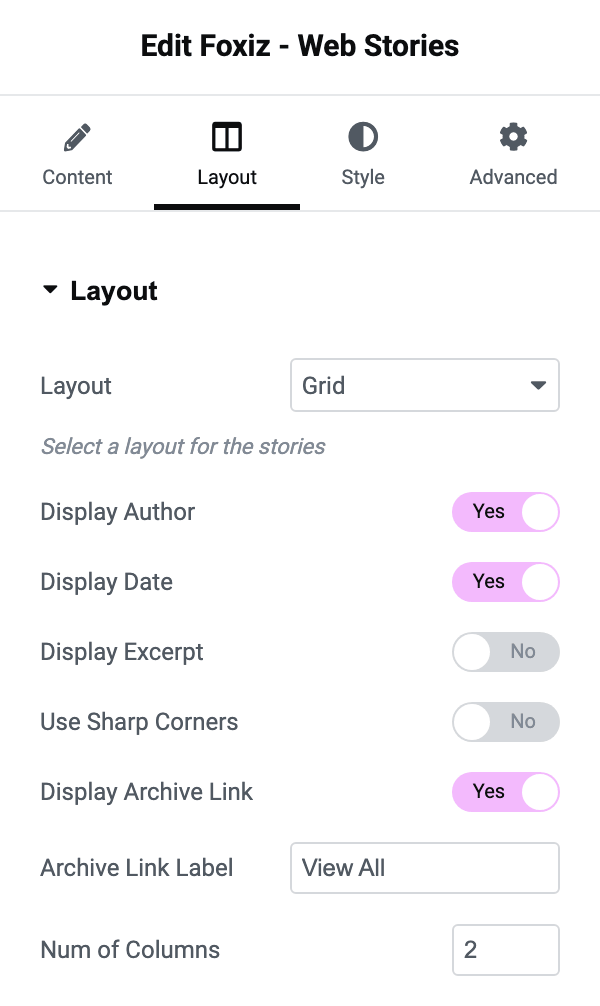
The Layout tab holds the appearance controls, and most of them only appear for one layout:
- Layout, one of Grid, Circle, Carousel or List, Grid by default.
- Num of Columns, 2 by default, Grid only.
- Display Title and Circle Size, Circle only. Display Title is on; Circle Size has no default and the plugin sizes the circles itself until you set one.
- Display Author and Display Date, both on, and both hidden when the layout is Circle.
- Display Excerpt, off by default, available on every layout.
- Image Align, Left or Right, Left by default, List only.
- Use Sharp Corners, off by default, available on every layout. Turn it on to square off the story cards, which are otherwise drawn with rounded corners; it changes nothing on Circle.
- Display Archive Link, on by default, with Archive Link Label underneath it reading View All. Clearing that label switches the link off, because the link is only output when both the switch is on and the label has text.
The Style tab holds Typography, with separate font groups for Title Font, Excerpt Font and Meta Author, Date Font, and Text Color Scheme. Advanced is Elementor's own tab and is the same on every block.
Foxiz - Web Single Story has a shorter set: Select Story, which lists your published stories by title, Poster Preview to show the poster image instead of the embedded story, and Story Width and Story Height, 360 and 600. Select Story starts on - Select a story -, and while it is on that the block outputs nothing at all on the front end, so an empty space where you dropped it means the story was never chosen.
-
Click "Publish"
Notes when using Web Stories block:
The settings of this Web Stories block do not change what you see inside the Elementor editor: it only displays the Web Stories Placeholder banner. To check your changes, preview or publish the page and look at it on the front end.
That banner reads Web Stories Placeholder, and it is what the block draws in the editor no matter how the controls are set. If it reads Web Stories Plugin Not Found, please install it first to use this block. instead, the Web Stories plugin is inactive rather than the block being broken.
Foxiz - Web Single Story behaves differently and it is worth knowing which block you are looking at. It draws the story's poster image with the title over it inside the editor, at the width and height you set, so that one does preview. Preview or publish the page to see either block for real.
Did this answer your question?