Adding Podcast to the Elementor page
The theme comes with podcast blocks that add your episodes to a page built with “Elementor”.
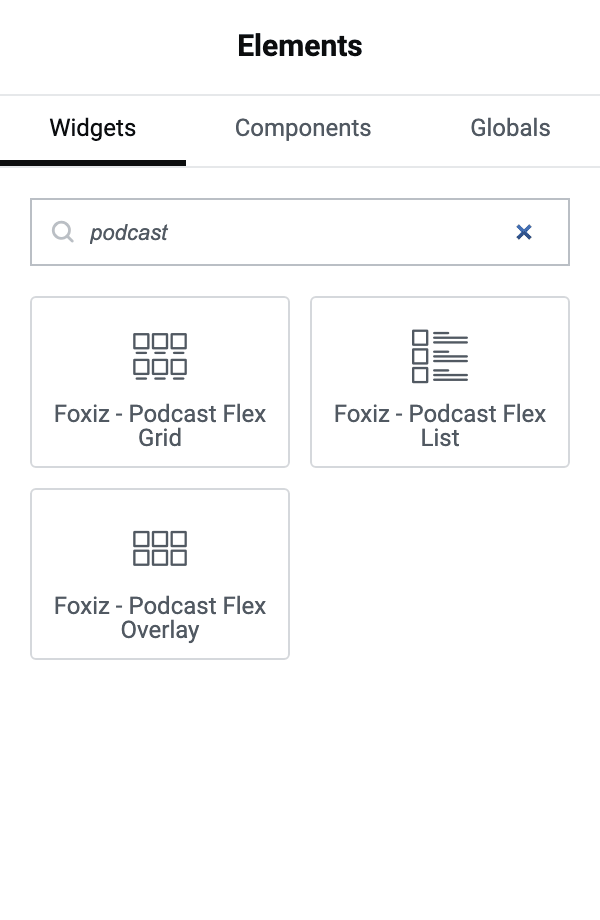
There are three of them, and they share a category of their own called Foxiz Podcast: Foxiz - Podcast Flex Grid, Foxiz - Podcast Flex List and Foxiz - Podcast Flex Overlay.
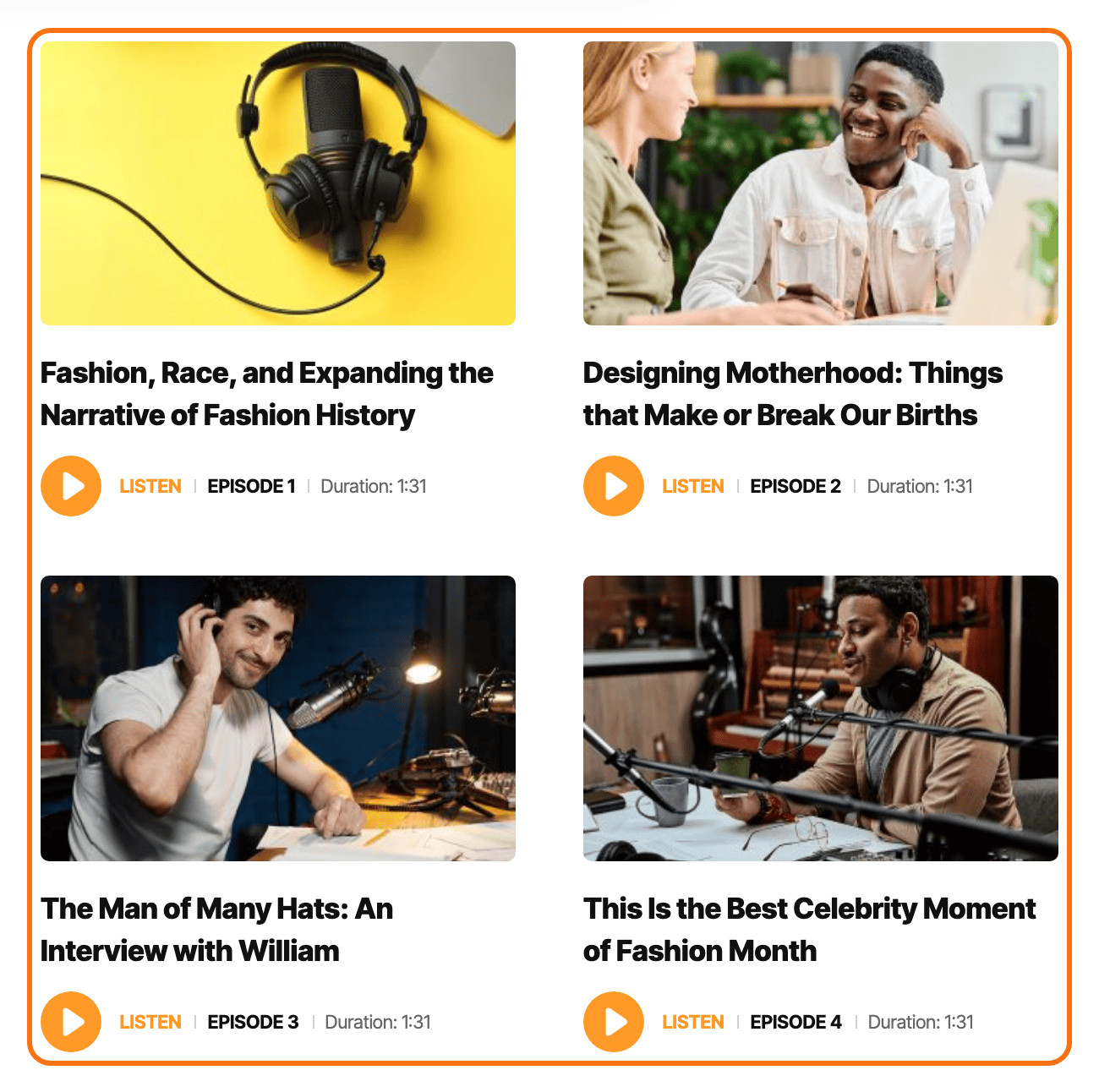
Add a podcast block to a page
To get started, follow the steps below:
-
Navigate to Pages > All Pages.
-
Select a page you would like to edit, click on the “Edit with Elementor” link.
-
The website will redirect to another URL and the panel will appear on the page. Then you can search “podcast” blocks in the Elementor.
If the search returns nothing, the blocks are not loaded rather than hidden. Foxiz registers them only when Theme Options > Ruby Podcast > General > Support Podcast is on and Elementor is active, and that switch is off by default.
-
After you search podcast, you can drag and drop blocks inside.
A dropped block lists your latest episodes straight away, so you can tell it is working before you set anything. Number of Episodes starts at 3 on the Grid and Overlay blocks and at 5 on the List block.
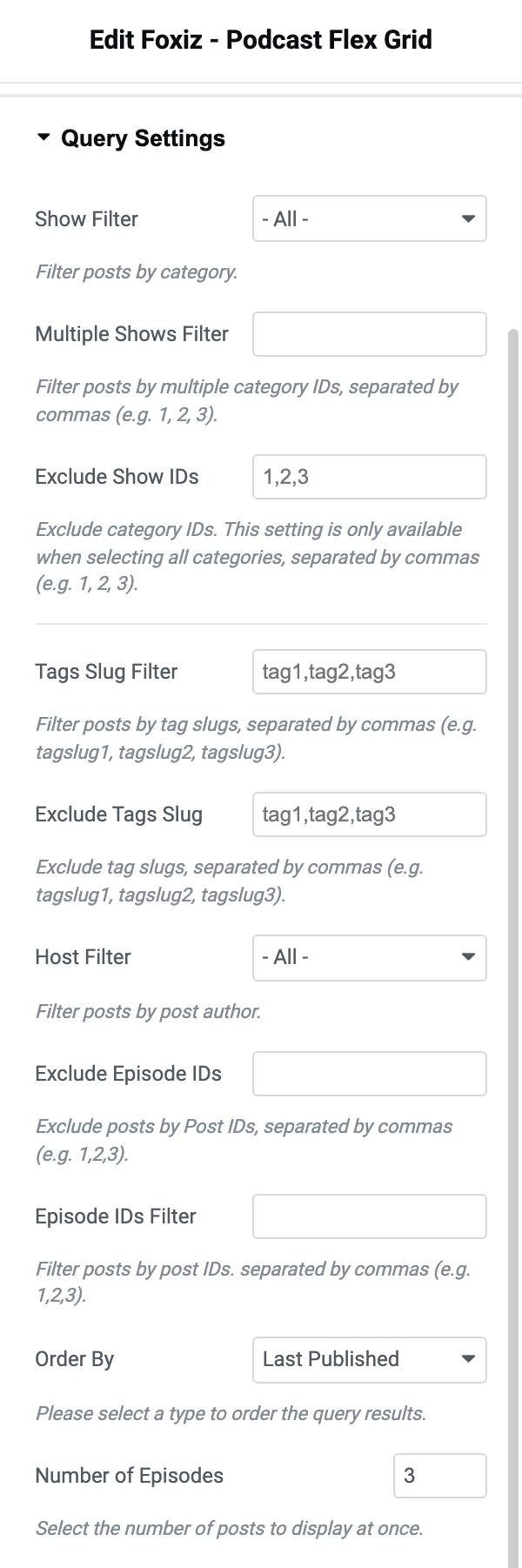
To narrow it to one programme, use Show Filter in Query Settings. It is a dropdown of your Shows terms, and it is the podcast equivalent of the category filter on the other listing blocks. Beside it, Order By adds two choices the other blocks do not have, Episode Index ASC and Episode Index DECS, which sort by the Episode Index you typed in Episode Settings > Episode Meta.
-
Click on “Publish” to save your changes.
Choose which episodes the block lists
Every field below is in Query Settings, and all three blocks have the same ones. Leave a field empty and it does not filter.
- Show Filter picks one show from a dropdown.
- Multiple Shows Filter takes several show IDs, separated by commas, such as
1, 2, 3. - Exclude Show IDs leaves shows out. It only works while Show Filter is on all shows.
- Tags Slug Filter and Exclude Tags Slug take tag slugs, separated by commas.
- Host Filter lists only one host's episodes. The hosts are your site's authors.
- Episode IDs Filter shows only the episodes you list by ID, and Exclude Episode IDs hides the ones you list.
- Order By sorts the list. Pick Episode Index ASC or Episode Index DECS to follow your episode numbers.
- Number of Episodes is how many show at once, and Episode Offset skips that many from the start.
Two more sections change the list:
- Unique Episode skips episodes that a block higher up the page already shows, so two podcast blocks on one page do not repeat each other. While it is on, Episode Offset is ignored.
- Ajax Pagination > Pagination Type adds a way to load more episodes under the block: Next Prev, Show More or Infinite Scroll. Its default is - Disable -.
Choose what each episode card shows
Block Structure > Block Structure Order sets which parts each card shows and in what order. Type the keys separated by commas, for example thumbnail, title, player, meta.
The keys are category, title, thumbnail, meta, review, excerpt, readmore, divider and player. The List block has no thumbnail key.
Leave the field empty and each block uses its own order:
- The Grid block: thumbnail, title, meta.
- The List block: title, excerpt, meta.
- The Overlay block: category, title, meta.
Two more settings matter for a podcast card:
- Episode Title > Episode Index puts the episode number in front of the title. It is off by default.
- Player has Button Size and Icon Size for the play/pause button.
Lay out the episodes
Columns sets the grid on each screen: Columns on Desktop, Columns on Tablet, Columns on Mobile and Column Gap. All three blocks have it.
The rest depends on the block:
- Carousel Mode turns the Grid or Overlay block into a slider. Switch Carousel on, then set Number of Slides. The List block has no carousel.
- Overlay Content is only on the Overlay block. It styles the text laid over the image.
- Boxed is only on the Grid block.
- Responsive Layouts is on the Grid and List blocks.
Did this answer your question?