Podcast Settings & Layouts
You can change how your episodes look in two places:
- Theme Options > Ruby Podcast sets the look of every episode on the site.
- Episode Settings, the box under the episode editor, changes one episode only.
When both set the same thing, the episode's own setting wins. A field left on - Default - in the episode box follows Theme Options.
So work in this order: set the look you want for all episodes in Theme Options first. Then open the episodes that should look different and change only those fields in their own box.
Global Options
These options will be applied to all podcast. To get started, navigate to Your Dashboard > Theme Options > Ruby Podcast.
The panel has five sections down its left side:
- General turns the post type on and holds the permalink slugs, which episodes appear on the blog, author and tag pages, the three entry meta labels, inline content ads and the episode schema markup.
- Style covers the self hosted player colour, the featured image icons and the read more label.
- Episode is the single episode page: its layout, entry show, entry meta, sidebar and site header.
- Show is the show archive, the page a Shows term produces.
- Archives is the podcast archive itself.
The Show section has its own per term override, which is easy to miss because it is not in this panel at all. Editing a term under Ruby Podcast > Shows gives you a box called Foxiz Show (Series) Settings, with eight tabs of its own, and its values take priority over Theme Options > Ruby Podcast > Show.
One thing in General to be careful with: Podcast Slug and Show Slug change the URLs, defaulting to podcast and series, and Foxiz flushes WordPress's rewrite rules only once, the first time the post type is registered. If you change either slug later and your episodes start returning 404, open Settings > Permalinks and save the page once. That rebuilds the rules and nothing else changes.

What each section holds, in the order the panel shows it:
General
- Support Podcast turns the podcast post type on. It is off by default, and nothing else in this panel reaches your site until it is on. Turning it off later hides the podcast pages but does not delete any episode.
- Podcast Slug and Show Slug set the two URL bases, with the rewrite caution above.
- Include Podcast in The Blog, Include Podcast in The Author and Include Podcast in The Tag mix episodes in among your posts on the blog page (your latest posts index), on author pages and on tag pages. All three are on by default; switch one off to keep that page to ordinary posts.
- The Entry Meta group sets three small labels on episode cards in listings and podcast blocks. Play/Pause Label prints LISTEN beside the play button, turning to PAUSE while the episode plays, and is on by default. "By" Host Label puts "By" before the host's name and is off by default. Duration Label puts "Duration:" before the running time and is on by default.
- Inline Content Ads Supported lets the inline adverts from Ads & Slide Up drop into episode content as they do into posts. It is on by default.
- Episode Markup adds podcast episode schema (the title, dates, description and audio file) to each episode page for search engines. It is on by default. Turn it off if your SEO plugin already outputs episode schema, so the page does not carry two.
Style
- Player Color and Dark Mode - Player Color colour the self hosted audio player, one for each mode. Both are empty by default, which uses your Global Highlight Color.
- The Featured Image Icons group styles the microphone icon on an episode's featured image. Social Icons adds the episode's listen on links over the image as well, and is on by default.
- Custom Podcast SVG replaces the microphone with an icon you upload. An SVG takes the icon colour below; any other image is shown as it is. Uploading an SVG needs SVG Supported on at Theme Options > Theme Design > SVG Upload, which it is out of the box.
- SVG Icon Size sizes that uploaded icon, in pixels. It only applies once Custom Podcast SVG is set. Icon Size sizes the default microphone, and the placeholder 48 is the size it uses while blank.
- Background and Color colour the icon's circle and the icon itself.
- Read More Label is the read more text on episode cards. Default: View Episode.
Episode
The single episode page also borrows some of its settings from Theme Options > Single Post; the panel says so in a notice at the top.
- Episode Layout picks Layout 1 or Layout 2, covered in Editing a Podcast Layout below. Autoplay Audio starts the audio on load and is off by default; many browsers block autoplay whatever you set.
- Entry Show styles the show name above the episode title. Default: Background 1 (Big). Disable hides it.
- Big Avatar shows the host's avatar, large, at the start of the meta bar. It is on by default.
- Entry Meta Tags chooses what the meta bar shows and in what order. Default: author (Author) and index (Index). or Custom Key Input does the same job by typing keys, and while it holds anything it is used instead of Entry Meta Tags.
- "By" Host Label puts "By" before the host's name in the meta bar and is off by default. This is the episode page's own switch; the one in General covers listings.
- Host Job prints the host's job title after their name. It is on by default, and it shows only for a host who has filled in Job Name on their user profile.
- "Published & Updated" Date Label puts "Published:" before the date and "Last updated:" before the updated date in the meta bar. It is on by default, and the labels show only while Display Human Time (Ago) is off in Theme Options > Theme Design > Entry Meta, because an "ago" date takes no label.
- Hide Entry Meta on Tablet and Hide Entry Meta on Mobile drop the meta items you pick on smaller screens. Both are empty by default.
- Last Updated Date adds a line with the date the episode was last modified, and is on by default. Date Format sets how that date is written using PHP date characters, as the placeholder
Y/m/d \a\t g:i Ashows. Leave it blank to use the date and time formats from Settings > General. - Reading Time shows the estimated reading time at the right of the meta bar, and is on by default.
- Assign a Sidebar defaults to Standard Sidebar. Sidebar Position defaults to Default, which follows Theme Options > Sidebars > Sidebar Position. Sticky Sidebar defaults to - Default -, which follows the Sticky Sidebar setting in the same panel. A sidebar with no widgets in it is not drawn at all.
- Header Layout picks a site header for episode pages, and Template Shortcode puts a Ruby Template there instead, overriding Header Layout whenever it is filled. An episode's own Site Header tab beats both.
- Episode Breadcrumb offers Use Global Setting, the default, and Disable. On Use Global Setting the breadcrumb appears above the episode title when Breadcrumb Bar is on at Theme Options > Breadcrumb Bar and Navxt, Yoast SEO or Rank Math is active to build it.
Show
Most of these can be set again for one show from its own Foxiz Show (Series) Settings box, as described above. Show pages list episodes in a three column grid unless you give them a Ruby Template.
-
Header Layout, Navigation Bar Style and Header Template Shortcode set the site header on show pages, the same way the Episode section does for episodes. Navigation Bar Style applies only to the predefined headers 1, 2, 3 and 5.
-
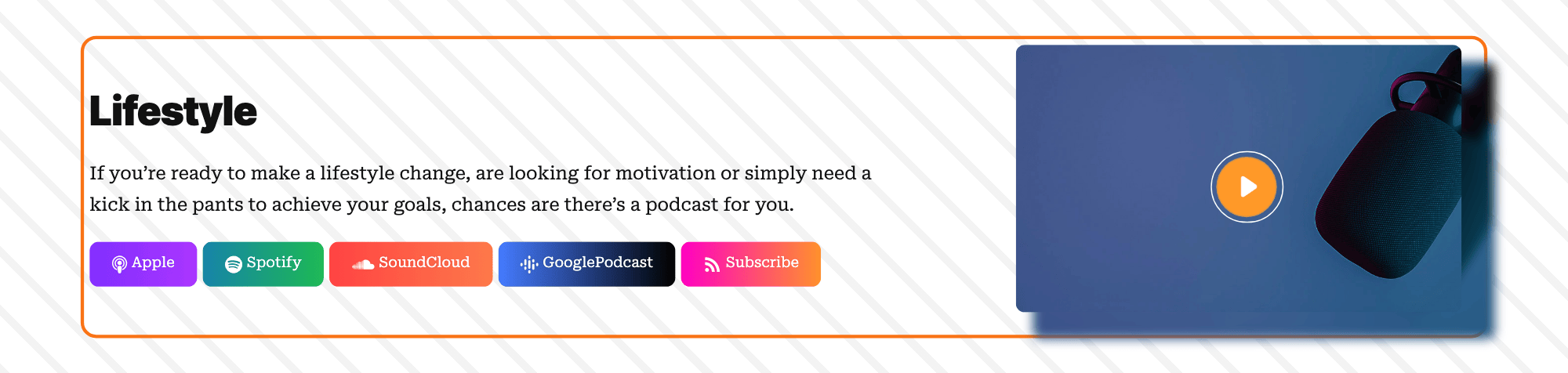
Show Header is the banner at the top of a show page, with the show's title, description and listen on buttons. It offers Layout 1 (Right Featured Image), Layout 2 (Background Image), Layout 3 (Minimalist), Layout 4 (Minimalist Center) and Disable, and defaults to Layout 2 (Background Image).
-
Header Background Style fills the banner behind the text with Pattern Dotted, the default, Pattern Dotted 2, Pattern Diagonal, Pattern Diagonal 2 or Solid Light Gray.
-
RSS Subscribe adds a Subscribe button linking to the show's own RSS feed, next to the listen on buttons in the Layout 1 and Layout 2 headers. It is on by default.
-
Use Ruby Template for the Post Listing replaces the episode grid with a Ruby Template. In that template, set one block's Query Mode to Use WP Global Query, as the group's note says, so the block lists the show's own episodes.
-
Posts per Page sets how many episodes a show page lists. Blank uses Settings > Reading > Blog pages show at most.
-
Order Episodes defaults to - Default -, newest first by publish date. Episode Index ASC and Episode Index DESC sort by the Episode Index each episode carries in its Episode Meta tab, as a number, lowest first or highest first, so episode 10 sorts next to episode 9 rather than episode 1. An episode without an index still appears: before the numbered ones with Episode Index ASC, after them with Episode Index DESC.
Archives
This is the page listing every episode, at your podcast slug. It also uses a three column grid unless you give it a template.
- Header Background Style fills the archive's title banner, with the same five choices as the show header, and defaults to Pattern Dotted.
- Use Ruby Template for the Post Listing and Posts per Page work as they do for shows.
Individual Podcast Options
These options apply only to the episode you are editing, and override the global settings. You can see all the options on the Podcast editor page > Episode Settings.
That box has eleven tabs:
- About the episode: Episode Data, Tagline & Highlights, Episode Meta and Social Podcast Links.
- Layout of the page: Layout, Sidebar Area and Site Header.
- Content and ads: Table of Content, Sources/Via and Widgets & Ads.
- Feed: Podcast RSS.
How the override works is worth being precise about, because it decides what happens when you change your mind. Most fields in this box start on - Default -, and Foxiz reads the episode's own value first: it only falls back to the panel when the episode value is empty or still - Default -. So setting a field on one episode and later changing the panel leaves that episode where it was. Put it back to - Default - to hand it back to the global setting.
Editing a Podcast Layout
The theme has two podcast layouts. To change the layout, follow the steps below:
-
Global Options: Navigate to Theme Options > Ruby Podcast > Episode > Episode Layout.
The two choices are Layout 1 and Layout 2, each shown as a thumbnail, and the panel defaults to Layout 1.
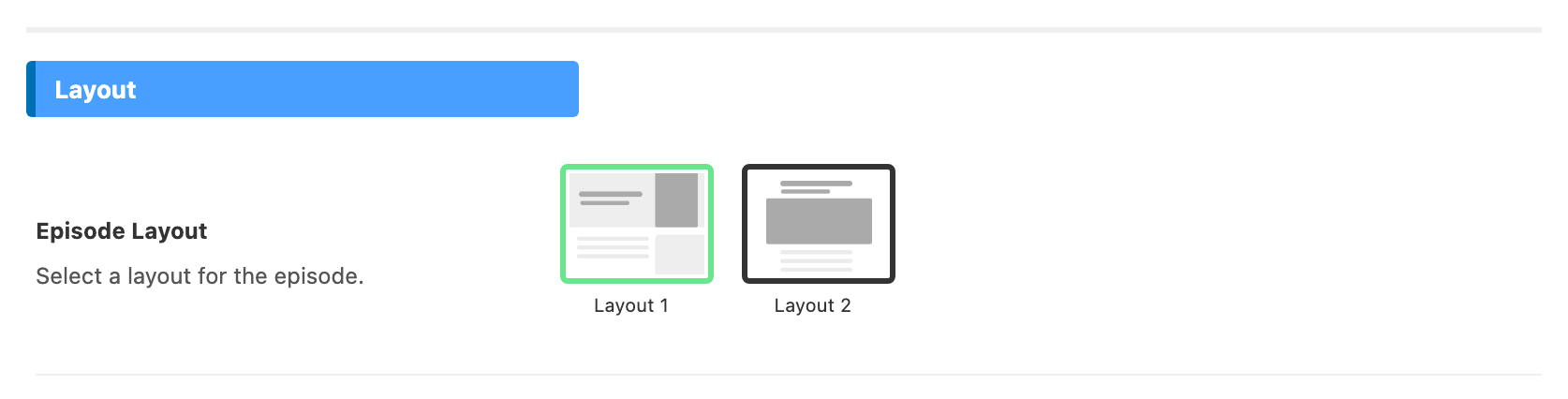
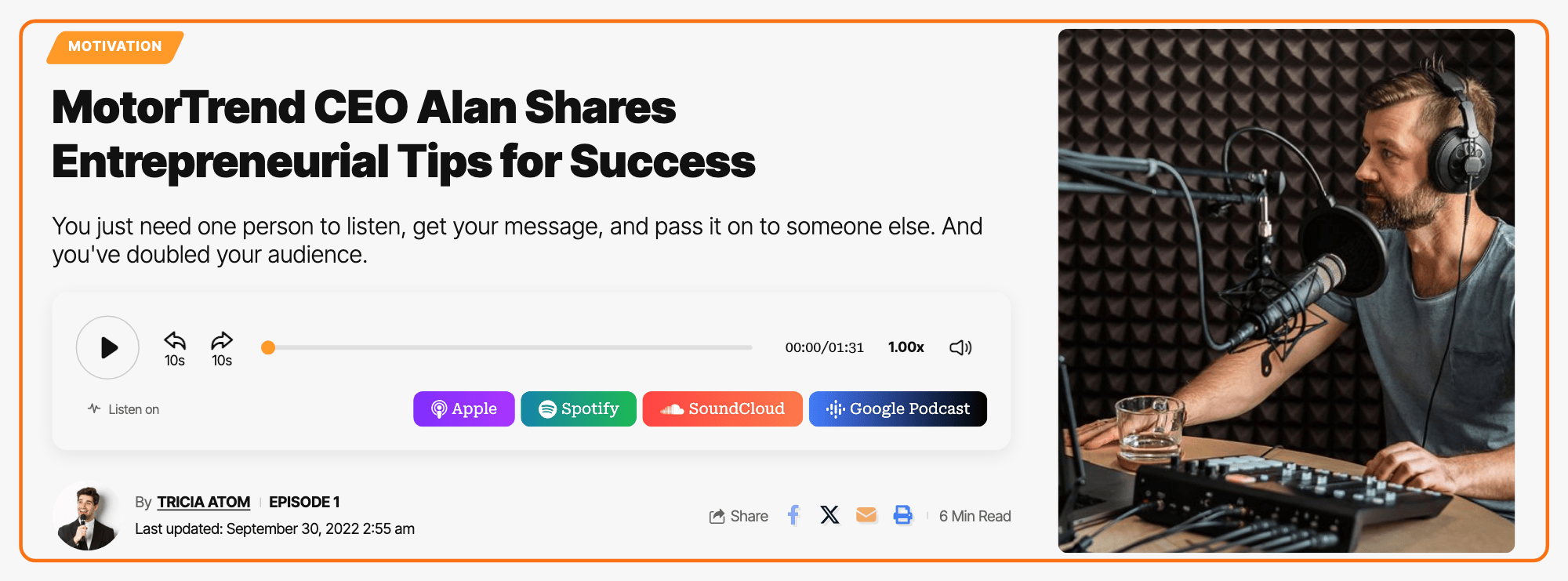
- Layout 1 puts the title and the audio player on the left and the episode's featured image on the right, so the player is at the top of the page.
- Layout 2 centres the title in a narrow column, shows the featured image wide below it, and puts the player under the image.
For most shows, keep Layout 1: listeners reach the play button without scrolling. Pick Layout 2 when your episode images are wide artwork you want to show large.
-
Individual Podcast Options: Navigate to Ruby Podcast > All Episodes and click the Edit link on the episode. Then open the Layout tab of its Episode Settings box.
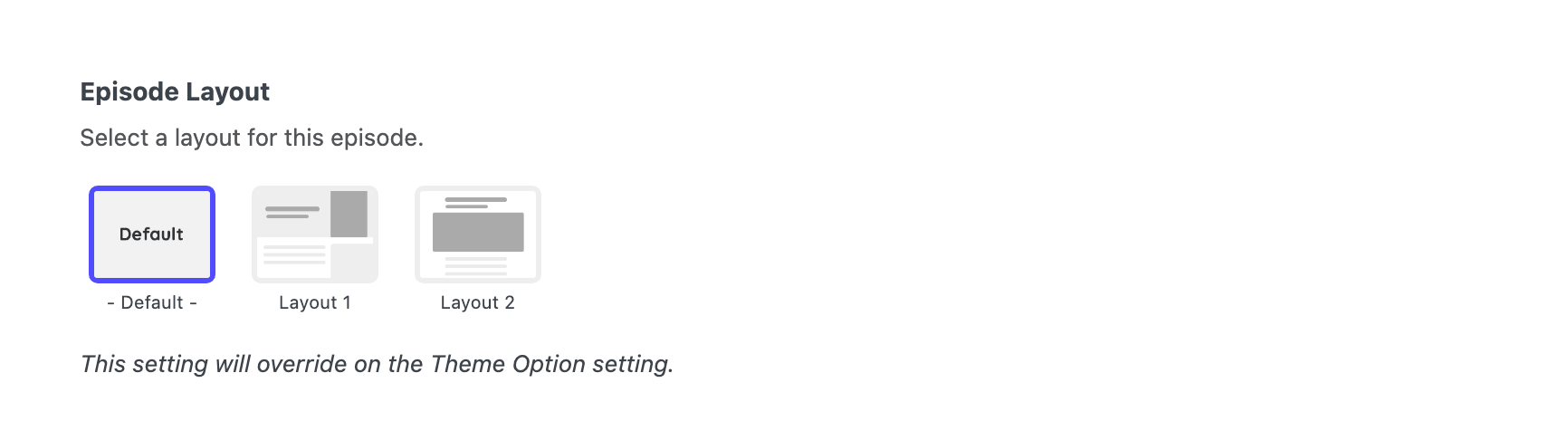
The field there is Episode Layout and it offers a third option the panel does not have, - Default -, which is where it starts. Leave it there and the episode follows the panel; pick Layout 1 or Layout 2 and this episode stops following it.
Did this answer your question?