How to Create an Podcast Post?
Foxiz has its own podcast post type. Use it when a post is led by an audio player at the top.
To enable the Podcast Post, please follow the steps below:
-
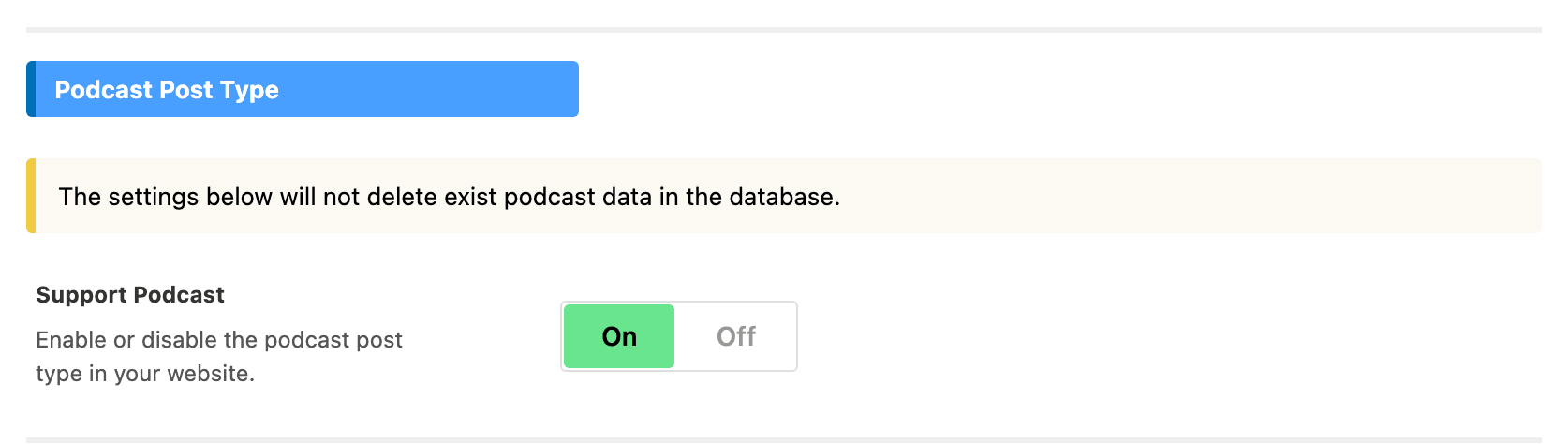
Navigate to Theme Options > Ruby Podcast > General > Support Podcast
-
Turn Support Podcast On.
It is a switch, so it reads On and Off. It is Off by default, which is why a new site has no podcast anywhere.
-
Click Save Changes, then reload the page: the Ruby Podcast menu appears in the WordPress sidebar.
Until that switch is on there is nothing to find: the podcast post type is not registered, the Ruby Podcast menu is not in the sidebar, and the Episode Settings box does not exist. Turning it back off later hides the episodes rather than deleting them, so it is safe to try.
To create an audio post, follow the steps below:
-
Navigate to Ruby Podcast > Add New Episode

-
Upload a featured image for this post, in the Featured image panel of the editor's right column.
-
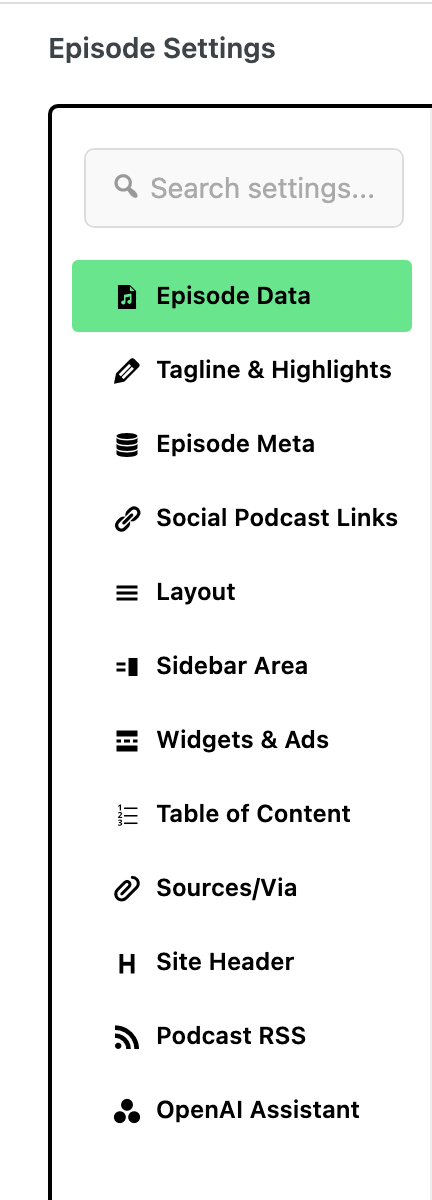
Scroll down the page to find "Episode Settings", then select the "Episode Data" tab.
-
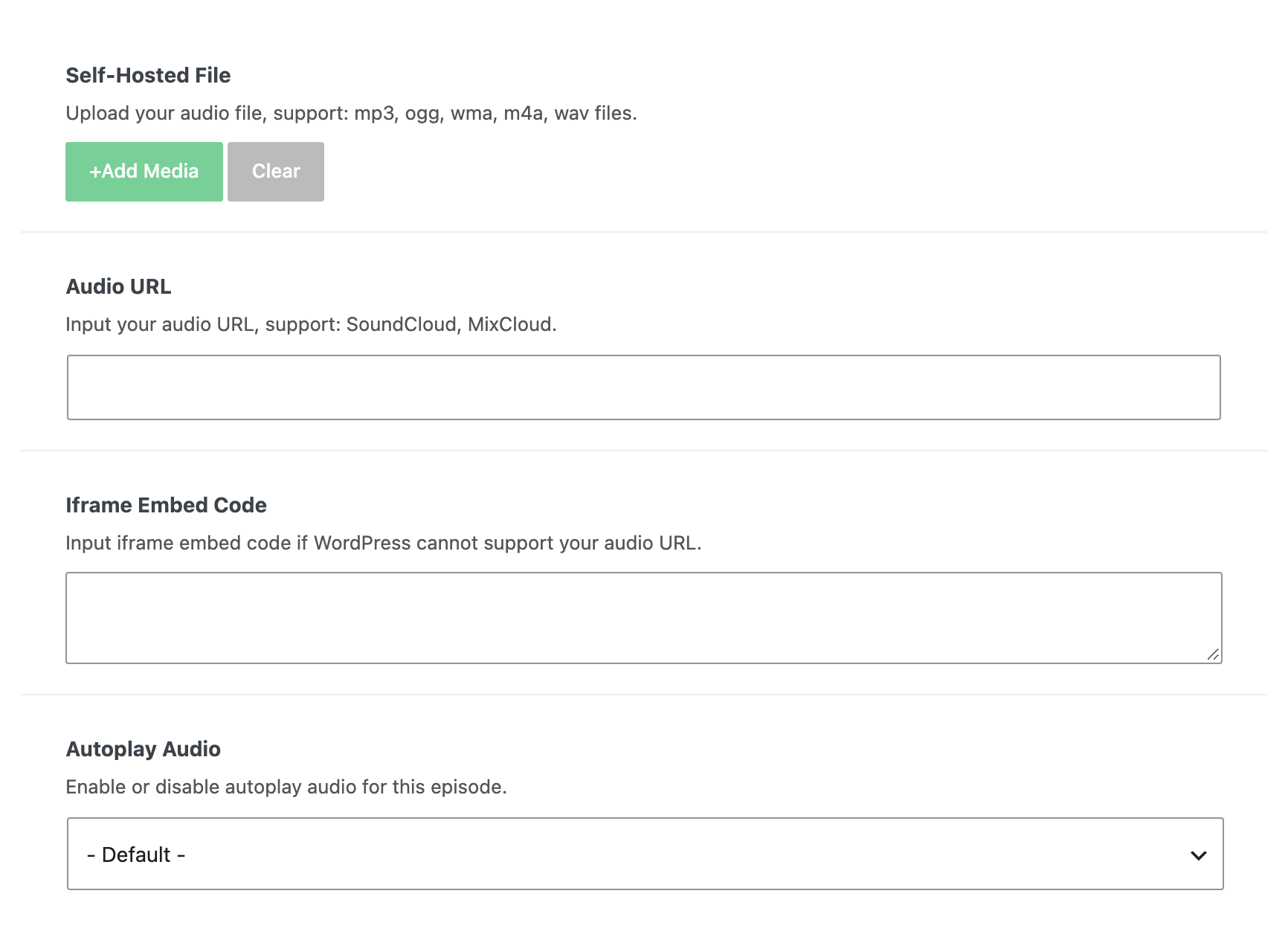
Input the audio URL or you can upload your audio.
There are three fields there and you only need one of them.
- Self-Hosted File uploads the audio to your own media library. It accepts mp3, ogg, wma, m4a and wav.
- Audio URL takes a link to the file or to a SoundCloud or MixCloud page.
- Iframe Embed Code is the fallback for a service WordPress cannot turn into a player by itself: paste the provider's
<iframe>markup here.
Below them, Autoplay Audio turns autoplay on or off for this episode. It offers:
- - Default -, where it starts. It follows Autoplay Audio at Theme Options > Ruby Podcast > Episode, which is off by default.
- Enable.
- Disable.
Choose Self-Hosted File if you want the podcast RSS feed: Foxiz's own feed carries self hosted files only, and an episode whose audio is a URL or an embed is not in it.
-
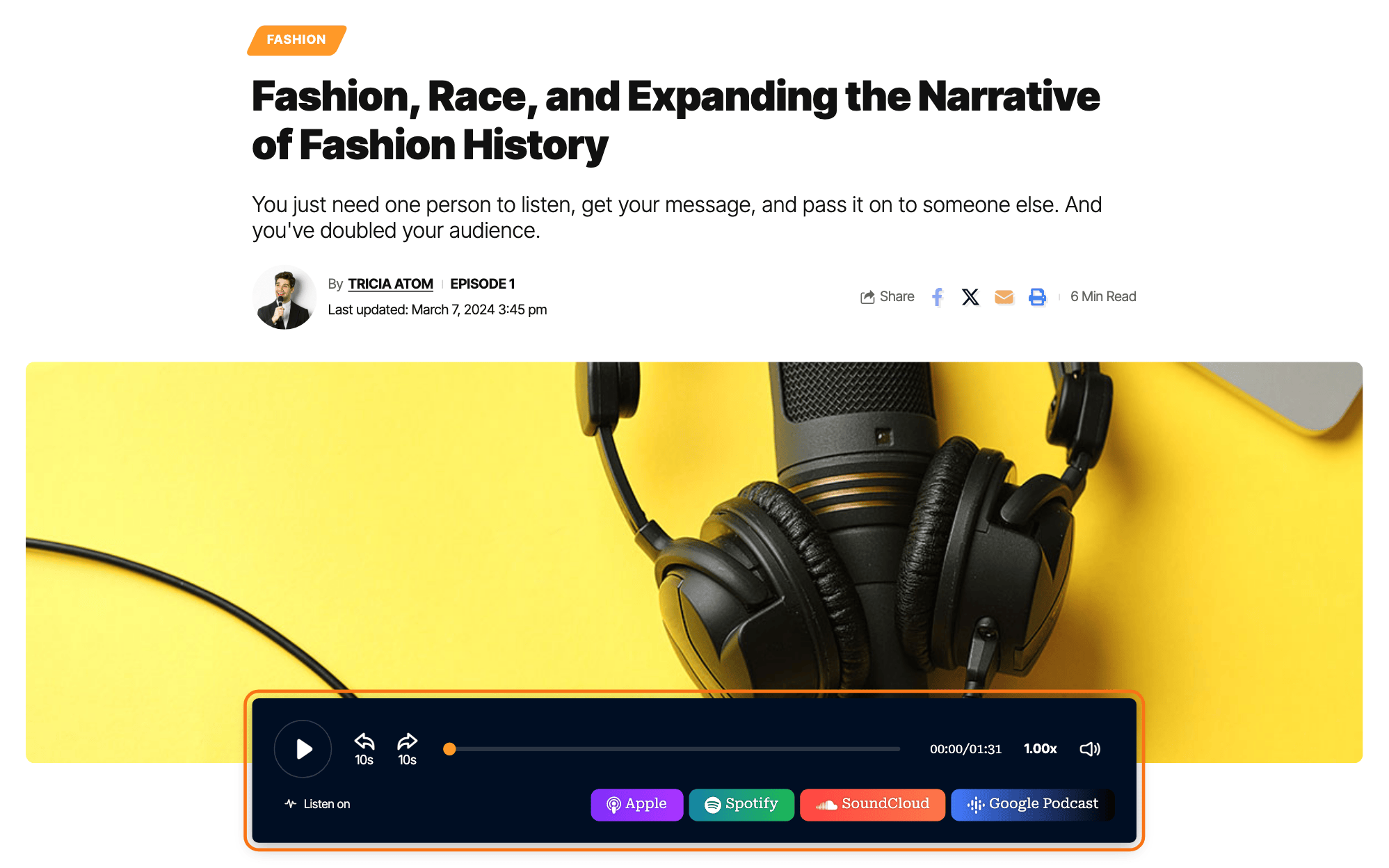
Click Publish, or Save on an episode that is already published.
Episodes are grouped by a taxonomy of their own, Shows, which sits under the same Ruby Podcast menu. Adding an episode to a show is optional and works like assigning a category.
The other tabs in Episode Settings, and the panel settings that apply to every episode at once, are covered in Podcast Settings & Layouts.
Did this answer your question?