How to Structure a Single-Post Layout Using a Single Template
The Foxiz theme provides you with single blocks in the Ruby Template that allow you to customize your template layout more easily for your website.
What can you do with a Single Template?
- Create as many templates as you need and assign them to different posts
- You can customize the layout of individual posts on your website.
- You can choose where to place different elements, such as the post title, featured image, content, meta bar, and comments section.
Eleven blocks are on offer, all of them in the Foxiz Single group of the Elementor panel:
- Foxiz - Post Title
- Foxiz - Post Featured Image
- Foxiz - Post Content
- Foxiz - Post Meta Bar
- Foxiz - Post Comments
- Foxiz - Post Related
- Foxiz - Post Tagline
- Foxiz - Post Pagination
- Foxiz - Entry Category
- Foxiz - Breadcrumb
- Foxiz - Author Box
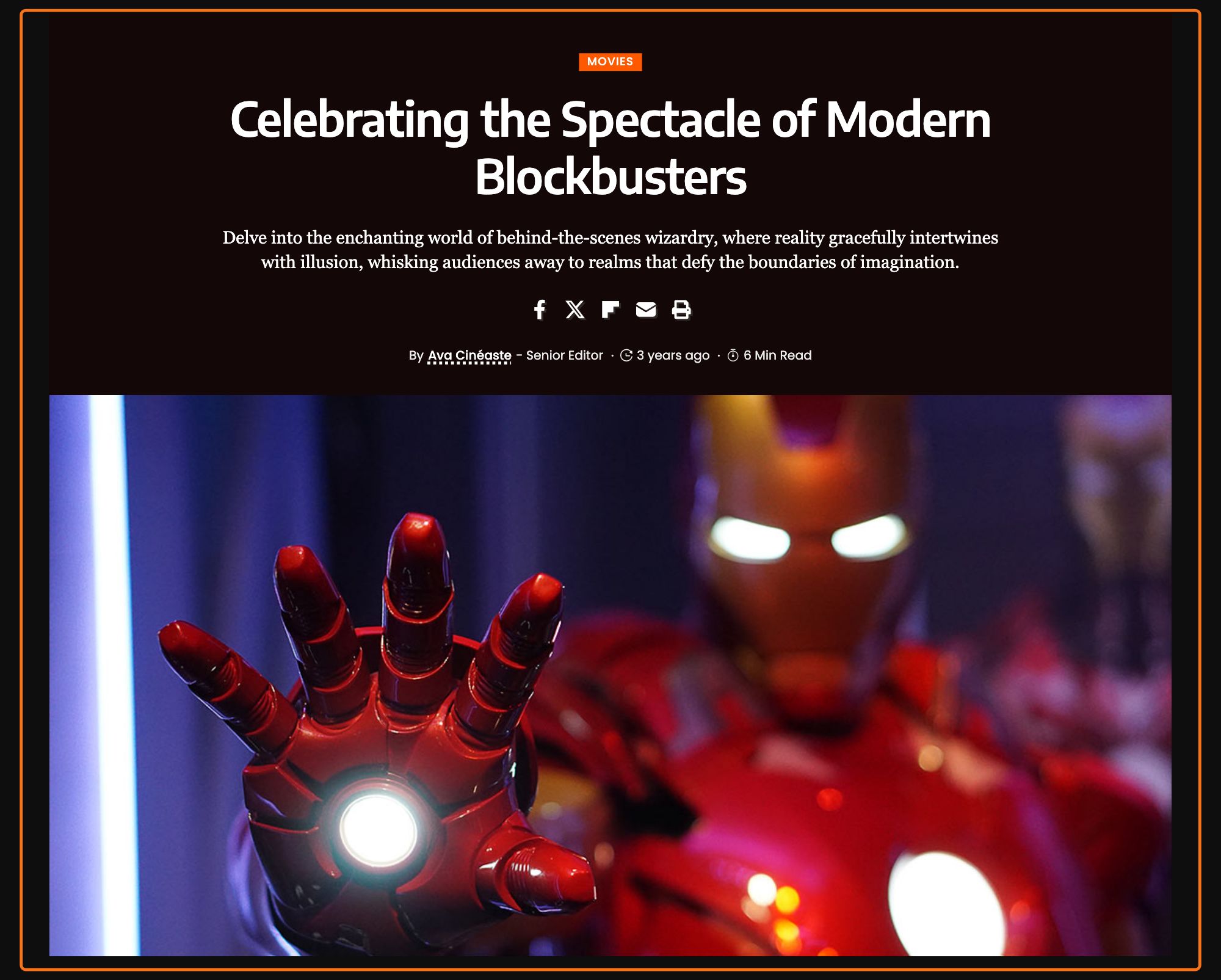
To get started, follow the steps below:
-
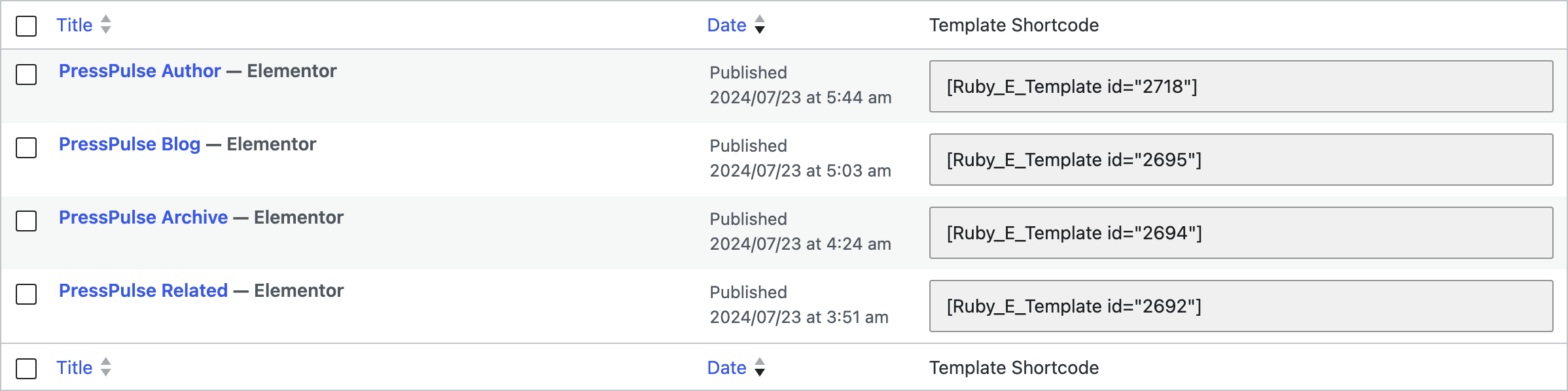
Create the template at Dashboard > Ruby Templates > Add New Template, give it a title and click Edit with Elementor. To create a template, you can refer to this documentation: Ruby Templates
-
In the Elementor panel on the left, you can search for the "Foxiz - Post" blocks.
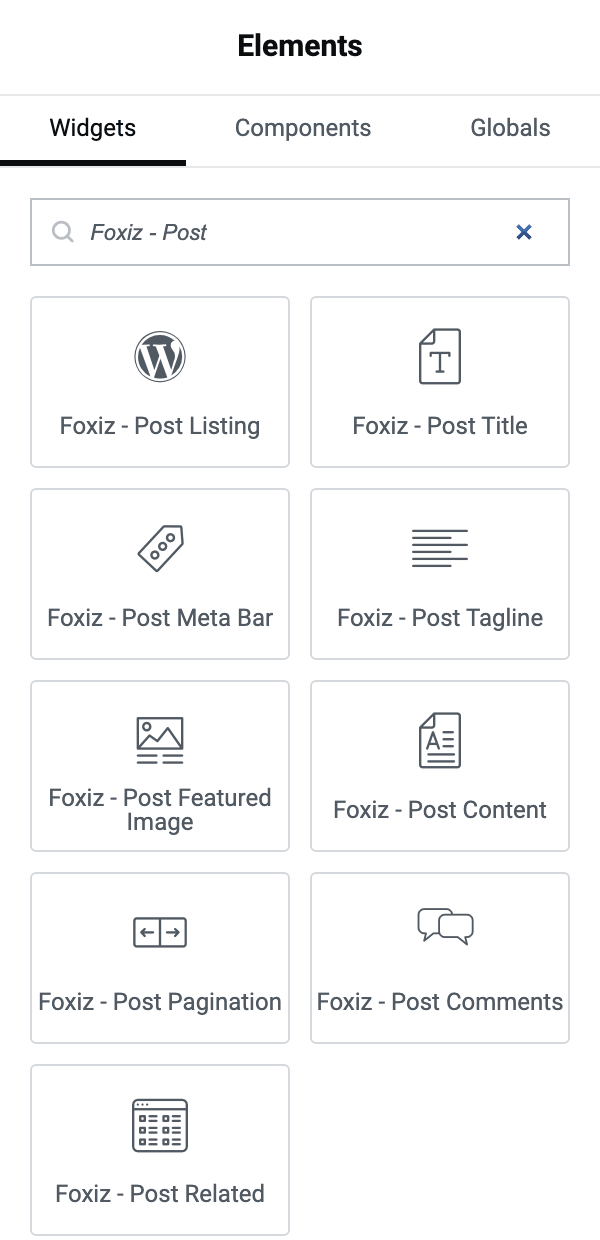
That search finds most of them and hides three, because Foxiz - Author Box, Foxiz - Breadcrumb and Foxiz - Entry Category are not named for the post. Scrolling to the Foxiz Single group instead shows all eleven together.
-
After you search for "Foxiz - Post", you can drag and drop the blocks inside.
-
You can rearrange the placement of those blocks to create your own custom single layout.
A safe starting set, top to bottom: Foxiz - Post Title, Foxiz - Post Meta Bar, Foxiz - Post Featured Image, Foxiz - Post Content, Foxiz - Post Comments. Add the others once that works.
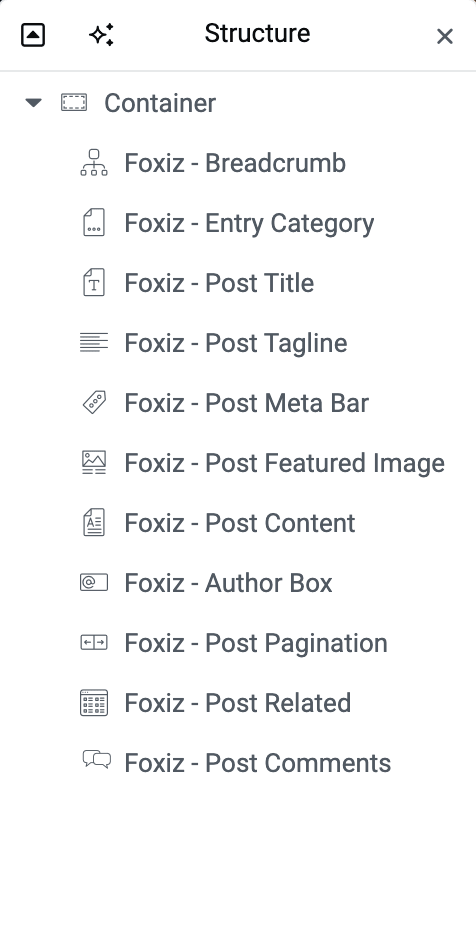
The template replaces the whole post layout, so whatever you leave out is not printed: a template with no Foxiz - Post Content block shows a post with no body. The site header, the footer and the sidebar are not part of it and keep their own settings.
-
Copy the template's shortcode from the Template Shortcode column of Ruby Templates > All Templates, then navigate to Foxiz > Theme Options > Single Post > Post Layout
-
Input the shortcode into the or Use Ruby Template for the Single Post option, in the for Standard Post group at the top of that subsection
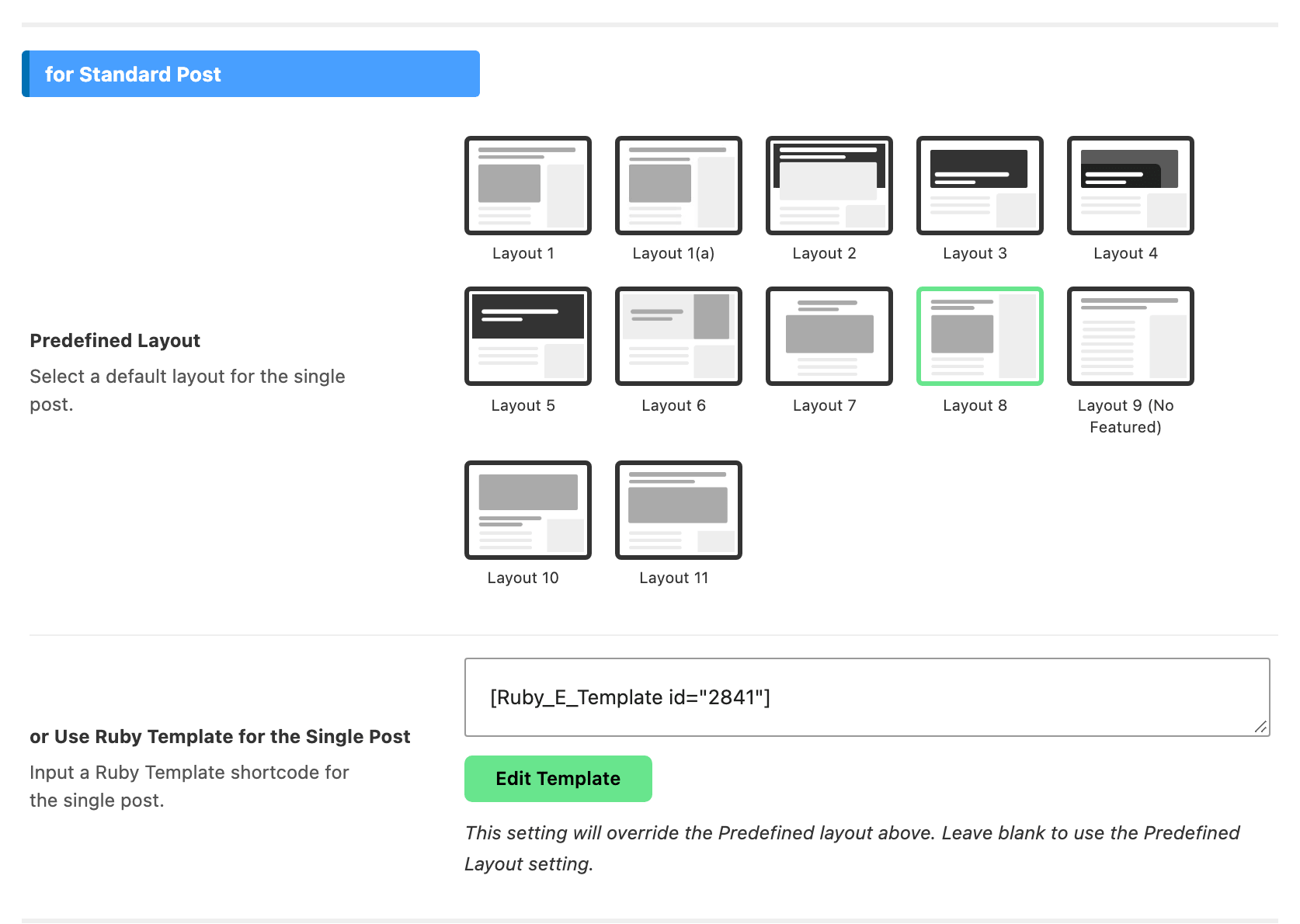
The subsection is Post Layout, not Layout, and the standard post field is not called Template Shortcode. Other sections of the Single Post panel do use that name, for the Related Template and Popular Section embeds, which is why it pays to check which section you are in. Each group here has a Predefined Layout picker above its shortcode field, and the shortcode wins over it while it has a value.
A post's own settings and its primary category can still override this field. The next section lists the order Foxiz reads them in.
To add a template, you need to set it up for each post type.
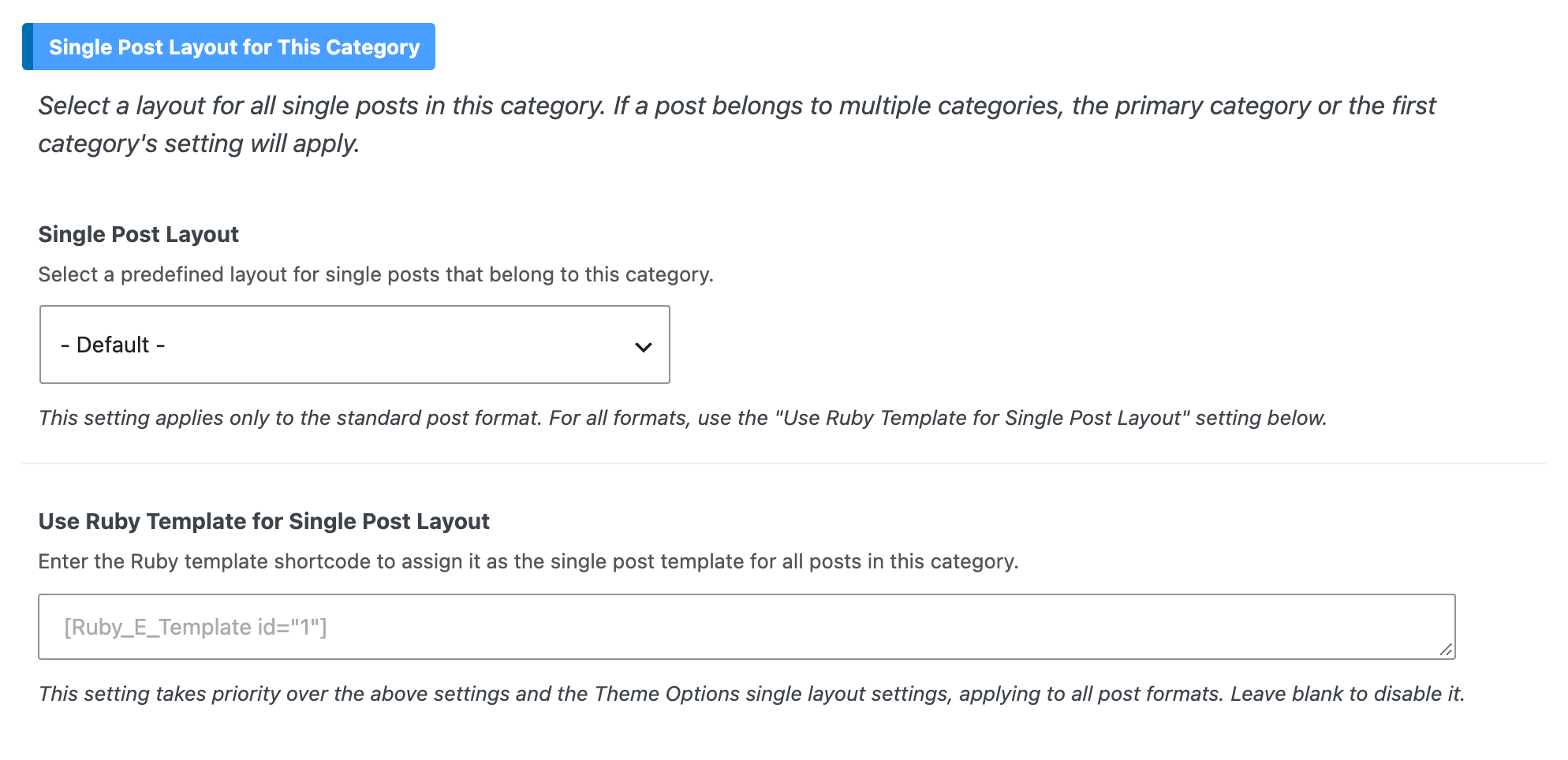
Four of the five screens below are groups in the same Post Layout subsection, and the fifth is its own panel. They are read in a fixed order rather than combined, and settings on the post and on its category sit above all of them. For a post, Foxiz uses the first of these that is set:
- The post's own Template Shortcode, on the Template Builder tab of its Single Post Settings.
- The post's own layout for its format, Standard Layout, Video Layout, Audio Layout or Gallery Layout, when it is not on - Default -.
- The primary category's Use Ruby Template for Single Post Layout, in Foxiz Category Settings, for posts of every format.
- The primary category's Single Post Layout, for standard posts only.
- The template field for the post's format on this page, then the Predefined Layout picker above it.
So assign the templates on this page first, and leave the post and category settings on - Default - or empty unless that post or category should look different.
- For the standard, follow the steps below:
-
Copy the shortcode of the template, please navigate to Dashboard > Ruby Templates.
-
Navigate to Foxiz > Theme Options > Single Post > Post Layout > for Standard Post > or Use Ruby Template for the Single Post
-
Input the shortcode into the or Use Ruby Template for the Single Post option
-
Click "Save Changes"
This covers every post whose format is Standard, and every post with no format set, which the theme treats as standard. It is not a fallback for the other three formats: a video post with an empty Video Template Shortcode falls back to its own Video Layout picker, never to this field. And a post that sets Standard Layout in its own Single Post Settings ignores this field entirely, because an individual layout choice is read before the option.
- For the video, follow the steps below:
-
Copy the shortcode of the template, please navigate to Dashboard > Ruby Templates.
-
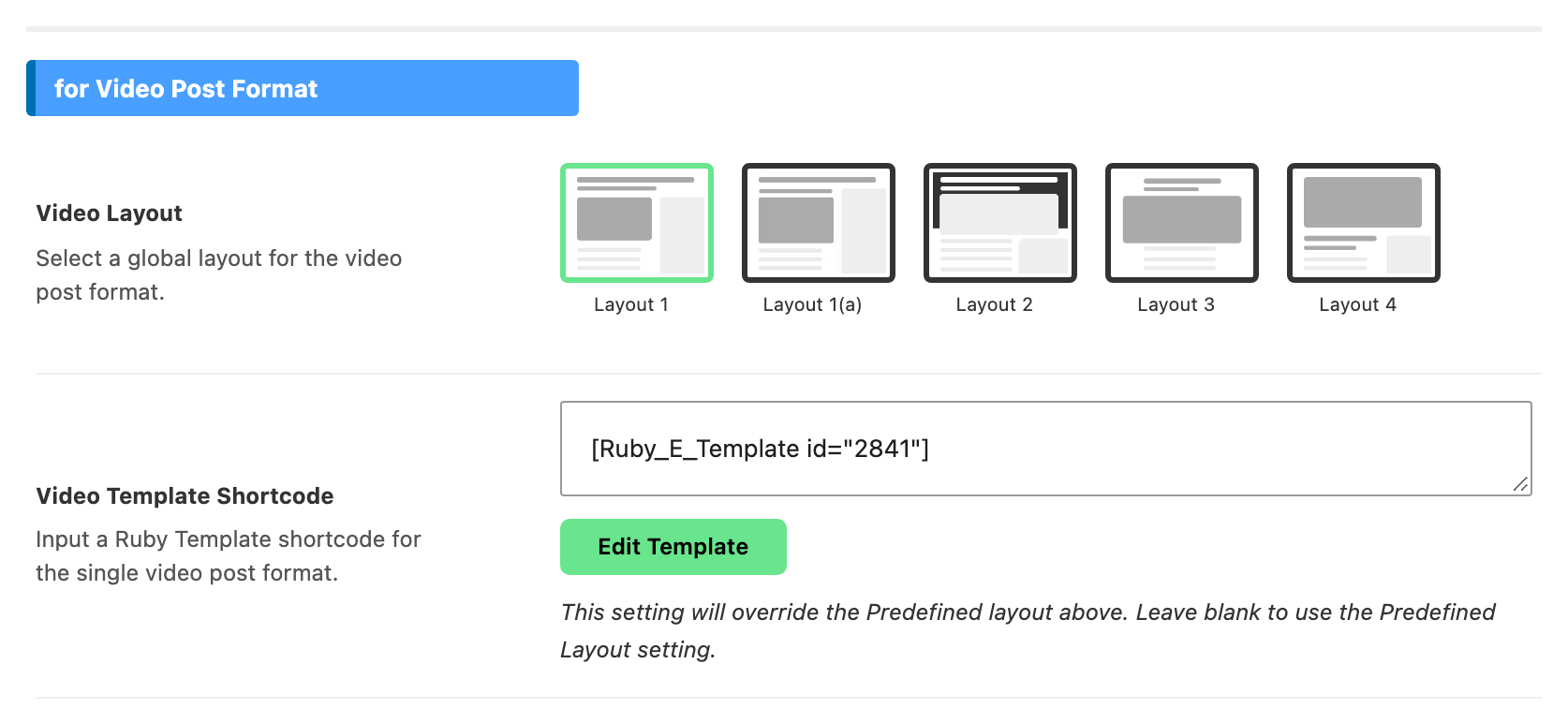
Navigate to Foxiz > Theme Options > Single Post > Post Layout > for Video Post Format > Video Template Shortcode
-
Input the shortcode into the Video Template Shortcode option
-
Click "Save Changes"
The switch is the post's WordPress post format, set in the Format panel of the editor. A post that plays a video but is still filed as Standard gets the standard template instead.
- For the audio, follow the steps below:
-
Copy the shortcode of the template, please navigate to Dashboard > Ruby Templates.
-
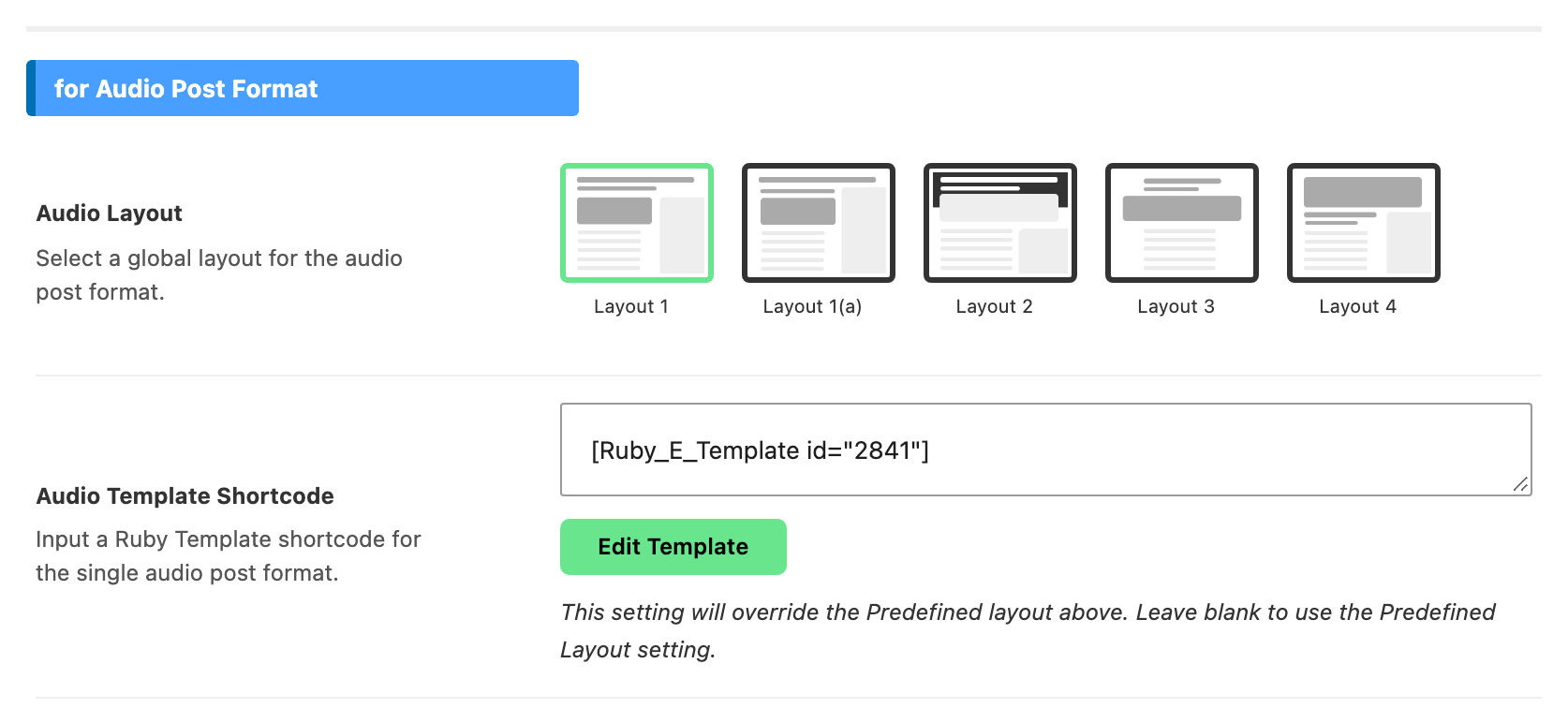
Navigate to Foxiz > Theme Options > Single Post > Post Layout > for Audio Post Format > Audio Template Shortcode
-
Input the shortcode into the Audio Template Shortcode option
-
Click "Save Changes"
- For the gallery, follow the steps below:
-
Copy the shortcode of the template, please navigate to Dashboard > Ruby Templates.
-
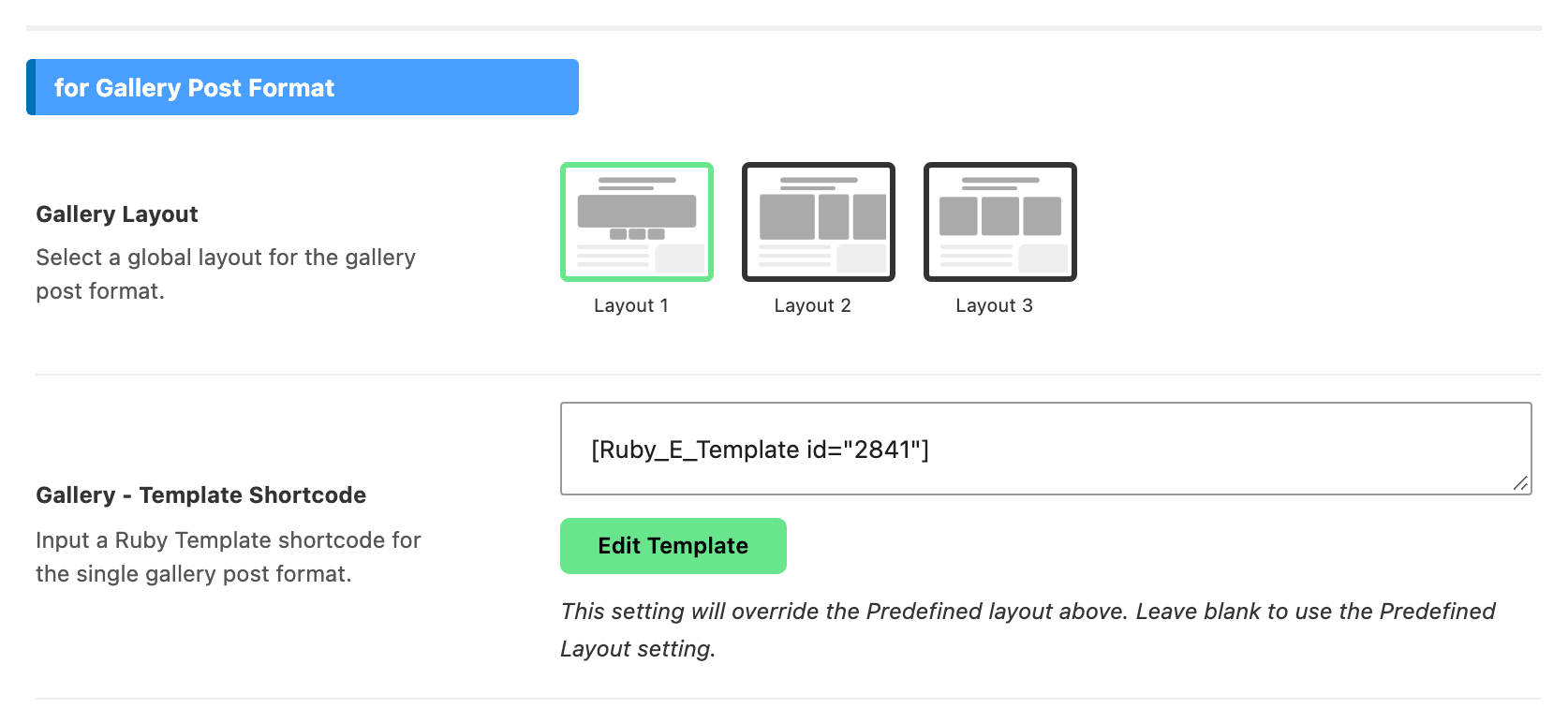
Navigate to Foxiz > Theme Options > Single Post > Post Layout > for Gallery Post Format > Gallery - Template Shortcode
-
Input the shortcode into the Gallery - Template Shortcode option. That is the field's exact name, with the dash; the other two format fields do not have one.
-
Click "Save Changes"
- For the Custom Post Type, follow the steps below:
-
Copy the shortcode of the template, please navigate to Dashboard > Ruby Templates.
-
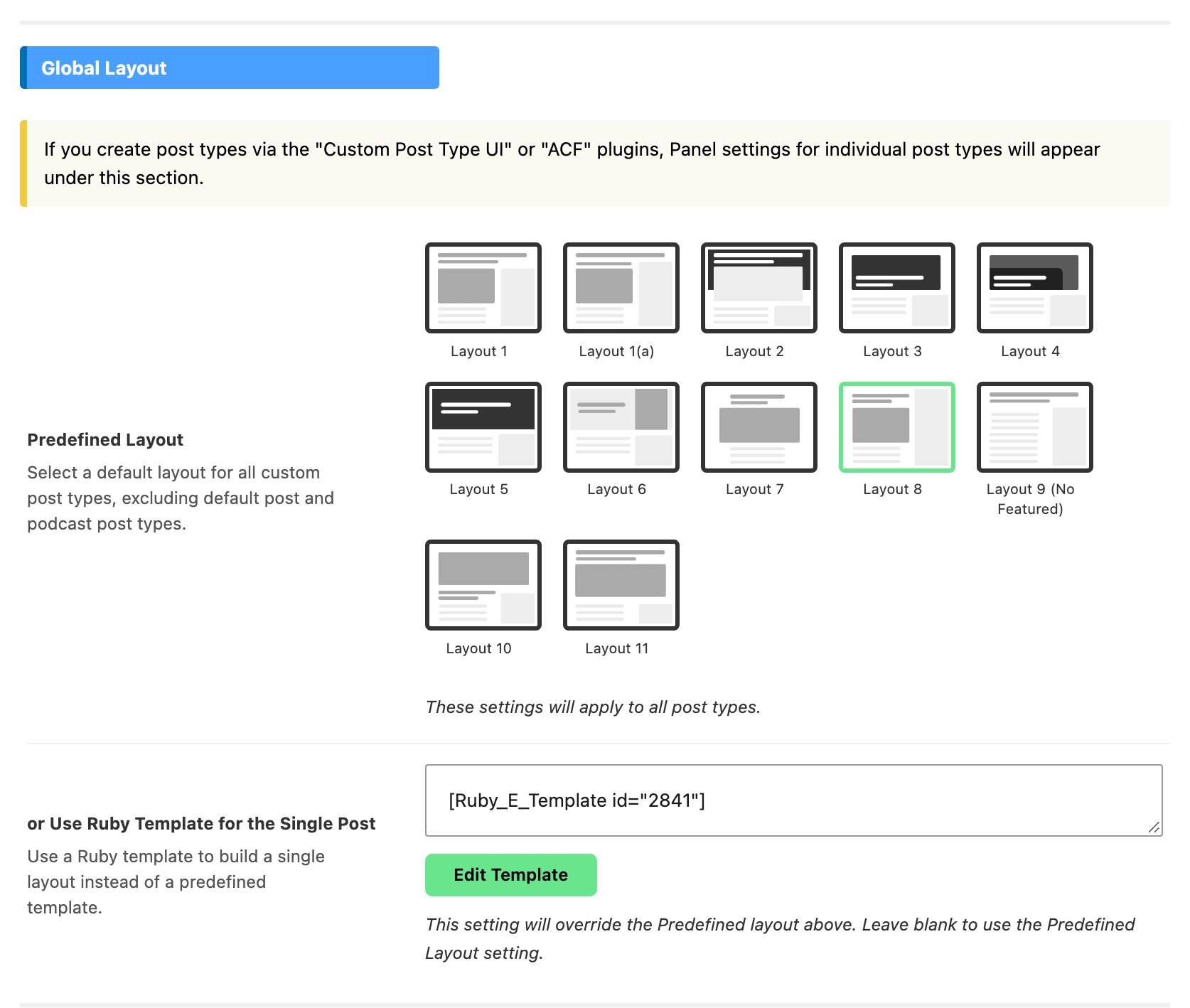
Navigate to Foxiz > Theme Options > Post Types > Global Layout > or Use Ruby Template for the Single Post. Post Types is a panel of its own in the Theme Options sidebar, below Single Post rather than inside it.
-
Input the shortcode into the or Use Ruby Template for the Single Post option
-
Click "Save Changes"
Global Layout covers every custom post type at once. Posts are served by the groups above, and podcasts have a layout of their own. If you have made post types with Custom Post Type UI or ACF, each one also gets a group of its own further down the same panel, titled for Post Type: and then the type's name, with its own copy of the field that is read before the global one.
For each individual post
-
Navigate to Dashboard > Posts > All Posts
-
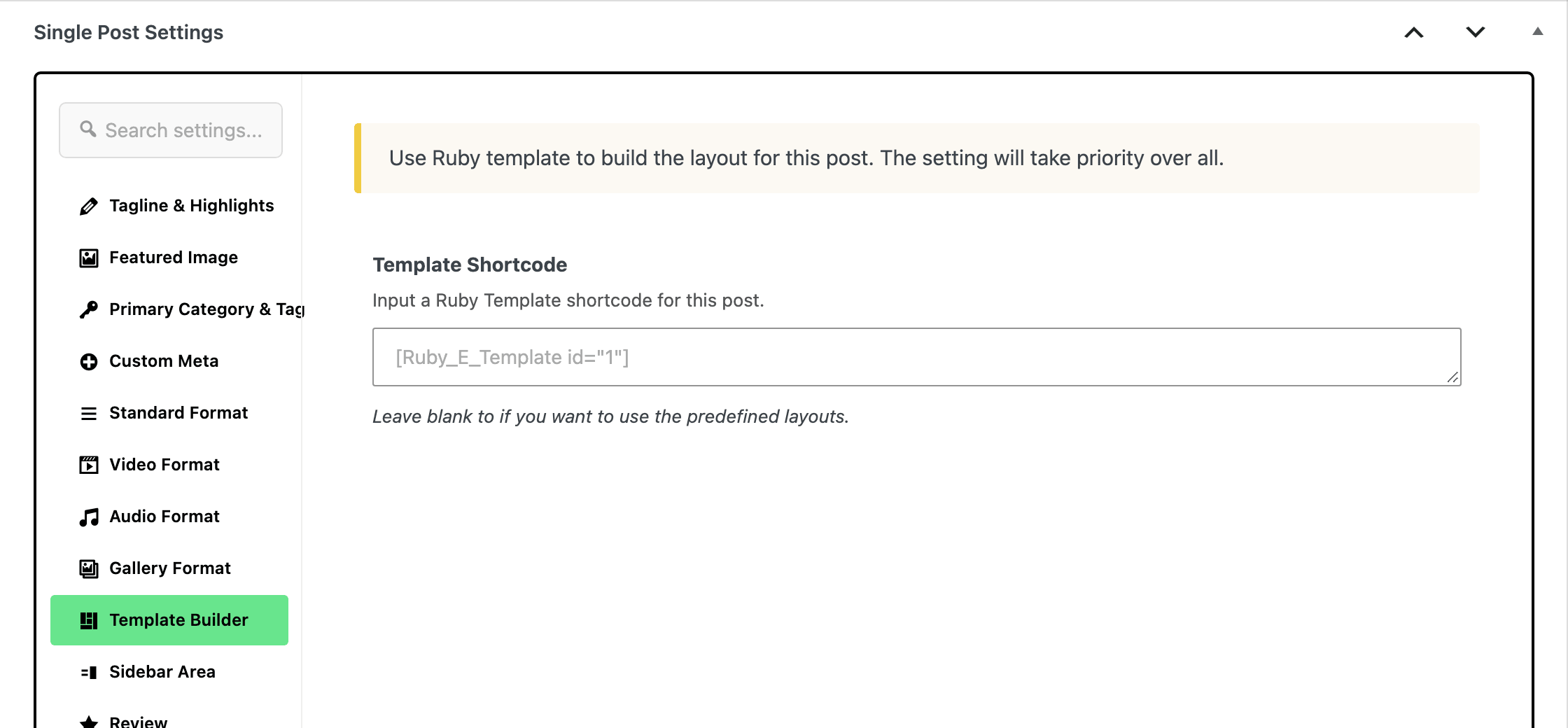
Select the post you would like to edit and click its edit link. At the bottom of the editor, click the Meta Boxes bar to open it, then open the Template Builder tab of the Single Post Settings box.
-
Paste the shortcode into the Template Shortcode field.
-
Click Publish, or Save on a post that is already published.
The box is below the editor, and this field beats every setting on this page, including the category one. A custom post type has the same field in a box called Single Post Type Settings, on a tab called Layout.
If a post still shows a predefined layout after all this, check these three things:
- A layout picked on the post itself. Standard Layout in Single Post Settings, or Video Layout, Audio Layout or Gallery Layout for those formats. Set to anything other than - Default -, it is read before both the category's template and the Theme Options template, and wins. This is the usual cause.
- A layout set on the primary category. A Single Post Layout of its own in Foxiz Category Settings, which a standard post follows ahead of the Theme Options template.
- An AMP page. There the theme drops the template and renders predefined layout 7 instead.
To create a template, you can refer to this documentation: Ruby Templates
Did this answer your question?