How to Create a featured block for blog page?
Your blog page already works without any template. The blog page is the page WordPress uses for your latest posts (Settings > Reading), and Foxiz lists them there in the layout picked at Theme Options > Blog Index > Global Listing Template > Predefined Layout, Classic by default.
Follow this article only when you want a custom layout at the top of that page: a featured block, such as one large post beside two smaller ones, above the usual list of posts. You design it in Elementor as a Ruby Template, then paste its shortcode into Theme Options. The default demo's blog page has one.
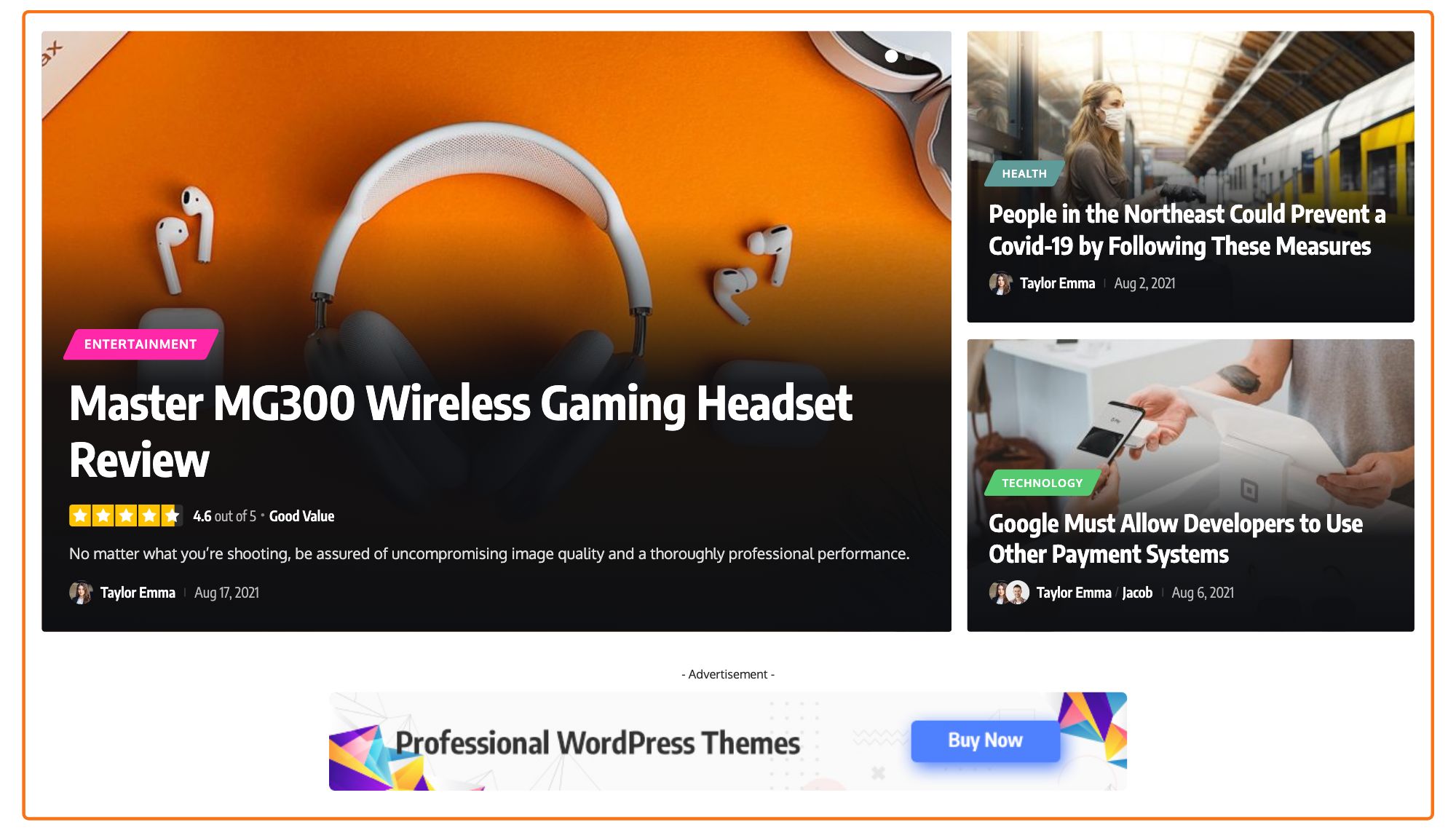
To create a featured block for the blog page, follow the steps below:
-
Navigate to Dashboard > Ruby Templates > Add New Template.

-
Add the title of the page, for example Blog Template.
-
Click on the “Edit With Elementor” button to switch to the builder.
-
Elementor opens with its panel on the left.
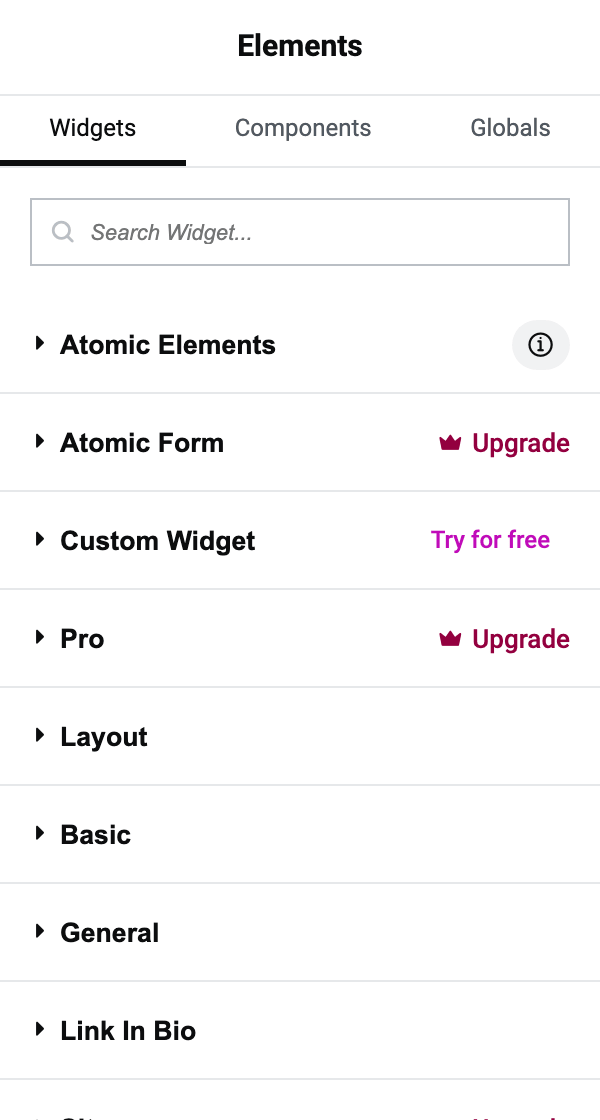
-
Click the + button in the middle of the page to add a container, then drag blocks from the panel into it.
To build a layout like the picture above, one large post on the left and two on the right:
- Open the container's Layout tab and set Direction to Row - horizontal.
- On the left, drop Foxiz - Highlight Overlay, the large post. Set Slider to Enable if you want it to rotate through several posts, as the dots in the picture show.
- On the right, drop Foxiz - Overlay, set Number of Posts to 2 and Columns on Desktop to 1 Column, so the two posts stack.
- In both blocks, use Category Filter under Query Settings to pick which posts are featured.
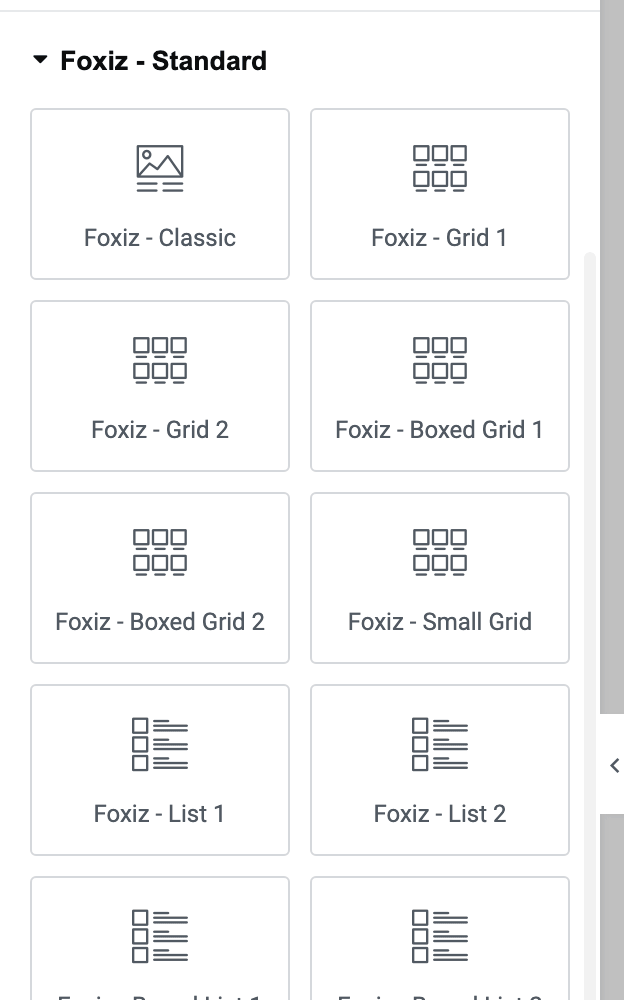
Foxiz's blocks are grouped into six categories in the Elementor panel: Foxiz - Flex, Foxiz - Standard, Foxiz - Element, Foxiz Header, Foxiz Podcast and Foxiz Single. A featured area is built from the listing blocks in the first two; the last three are for header, podcast and single post templates.
-
After you create a Blog Template, you can copy the shortcode.
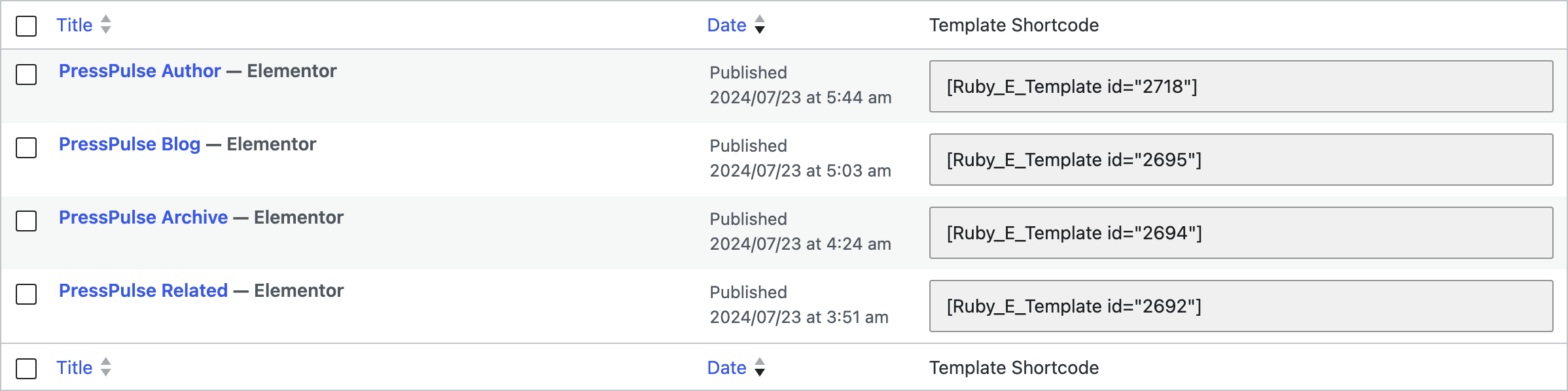
It is in the Template Shortcode box in the right hand sidebar of the editor, and in the Template Shortcode column of Ruby Templates > All Templates. It reads
[Ruby_E_Template id="1"], where the number is this template's post ID. -
Navigate to Foxiz > Theme Options > Blog Index, open the Top & Bottom Area Template Builder section, and paste the shortcode into Top Area Template Shortcode.
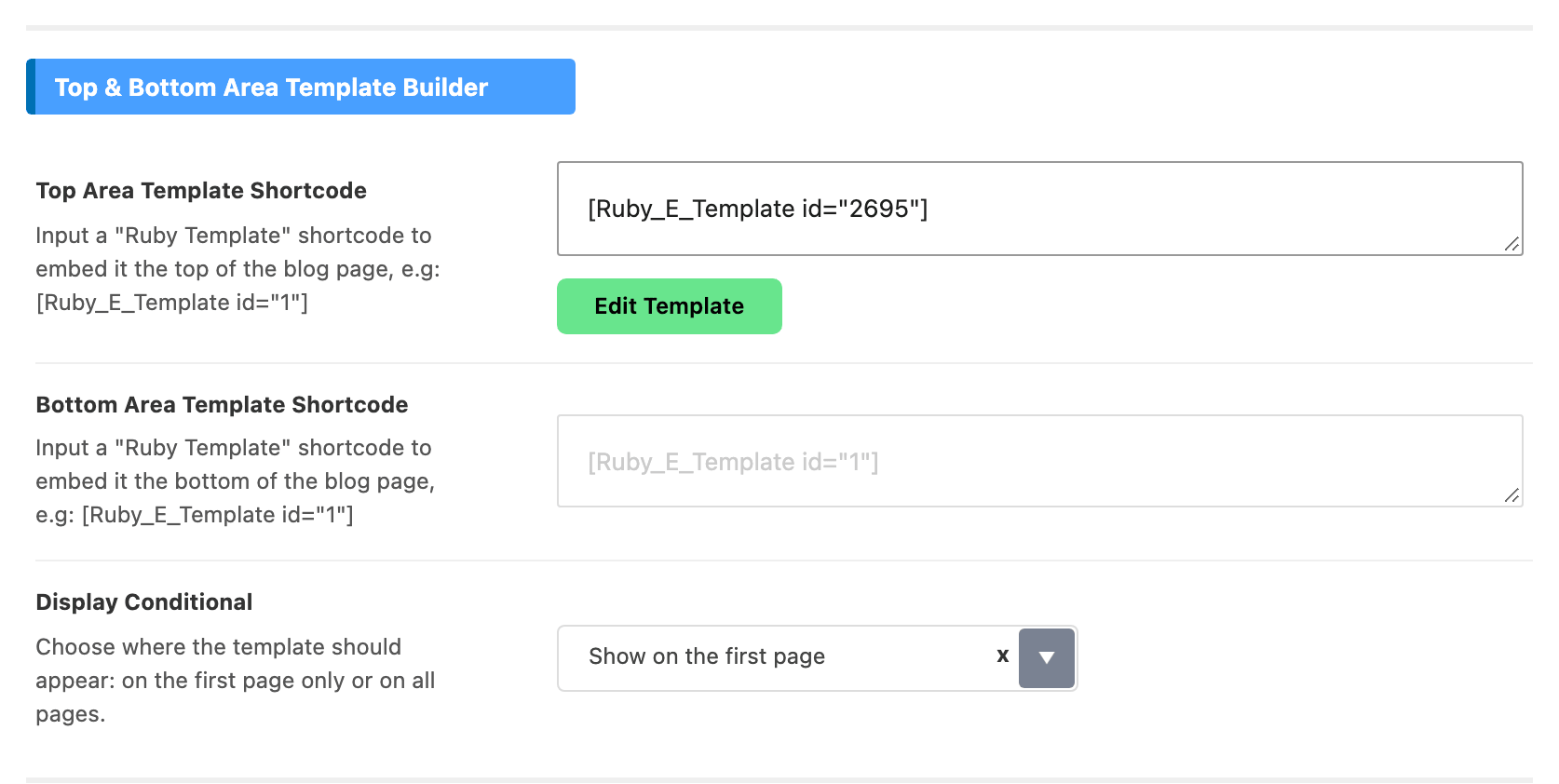
Save your changes when you have pasted it in.
The template is printed above the post listing, which is what makes it the featured area.
Under the two textareas, Display Conditional is set to Show on the first page by default, so your featured block appears on the first screen of the blog and is gone from page 2 onward. Set it to Show on all pages if you want it everywhere.
The featured area shows on the blog page even when there are no posts yet, with the theme's empty message below it.
A second template under the post list
Bottom Area Template Shortcode, the other textarea in the same section, takes a shortcode the same way and prints it under the listing. You can fill both at once, with different templates. The bottom one shows only when the blog has posts to list.
If nothing shows
If the shortcode is saved and nothing shows on the front end, the cause is usually one of two missing plugins rather than the template. Check that both Foxiz Core and Elementor are active under Plugins: without either one, the area stays empty and no error is shown.
Not the same as a template for the post list
One more field on this panel takes a Ruby Template shortcode and does something different with it. or Use Ruby Template for the Post Listing, under Global Listing Template further down, replaces the post listing rather than sitting above it. That is a different job with its own setup: see How to Add Blog Template Builder to Blog Index.
Did this answer your question?