How to Add a Ruby Template to Sidebar
You can create an Elementor template and then assign it to the Foxiz - Ruby Template widget of a sidebar.
The widget has two fields and no title field. You either pick a template from a list or paste its shortcode, and the shortcode wins whenever both are filled.
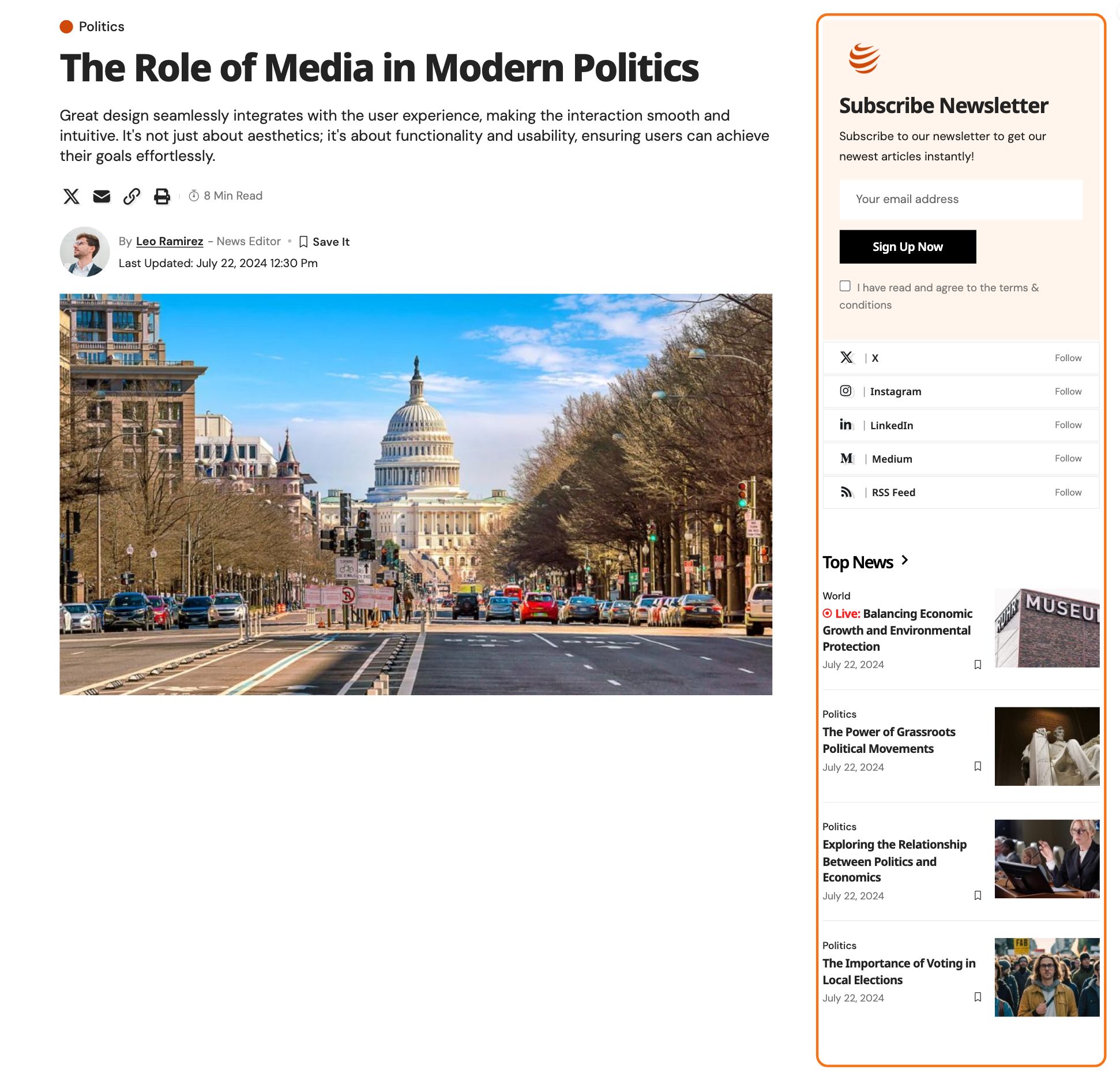
Follow the steps below
-
Create a template at Dashboard > Ruby Templates > Add New Template and copy its shortcode. Build it as a single column: you can set or unset the container widths, and the sidebar automatically resizes the template to fit the sidebar area.

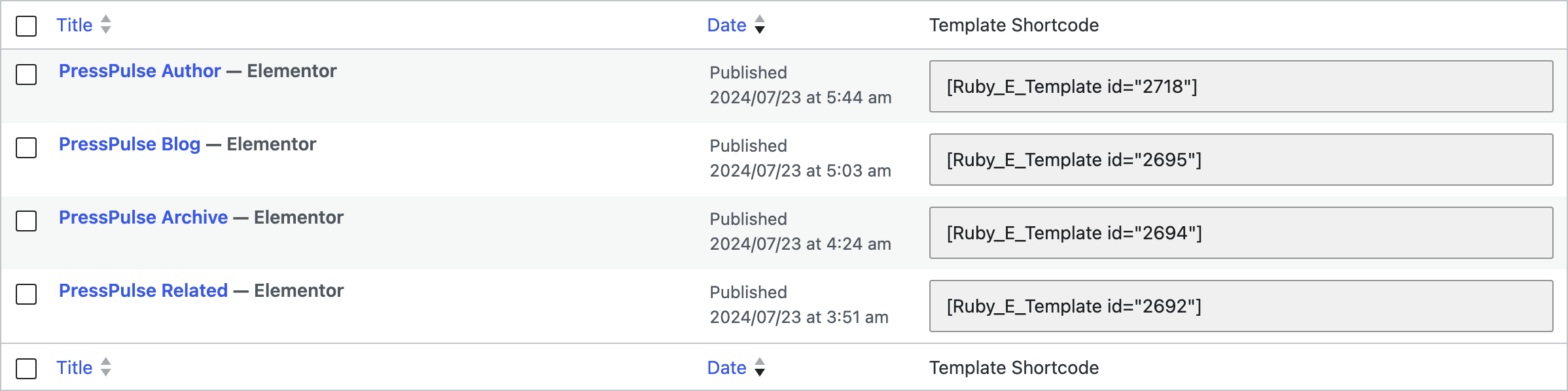
It reads
[Ruby_E_Template id="1"], where the number is the template's post ID, and it is in two places: the Template Shortcode column of Ruby Templates > All Templates, and the Template Shortcode box in the right hand sidebar of the template editor. You can skip the copying altogether if you use the dropdown in step 5. -
Navigate to Appearance > Widgets
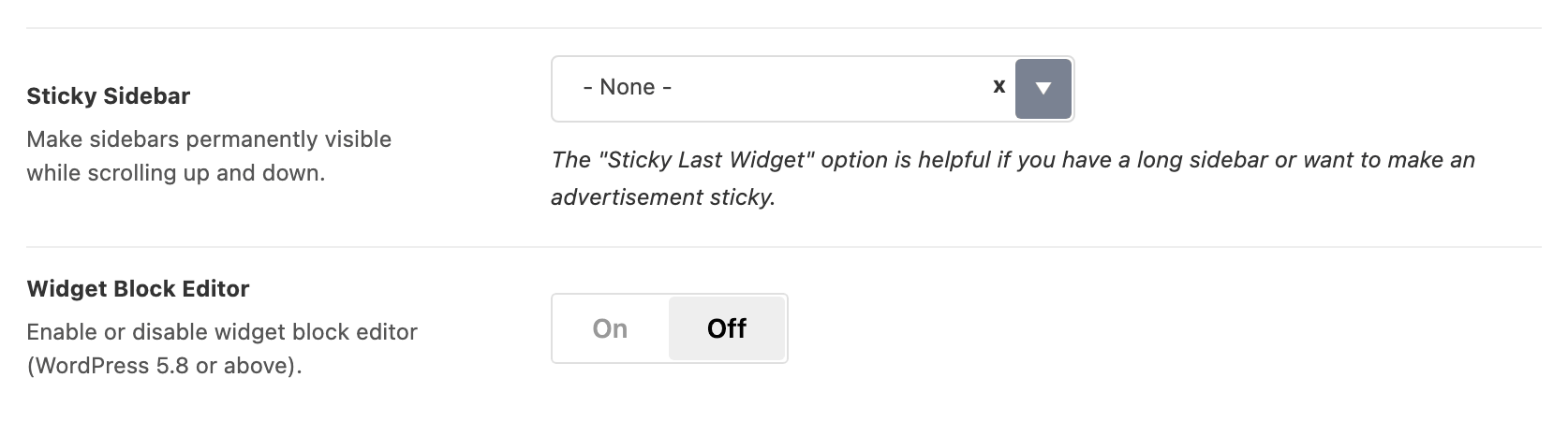
That screen is the classic drag and drop one, not the block editor, because Foxiz removes block editor support for widgets unless you ask for it. The switch is Widget Block Editor at Theme Options > Sidebars, and it is off by default. Turn it on and the steps below no longer describe your screen.
-
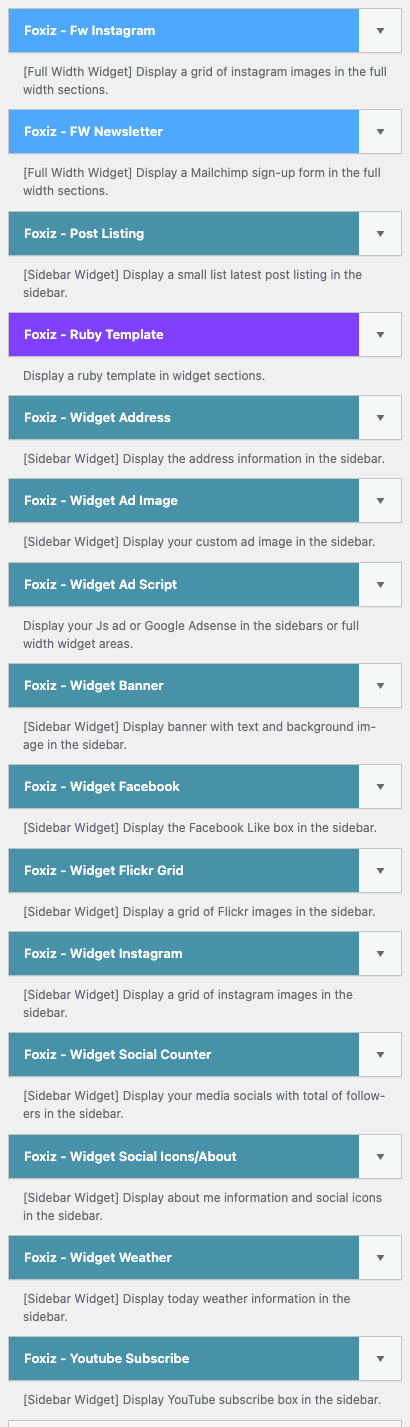
Find the widget "Foxiz - Ruby Template" at the left screen.
-
Drag and drop it into the sidebar section you wish.
Make sure that section exists before you fill the widget in. These are there out of the box:
- Standard Sidebar, Header Advertising and More Menu Section.
- Single Content - Top Area and Single Content - Bottom Area.
- The footer columns, but only the ones your footer layout has.
Every other widget area is one of your own, from Theme Options > Sidebars > Unlimited Sidebars. An area that stops being registered takes its widgets off the page, so create the sidebar first and place the widget second.
-
Select a Ruby template or input the shortcode to display in this sidebar section.
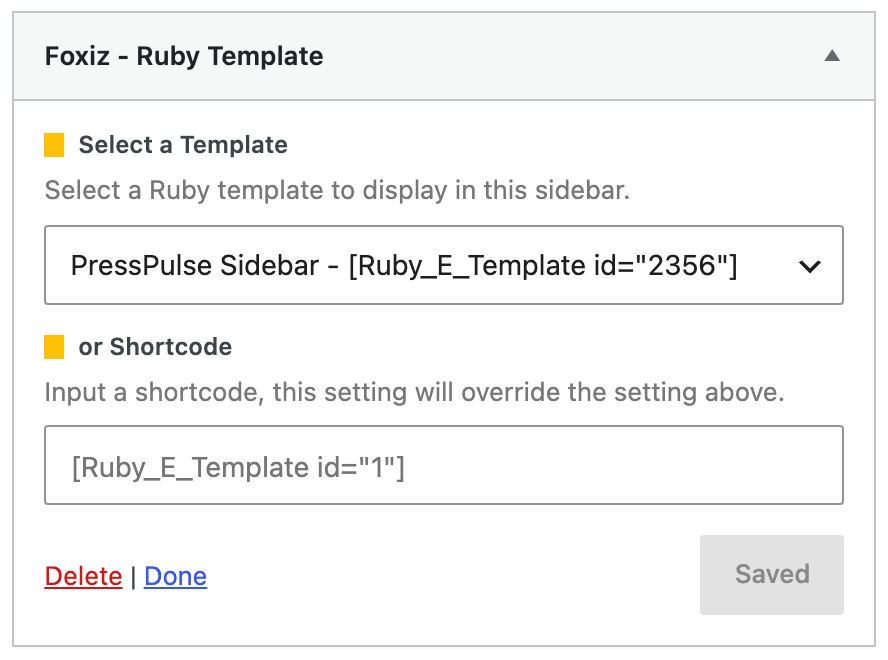
The first field is Select a Template, a dropdown that starts at - Select a Template - and lists each template as its title followed by its shortcode. Only published templates are in it: if the one you want is not there, it is still a draft.
The second is or Shortcode, a text field for the shortcode you copied in step 1. Use it when you want the slug form,
[Ruby_E_Template slug="my-template"], which survives an export and reimport where an ID does not. -
Click the Save button.
If you pick a template from the Select a Template list, leave or Shortcode empty.
or Shortcode is read first and Select a Template is only used when it is empty, so a leftover shortcode in that box quietly replaces whatever you picked from the list.
This widget prints the template and nothing else. The heading and the boxed styling the other sidebar widgets get are not added, so if you want a title above it, build the title into the template.
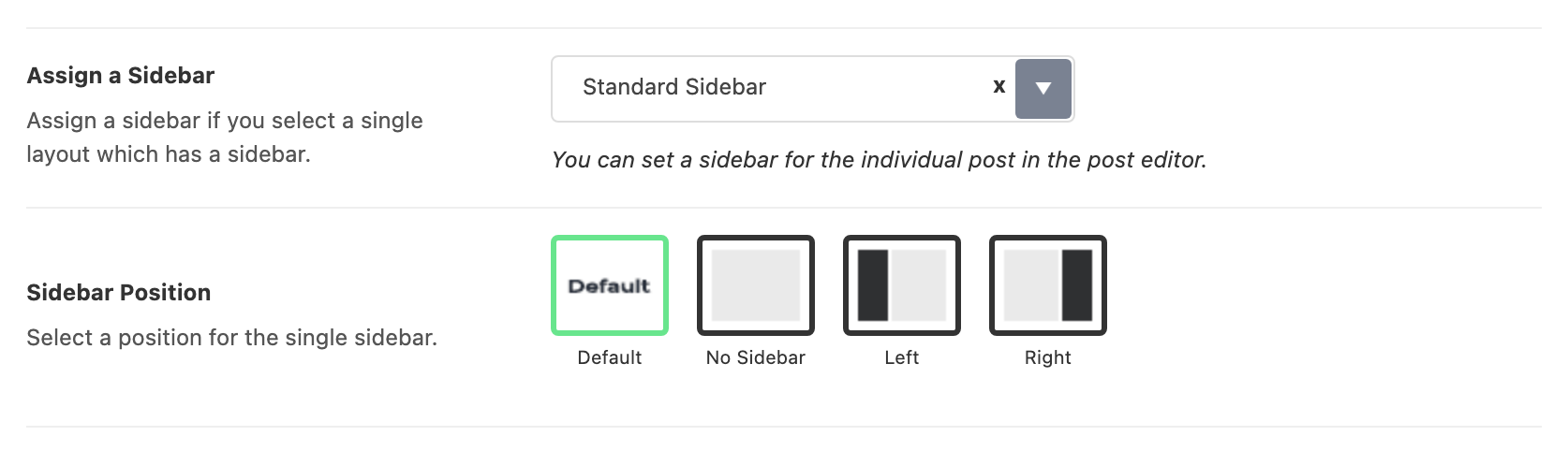
Which page the result appears on is decided elsewhere. Standard Sidebar is the one single posts use unless you change it, at Theme Options > Single Post > Sidebar Area > Assign a Sidebar, and a post can override that in its own Single Post Settings. An area you created under Unlimited Sidebars shows nothing until one of those settings points at it.
The theme has a sticky mode written for exactly this widget. Set Theme Options > Sidebars > Sticky Sidebar to Sticky Last Widget and the last block of your template stays on screen as the reader scrolls, but only while the Ruby Template widget is the only widget in that sidebar and only on screens from 1025px wide. Its default is - None -.
If the sidebar comes out empty, check Elementor before you check the template. With Elementor inactive the shortcode returns nothing at all, with no error and no placeholder, and the widget has nothing left to print.
Did this answer your question?