How to Disable Ads on One Post or Page
A sponsored article, a landing page, a privacy notice: sometimes one piece has to be clean while the rest of the site carries adverts. Every Foxiz placement except two can be switched off for a single post or page, in the settings box under the editor.
Each advert is decided in two places:
- Theme Options and Appearance > Widgets set it up for the whole site.
- The Foxiz settings box under the editor changes one post or page.
Disable on the post wins. - Default - hands the decision back to the site wide setting, so leave every advert you want to keep on it. Most of these switches offer only - Default - and Disable, which is the important asymmetry: a post can take an advert away, and cannot add one where the site wide setting is empty.
- Open the post or page for editing.
- At the bottom of the editor, click the Meta Boxes bar to open it, and find the Foxiz settings box. It is called Single Post Settings on a post, Single Page Settings on a page and Single Post Type Settings on a custom post type.
- Open its Widgets & Ads tab, or Ads on a page.
- Set the placement you want gone to Disable.
- Click Save.
On a post
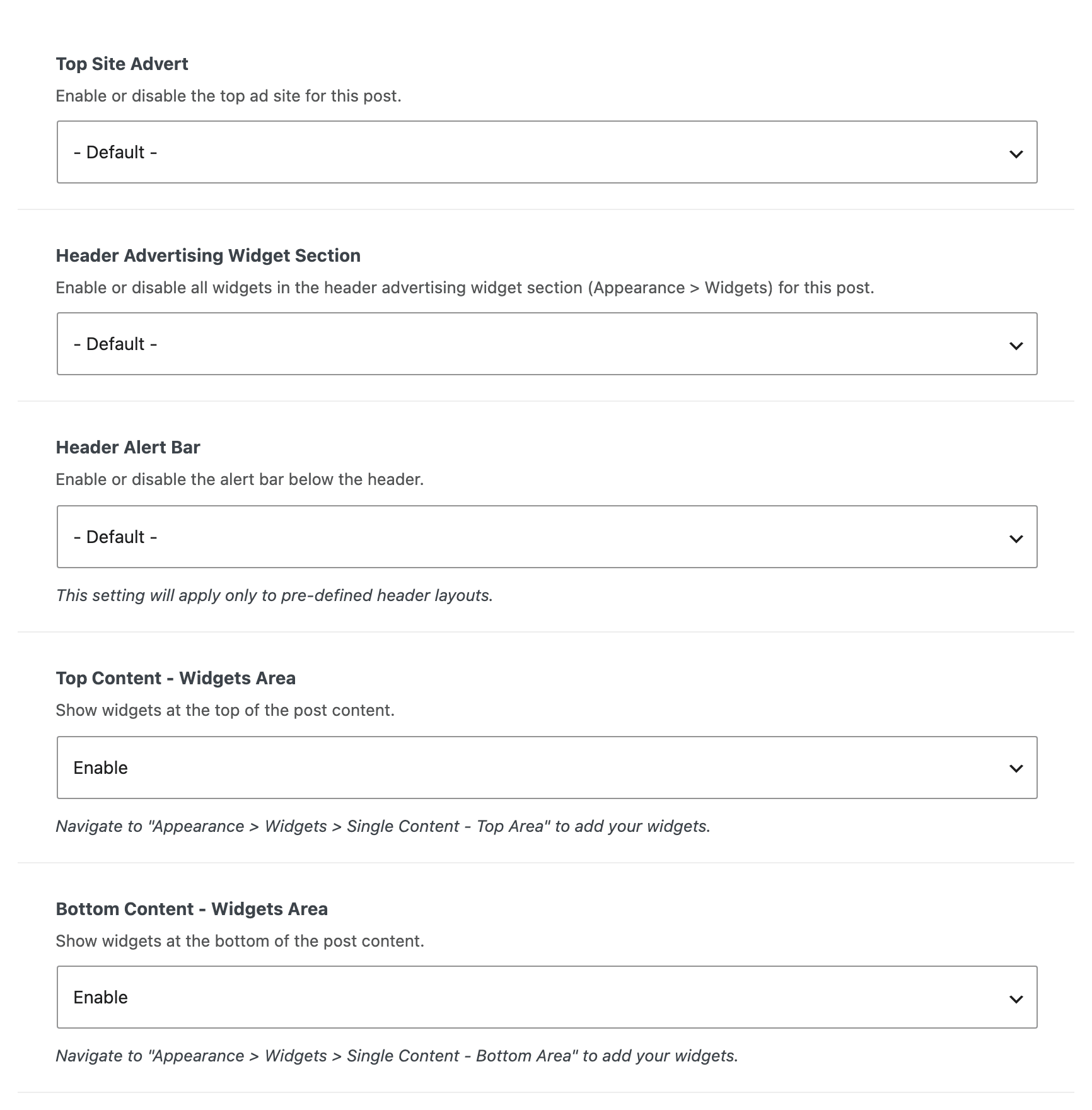
Single Post Settings > Widgets & Ads carries nine switches, and the same nine appear on Single Post Type Settings > Widgets & Ads for a custom post type.
- Top Site Advert hides the advert above the header on this post.
- Header Advertising Widget Section hides every widget in the Header Advertising area, which is the strip under the navigation.
- Header Alert Bar is the one switch that works in both directions. It offers - Default -, Enable and Disable, and Enable beats the global setting including the Homepage Only limit, so this is how you put the bar on one landing page without showing it everywhere.
- Top Content - Widgets Area and Bottom Content - Widgets Area control the two widget areas around the post body. These two are shaped differently: they offer Enable and Disable with no default option, and they arrive on Enable.
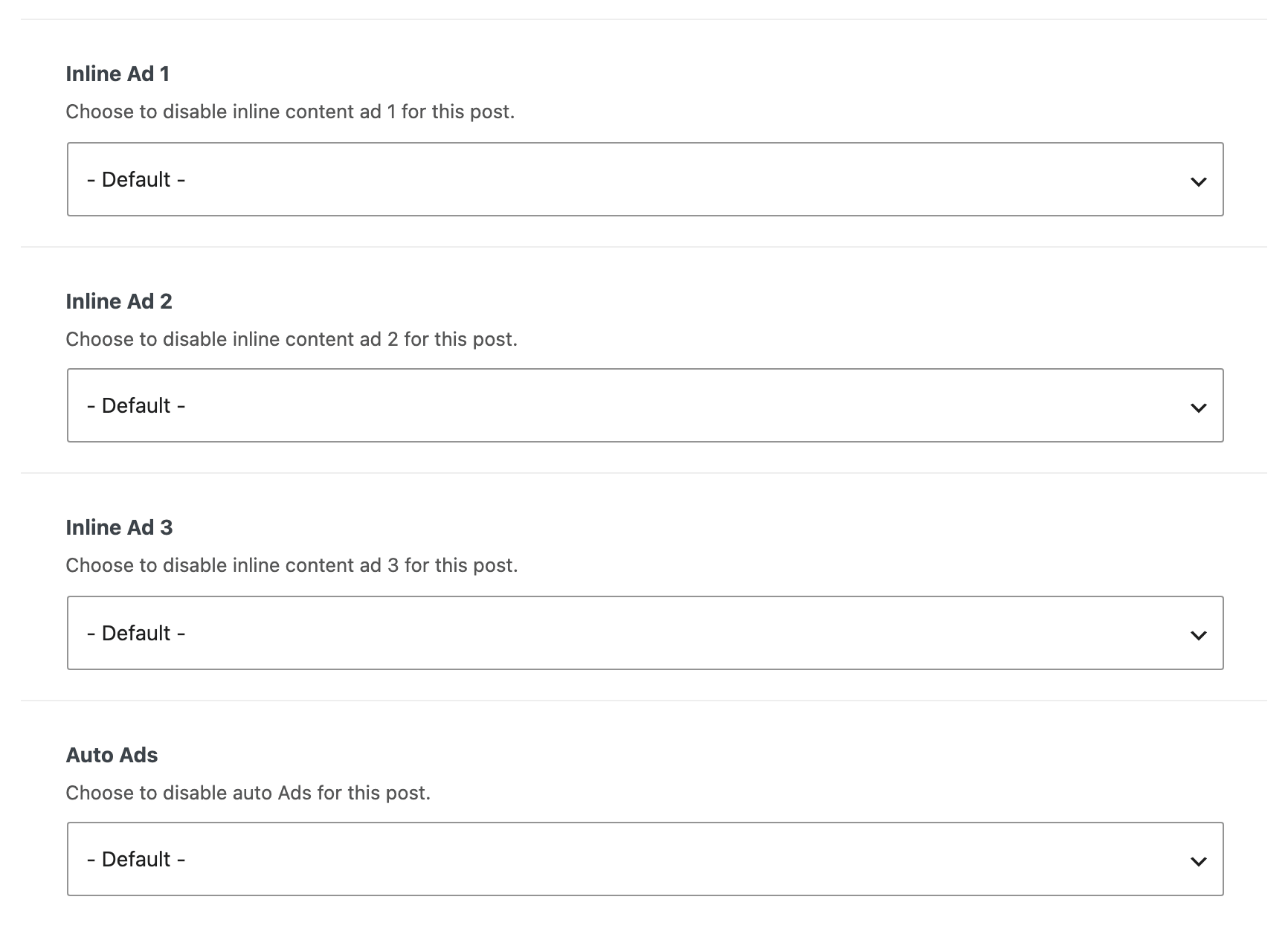
- Inline Ad 1, Inline Ad 2 and Inline Ad 3 each switch off one of the three inline content slots, so a piece can keep two adverts and lose the third.
- Auto Ads stops the AdSense auto ads snippet being printed on this post. Bear in mind what that does elsewhere: with auto ads gone from the page, the AdSense units in your other slots are free to draw again.
On a page
Single Page Settings > Ads carries four of the same switches, because the other five are about single post content that a page does not have.
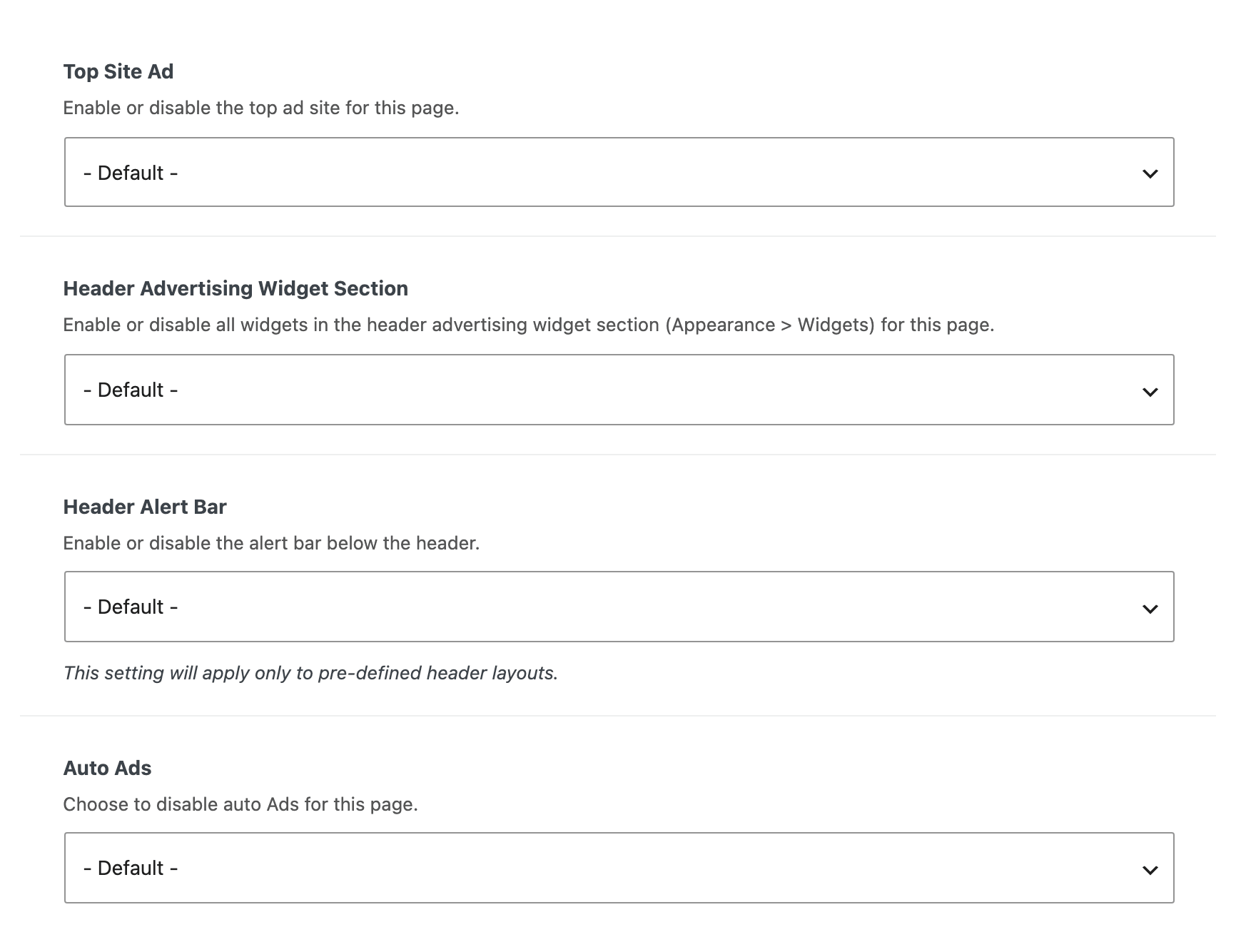
- Top Site Ad, which is the same advert as Top Site Advert on a post under a slightly different name.
- Header Advertising Widget Section.
- Header Alert Bar, again with Enable as well as Disable.
- Auto Ads.
The two placements to handle another way
The footer slide up and the AdBlock popup are site wide, with no per post switch. If either has to be absent from one page, the way to do it is to leave the global setting off and put the promotion into the page itself with an Elementor block.
The same goes for a whole section of the site rather than one post: there is no per category advert switch, so a category that must stay clean needs the adverts turned off on each post in it.
An advert that is missing everywhere rather than on one post is usually a different problem. Ad Types and Sizes lists the four site wide reasons a slot prints nothing.
Did this answer your question?