How to Add Adsense Auto Ads
Auto ads are the AdSense mode where Google places the ads for you: you paste one snippet and it decides where the units go on each page. Foxiz has a field for that snippet, and turning it on changes how the theme's own ad slots behave, so it is worth reading to the end of this page before you save.
-
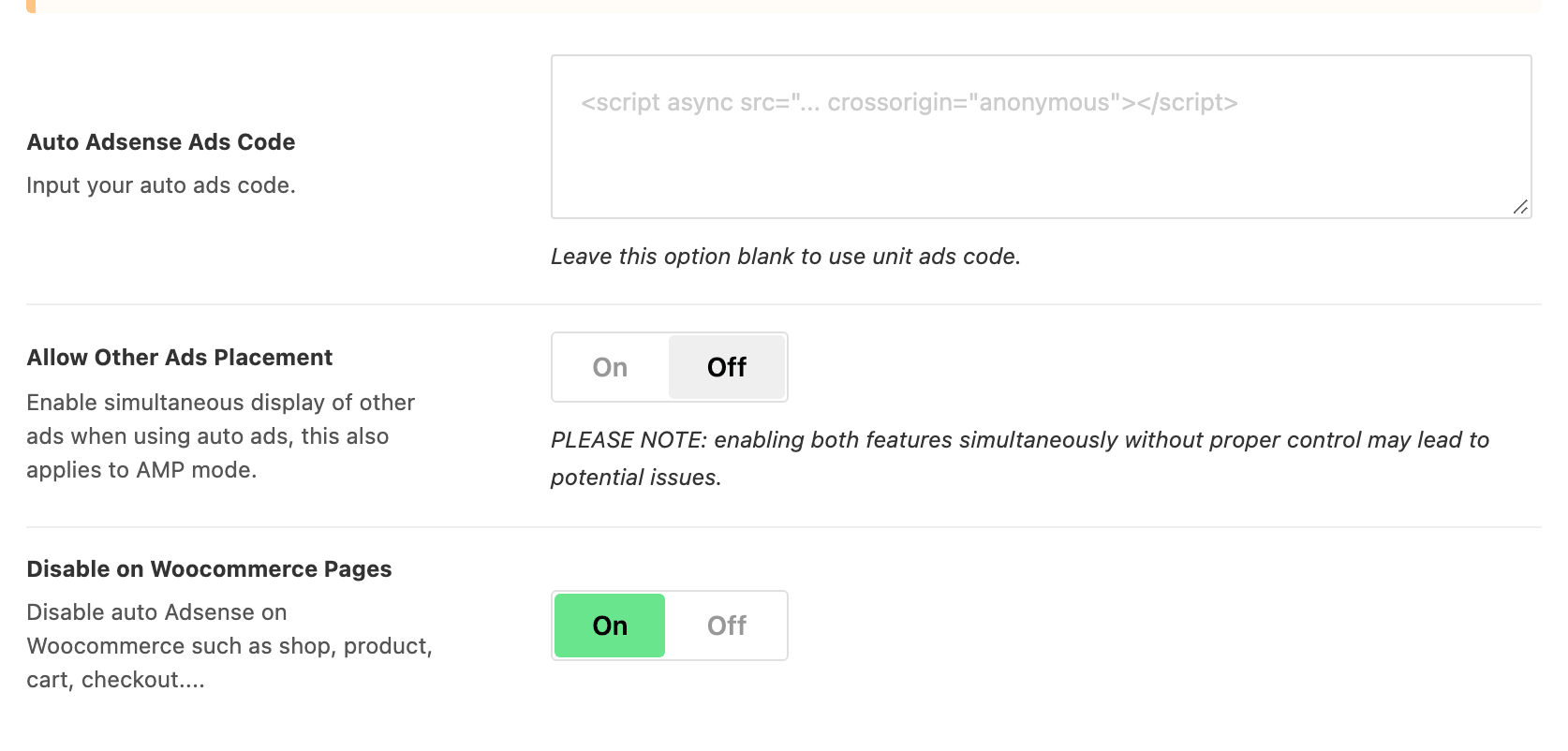
In your AdSense account, switch Auto ads on for the site and copy the code it gives you. It is a single script tag that loads Google's ad library, and the placeholder in the Foxiz field shows the same shape so you can compare the two before pasting.
-
Navigate to Theme Options > Ads & Slide Up > Adsense - Auto Ads.
-
Paste the snippet into Auto Adsense Ads Code. The field is empty by default, and while it is empty nothing about your other ad slots changes.
-
Leave Allow Other Ads Placement off unless you have read the next section. It is off by default, and the panel warns that running both without control can cause problems.
-
Leave Disable on Woocommerce Pages on. It is on by default, and it keeps auto ads off your shop, product, cart, checkout and account pages.
-
Save your changes. Foxiz then prints the snippet in the head of every page on the site.
Check the result on a published page in an ordinary browser tab. The snippet is deliberately left out of the Elementor editor preview, so a page you are building always looks like the code did not save.
Give Google a few hours before you judge the placement. Only one Auto ads snippet belongs on a site: a second one, added by a plugin or pasted into a header script field as well, is the usual cause of ads stacking on top of each other.
What this does to the ad slots you have already filled
Foxiz keeps the two apart for you. With a snippet in Auto Adsense Ads Code and Allow Other Ads Placement off, every Foxiz slot holding a recognised AdSense unit code prints nothing at all.
That covers the Top Site ad, the three Inline Single Content slots, the Foxiz - Widget Ad Script widget in any widget area, and the Foxiz - Ad Script block on an Elementor page. They stay configured; they just stop drawing while auto ads are on. A saved slot that has gone blank for no visible reason is almost always this.
Two kinds of ad are not touched. Image ads keep drawing everywhere, because there is no AdSense unit in them: the Custom Image top ad, an image inline slot, Foxiz - Widget Ad Image and Foxiz - Ad Image. And any script that is not an AdSense unit keeps drawing too, so a direct sponsor tag or a shortcode from an ad manager plugin is unaffected.
Turning Allow Other Ads Placement on lifts the suppression and lets both run at once, on AMP pages as well as normal ones. Do it when you want Google filling the page generally while you keep control of one or two specific positions, and expect to watch your AdSense reports afterwards: two systems competing for the same page is the situation the panel warns about, and it is yours to manage.
Where auto ads do not appear
Disable on Woocommerce Pages is on by default, and while it is on the snippet is left out of the shop page, single product pages, the cart, the checkout and the My Account pages. It only has anything to do when WooCommerce is active. Turn it off if you genuinely want ads in a checkout flow.
The 404 page is also kept clear, along with every other built in ad, which is an AdSense policy matter rather than a preference. The switch is Theme Options > 404 Page > Ads Disabled > Ads on 404 Page, and its default is - Disable -.
AMP pages ignore this field entirely and read their own. If you serve AMP, paste the AMP flavoured snippet into Theme Options > AMP > AMP Auto Ads > AMP Auto Ads Code as well.
Turning auto ads off for one post
A single article or landing page can opt out. Open it, find the Foxiz settings box below the editor, and set Auto Ads to Disable: on a post it is under Widgets & Ads, on a page under Ads, and on a custom post type under Widgets & Ads again. The choices are - Default - and Disable only, so a post can turn auto ads off and cannot turn them on where the field is empty.
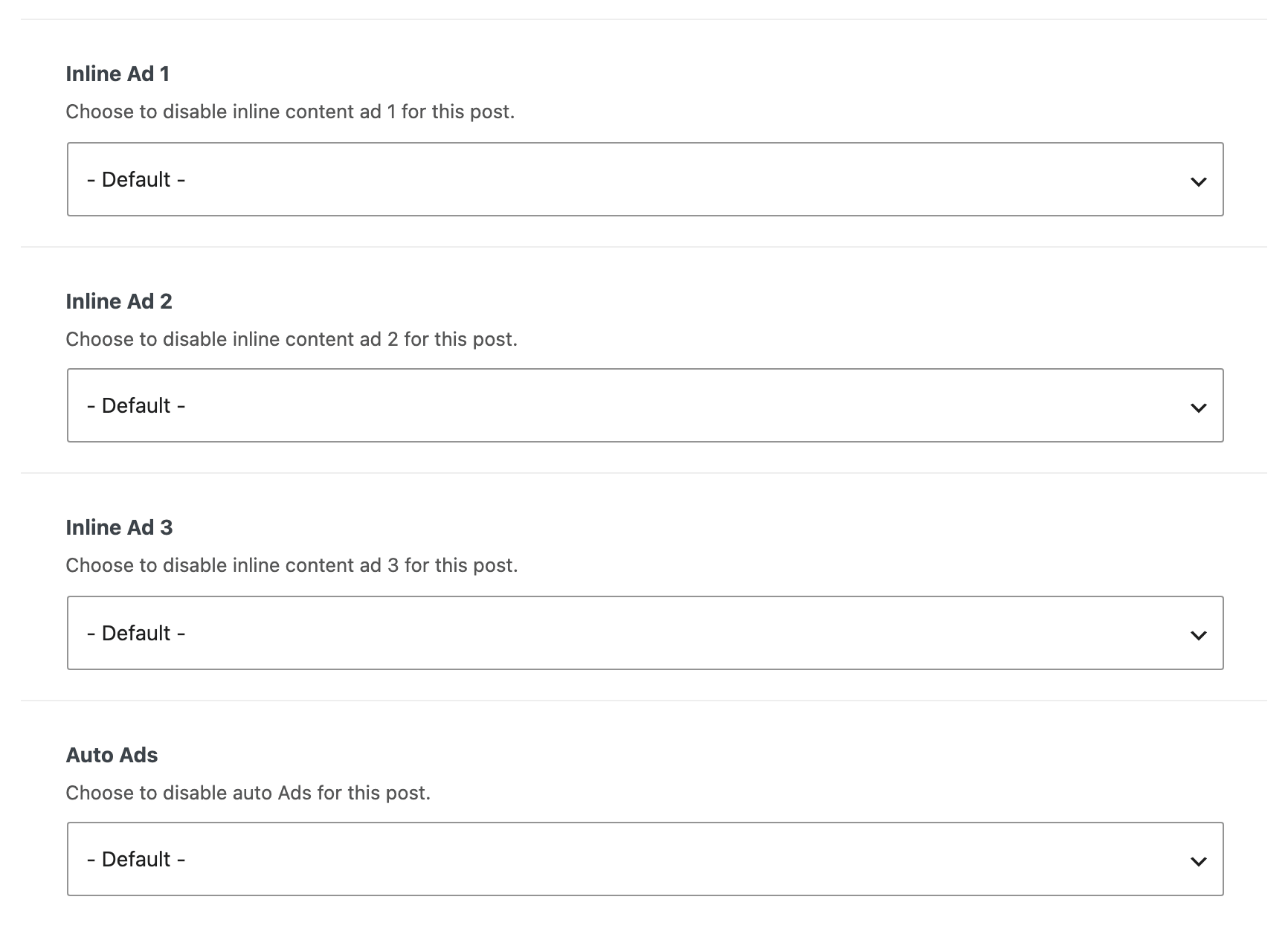
Emptying Auto Adsense Ads Code puts everything back: the snippet stops printing and every AdSense unit slot you had filled starts drawing again on the next page load. That is the quickest way to test whether auto ads are what is hiding a slot.
Did this answer your question?