How to Create Flipboard & Google News Button Blocks at the Top of Content
Two buttons above the first paragraph of every post, linking readers to your Flipboard magazine and your Google News page. You build them once as a Ruby Template, then drop that template into the Single Content - Top Area widget area.
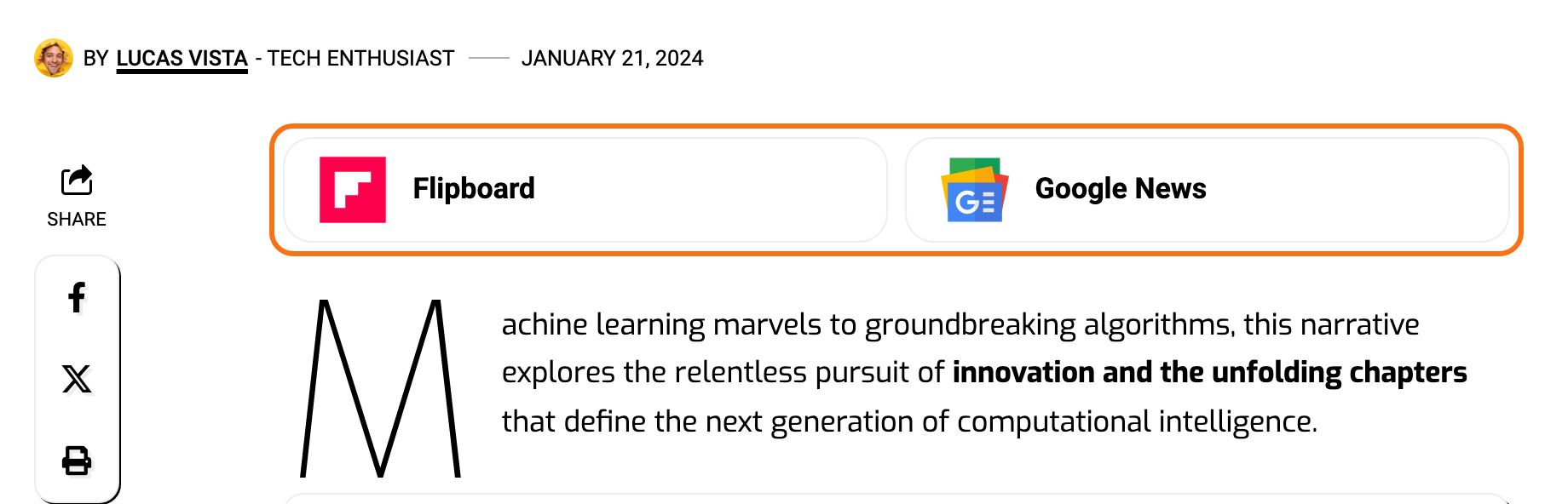
Nothing extra to install or create:
- Icon Box is one of Elementor's own free widgets.
- Single Content - Top Area is a widget area Foxiz registers for you, so it is already waiting on the widgets screen.
To get started, please follow the steps below:
-
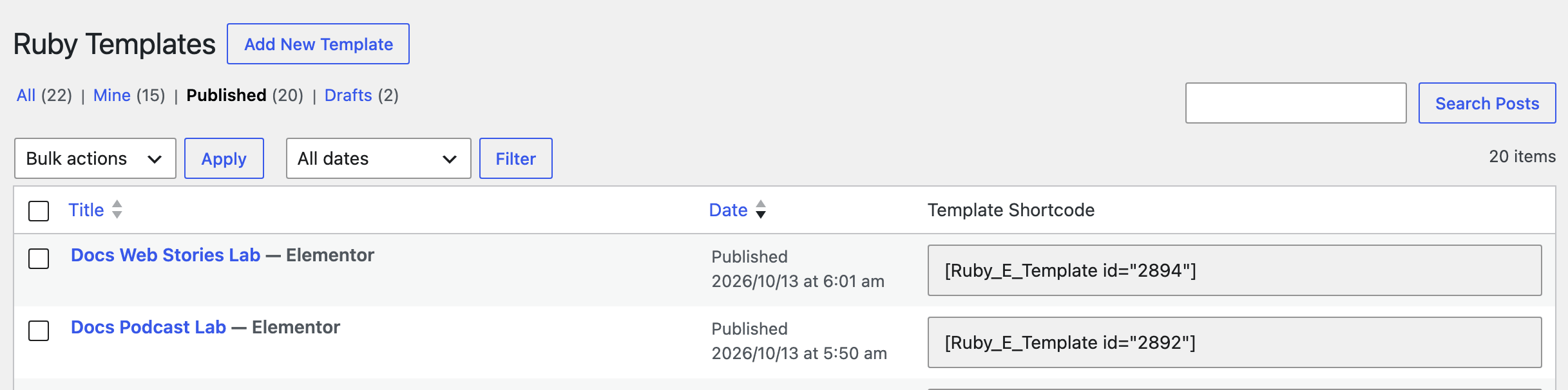
Go to Ruby Templates > All Templates and click Add New Template beside the heading.
-
Give the template a title, such as "News Buttons", and click Edit with Elementor.
-
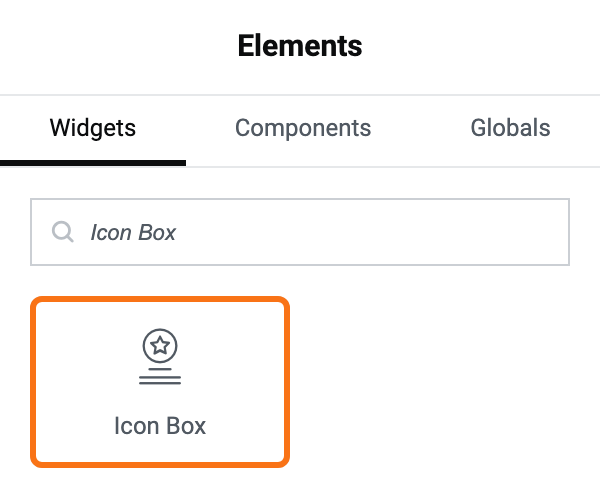
In the Elementor panel, search for Icon Box and drag it onto the page. Drag a second one next to it for the other button.
-
To put the two buttons side by side, click the container that holds them, open its Layout tab and set Direction to Row - horizontal.
-
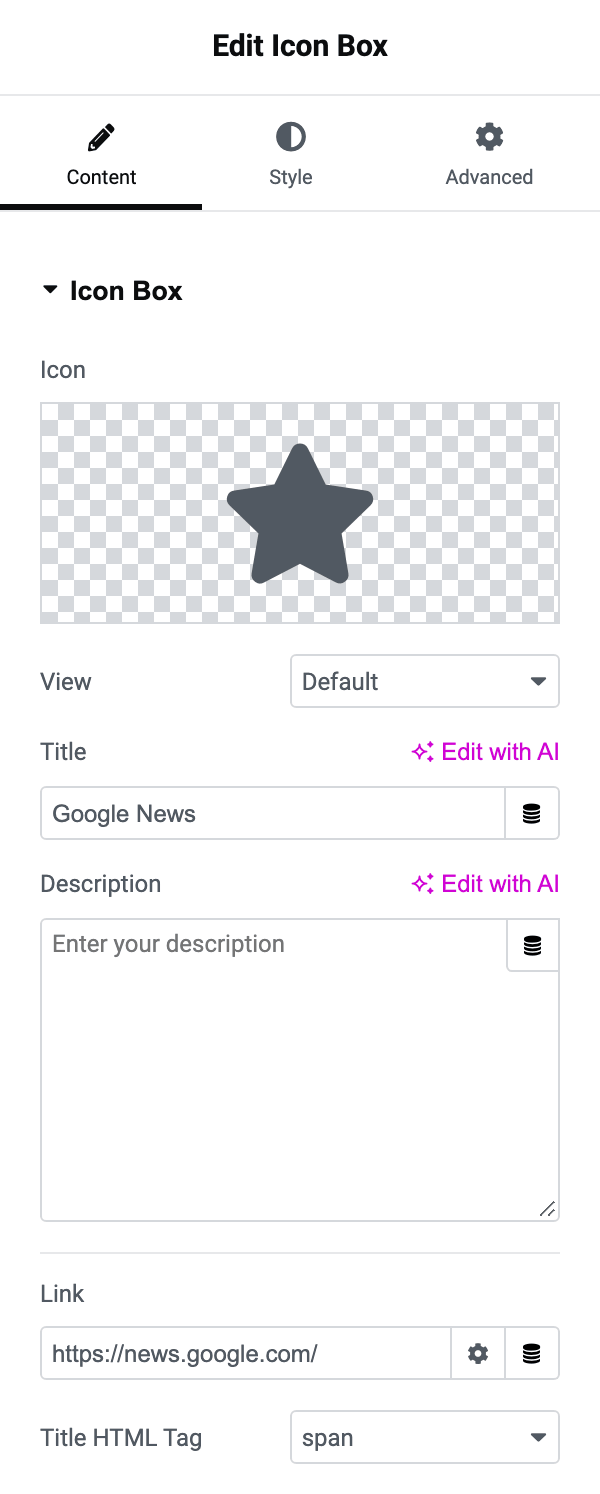
Set up each Icon Box on its Content tab:
- Icon: pick Upload SVG to use the Flipboard or Google News logo, or pick an icon from Icon Library. Elementor refuses SVG files with "This file is not allowed for security reasons." until Enable Unfiltered File Uploads, on the Advanced tab of Elementor > Settings, is set to Enable; it is Disable by default.
- Title: the button text, such as "Flipboard" or "Google News".
- Description: clear it if you want a plain button.
- Link: the address of your Flipboard magazine or your Google News publication page.
-
For a hover effect, open the Advanced tab, go to Background, select the Hover tab and pick a color. For a moving icon, use Hover Animation on the Style tab, under Icon.

-
Publish the template, then go to Appearance > Widgets. You get the classic widgets screen because Foxiz turns Widget Block Editor off by default, in Theme Options > Sidebars. If someone has turned it on, the screen is the block editor instead and you add the widget as a block.
-
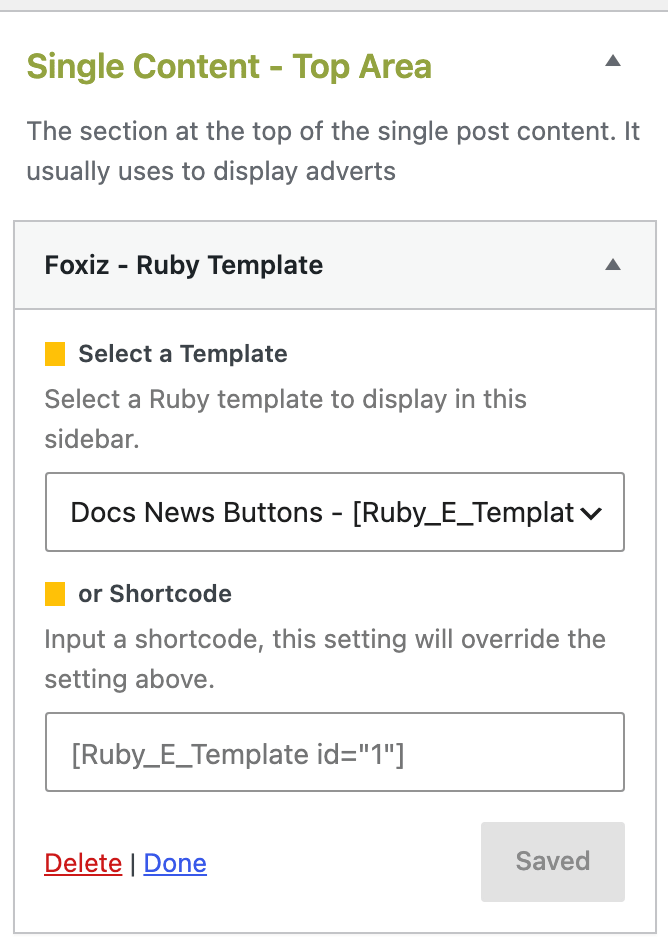
Find the Foxiz - Ruby Template widget and add it to Single Content - Top Area.
-
In the widget's Select a Template list, pick your template and click Save. The buttons now show at the top of the content on every post.
Want the buttons under the article instead? Use Single Content - Bottom Area, the twin at the other end of the content.
Did this answer your question?