How to Translate Your Posts into Other Languages
The other articles in this section translate the theme's own words: Read More, Search, dates, the labels Foxiz prints around your content. They change those words once, for the whole site. They do not translate the posts and pages you write.
A site in two or more languages needs a multilingual plugin. It keeps a copy of each post per language, links the copies together, and adds a language switcher for your readers.
Which plugin
Foxiz works with the two most used ones, Polylang and WPML. The theme comes with a configuration file that both of them read. It tells them that:
- podcast episodes and their shows can be translated;
- the Foxiz texts in Theme Options can differ per language: the header and footer template shortcodes, the copyright line, the alert bar text and link, the search placeholder, the read more label and many more.
For most sites, start with Polylang. The free version translates posts, pages, categories, menus and those Theme Options texts. WPML is a paid plugin. Choose it if you want its translation management and string translation tools.
Set up Polylang
-
Go to Plugins > Add Plugin, search for Polylang, then install and activate it. Polylang offers a setup wizard on its first screen. You can skip it: the steps below do the same.
-
Go to Languages. Under Add new language, pick your first language in Choose a language. The fields below fill themselves in. Click Add new language.
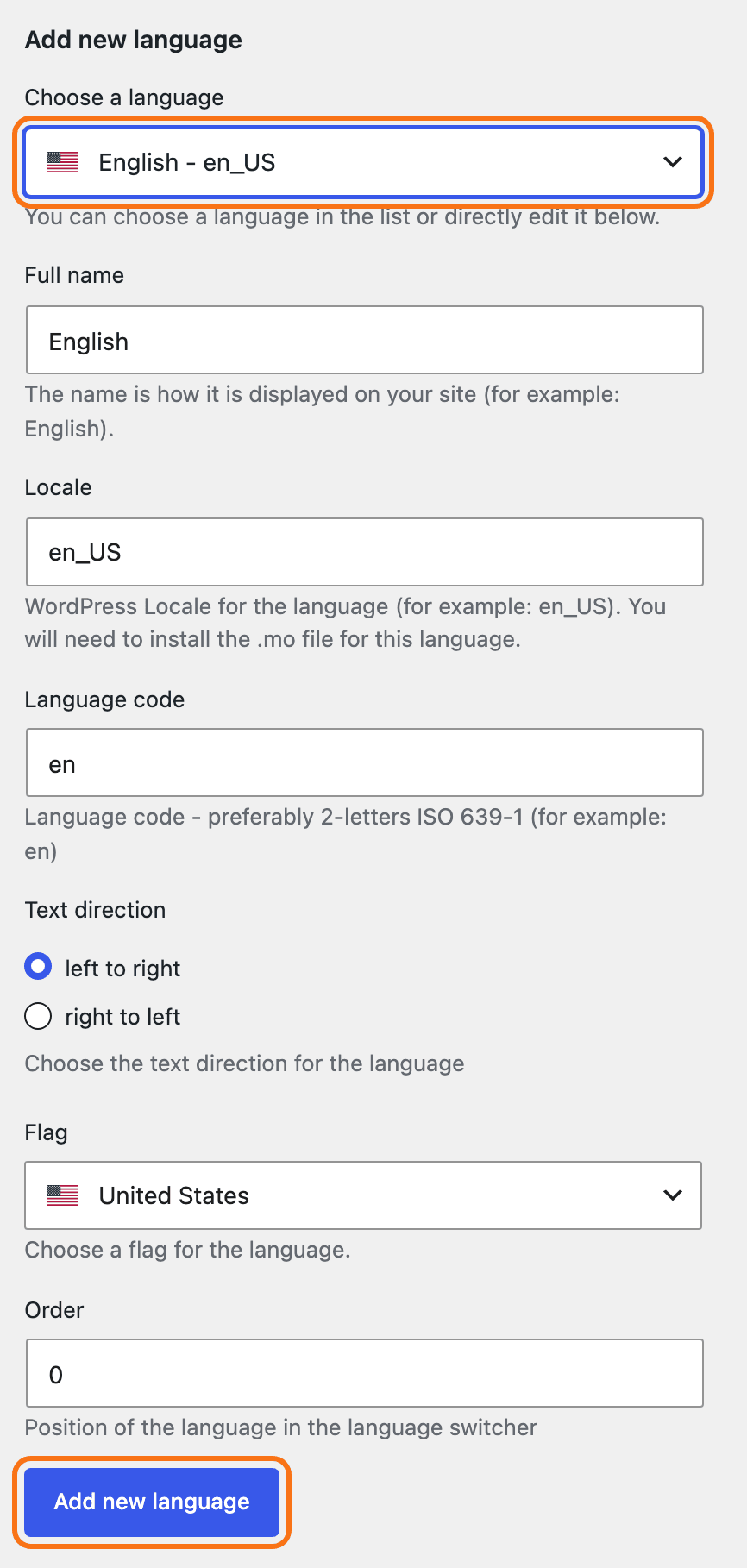
Add the language your site is written in now first: the first language becomes the default. Then add the others the same way.
-
A notice then says There are posts, pages, categories or tags without language. Click You can set them all to the default language., so your current posts are not left without one.

Translate a post
-
Open a post. In the Post sidebar, Polylang adds a Languages box with the post's Language and its Translations.
-
Under Translations, click the + beside the other language (Add a translation in हिन्दी, for Hindi). A new post opens in that language, linked to the first.

-
Write the translation, give it the same featured image, and publish.
Pages and categories work the same way. Translate the categories before the posts, so each translated post can go into a category in its own language.
An Elementor homepage is a page too. Until it has a copy in every language, Polylang shows You must translate your static front page in followed by the languages missing. Translate it, then open the copy with Edit with Elementor and change its blocks to show the categories of that language.
Menus and the language switcher
-
Go to Appearance > Menus and make one menu per language.
-
In the Language switcher box on the left, tick Languages and click Add to Menu. Do this in each menu.

-
Under Menu Settings, Polylang lists every Foxiz menu location once per language, such as Main Menu English and Main Menu हिन्दी. Tick the location in the menu's own language, then click Save Menu.
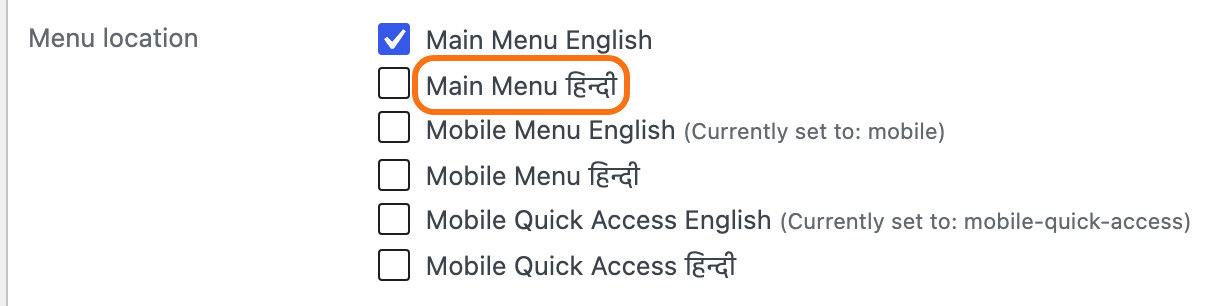

The Foxiz texts in Theme Options
- Go to Languages > Translations.
- In the View all groups list, pick themes/foxiz and click Filter. The Foxiz texts from Theme Options are listed, one row each, with a box per language.
- Type each translation into its language's box and click Save Changes at the bottom.
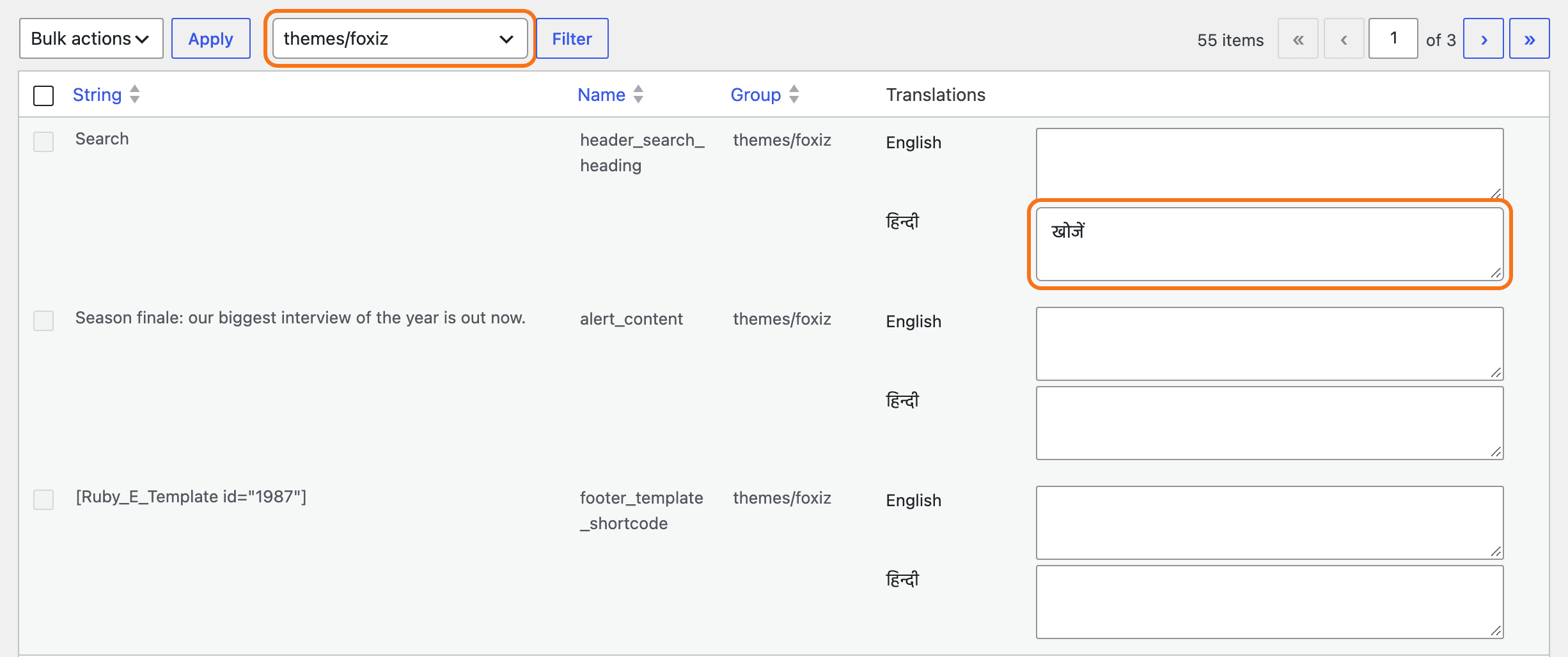
A different header or footer per language works the same way: build one Ruby Template per language and put each template's shortcode in its language's box, on the footer_template_shortcode or header_template row.
The theme's built in words (Read More, Search, dates) are translated with language files, one per language: see How to Use Loco Translate Plugin to Translate the Theme?. Quick Translation on the Foxiz dashboard sets one translation for every language, and a field filled there replaces that word in every language, whatever the language files say. So on a multilingual site use language files instead, and leave Quick Translation empty: clear any field you filled, or click Quick Tools, then Remove All.
With WPML active, Quick Translation turns itself off and says so.
A language that reads right to left also needs How to Activate RTL.
Did this answer your question?