How to Use Loco Translate Plugin to Translate the Theme?
This tutorial shows how to translate Foxiz with the Loco Translate plugin.
Loco Translate is a WordPress plugin for translating themes and plugins. It generates a PO file from the POT file then compiles it to an MO file on the fly as you translate the theme or plugins.
How to install the plugin
-
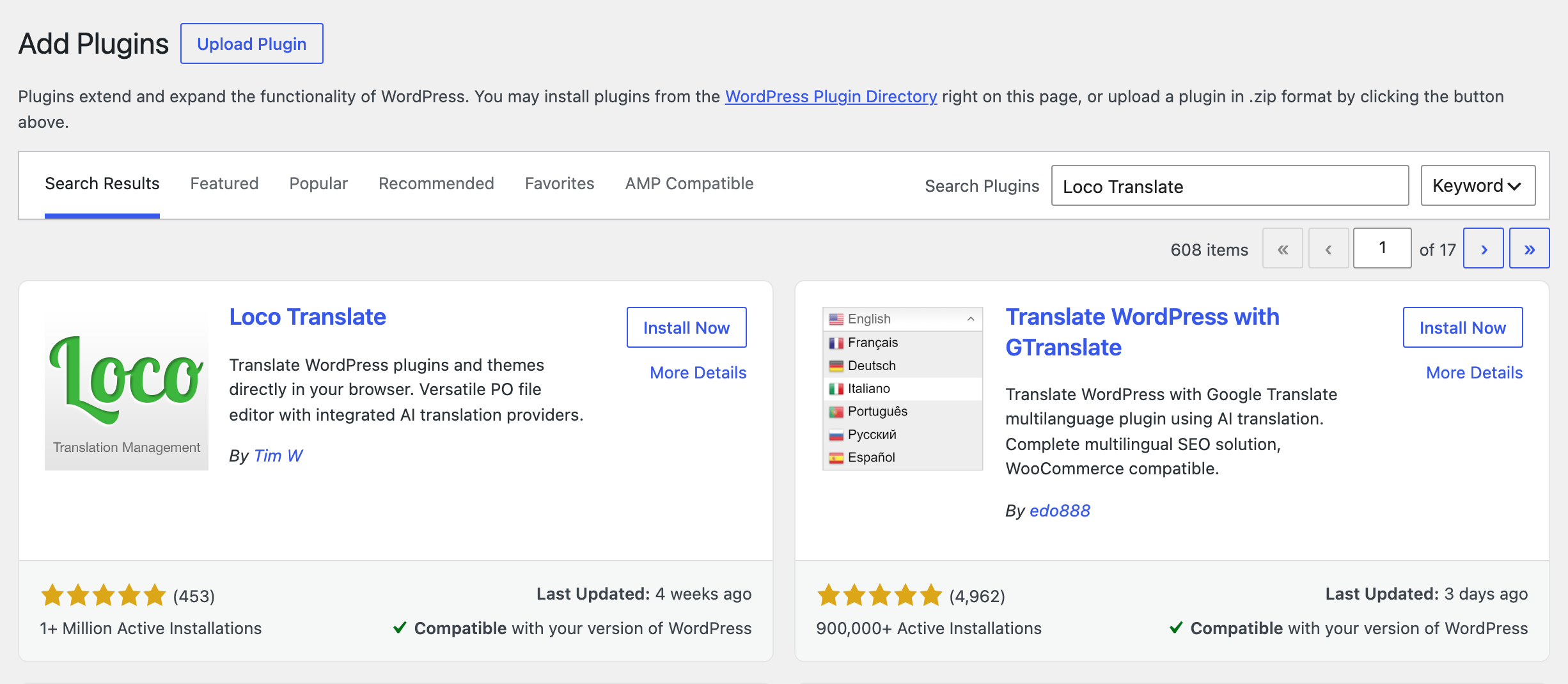
Navigate to Plugins > Add Plugin. Older versions of WordPress label it Add New.
-
Type Loco Translate in the Search Plugins box.
-
Click Install Now on the Loco Translate card.
-
Click Activate after the installation is finished.
How to Translate using Loco Translate
Follow the steps below to translate the theme with this plugin:
-
Tell WordPress what language to use. Navigate Settings > General and select your language in Site Language.

-
Go to WordPress Your dashboard > Loco Translate > Themes to access the main translation page of the plugin. This page will take you to a list of all available themes in your WordPress.
-
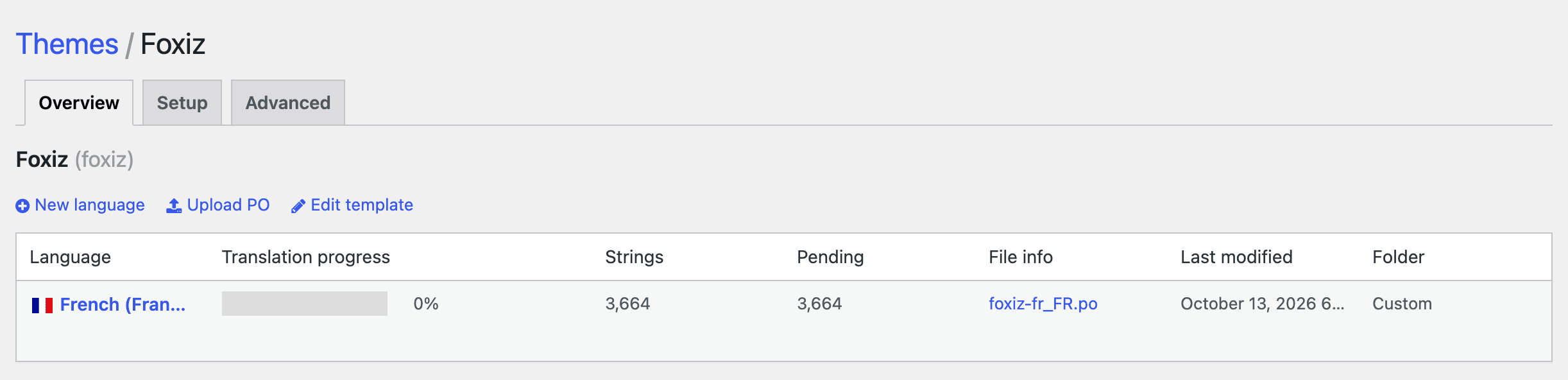
In the Theme Page, select Foxiz

-
Click the New language link.
-
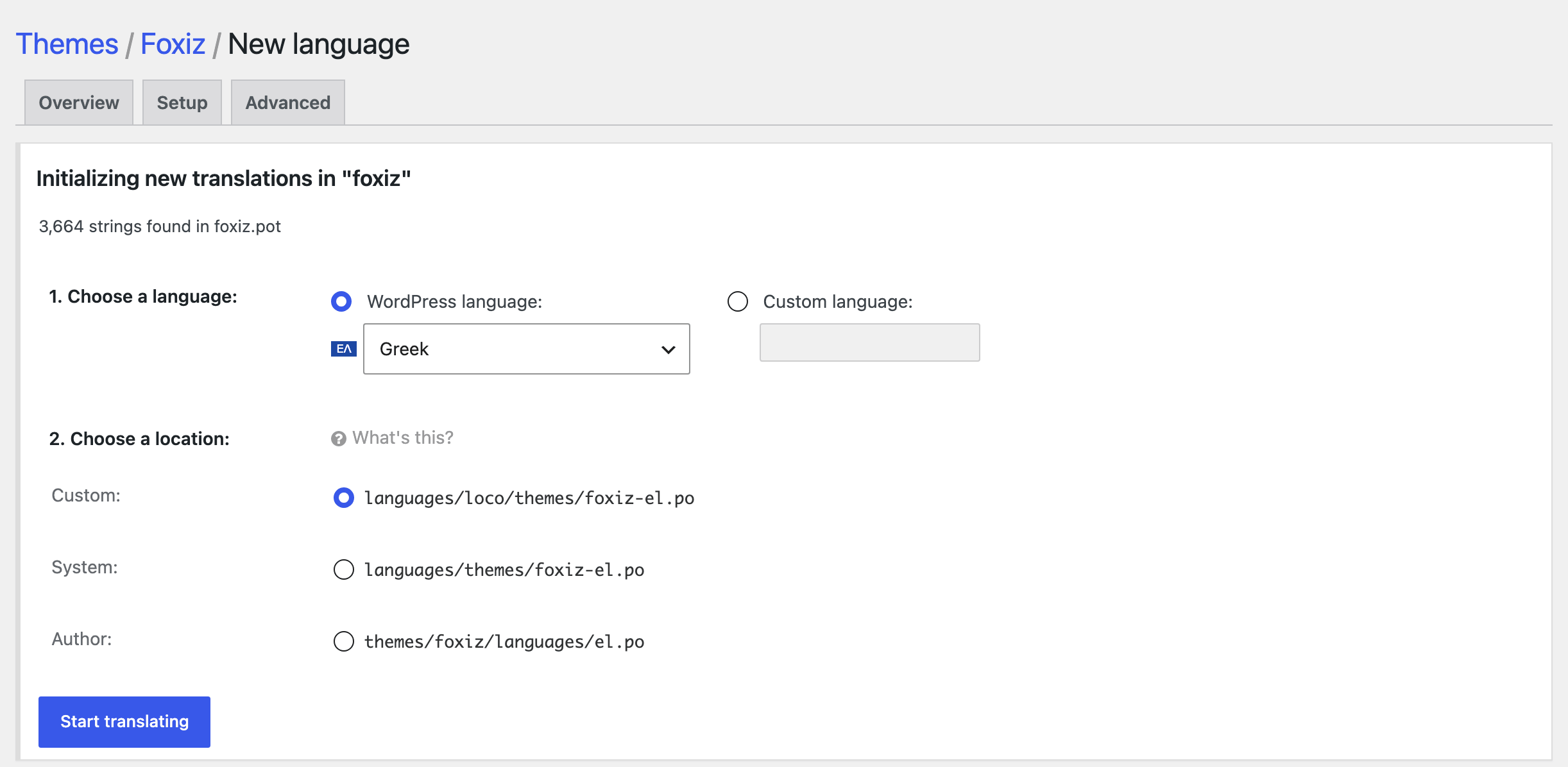
Select a language from the dropdown list of common languages. In this example, we'll select 'Greek'. You could achieve the same result by entering "el" (language code) into the text field instead.
 note
noteTo keep the translation files safe after theme update, select Custom or System under 2. Choose a location. If you are using a Child theme, only Custom or System option should be chosen. Pick Custom if you are unsure: Foxiz reads it first, as the next line says.
Foxiz reads both of those locations, the Custom folder first.
The third choice, Author, writes the file into the theme folder itself, where the next theme update deletes it.
-
With the language and folder location selected, click the Start translating button and you'll be taken to the editor screen for translating the theme.
Do the same for the Foxiz Core plugin under Loco Translate's Plugins menu item. There are two text domains: the theme's strings are foxiz and the plugin's are foxiz-core, and a good part of what a reader sees on the front end is printed by the plugin. Translate only the theme and the site comes out half English. Foxiz Core reads the same two safe locations, wp-content/languages/loco/plugins/ and wp-content/languages/plugins/, in that order.
Translate some strings
-
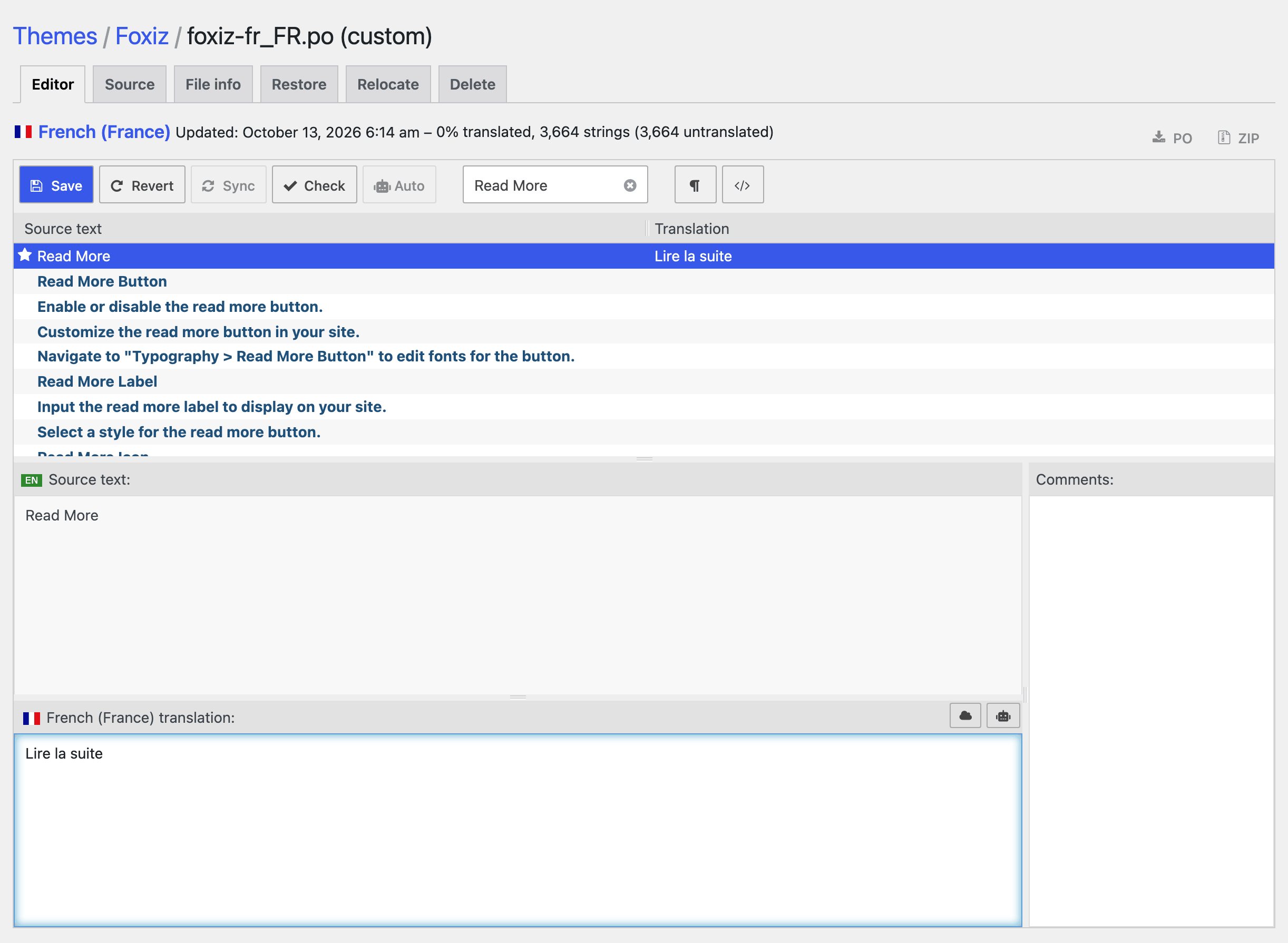
Once on the editor screen, you'll see all the strings the theme has defined. Untranslated strings are shown in bold blue. To start with they will all be untranslated.
-
The basics of the editor should be fairly intuitive. Select the English string at the top and enter your translation in the pane at the bottom. You can ignore most of the editor buttons for now. We're just going to enter a translation and save it.
-
Continue to translate as much as you like and when you are ready, click the Save icon in the editor toolbar. Congratulations, you've saved your first WordPress translation.
Check the Result
Now you can go to the front end of the website and see the translated string has been applied.
Not changed? Check these, in order:
- A cache plugin is serving the old page. Clear its cache and reload.
- A Quick Translation entry wins. A string filled in under Quick Translation replaces your Loco translation of it; empty that field.
- The string belongs to Foxiz Core. Translate the plugin too, as described above. That's all.
Did this answer your question?