Quickly Translate Theme
To translate the theme quickly, without a third party plugin or a PO file, follow the steps below.
- Navigate to Foxiz > Quick Translation in the admin menu. On the Foxiz dashboard it is also under the Extra Features tab.
- Find the text you would like. The screen has its own search box, Search source string..., and All, Untranslated and Translated tabs above the list.
- Type your wording in the Translation column, in the box next to the English string. A box left empty keeps the theme's own text, or the translation from a PO file if you have one.
- Save your changes with Save Changes at the bottom of the screen.
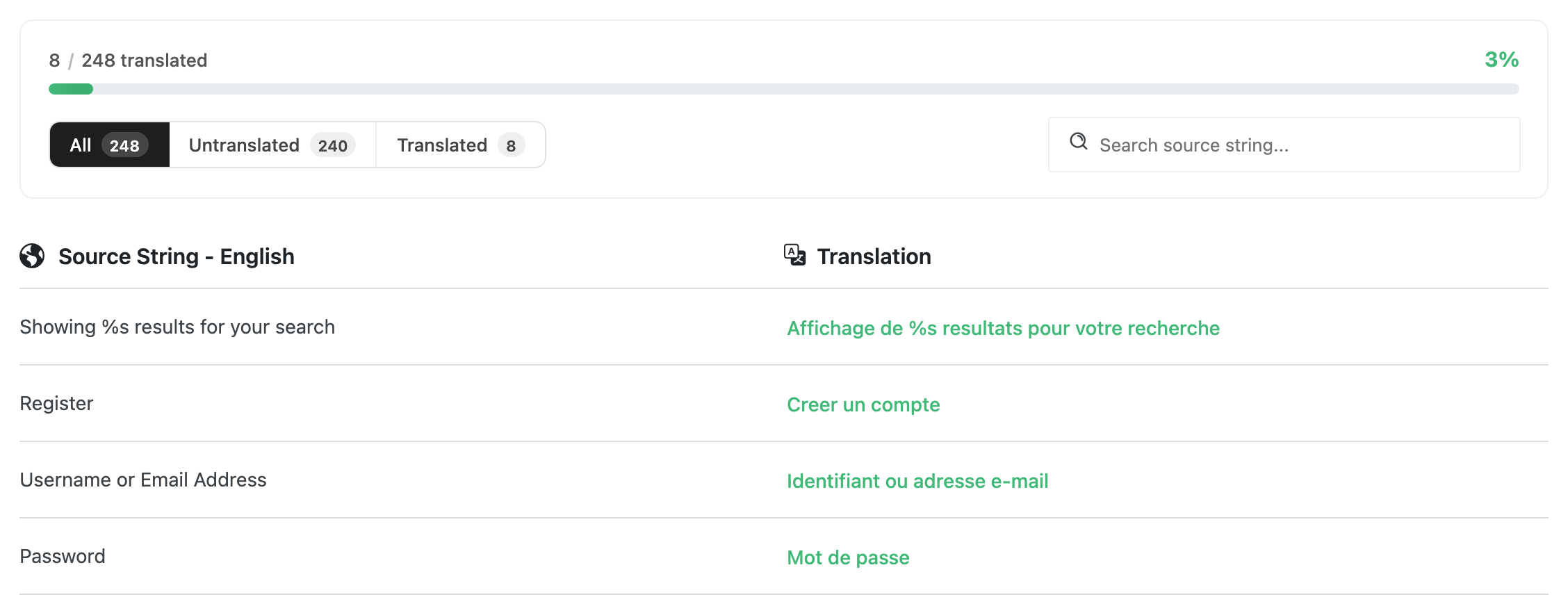
This screen holds a fixed list of 248 front end strings, the ones Foxiz includes in its quick translation file. It is not the whole theme. Anything outside that list needs Loco Translate or Poedit.
Quick Translation keeps what you type in the database, in the rb_translated_data option, not in a PO or MO file. That is why it survives a theme update without you doing anything, and also why a PO file editor cannot see it and why moving it to another site takes Export Data rather than a file copy.
The Quick Tools button on the same screen holds the rest of it:
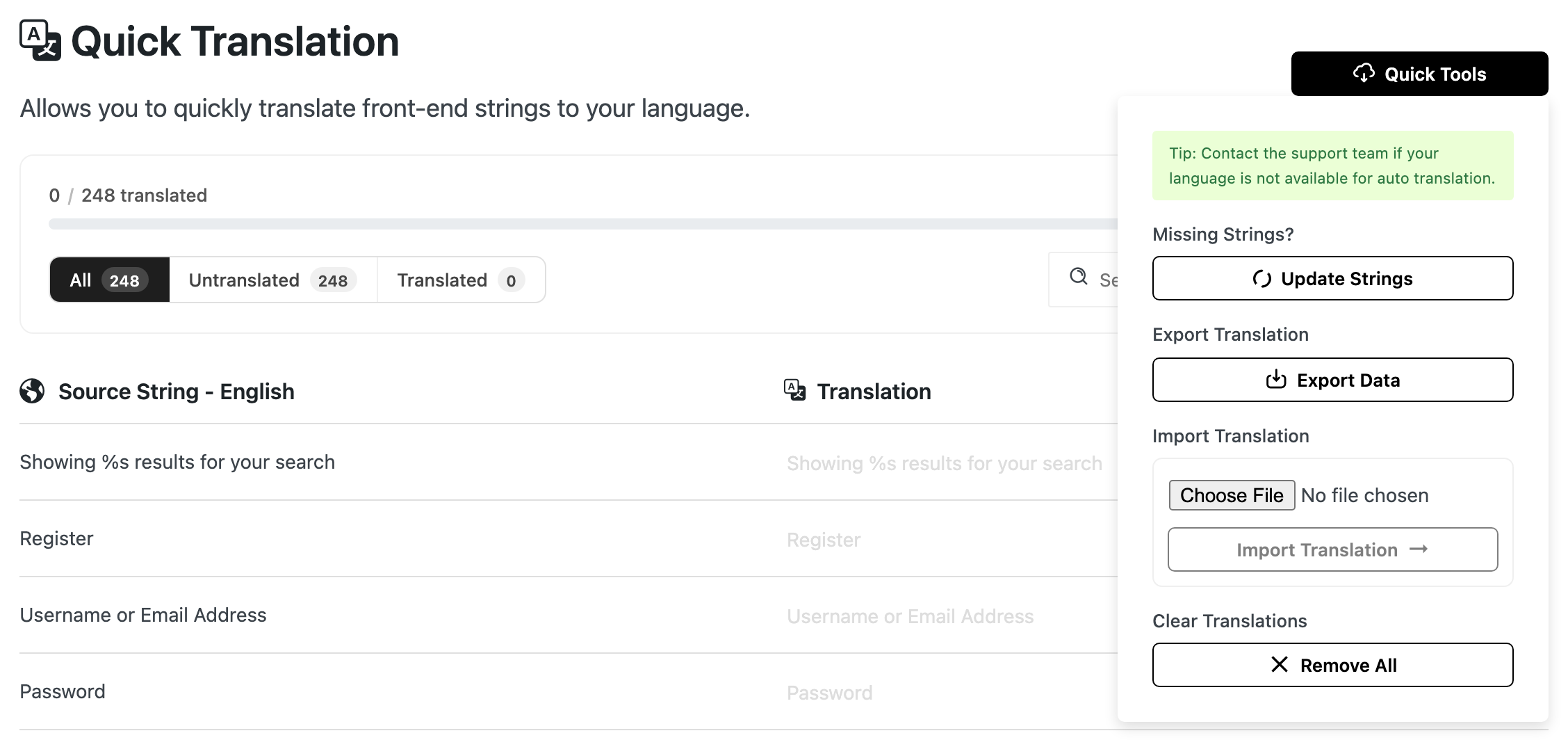
- Auto Translation fills the list for you when your site language is not English.
- Update Strings refreshes the list after a theme update.
- Export Data and Import Translation move your work between sites as a JSON file.
- Remove All clears every translation.
Looking for the multi-languages for your website?
Quick Translation holds one set of strings, so one language. To build a site in several languages, we recommend this third party plugin: WPGlobus
Foxiz also carries handling for WPML specifically, so that is the other one to consider. Note that when WPML is active this Quick Translation screen turns itself off and points you at PO files instead, because WPML needs one set per language.
Did this answer your question?