How Personalization Works
Personalization lets each visitor keep their own reading list on your site:
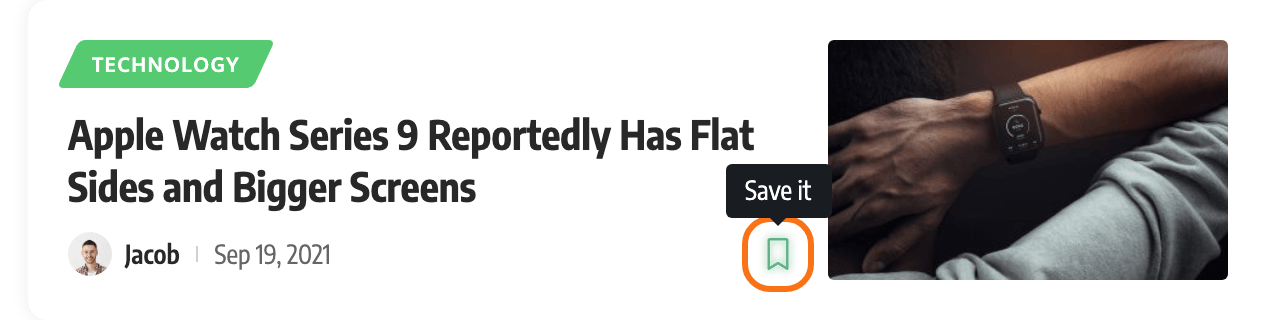
- Save a post with its bookmark icon, to read later.
- Follow a category, a tag or a writer.
- Look back at the posts they read lately, once Read History is on.
The theme stores all of it for you. What you build is the page, or pages, where visitors see it again. There are two ways to do that.
Two ways to build it
| Reading List template | Pages built with Elementor | |
|---|---|---|
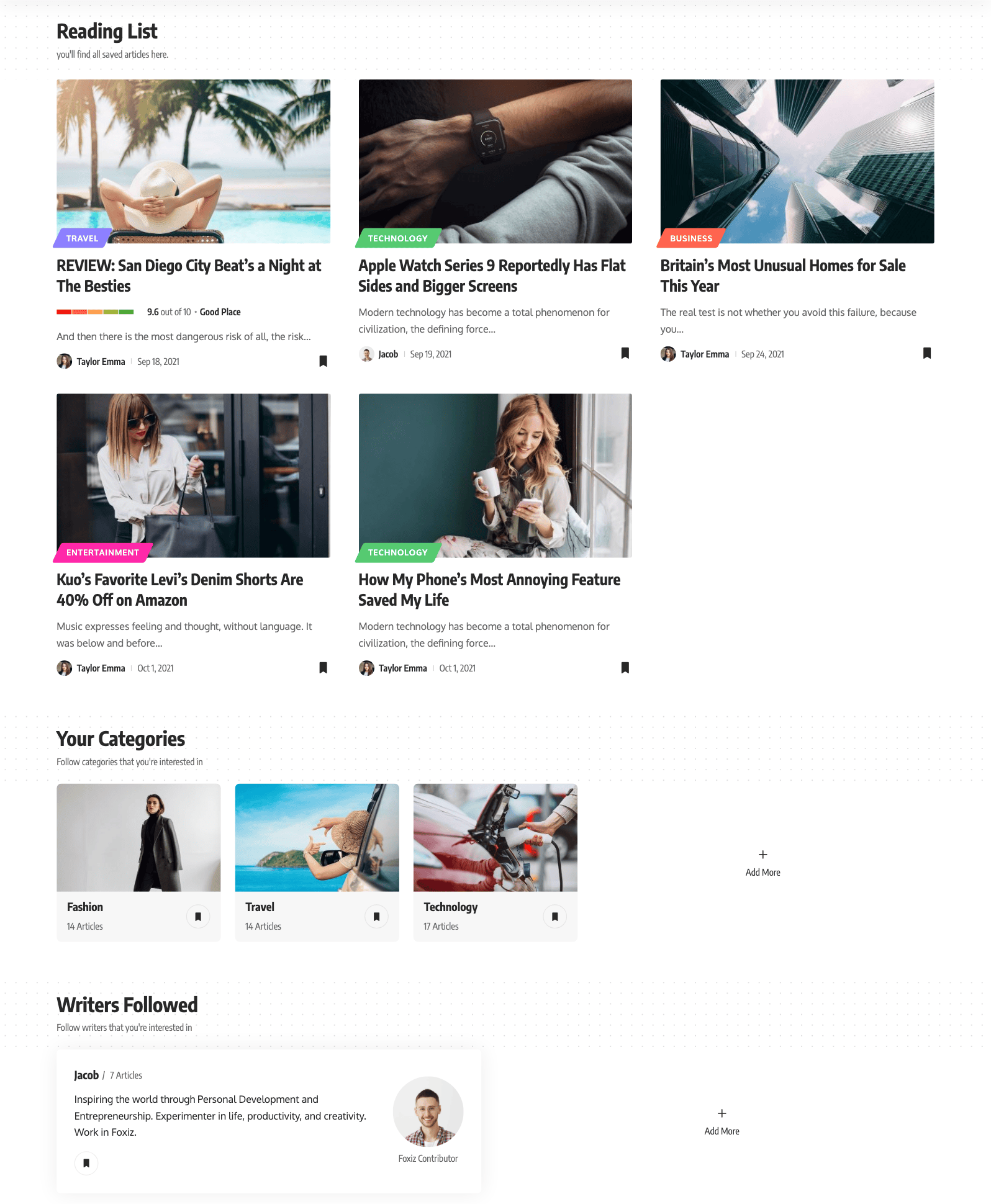
| What you get | One page with four fixed sections: saved posts, followed categories, followed writers, recommended posts | As many pages as you want, each laid out with blocks: a feed, an interests page, saved posts, reading history |
| How you build it | Create a page and pick the Reading List template | Create pages in Elementor and add the Foxiz - Personalized blocks and blocks with a follow button |
| Where you style it | Theme Options > Personalized System, in the three Reading List subsections | In each block's Elementor settings |
| Reading history | Not on this page | Yes, on a page of its own |
| Needs Elementor | No | Yes |
| Step by step | How to Setup Reading List? | How to Build Personalized Pages with Elementor |
Which one to choose
-
Pick the Reading List template for a quick start. It is one page, ready in a minute, and it needs no page builder. Whatever you type into that page's editor is not shown: the template draws the page itself.
-
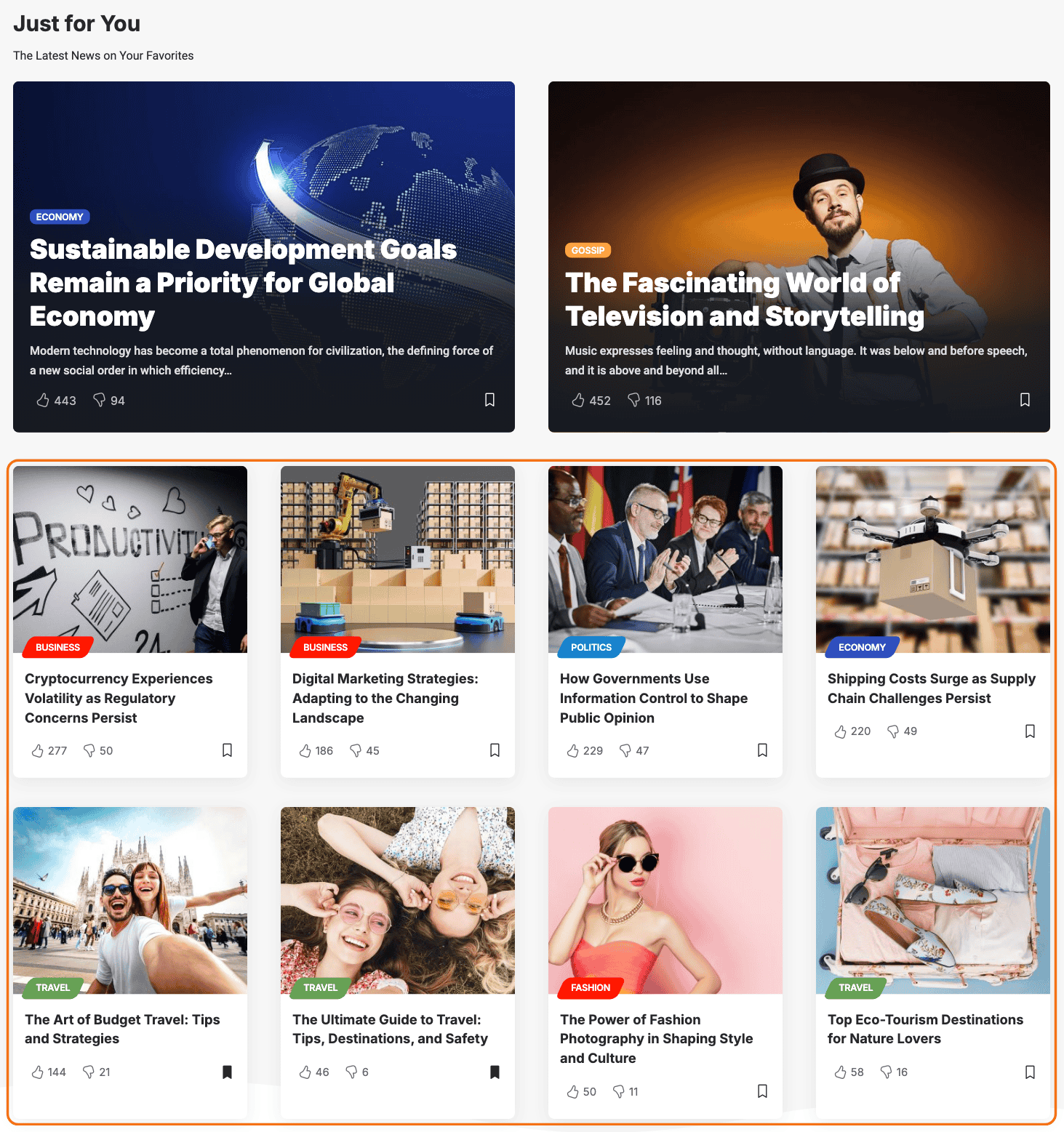
Build pages with Elementor when you want a personalized section like the Just for You demo, a page for reading history, or a layout of your own.
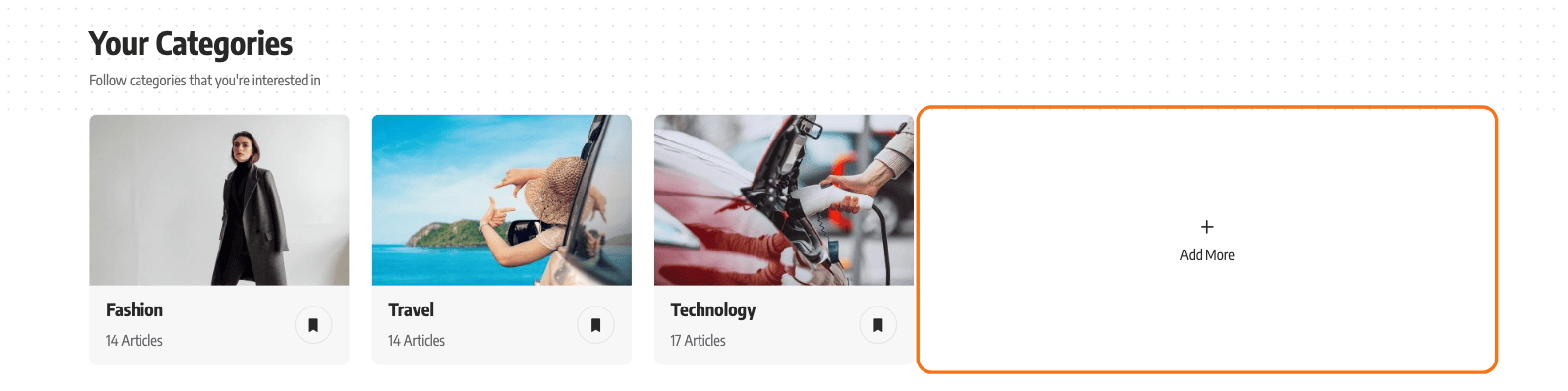
You can also use both. They read the same saves and follows, so a post saved anywhere on the site shows up on both. A common mix is the Reading List template for saved posts, plus an Elementor page where visitors pick what to follow. Point the template's Add More button at that page: see How to Add URL for Add More Button.
Before you start: setup for both ways
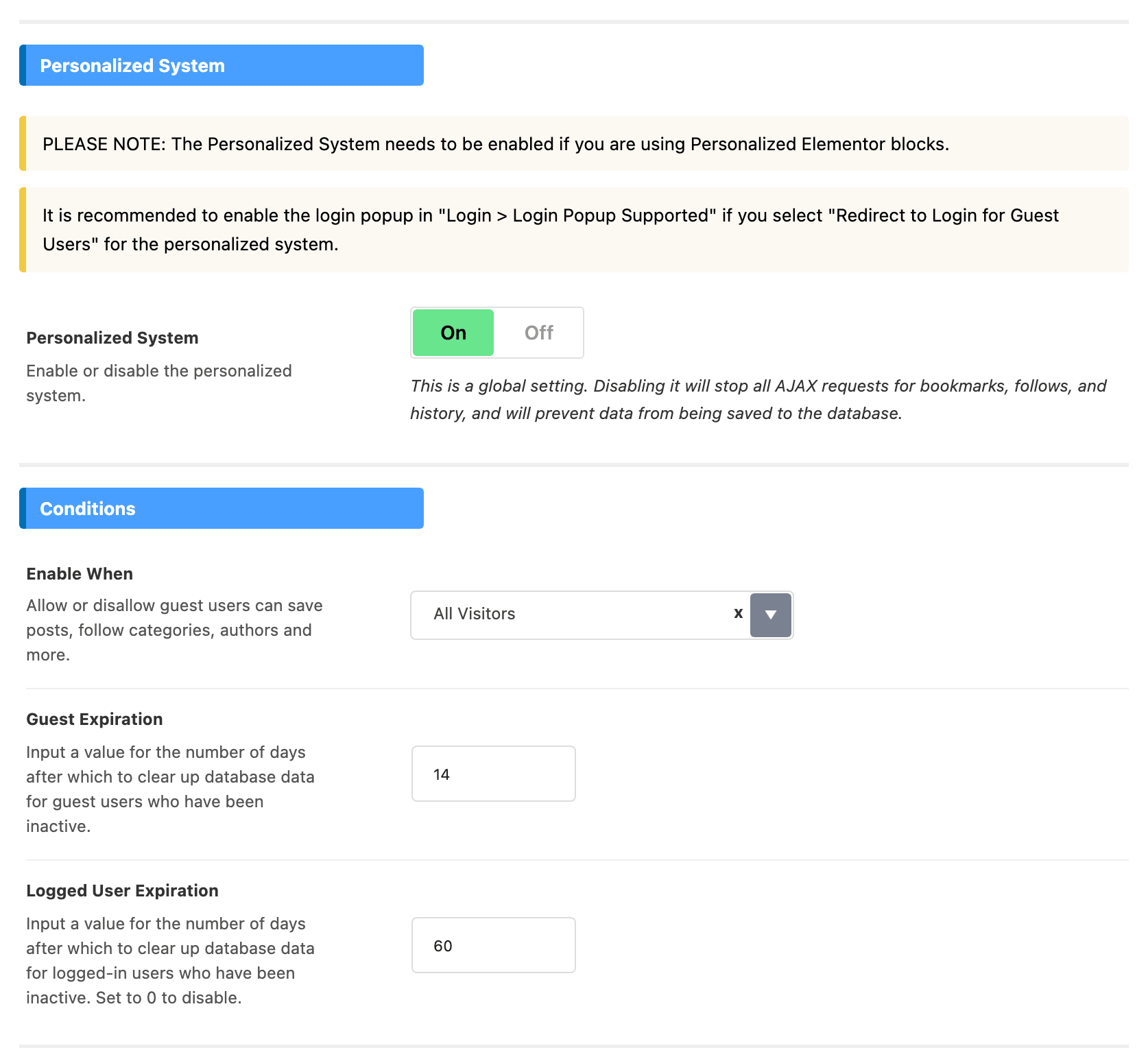
1. Turn the system on and decide who can use it
- Go to Theme Options > Personalized System > Global.
- Check that Personalized System is on. It is on by default. With it off, no bookmark icon, follow button or personalized block works, and nothing is saved.
- Choose Enable When. Its default is All Visitors.
- All Visitors: guests can save and follow too. A guest's lists belong to the browser they used.
- Only Logged Users: guests cannot save or follow. On an Elementor page of saved posts or reading history, a guest sees the Restricted Title and Restricted Description from the Restricted Information group instead of a list.
- Redirect to Login for Guest Users: the same, and a guest who clicks a bookmark or follow icon is sent to sign in. The panel recommends turning the login popup on with this choice.
- Click Save Changes.
2. Give visitors something to click
Your page only fills up once visitors save and follow, and the icons for both are off by default.
- Bookmark icon on post listings: turn on Bookmark Icon in each module under Theme Options > Standard Blog Design. See Enable the Read it later icon for a Module.
- Bookmark icon on the post itself: add bookmark (Bookmark) to Entry Meta Tags at Theme Options > Single Post > Entry Meta. By default that list holds only the author.
- Follow button on category, tag and author pages: turn on Follow in The Category Header, Follow in The Tag Header and Follow in The Author Header in the Archives group of Global. All three are off by default.
3. Build your page
- Reading List template: How to Setup Reading List?
- Pages built with Elementor: How to Build Personalized Pages with Elementor
Every setting of the panel is listed in Personalized System.
Did this answer your question?