How to Setup Reading List?
The reading list lets your visitors bookmark interesting posts and read them later, on one page of your site.
To setup read it later, please follow the steps below:
-
Navigate to Pages > Add Page, then create a page where your visitors can view their bookmarks.
-
Input your page title for example: My Bookmarks or whatever you wish.
-
Select Reading List under the template option. This is the page your readers come back to: everything they bookmark ends up here, and nothing else in the theme lists it.
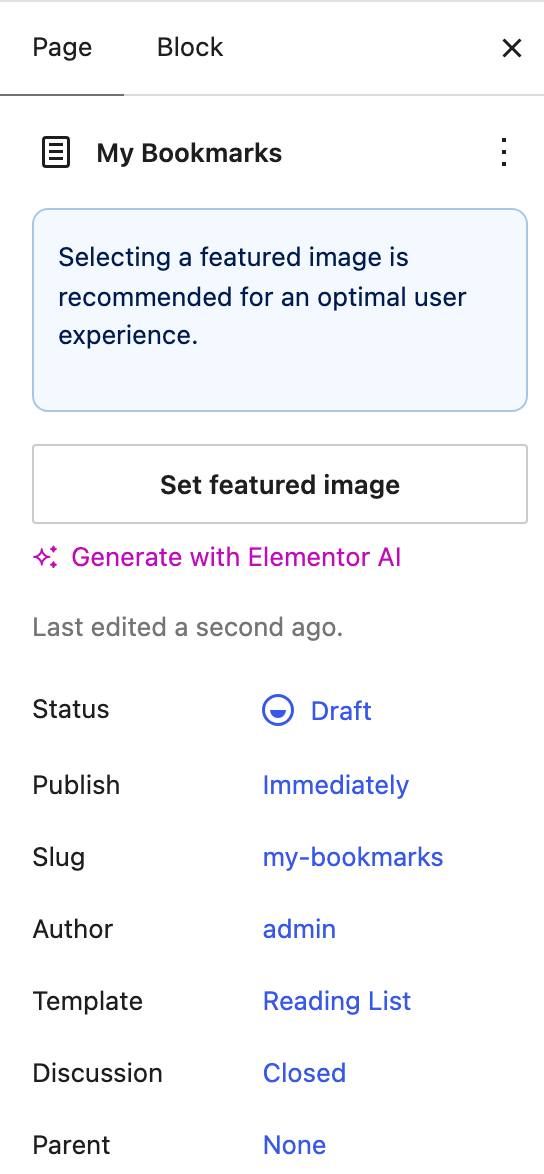
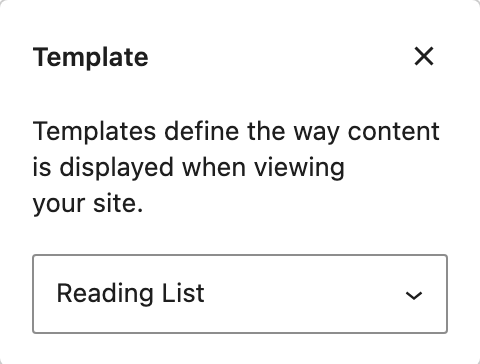
Clicking the Template row opens a small popover with the template dropdown:
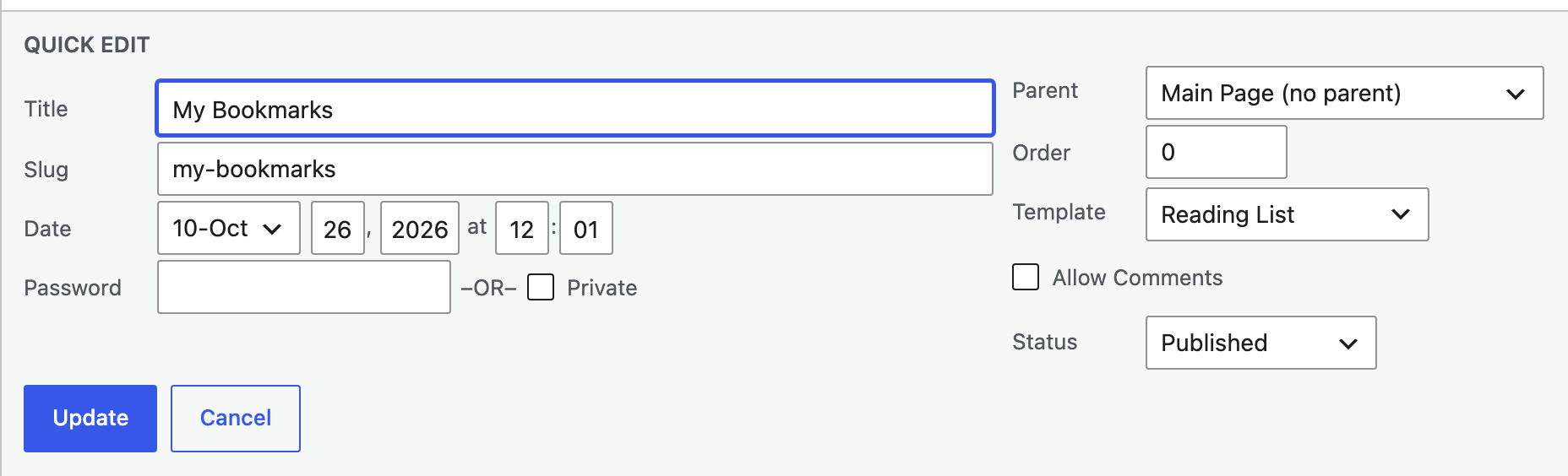
An existing page can be switched from Pages > All Pages too, with Quick Edit:
-
Navigate to Theme Options > Personalized System > Global.
-
Ensure the "Personalized System" option is enabled. It is enabled by default, so on a fresh install this step is a check rather than a change.
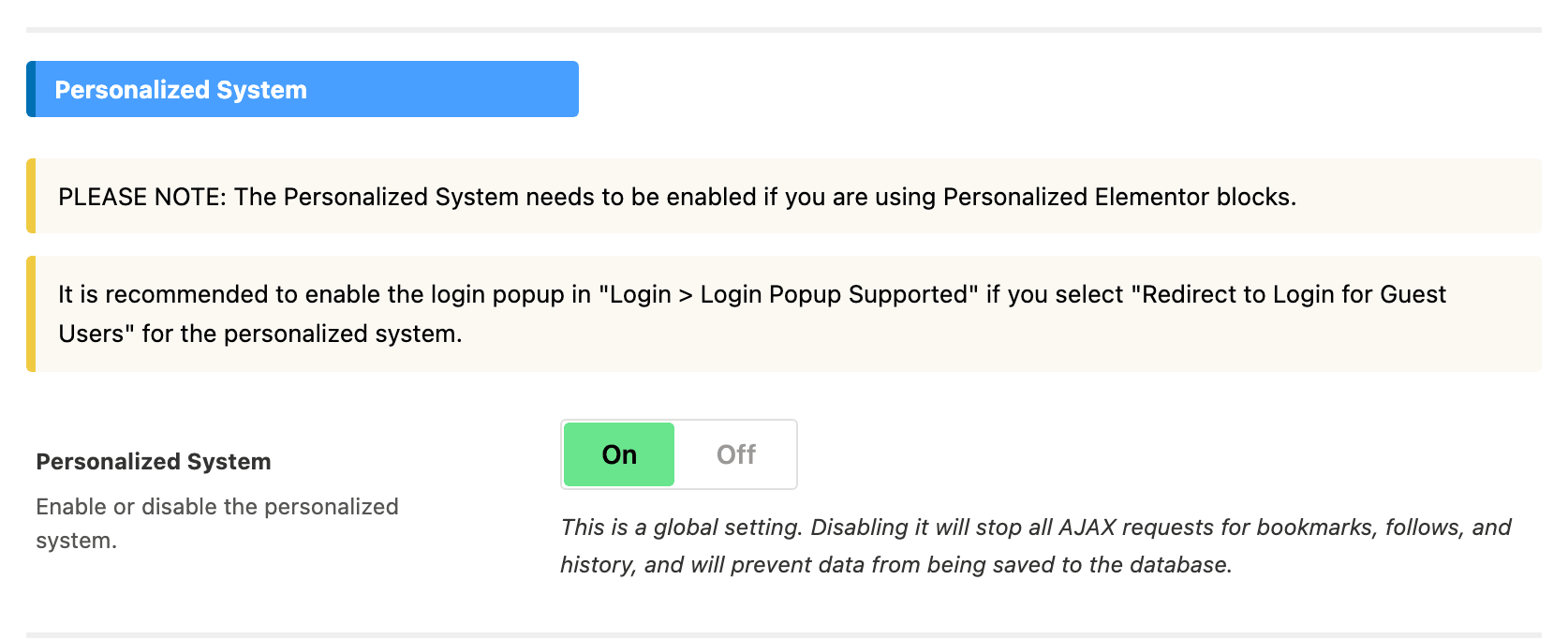
To disable this feature, You can turn this option off. That stops every bookmark, follow and history request on the site and stops anything new being written to the database.
-
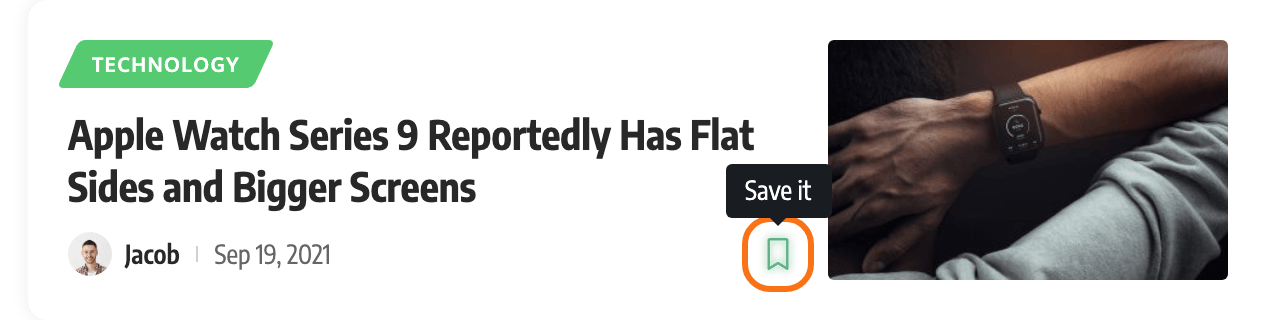
Turn on the bookmark icon, so readers have something to click. It is off everywhere by default, and without it the page stays empty.
- On post listings: switch on Bookmark Icon in each module under Theme Options > Standard Blog Design, as in Enable the Read it later icon for a Module below.
- On the post itself: add bookmark (Bookmark) to Entry Meta Tags at Theme Options > Single Post > Entry Meta. By default that list holds only the author.
Click Save Changes.
-
Add the page to your menu at Appearance > Menus, so readers can find their list again. See How to Create & Setup Header Menus?.
The page you built in steps 1 to 3 draws four sections, in this order. They are set up in three subsections of Theme Options > Personalized System:
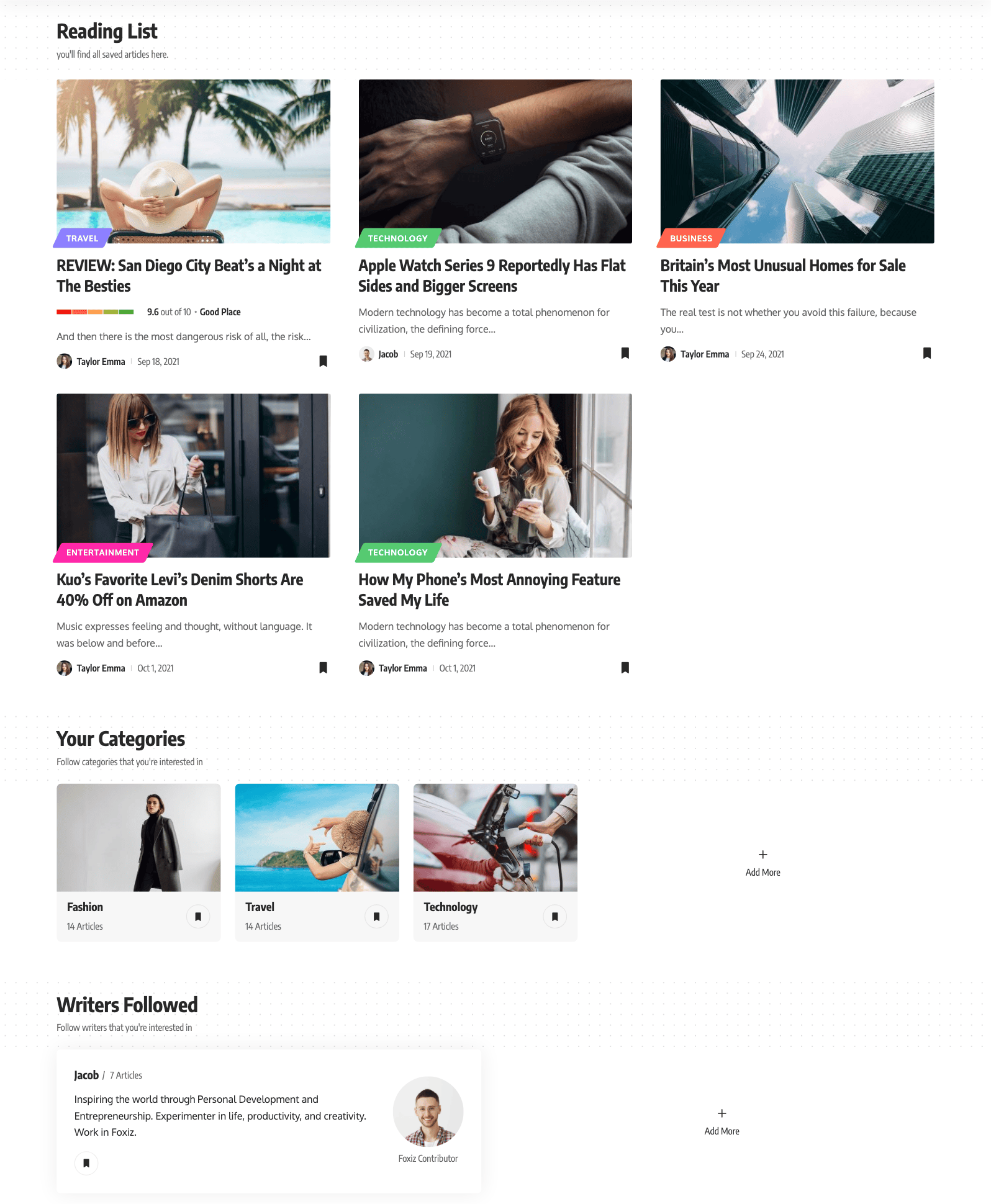
- Saved articles, under a heading that starts as Reading List. Set up in Reading List - Saved Section.
- Followed categories, under Your Categories. Set up in Reading List - Followed.
- Followed writers, under Writers Followed. Also set up in Reading List - Followed.
- Recommended posts, built from both. Set up in Reading List - Recommend.
The saved section shows a reader's 150 most recent bookmarks, newest first. Anything saved before that is still stored but no longer listed, and the same limit applies wherever saved posts are shown, including the Foxiz - Personalized Grid 1, Foxiz - Personalized Grid 2, Foxiz - Personalized List and Foxiz - Personalized Overlay blocks when their Query Source is User Saved.
Each of the first three sections opens with a header band, and its words and pictures are yours to change:
-
Reading List - Saved Section > Saved Header holds:
- Section Heading.
- Section Description, the line under the heading. By default it reads "you'll find all saved articles here." and disappears when you empty it.
- Description Image, a picture added to the heading, scaled to 45 pixels tall on desktop and 40 on smaller screens.
- Dark Mode - Description Image, which swaps in for it while a visitor is in dark mode. It is only used when Description Image is filled in too.
- Heading background Style, the band's backdrop: Pattern Dotted, the default, Pattern Dotted 2, Pattern Diagonal, Pattern Diagonal 2 or Solid Light Gray.
-
Reading List - Followed has two groups, one per section:
- Categories Section, switched on and off by Categories.
- Writers Section, switched on and off by Writers.
Each group carries the same four fields as above: Section Heading, Section Description, Description Image and Dark Mode - Description Image. A group's fields stay hidden while its switch is off, and turning the switch off removes the section from the page.
A reader who follows no categories yet still finds the followed categories list filled, with the four categories that hold the most posts.
A reader who follows no writers yet still finds Writers Followed filled: the theme suggests the four writers with the most posts, picked from Authors and Editors. Show Administrator, in the Archives group of Personalized System > Global, lets administrator accounts into that suggestion as well. It is off by default, which suits a site whose admin account does not write.
The fourth section can be switched off: Reading List - Recommend > General > Recommended Posts is on by default, and turning it off leaves the page with the first three sections only.
The saved and recommended lists are drawn like any other post listing, and the Blog Design group in Reading List - Saved Section and in Reading List - Recommend restyles each one. Both groups carry Review Meta Description, the text beside the stars or score bar on a post that carries a review: the score, such as 4.5 out of 5, then the post's own review Meta Description.
- - Default -, the default for both, follows the layout's module in Theme Options > Standard Blog Design.
- No Wrap keeps it on one line with the stars.
- Line Wrap puts it underneath.
- Desktop No Wrap - Mobile Line Wrap puts it underneath at 1024 pixels and below.
- No Wrap (Show Score Only) and Line Wrap (Show Score Only) drop the description.
- Disable shows the stars or bar alone.
Each Blog Design group, the saved list's and the recommended list's, also takes Desktop - Title Font Size, Tablet - Title Font Size and Mobile - Title Font Size, in pixels, for that list's post titles. The tablet size applies at 1024 pixels wide and below, the mobile size at 767 and below, and a blank field keeps the layout's own size.
Either list can be a Ruby Template instead:
- Put the template's shortcode in Template Shortcode, in the Template Builder group of Reading List - Saved Section or Reading List - Recommend.
- On the listing block inside that template, set Query Mode to Use WP Global Query, as the panel asks, so the block shows the reader's posts.
While the field holds a shortcode, that section's own layout, sidebar and design groups are hidden. If the saved list's template draws nothing, or none of its blocks is on the global query, the page falls back to the predefined layout.
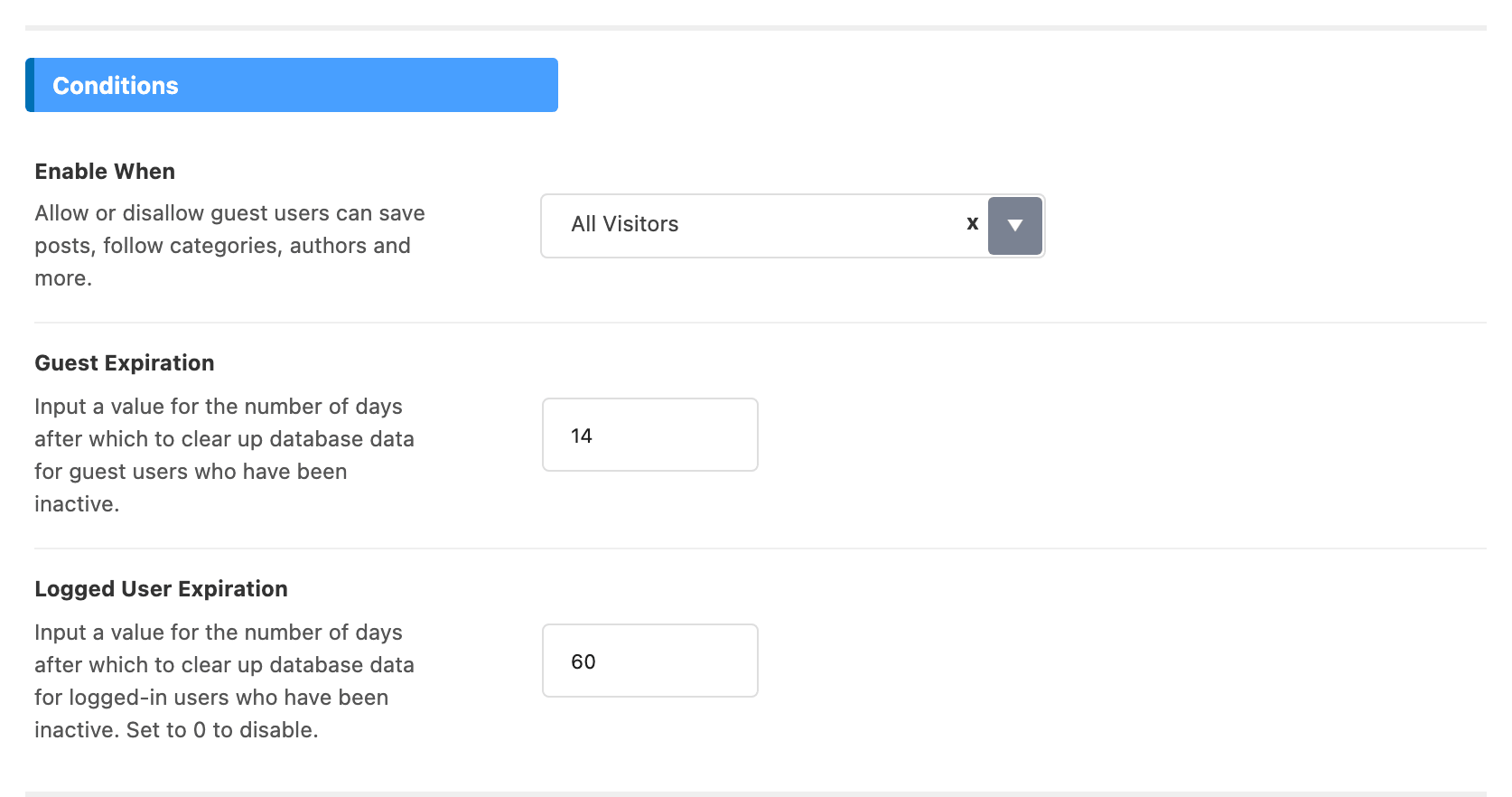
Two settings in Global decide who may use it and for how long.
Enable When defaults to All Visitors, so a reader does not have to log in to bookmark. The other two values are Only Logged Users and Redirect to Login for Guest Users. If you pick the third, the panel recommends the login popup as well, so the reader gets a popup instead of leaving the article. That is Login Popup Support at Theme Options > Login > Popup Sign In, and it defaults to Enable, so check it has not been switched to Disable. The rest of that panel, the popup form included, is described in Every Setting in the Login Panel.
Guest Expiration and Logged User Expiration are how many days of inactivity before that reader's rows are deleted, 14 and 60 by default. Setting the logged user value to 0 disables the cleanup for accounts.
Bookmarks are not post meta and they are not in the user profile. They live in one custom table named rb_personalize behind your database prefix, one row per action, with the post id, the action, the date and an identifier for the reader.
For a logged in reader that identifier is tied to their user id, so the list follows them to any browser.
For a guest it is a random id in a cookie named RBUUID, backed by local storage, which means a guest's reading list belongs to that browser: it does not survive a different device, a private window, or clearing cookies. That is worth saying on the page itself if you allow guest bookmarks.
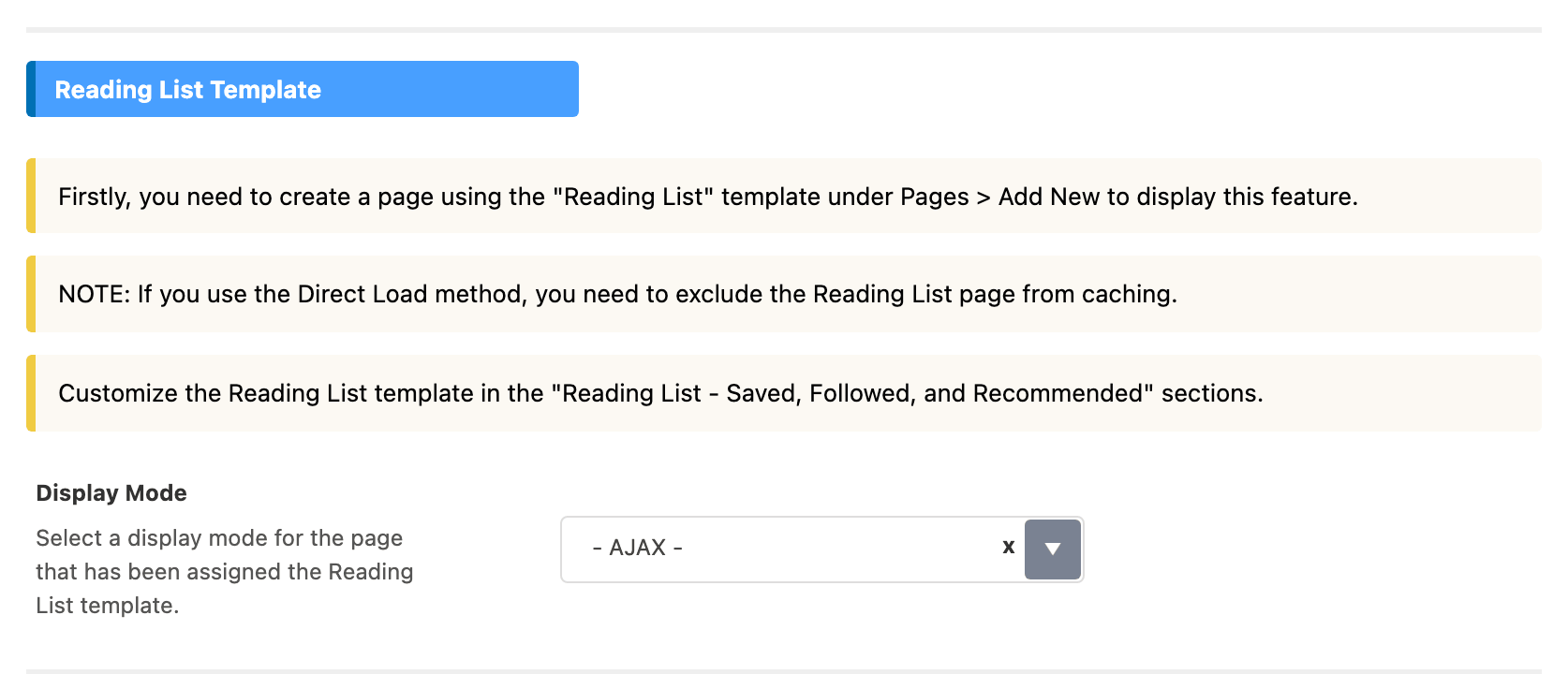
Display Mode, in the same Global subsection, decides how that page loads: - AJAX -, the default, which is safe behind a page cache, or Direct, which renders the list with the page and needs the Reading List page excluded from caching.
Popup Notification, further down Global, is on by default. Each time a reader saves or removes a post, a small popup shows that post's thumbnail and title with a line saying it was added to the reading list or removed, and fades after two seconds. Turn it off if you would rather the bookmark icon changed quietly.
Enable the Read it later icon for a Module
The theme allows you to enable this icon per module. Two places decide whether a listing shows it:
- The Bookmark Icon switch of a module, in Theme Options > Standard Blog Design, covers every listing drawn with that module.
- The Bookmark Icon select of a listing page, such as Theme Options > Category, covers that listing page only.
The listing page's select wins when it is set to Enable or Disable. On - Default -, it follows the module's switch. So turn the icon on in the modules first, and use a listing page's select only for the exceptions.
To get started:
-
Navigate to Theme Options > Standard Blog Design
-
Select a module you would like, then enable the "Bookmark Icon" button. Every module has it off by default, and turning it on in one does not turn it on in the others. There are ten modules:
- Classic
- Grid 1, Grid 2 and Small Grid
- Boxed Grid 1 and Boxed Grid 2
- List 1 and List 2
- Boxed List 1 and Boxed List 2

Refer to this article for further information.
The listing pages each have a Bookmark Icon select of their own, one per Theme Options panel:
- Theme Options > Blog Index
- Theme Options > Category
- Theme Options > Author Page
- Theme Options > Archives
- Theme Options > Search Page
Each defaults to - Default -, which follows the module's switch. So a listing built from Theme Options > Category shows the icon as soon as its module has it on. Pick Enable or Disable there only when you want that listing to show or hide the icon whatever the module says.

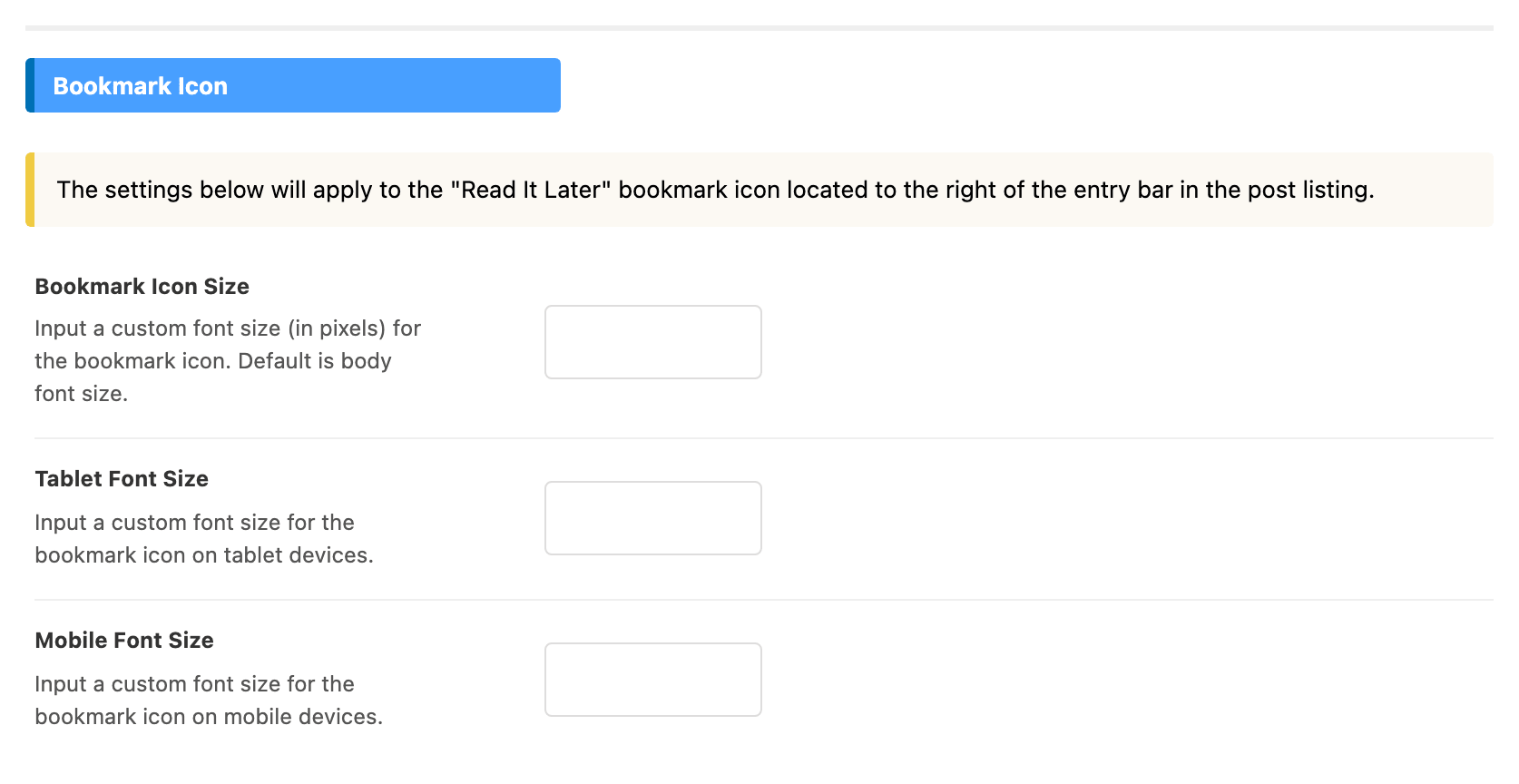
The icon's size is set once for the whole site, in Personalized System > Global > Bookmark Icon, with separate Bookmark Icon Size, Tablet Font Size and Mobile Font Size fields. Left blank they follow the body font size.
To show the bookmark icon, you must enable at least one post entry meta. This gives the layout the right spacing to display the bookmark icon.
The theme builds the meta row first and only draws the bookmark trigger inside it, so with every meta element off there is no row and no icon, however the module's switch is set.
The icon is also skipped on AMP pages, and on every page while Personalized System is off.
Did this answer your question?