Personalized System
This tab lets visitors keep their own list: posts they bookmark, the categories, tags and writers they follow, and what they read lately. It also styles the Reading List page that shows it all back to them.
Where to find it
Go to Theme Options > Personalized System. The tab has no settings of its own. Click it and it opens a list of five subsections; each subsection has its own settings.
After changing anything, click Save Changes. The button is at the bottom of the panel, and also in the bar that stays at the top while you scroll.
Personalized System or another tab?
- Saving posts, following, the Reading List page and read history: Personalized System, this tab.
- Like and dislike buttons, and emoji reactions under a post: Like & Reaction. See every setting in the Like & Reaction panel.
What is inside, by job
The Theme Options menu on the left lists the subsections in panel order. Here they are grouped by what you are trying to do; each name links to its fields further down this page.
Turn the system on and decide who can use it
- Global: the switches for the personalized system as a whole: the one that runs it, who can use it, and the follow buttons on archive headers.
The Reading List page
These three style the page that uses the Reading List template.
- Reading List - Saved Section: the saved posts section of that page.
- Reading List - Followed: the followed categories and writers sections of that page.
- Reading List - Recommend: the recommended section of that page.
What a visitor has read
- Read History: keeps track of the posts each visitor has read, so a Personalize block can show it back to them.
Global
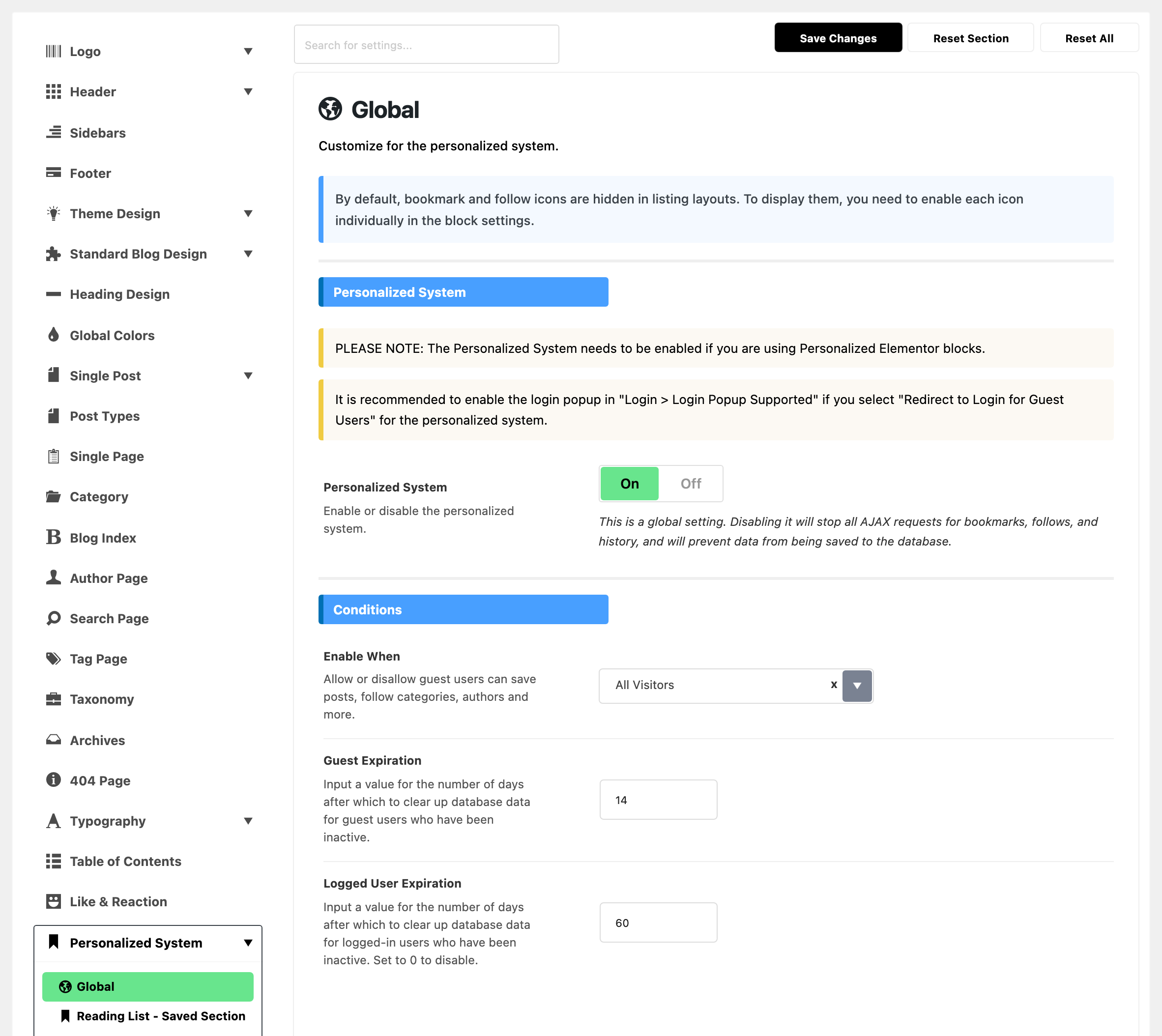
A notice opens the screen: the bookmark and follow icons in post listings are hidden by default, and you turn them on in each block's own settings.
Personalized System group:
- Personalized System: on by default. Turn it off and saving, following and read history all stop, and nothing more is saved. The Personalized Elementor blocks need it on. Every other group on this screen hides while it is off.
Conditions group:
-
Enable When: who can save posts and follow categories, tags and writers. Default: All Visitors.
- All Visitors: guests too, with no account needed.
- Only Logged Users: guests cannot save or follow. Where their saved posts would show, they see the Restricted Information text below.
- Redirect to Login for Guest Users: a guest's bookmark and follow buttons read Sign In to Save and Sign In to Follow, and open the sign in popup, or the login page when the popup is off. The panel recommends turning on the popup at Login > Login Popup Supported for this choice; see how to set up the sign in popup.
All Visitors suits most sites: a reader can save a post the moment they want to, without signing up. Pick Redirect to Login for Guest Users when you want saving to bring in registered readers.
-
Guest Expiration: after how many days without activity a guest's saved posts and follows are deleted. Default: 14.
-
Logged User Expiration: the same for signed in readers. Default: 60; set 0 to keep their lists for good.
Reading List Template group:
-
Display Mode: how the page with the Reading List template loads the visitor's lists. Default: - AJAX -.
- - AJAX - draws the page first and then fetches each visitor's lists into it.
- Direct puts the lists in the page itself. The panel notes that the page then has to be excluded from caching.
Keep - AJAX - for most sites: it needs no change to your caching setup.
Restricted Information group, the text a guest sees instead of saved posts when Enable When keeps guests out:
- Restricted Title: default
Join our Community. Clear it and nothing is shown. - Restricted Description: default
Create an account to save your favorite stories and access them Anytime!
Popup Notification group:
- Popup Notification: the small popup that confirms a save or a follow. On by default.
Archives group, all off by default:
- Follow in The Category Header: a follow button in the header of category pages.
- Follow in The Tag Header: the same on tag pages.
- Follow in The Author Header: the same on author pages.
- Show Administrator: lists administrators among the writers suggested to follow.
Bookmark Icon group, for the bookmark icon at the right of the meta row in post listings:
- Bookmark Icon Size: in pixels; empty uses the body font size.
- Tablet Font Size and Mobile Font Size: the same on smaller screens, empty by default.
Reading List - Saved Section
The saved posts section at the top of the page that uses the Reading List template. To show saved posts somewhere else, use the Personalized Elementor blocks instead.
Saved Header group:
- Section Heading: default
Reading List. - Section Description: default
you'll find all saved articles here. - Description Image and Dark Mode - Description Image: a small image beside the heading, 45 pixels tall on desktop and 40 on smaller screens. Empty by default.
- Heading background Style: Pattern Dotted (the default), Pattern Dotted 2, Pattern Diagonal, Pattern Diagonal 2 or Solid Light Gray.
Template Builder group:
- Template Shortcode: a Ruby Template shortcode that draws this section instead of the standard layout. A block in the template needs Use WP Global Query set in its Query Mode, so it shows the visitor's saved posts. While this field holds a shortcode, the three groups below hide.
Blog Layout group:
- Blog Layout: the listing style; default Grid 1.
- Columns on Desktop, Columns on Tablet, Columns on Mobile and Column Gap: all on - Default -, which keeps the spacing and columns of the chosen style.
Blog Sidebar group:
- Sidebar Position: default No Sidebar.
- Assign a Sidebar: the widget area used when a position is set; default Standard Sidebar.
- Sticky Sidebar: - Default -, Sticky Sidebar, Sticky Last Widget or Disable.
Blog Design group: the post cards, field by field, as in Standard Blog Design. Every field starts on - Default - or empty, which follows Standard Blog Design, so change only what should differ on this page:
- Featured Image Size, Custom Featured Ratio
- Entry Category, Entry Meta Bar, and Entry Meta Tags when Entry Meta Bar is set to custom
- Review Meta, Review Meta Description, Post Format Icon, Bookmark Icon
- Excerpt, with Excerpt - Max Length and Excerpt - Source when it is enabled; the source defaults to the tagline
- Read More Button, Title HTML Tag, Desktop - Title Font Size, Tablet - Title Font Size, Mobile - Title Font Size
- Responsive - Hide Entry Category, Hide Entry Meta on Tablet, Hide Entry Meta on Mobile, Responsive - Hide Excerpt
Reading List - Followed
The followed categories and followed writers sections of the Reading List page.
General group:
- Redirect More Button: where the more button of these sections leads, such as a page where readers pick topics to follow. Default
#, which goes nowhere; see how to add URL for Add More Button. - Background Pattern: the background of both section headings, with the same five choices as the saved section; default Pattern Dotted.
Categories Section and Writers Section groups, each with the same fields:
- Categories / Writers: show the section. On by default.
- Section Heading: default
Your Categories/Writers Followed. - Section Description: default
Follow categories that you're interested in/Follow writers that you're interested in. - Description Image and Dark Mode - Description Image: empty by default.
Reading List - Recommend
The recommended section at the foot of the Reading List page: posts from the categories and writers the visitor follows, or a fallback list when they follow nothing.
- Recommended Posts: show the section. On by default.
- Posts per Page: default 9.
- Template Shortcode, in Template Builder: as in the saved section, a Ruby Template here replaces the standard layout and hides the groups below. Leave it blank to use them.
- Heading group: Section Heading (default
Recommended for You), Heading Layout and Heading HTML Tag (both - Default -), and Heading Font Size (Desktop). - Layout group: the saved section's Blog Layout fields, with Columns per Row in place of Columns on Desktop. Blog Layout defaults to Grid 1.
- Blog Sidebar and Blog Design groups: the same fields as in the saved section.
- Pagination Type, in Blog Pagination: - Disable - (the default), Load More (Ajax) or Infinite Scroll (Ajax).
Read History
Read History records the posts each visitor reads. The theme has no page for it: you show it with a Personalize block in Elementor, as how to build a reading history page walks.
- Read History: off by default.
- History Expiration: after how many days a visit is removed from the history. Default: 2.
- History Title and History Description: the text a visitor sees before they have read anything. Defaults
Start reading to see your historyandStories you've read in the last 48 hours will show up here.If you change History Expiration, change the 48 hours in that sentence to match.
The three fields under the switch appear once Read History is on.
Common jobs
- Build the Reading List page: how to set up reading list.
- Show saved posts or followed topics anywhere on a page: How to Build Personalized Pages with Elementor.
- Point the more button of the followed sections to a page of your own: how to add URL for Add More Button.
Good to know
One switch runs it all. Personalized System in Global is on by default. Turn it off and bookmarks, follows and history all stop, and nothing more is saved.
Who can save and follow is set by Enable When in Global. Its default is All Visitors. The choices are:
- All Visitors
- Only Logged Users
- Redirect to Login for Guest Users
The Reading List page has to exist first. Create a page under Pages > Add New and give it the Reading List template. The three Reading List subsections style that page.
Some parts are off by default. Turn them on when you want them. The first three are the follow buttons on archive headers, in the Archives group of Global:
- Follow in The Category Header: the follow button on category pages. Off by default.
- Follow in The Tag Header: the follow button on tag pages. Off by default.
- Follow in The Author Header: the follow button on author pages. Off by default.
- Read History, in its own subsection. Off by default.
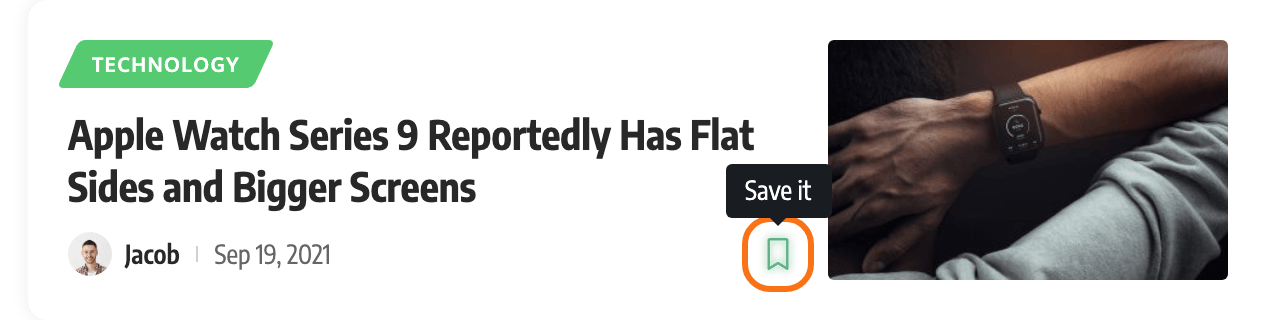
- The bookmark and follow icons in listing blocks. Hidden by default; turn them on in each block's own settings.
If a change does not show
- Did it save? Click Save Changes again and wait for the confirmation.
- Is a cache serving the old page? Clear your caching plugin and any server or CDN cache. If Display Mode in Global is set to Direct, exclude the Reading List page from caching for good.
- Is the bookmark icon off on that block? Icons in listings are turned on block by block, not here.
Did this answer your question?