How to Build Personalized Pages with Elementor
A personalized section is a small group of pages that every visitor sees differently: a feed built from what they follow, a place to follow topics and writers, the posts they saved, and the posts they read. The Just for You demo builds it from four Elementor pages, linked together in one menu.
This is one of the two ways to build personalization. The other is the ready made Reading List template, one page with no building. How Personalization Works compares them.

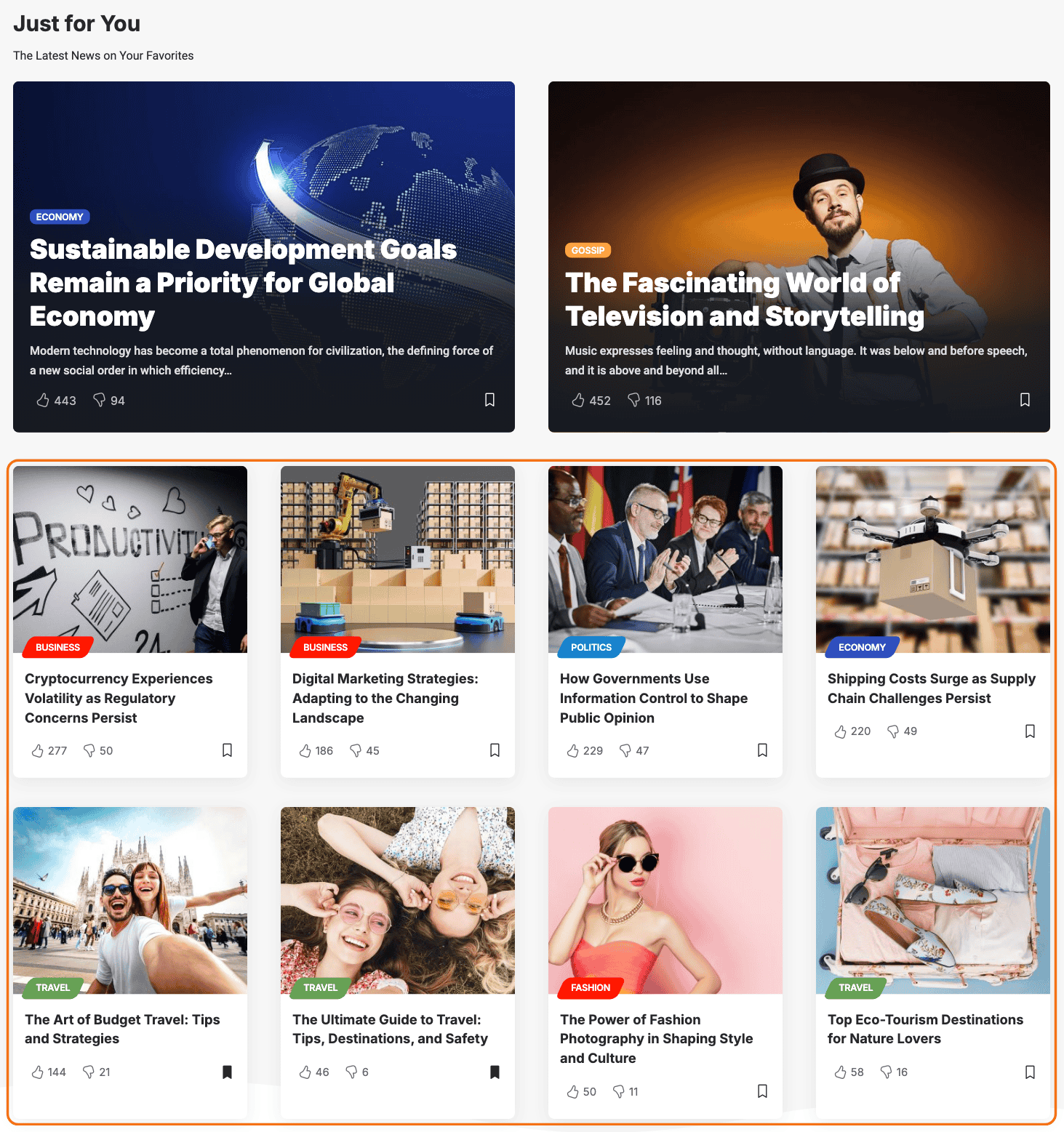
The work, in order:
- Do the setup.
- Learn the Personalized block, which every page uses.
- Build the four pages.
- Put them in a menu.
- Test them.
1. Do the setup
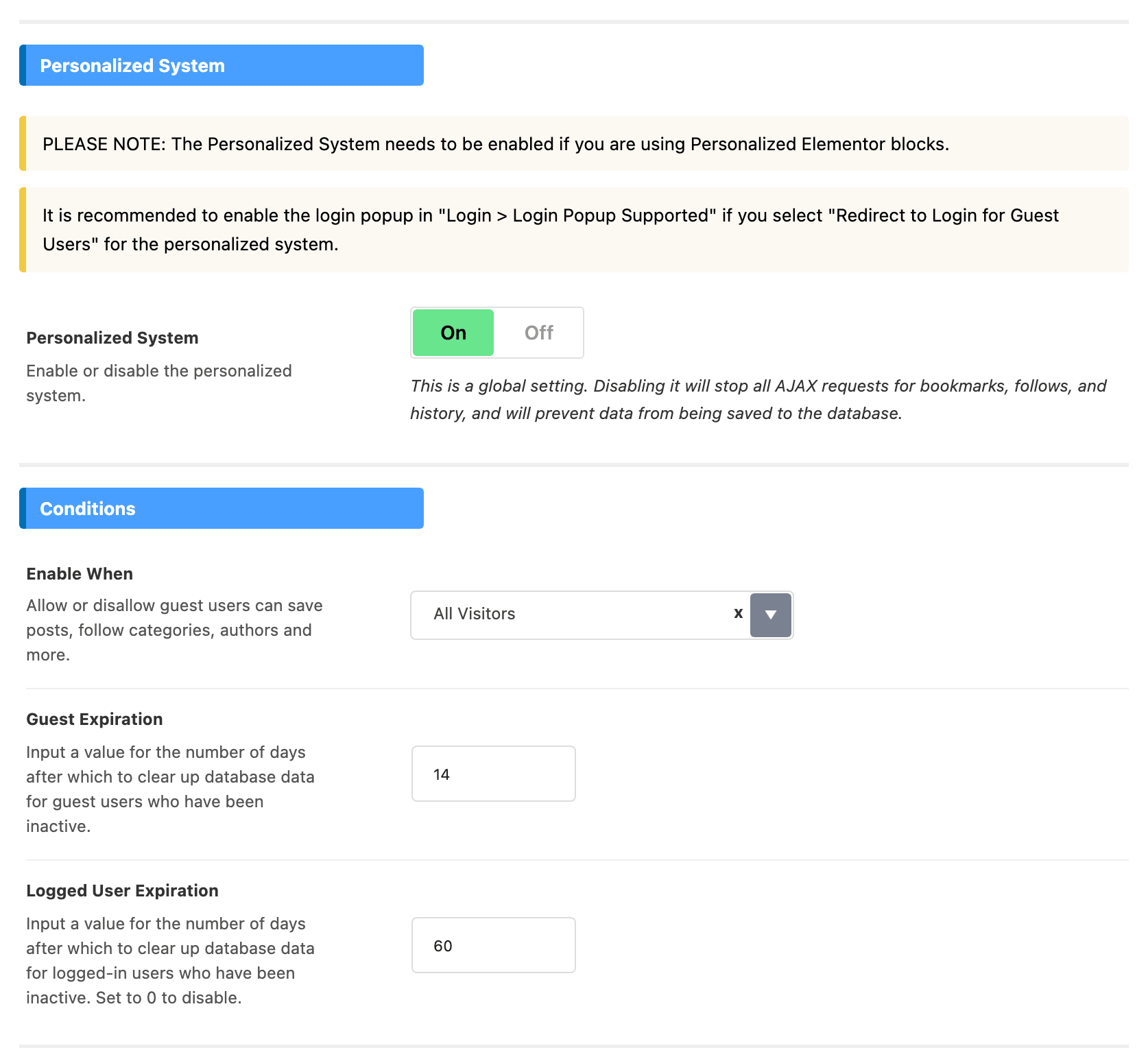
- Turn the system on, choose who can use it, and switch on the bookmark icons and follow buttons. The steps are in How Personalization Works.
- If you will build the Reading History page, turn on Theme Options > Personalized System > Read History > Read History. It is off by default, and until it is on nothing a visitor reads is recorded. The steps are in How to Build a Reading History Page.
The blocks below show nothing while Theme Options > Personalized System > Global > Personalized System is off. It is on by default; the panel's own notice says it has to stay on for Personalized Elementor blocks.
2. Learn the Personalized block
Three of the four pages are built from one kind of block. Learn it once here; each page's article then only says what to set.
Add the block to a page
-
Go to Pages > Add Page, name the page and click Edit with Elementor. For a page that already exists, open Pages > All Pages and click Edit with Elementor under its name.

-
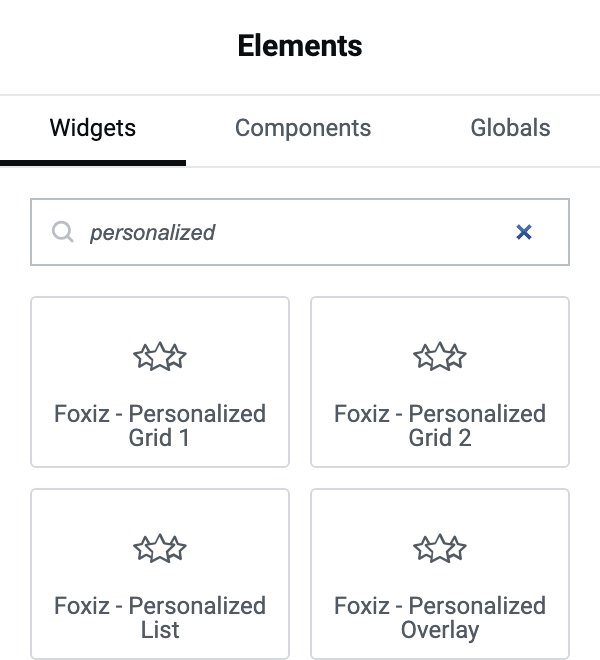
In the Elements panel on the left, search for personalized. Four blocks come up: Foxiz - Personalized Grid 1, Foxiz - Personalized Grid 2, Foxiz - Personalized List and Foxiz - Personalized Overlay. They differ only in layout; the settings are the same in all four.
-
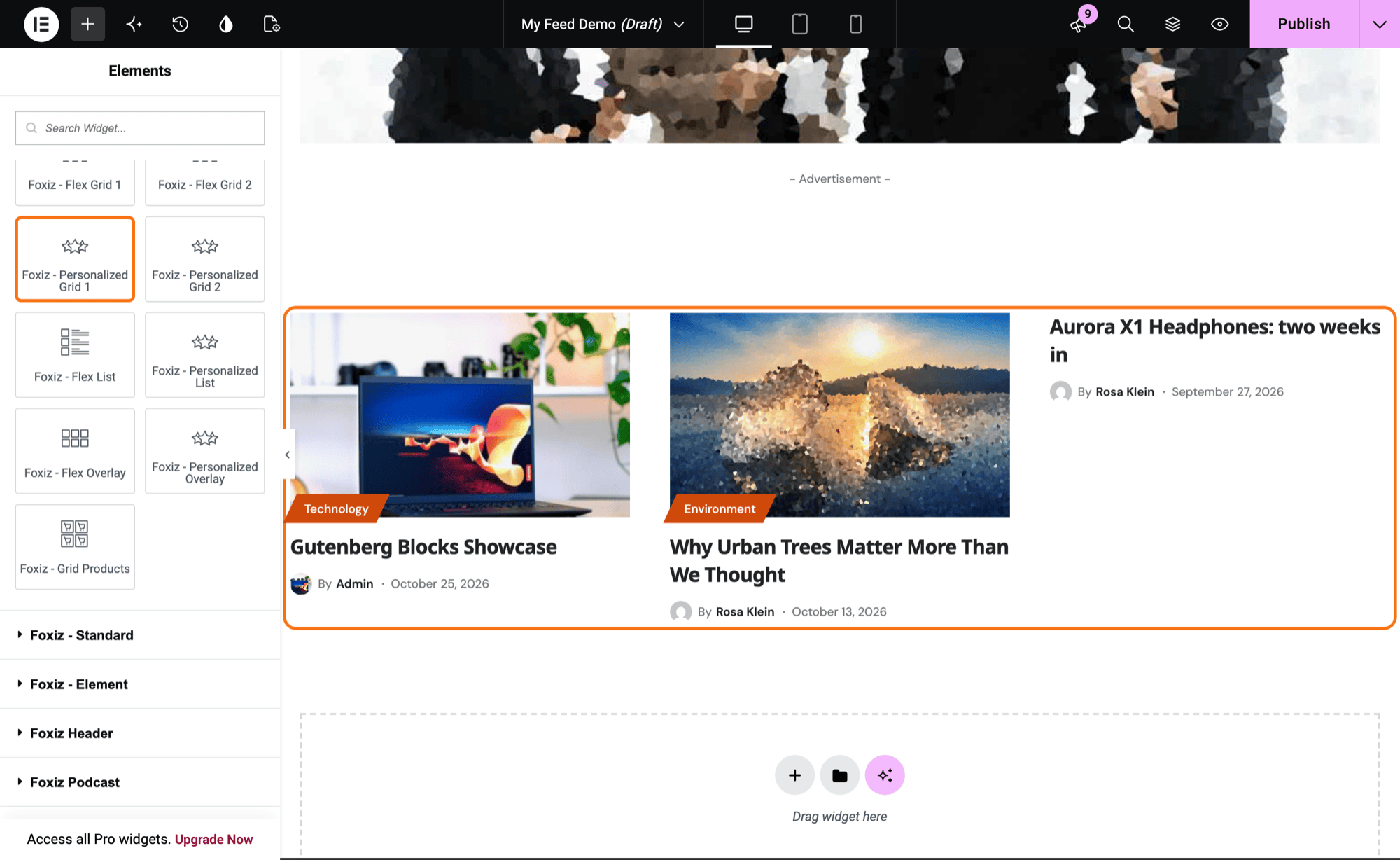
Drag one of them onto the page.
-
Click the block to open its settings. Everything below is in its Content tab; the Style tab changes how it looks.
-
Click Publish when the settings are done.
Query Source decides what the block shows
Query Source is the first field in Query Settings, and the one that matters most. Each choice is one page of the section:
| Query Source | The block shows | Use it on |
|---|---|---|
| Recommended Based on User Followed (the default) | posts from the categories, tags and writers the visitor follows | My Feed |
| User Saved | the posts the visitor bookmarked | My Saves |
| User Read History | the posts the visitor has read | Reading History |
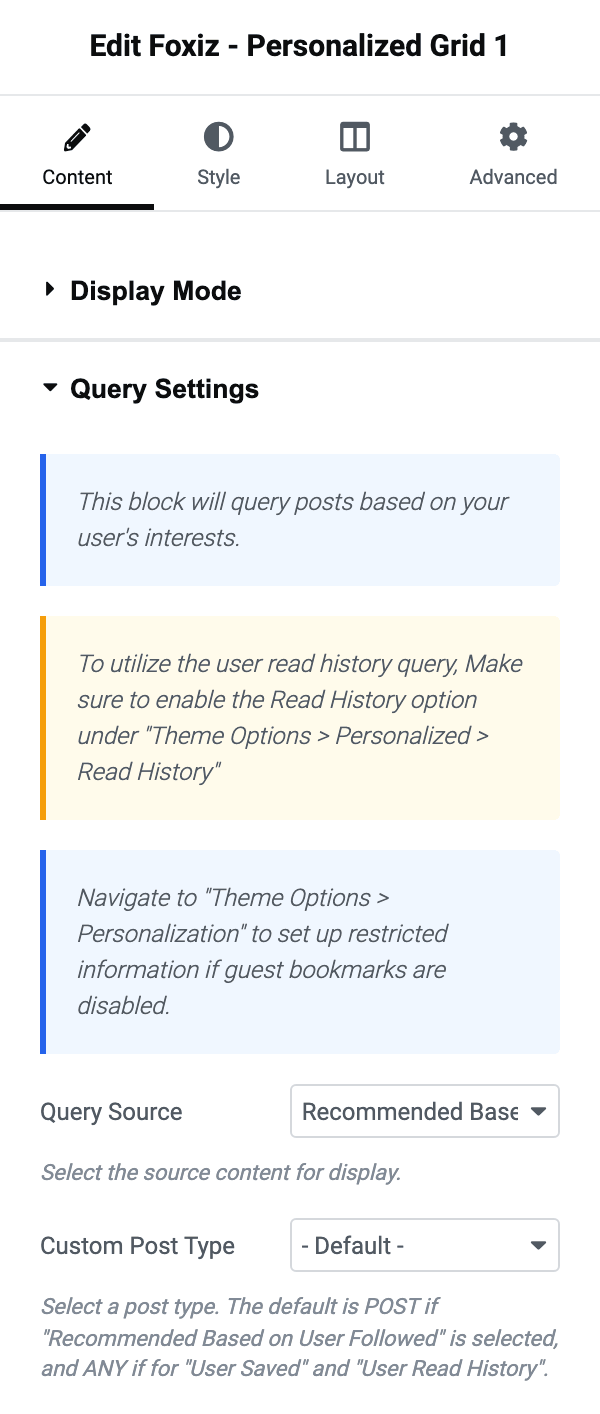
A User Read History block has nothing to show until Read History is on (step 1).
What an empty block shows, to a new visitor or to a guest who may not save, is in each page's own article.
The other settings
-
Custom Post Type, below Query Source: narrows the block to one post type. Leave it alone unless your site has its own post types.
-
Number of Posts: how many posts show at once. It starts at 3; raise it on a page whose whole job is this list.
-
Post Offset: how many posts to skip. Leave it blank for a single block. It is for two blocks in a row: set the second block's offset to the number the first one shows, and the second carries on instead of repeating it. The field only appears for User Saved and User Read History.
-
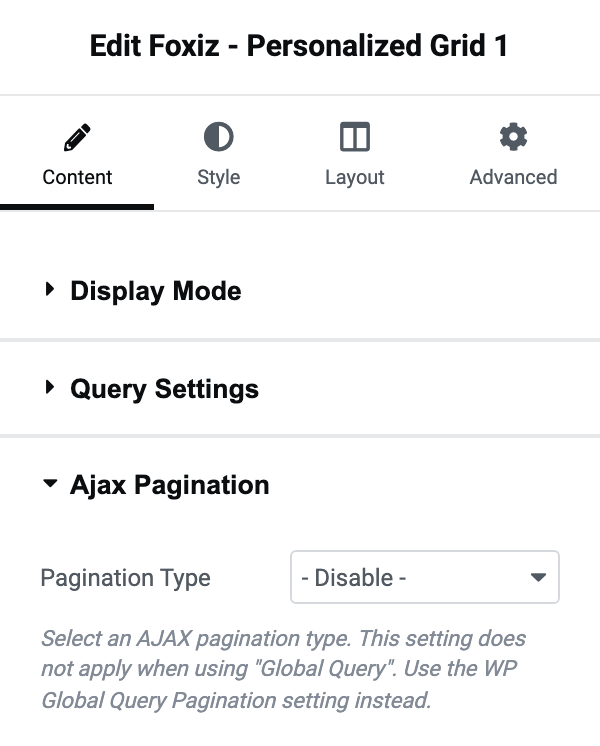
Pagination Type, under Ajax Pagination: - Disable - (the default), Show More or Infinite Scroll. Pick Show More so a long list can be read to the end. Next Prev is not offered on these blocks.
-
Display Mode: for most sites, leave it on - AJAX -.
- - AJAX -, the default, loads the visitor's own posts after the page arrives, so your page cache can keep serving the page as it is.
- Direct builds them into the page, which shows them a moment sooner. Exclude that page from your cache, or one visitor's list is served to the next: see Exclude a page from the cache below.
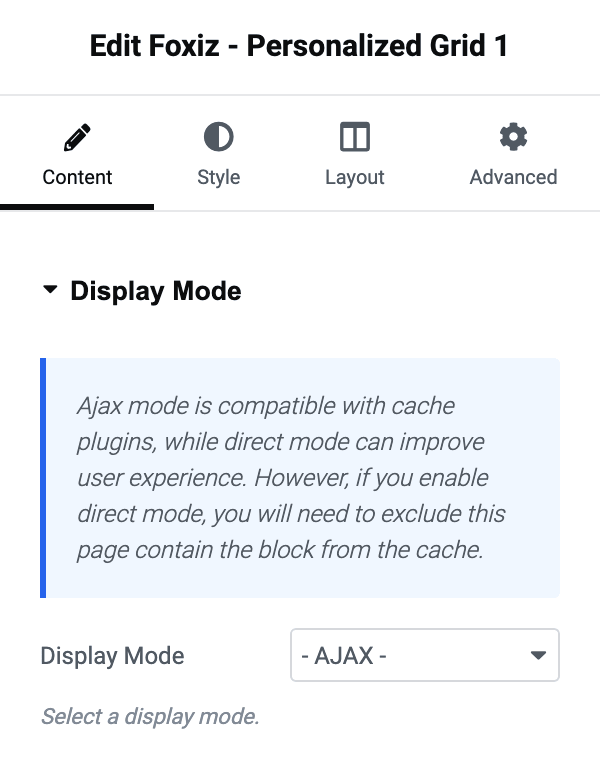
The Foxiz - Taxonomies List blocks on the interests page have the same Display Mode once Show Followed is on.
3. Build the four pages
Build them in this order, so each page has data to show while you test it:
- My Interests: a search box and lists of categories, tags and writers to follow, built with Foxiz - Search Taxonomies, the Foxiz - Taxonomies List blocks and Foxiz - Authors List 1. It is the one page without a Personalized block. Follow a few categories and writers on it. See How to Build an Interests Page.
- My Feed: Foxiz - Personalized Overlay and Foxiz - Personalized Grid 1 on Recommended Based on User Followed. It shows posts from what you just followed. See How to Build a My Feed Page.
- My Saves: Foxiz - Personalized List on User Saved. Save a few posts first. See How to Build a Saved Stories Page.
- Reading History: Foxiz - Personalized Grid 1 on User Read History. Open a few posts first. See How to Build a Reading History Page.
4. Put the pages in a menu
Add the four pages to a menu under Appearance > Menus and assign it to a menu location. The demo labels them My Feed, My Interests, My Saves and History. Menu locations are covered in How to Create & Setup Header Menus?.
If your site also has a Reading List page, point its Add More button at your interests page. Its followed categories and followed writers sections end in that button:
- Go to Theme Options > Personalized System > Reading List - Followed.
- Paste the interests page's address into Redirect More Button. It holds
#by default, so the button does nothing until you do. - Click Save Changes.
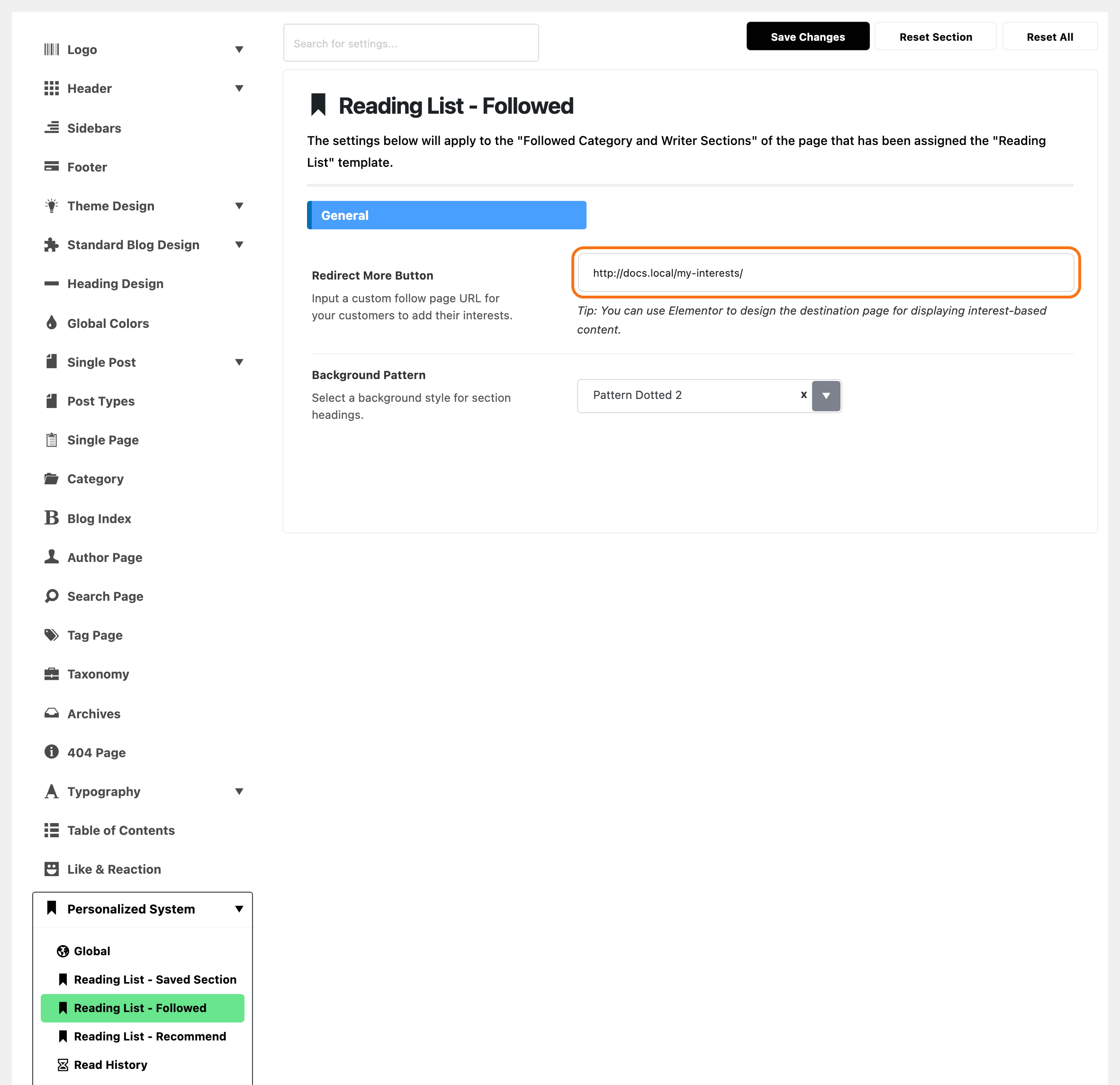
More on the button: How to Add URL for Add More Button.
5. Test the pages
Open each page in a private window as well as signed in. A guest and an account have separate lists, and the private window shows you what a new visitor sees.
If a page shows one visitor's posts to another, a block on it is on Direct and the page is cached. Set the block back to - AJAX -, or exclude the page as below.
How to Exclude Specific Pages from WP Super Cache Plugin Cache
Only needed for a page with a block on Direct. The steps are for WP Super Cache.
-
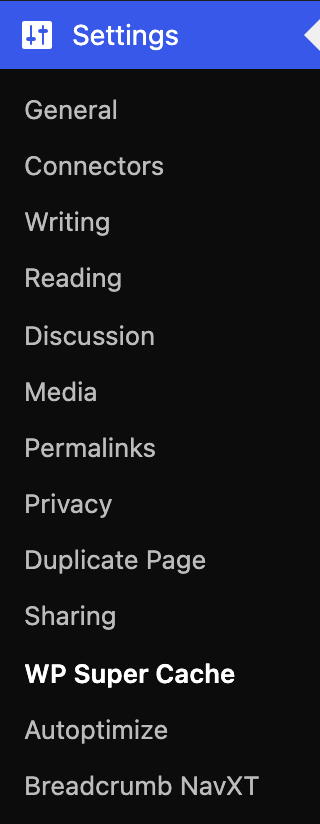
Go to Settings > WP Super Cache.
-
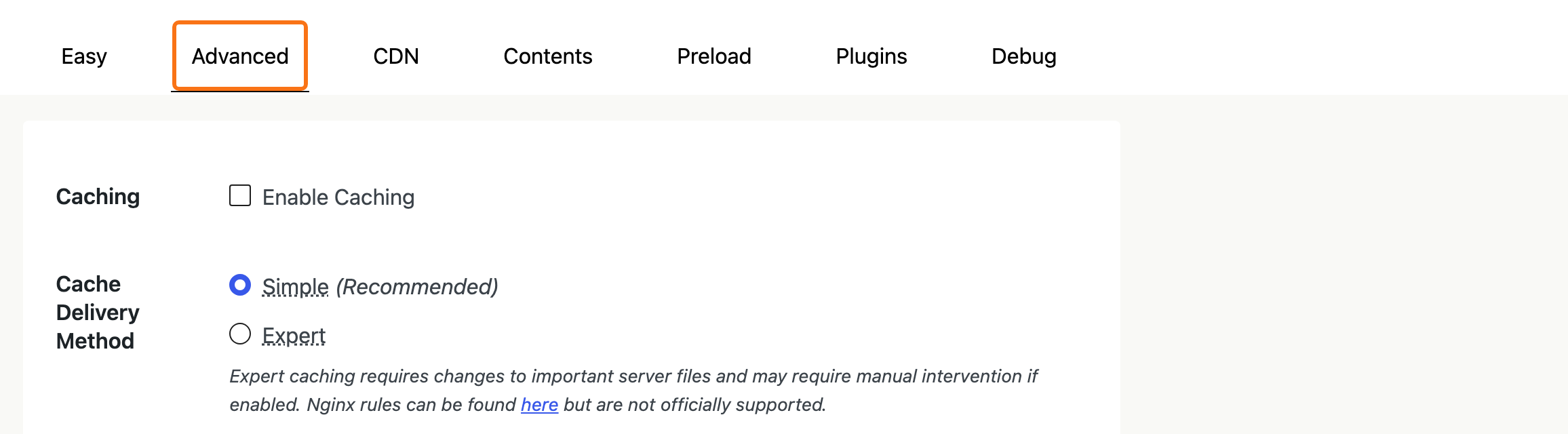
Click the Advanced tab.
-
Scroll down to Rejected URL Strings and add the page's slug, one per line. For example, a My Feed page at
https://yourwebsite.com/my-feed/: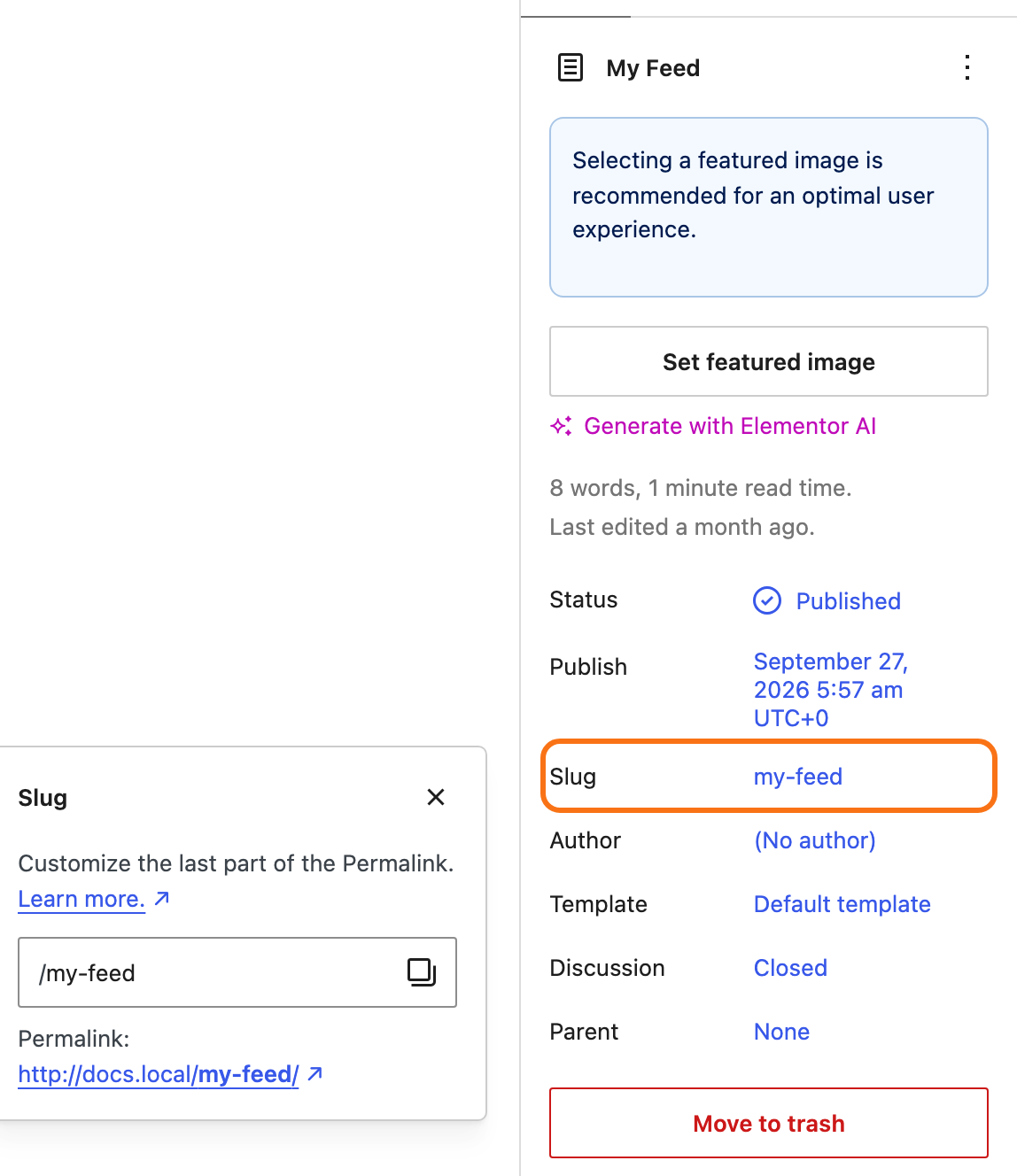
is added as
/my-feed/: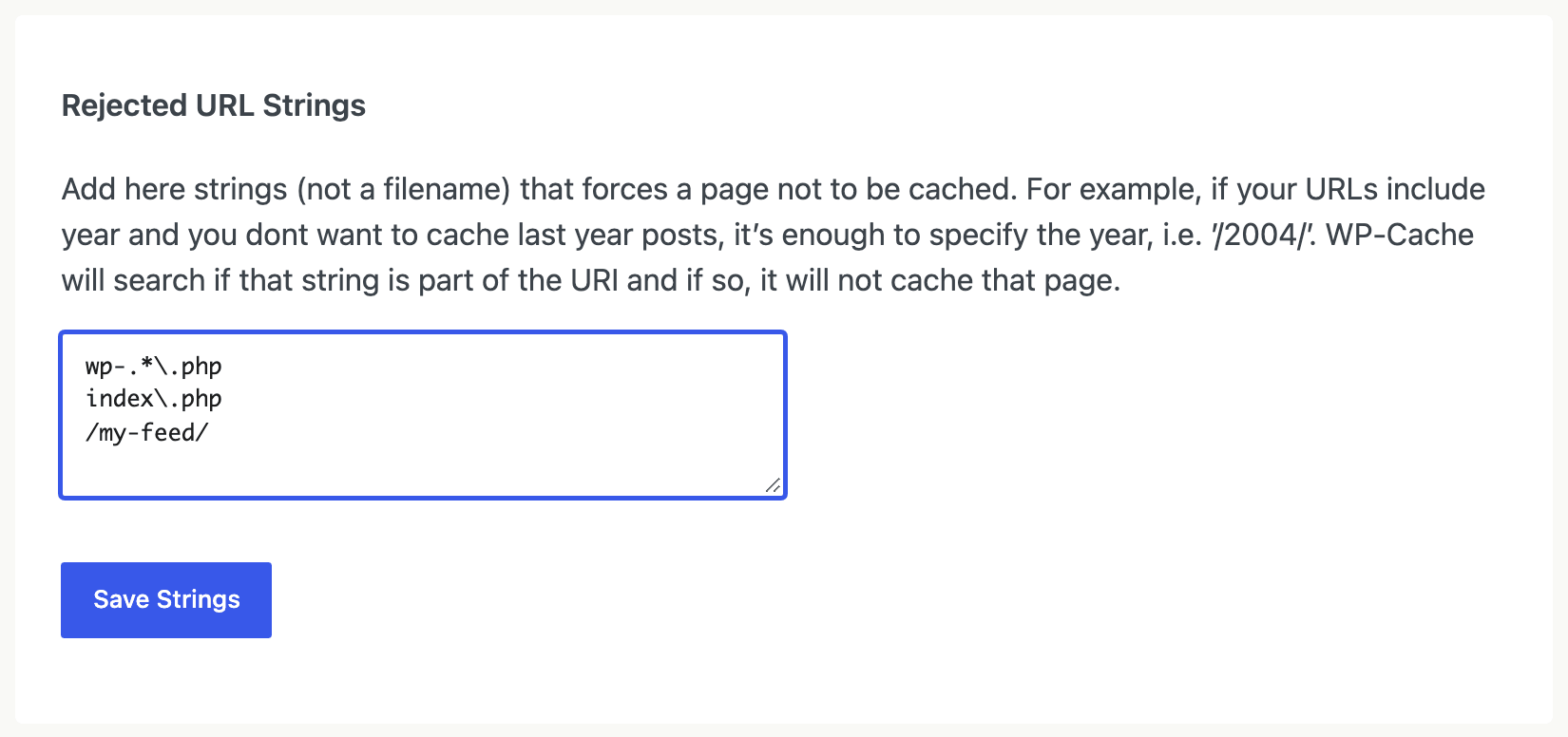
-
Click Save Strings, then clear the cache with Delete Cache on the Easy tab.
The Reading List page needs the same exclusion if you set Theme Options > Personalized System > Global > Display Mode to Direct. That is a separate setting from the block's Display Mode, and it governs the page built on the Reading List template.
Did this answer your question?