Footer Builder
You can create an Elementor template and then assign it to the site footer. This article does the assigning; How to Build a Footer Template in Elementor builds the template.
The template set here shows on every page. A page or post with a footer template of its own shows that one instead: see How to Use a Different Footer on One Page or Post.

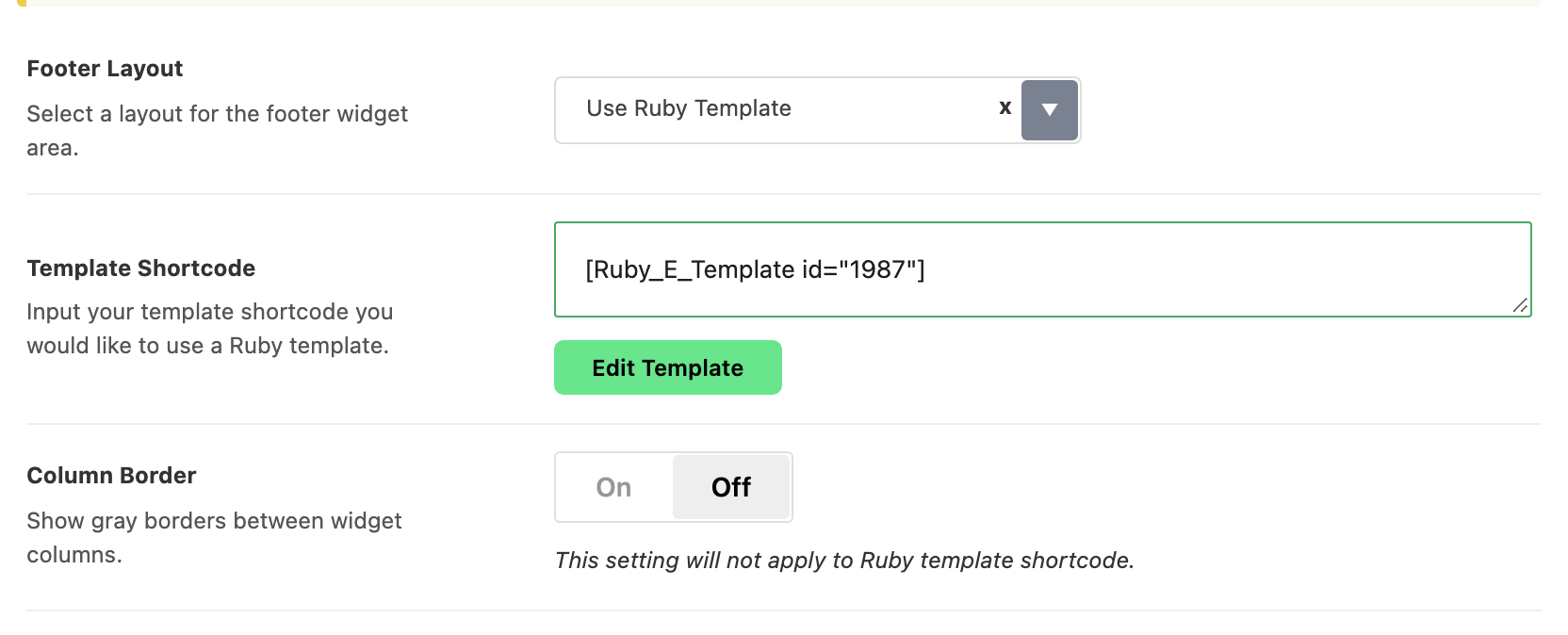
Imported a demo? Check Theme Options > Footer > Widget Section > Footer Layout first. If it reads Use Ruby Template, your footer is already a template, and the Template Shortcode field under it holds its number (id="..."), as pictured at step 3 below. To change the footer, go to Ruby Templates, find the template whose Template Shortcode column shows that number, hover over it and click Edit with Elementor, edit it, then click Publish. You do not need the steps below.
To get started, please follow the steps below:
-
Build your template first (How to Build a Footer Template in Elementor), then copy its shortcode. Templates live under Ruby Templates in the WordPress admin menu, and the list has a Template Shortcode column holding the shortcode for each one, ready to copy. The same box sits in the sidebar of the template editor.
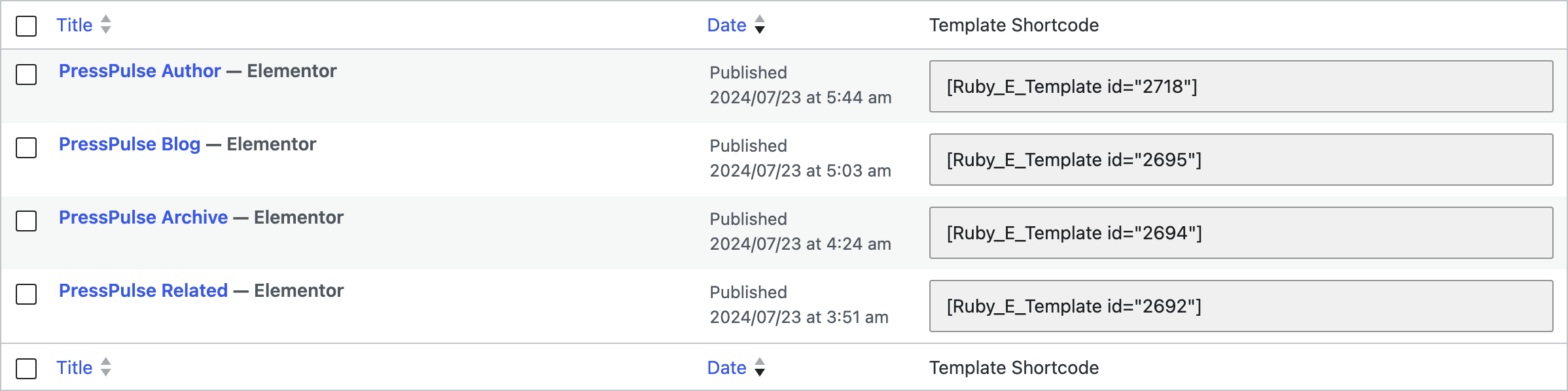
The shortcode looks like
[Ruby_E_Template id="1"]. It also accepts a slug, as[Ruby_E_Template slug="my-footer"]. -
Navigate to Theme Options > Footer > Widget Section
-
Set Footer Layout to Use Ruby Template
-
Input a ruby template shortcode into the Template Shortcode field, which appears underneath once the layout is set.
-
Click Save Changes.
Choosing Use Ruby Template unregisters every footer widget area. Footer - Column 1 to Footer - Column 5 and Footer - Top Full Width leave the Appearance > Widgets screen, and whatever was in them goes to Inactive Widgets until you switch the layout back.
Column Border and Widget Menu Font Size stop applying for the same reason: they style the widget columns, and there are none.
The copyright bar is not part of the template. Whatever is in Copyright Text, Copyright Menu and the Logo & Socials section still renders below your template, so build the template without a copyright row of its own, or empty those fields.
To create a template, you can refer to the Ruby Templates documentation.
Did this answer your question?