How to Build a Footer Template in Elementor
A footer template is a Ruby Template you design in Elementor and then show as your site footer. This article builds one. Footer Builder, the next article, makes it the footer of your site.

You need Elementor installed and active. Without it, a Ruby Template shows nothing at all.
Most demos come with a footer template already. Open Ruby Templates, find the one with Footer in its title (for example PressPulse Footer), hover over it and click Edit with Elementor. Then skip to step 3 and change what you need. Editing it is quicker than starting from an empty page.
Build the template
-
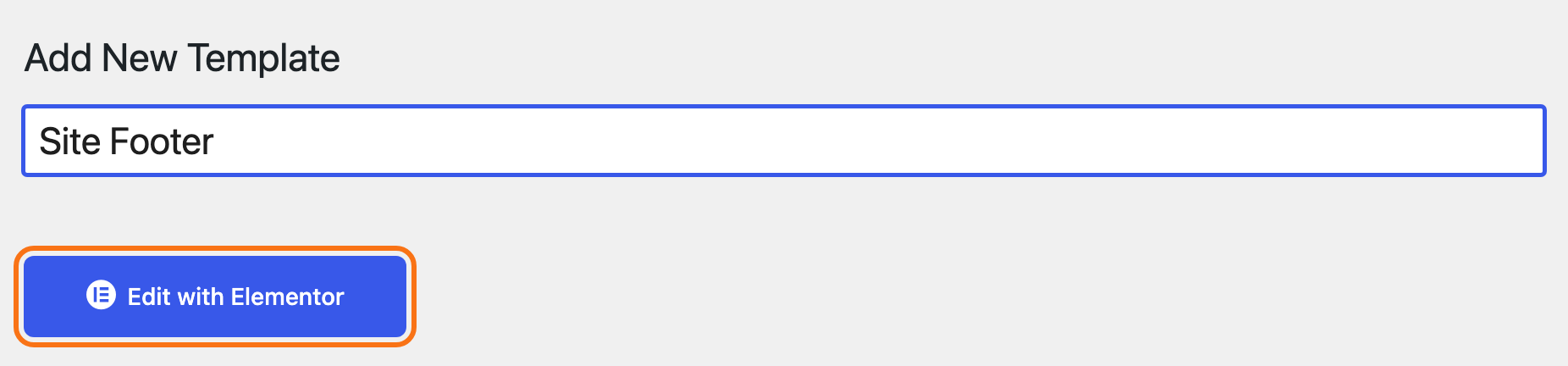
Navigate to Ruby Templates > Add New Template. Type a title you will recognise later, such as Site Footer, and click Edit with Elementor.
-
Elementor opens on an empty page. Click the + in the middle of the page, choose Flexbox, then pick a structure. For a classic footer, choose three or four columns side by side.

-
Drag blocks from the panel on the left into the columns. Type a block's name in the panel's search box to find it quickly. These suit a footer:
Block What it shows Panel group Foxiz - Site Logo your logo, linked to the homepage Foxiz Header Text Editor a short line about your site Elementor's Basic Foxiz - Heading a title above a column Foxiz - Element Foxiz - Sidebar Menu a WordPress menu as a list of links Foxiz - Element Foxiz - Social List your social icons Foxiz Header 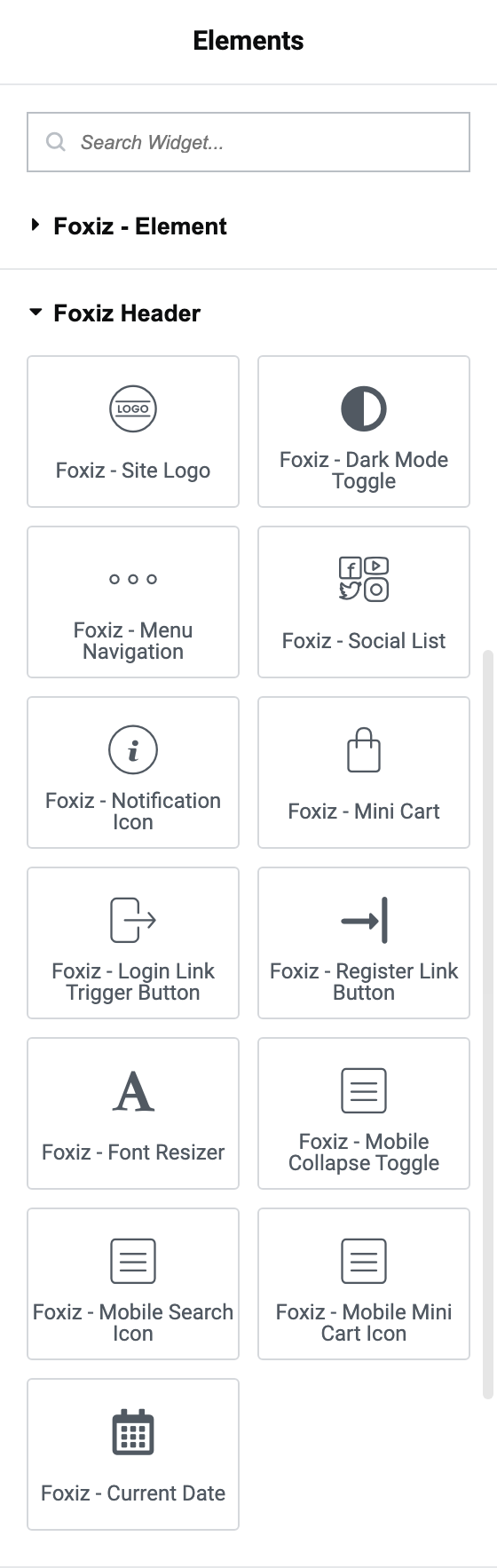
-
Set up each block. Click a block to open its settings in the panel.
-
Foxiz - Site Logo: leave Logo Image empty to use the main logo from Theme Options, or upload one for the footer. Set Lazy Load to Enable: the footer is at the bottom of the page, so the logo can load last.
-
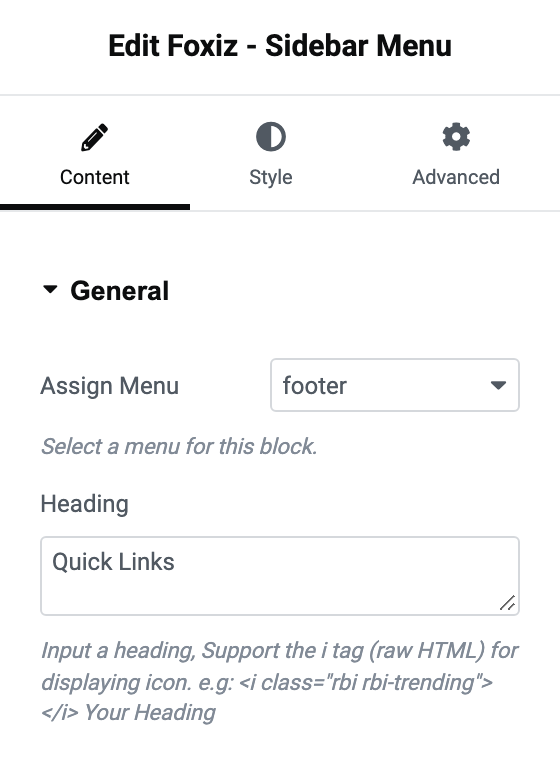
Foxiz - Sidebar Menu: on its Content tab, pick the menu in Assign Menu, and type a column title in Heading if you want one.
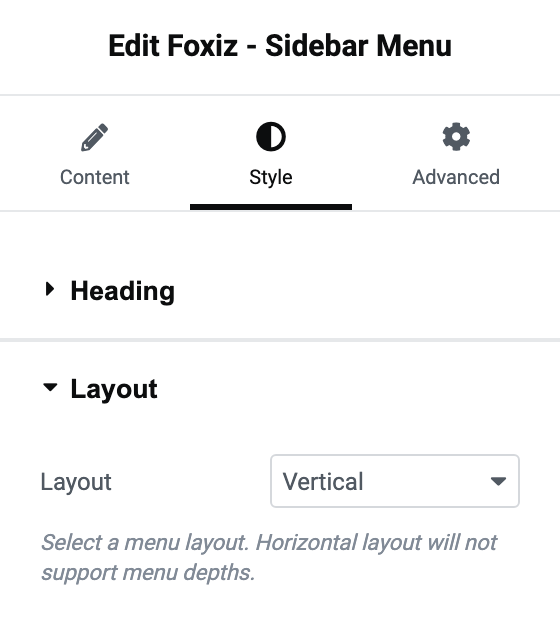
On its Style tab, Layout is Vertical by default, one link per line. Horizontal puts the links in a row, for a bottom bar, and shows the top level only.
-
Foxiz - Social List: it has style settings only. The icons and their links come from Theme Options > Social Profiles, the same as everywhere else on the site.
Create the menus first, at Appearance > Menus, so they are there to pick. How to Create & Setup Header Menus shows the screen.
-
-
Give the footer its colours. Select the outer container, open its Style tab and set a Background. If your site has a dark mode, set the dark one in Foxiz Dark Mode - Background on the same tab. Text blocks have a Foxiz Dark Mode section with a dark mode Text Color too.
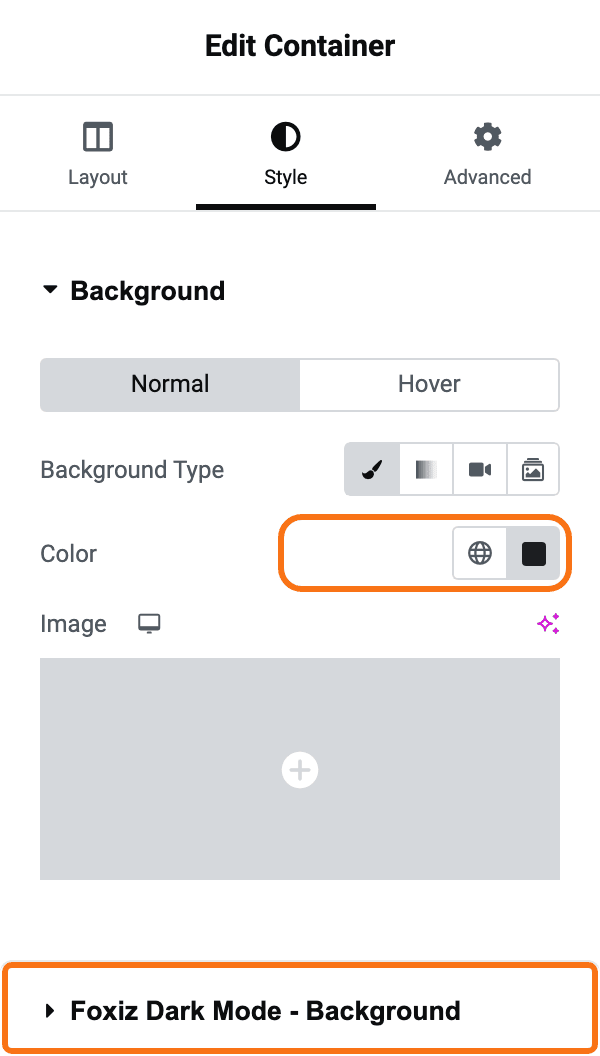
The Background and Text Color Scheme in Theme Options > Footer do not reach the template. They colour only the copyright bar below it.
-
Click Publish.
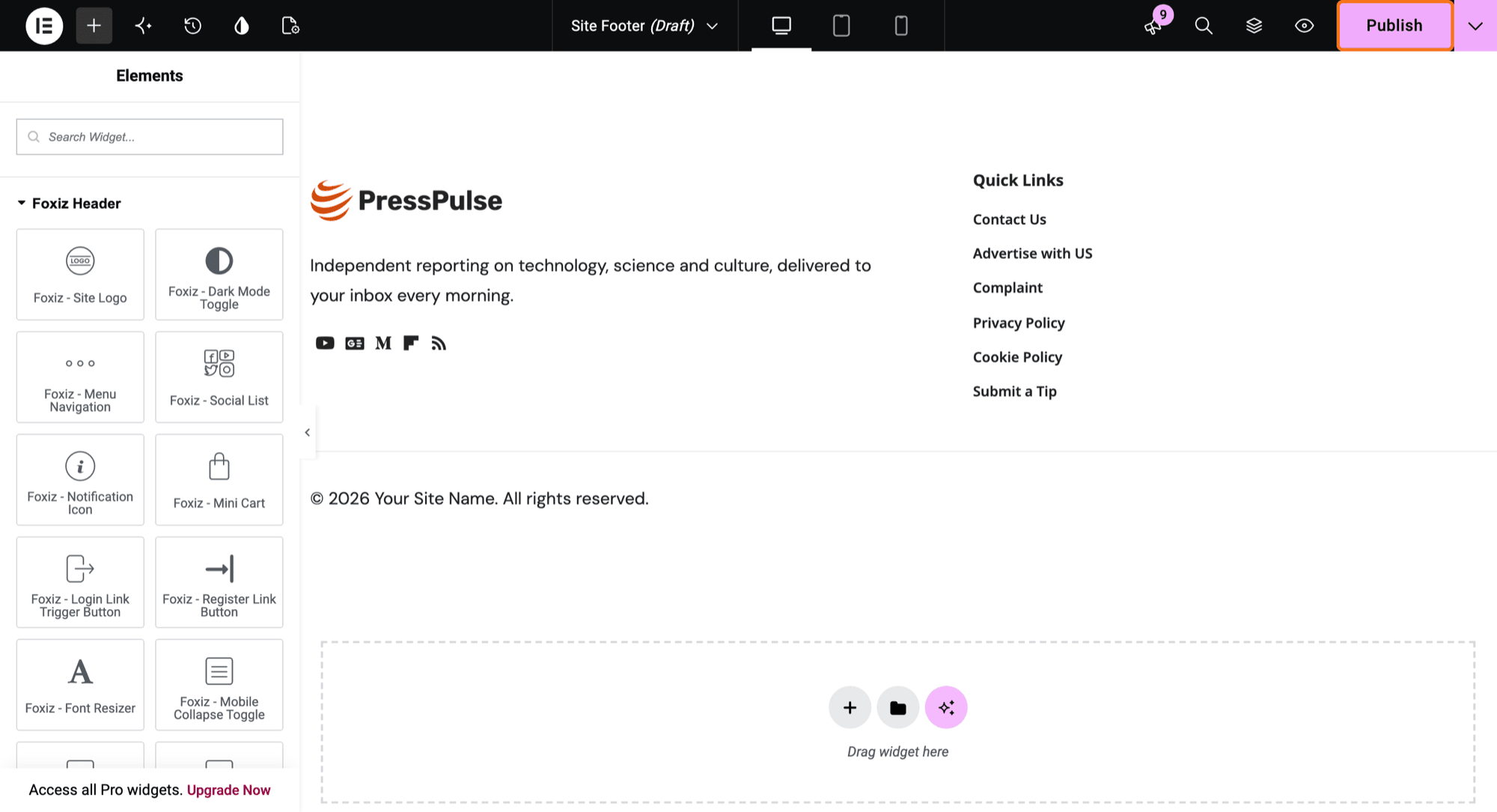
What about the copyright line?
For most sites, leave the copyright out of the template and set it in Theme Options > Footer > Copyright instead. Foxiz prints that copyright bar under your template anyway, and its {year} fills in the current year by itself. See How to Add the Footer Logo, Social Icons and Copyright.
The example on this page builds a copyright row into the template instead, which also works. If you do that, empty Copyright Text and Copyright Menu in Theme Options, and turn off Logo & Socials Section, or the site shows both.
Next step
The template is built but not shown anywhere yet. To use it:
- as the footer of the whole site: Footer Builder
- on one page or post only: How to Use a Different Footer on One Page or Post
You need its shortcode for both. It looks like [Ruby_E_Template id="123"]. Find it in two places outside Elementor: the Template Shortcode box on the template's WordPress edit screen, or the Template Shortcode column at Ruby Templates > All Templates.
![The Site Footer template's WordPress edit screen after publishing: Status Published in the Publish box, and the Template Shortcode box holding [Ruby_E_Template id="3063"], outlined in orange.](/docs/assets/images/footer-template-publish@2x-213b94cc06f97583db971fdd4b444731.png)
Later changes are easy: edit the template and click Publish again. Every page that shows it updates at once.
Did this answer your question?