Get a Homepage
You can easily turn your blog into a website, with a static homepage that people will land on every time they arrive.
We recommend building the page with "Elementor", the page builder plugin Foxiz blocks are made for, then assigning it as the Homepage. There is more on installing it and setting it up in Elementor Builder.
Imported a demo? Then this is already done: the importer points the front page at the demo's own homepage and the posts page at a page called Blog. Use these steps only to choose a different page. If you are going to import a demo, do it first and change these settings afterwards, because the importer overwrites all three, and if the demo has no homepage of its own it switches the site back to showing your latest posts.
To set up the Homepage, please follow these simple steps:
-
Navigate to Admin Dashboard > Settings > Reading
-
Under the "Your homepage displays" select "A static page"
The full label reads A static page (select below), and the other choice above it is Your latest posts, which is what a fresh WordPress site uses.
-
Next, click on the Homepage dropdown list and select the page you built as your static homepage.
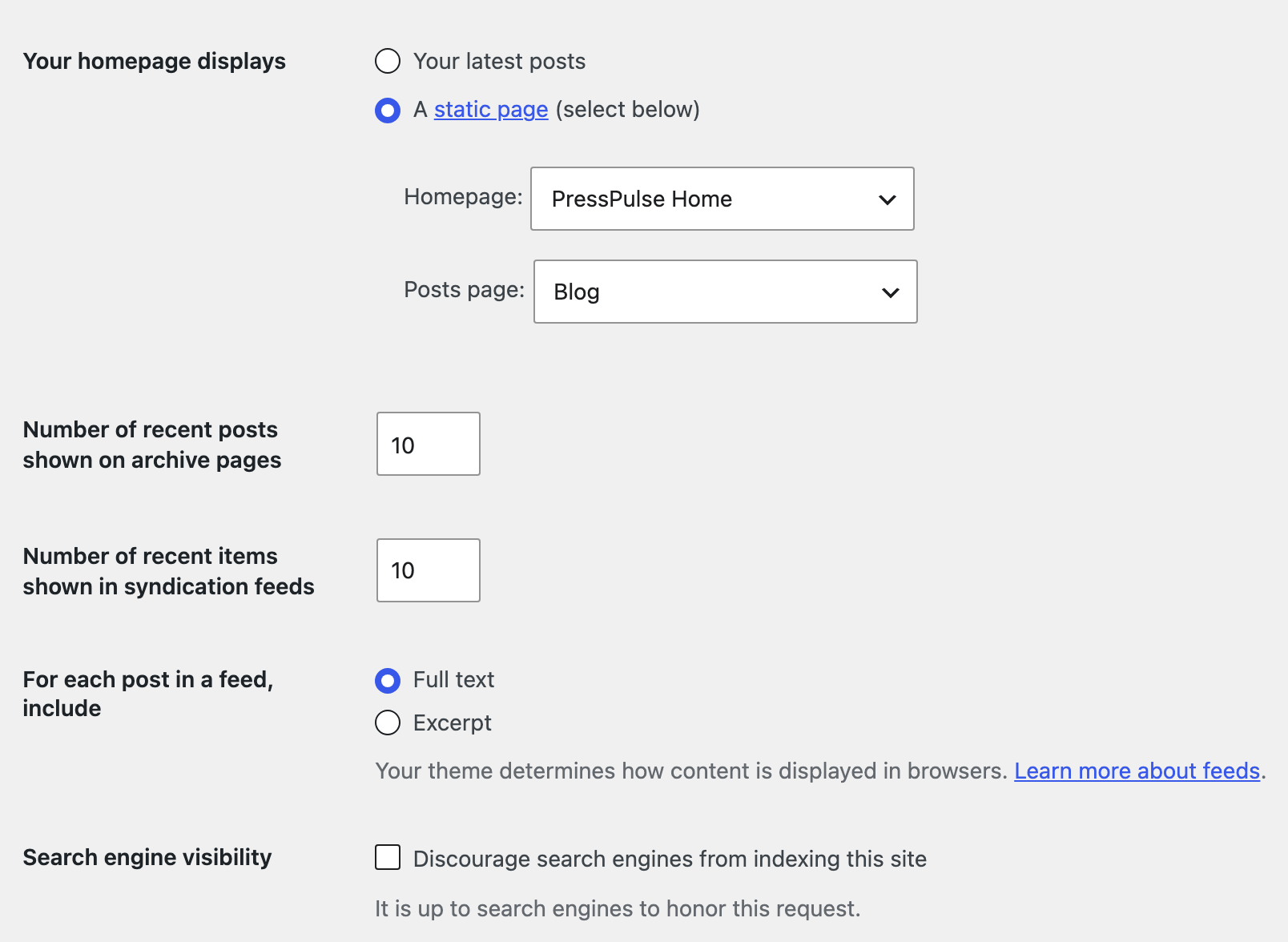
Only published pages are in that list, so publish the page you built before you come here. A draft will not appear.
-
Next, on the Posts page dropdown, select an empty page for your posts, for example one called Blog. (This is where your new blog posts will appear, should you choose to write posts for your site.)
If you have no such page, create one at Pages > Add Page: give it a title, leave it empty and publish it.
Pick a different page from the one in step 3. WordPress shows a warning if the two are the same, and the site ends up with no blog listing at all.
Everything about how that listing looks is in Theme Options > Blog Index: its header, its layout, how many posts per page, its sidebar. The page you choose here decides where the blog lives; that panel decides what it looks like.
Remember to click Save Changes at the bottom of the Reading screen. Nothing on this page takes effect until you do.
The page you assign as the "Posts page" should be an empty page without content. WordPress renders the post list there instead of the page itself.
Foxiz's blog template runs the post loop and never prints the chosen page's own content, so whatever you type into that page is invisible on the front end.
If you do want something above or below the post list, that is what Theme Options > Blog Index > Top & Bottom Area Template Builder is for. Build a Ruby Template (a layout you design in Elementor and save once, see Ruby Templates) and paste its shortcode into Top Area Template Shortcode or Bottom Area Template Shortcode. The shortcode is the short code in square brackets, such as [Ruby_E_Template id="123"], that the Template Shortcode column of Ruby Templates shows for each template.
Did this answer your question?