The Foxiz Template Blocks in Elementor
A template block shows the page it is on, not something you type into it. Foxiz - Post Title prints the title of whichever post the visitor opened. Foxiz - Archive Title prints the name of whichever category they are browsing. So these blocks only make sense inside a Ruby Template that the theme uses for many pages at once.
You need them when the theme's predefined layouts cannot give you the header, post page or archive page you want. The job always has three steps:
- Build a Ruby Template and drag in the blocks below. Ruby Templates walks creating one and copying its shortcode.
- Assign the template: paste its shortcode into the field for the header, the single post or the archive. Each section below links to the article for that field.
- Open a real page on the front end. The blocks fill in with that page's content.
Inside the Elementor editor there is no real post or archive to read, so many of these blocks show a stand in: a line such as "Dynamic post content", a grey box, or "dynamic meta value". That is expected. Judge the result on the front end.
In the Elementor panel the blocks sit in three groups:
- Foxiz Header: 13 blocks for a header template.
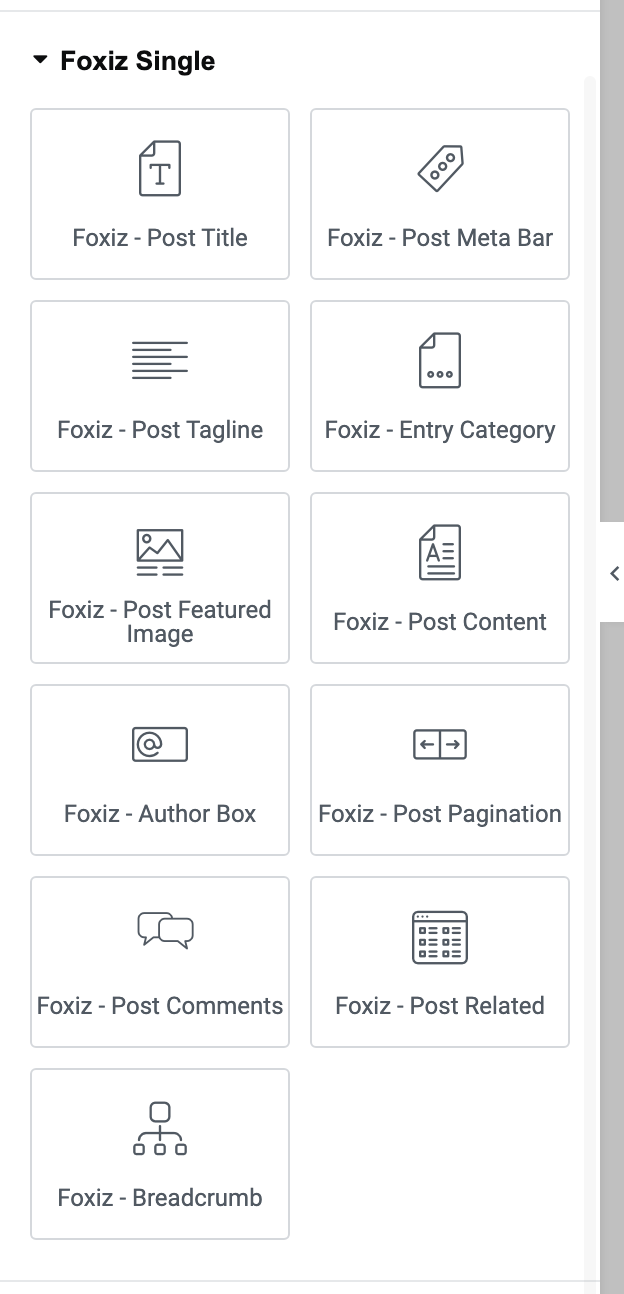
- Foxiz Single: 11 blocks for a single post template.
- Foxiz - Element: four of its blocks read the page they are on: the three archive blocks and Foxiz - Custom Field Meta. The rest of that group works on any page.
Header template
A header template replaces the site header with your own Elementor layout. Build it from the Foxiz Header blocks, then go to Theme Options > Header > Header Layout, set Header Layout to Use Ruby Template and paste the shortcode into Template Shortcode.
- Building and assigning one, with every place that takes the shortcode: How to Create Header Templates and Assign It to Your Website.
- A separate bar for phones and tablets: Structuring Mobile Header Layout Using Ruby Template.
- A different header on one page only: How to Add Header Template Builder to Elementor Page.
The 13 blocks:
- Foxiz - Site Logo shows your logo, linked to the home page. Leave its Logo Image empty and it uses the logo from Theme Options. See How to Add the Logo on the Header Template.
- Foxiz - Menu Navigation shows a menu you pick in Assign Menu, with its dropdowns and mega menus. The More button is set up here too: How to Add More Button Menu to the Main Navigation.
- Foxiz - Social List shows your social icons. The profiles come from Theme Options > Social Profiles.
- Foxiz - Current Date shows today's date. Its default format is
l, M j, Y, for example "Sunday, Oct 25, 2026". If your site uses a page cache, clear it at midnight so yesterday's date does not linger. - Foxiz - Dark Mode Toggle shows the light and dark switch. It appears only when Theme Options > Dark Mode > Dark Mode is set to Light/Dark Switchable. See How to Enable Dark Mode Feature.
- Foxiz - Font Resizer shows the "Aa" button that makes the post text larger. It appears on single posts only, so it is absent from other pages. See Header Settings & Layouts.
- Foxiz - Notification Icon shows a bell that opens a list of recently published posts. The time window and refresh interval come from Theme Options > Header > Notification.
- Foxiz - Mini Cart shows the WooCommerce cart icon with its dropdown. It needs WooCommerce. See Mini Cart.
- Foxiz - Login Link Trigger Button shows the sign in button that opens the login popup. A signed in visitor sees a welcome message instead. The popup and the login page are set in Theme Options > Login.
- Foxiz - Register Link Button shows a Sign Up button that links to your registration page. It is hidden from signed in visitors, and it shows nothing until registration is allowed in Settings > General > Membership.
- Foxiz - Mobile Collapse Toggle shows the menu button of a mobile header, which opens the mobile menu panel. Use it in a mobile header template only.
- Foxiz - Mobile Search Icon shows the search icon of a mobile header. It appears only while Search Icon is on in Theme Options > Header > Mobile Header, which it is by default.
- Foxiz - Mobile Mini Cart Icon shows the cart icon of a mobile header. It appears only when Mobile Header - Mini Cart is on in Theme Options > Header > Mini Cart, which is off by default.
Looking for the search icon? It is Foxiz - Search Posts, and it sits in the Foxiz - Element group, not in Foxiz Header. Type header in the panel's search box and it comes up with the rest.
Single post template
A single post template replaces the layout of your posts. The site header, footer and sidebar keep their own settings. Build it from the Foxiz Single blocks, then paste the shortcode into or Use Ruby Template for the Single Post at Theme Options > Single Post > Post Layout. How to Structure a Single-Post Layout Using a Single Template walks it, including templates for one post format, one category or one post.
The template prints only what you put in it. Leave out Foxiz - Post Content and your posts have no body.
The 11 Foxiz Single blocks, and one from Foxiz - Element:
- Foxiz - Post Title shows the post's title. The editor shows a placeholder sentence instead.
- Foxiz - Post Tagline shows the line under the title. The words come from the post's Tagline or its excerpt, as set in Theme Options > Single Post > Tagline & Highlights. A post with no tagline shows nothing here.
- Foxiz - Entry Category shows the post's categories. Leave its Style on the default and it follows the single post setting in Theme Options. See Entry Category.
- Foxiz - Post Meta Bar shows the post's meta bar: author, date, reading time, share icons and the other meta you choose. Its defaults come from Theme Options > Single Post > Entry Meta: How to Config Entry Meta Info in Single Post.
- Foxiz - Post Featured Image shows the featured image and its caption. On a video, audio or gallery post it shows the player or the gallery instead. The editor shows a grey box with a sample caption.
- Foxiz - Post Content shows the body of the post. Its settings are in Theme Options > Single Post > Post Content Area. The editor shows "Dynamic post content".
- Foxiz - Author Box shows the author card. By default it shows the author of the post being read; you can pick one fixed author instead. The card needs the author's Biographical Info. See Editing the Author Card Box.
- Foxiz - Post Pagination shows links to the previous and next post. It appears even when Next/Prev Post Pagination is off in Theme Options. See Post Content Area.
- Foxiz - Post Related shows the related posts section. It appears even when Related Section is off in Theme Options, and uses the layout set there. See Automatically Adding Related Posts via Theme Options. The editor shows "Dynamic post related section".
- Foxiz - Post Comments shows the comment list and form. Disable All Comments in Theme Options hides it too. See How to Enable or Disable Comments. The editor shows "Dynamic comments".
- Foxiz - Breadcrumb shows the breadcrumb trail. It needs Breadcrumb NavXT, Yoast SEO or Rank Math, and Breadcrumb Bar switched on in Theme Options. See How to Enable and Disable Breadcrumb.
- Foxiz - Custom Field Meta, from Foxiz - Element, shows the value of one custom field of the post, with an optional icon and label. A post with no value in that field shows nothing. See The Foxiz Custom Field Meta Block in Elementor.
Archive templates
An archive template is a layout for the pages that list posts: category, tag, author, search results and date archives. You can use it as a top section above the post listing, or as the whole listing. Where the shortcode goes depends on the archive:
- Categories: How to Add Blog Template Builder to Category Page and How to Create a featured block for category page?.
- Tags: How to Add Blog Template Builder to Tag Page.
- Date and other archives: How to Add Blog Template Builder to Archive Page.
- Search results: How to Add Blog Template Builder to Search Page.
- Authors: Guide to Customizing the Author Page Using Ruby Templates.
Three blocks from Foxiz - Element fill in with the archive being viewed. All three are covered control by control in The Foxiz Archive Title, Description and Featured Image Blocks in Elementor. On an ordinary page they print nothing.
- Foxiz - Archive Title shows the archive's name: the category or tag, the author, the search words or the date. The editor shows "Dynamic archive title".
- Foxiz - Archive Description shows the description you wrote for the category, tag or author. On a search page it shows how many results were found instead.
- Foxiz - Taxonomy Featured Image shows the first image from the term's Featured Images, set in the Foxiz Category Settings box when you edit the category. A term with no image shows nothing. The editor shows a grey box.
Did this answer your question?