The Foxiz Post Blocks in Elementor
Foxiz adds 28 post listing blocks to Elementor. They sit in two categories of the Elementor panel:
- Foxiz - Standard holds 19 blocks with a fixed layout.
- Foxiz - Flex holds 9: eight blocks whose parts you can reorder, and the WooCommerce product block.
You do not have to scroll the categories. Type a block's name into the search box at the top of the Elementor panel and it comes up. A word such as listing or blog finds most of them at once.
Every block prints its name in the panel with Foxiz - in front, which is how the bullets below spell it.
Not sure which to pick for a first homepage? Start with these three, then tell each one which posts to show in Set Up Query Filters:
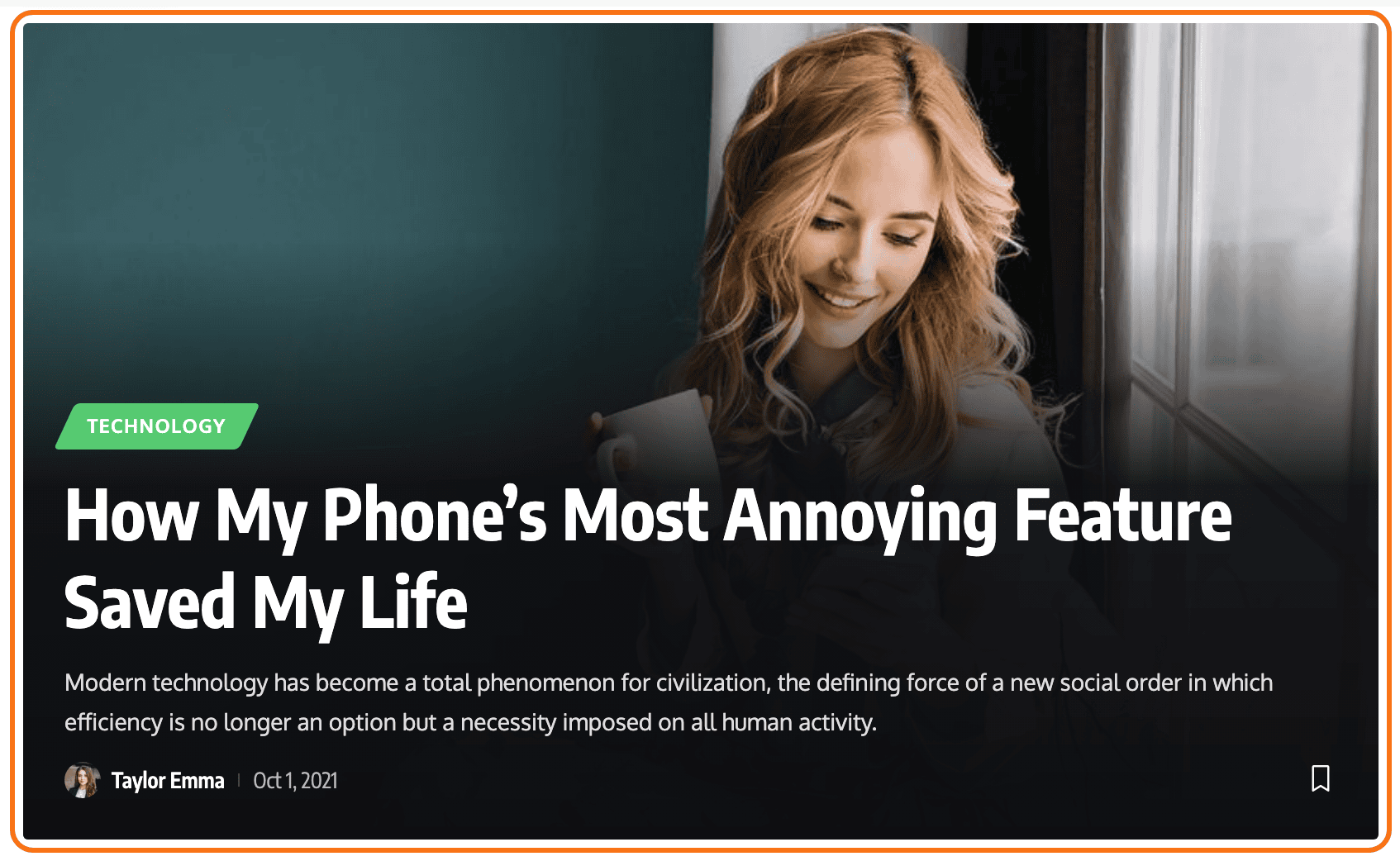
- Foxiz - Highlight Overlay for the big story at the top of the page.
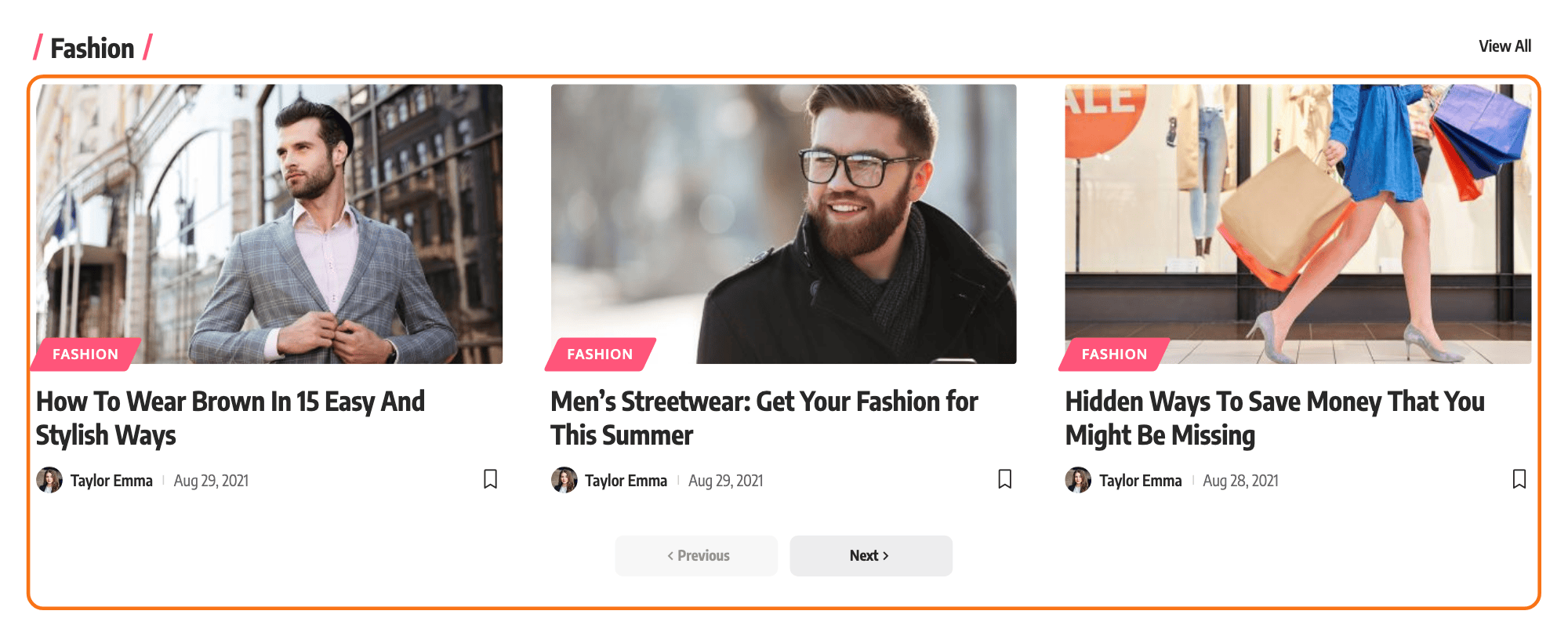
- Foxiz - Grid 1 for a row of posts with their images.
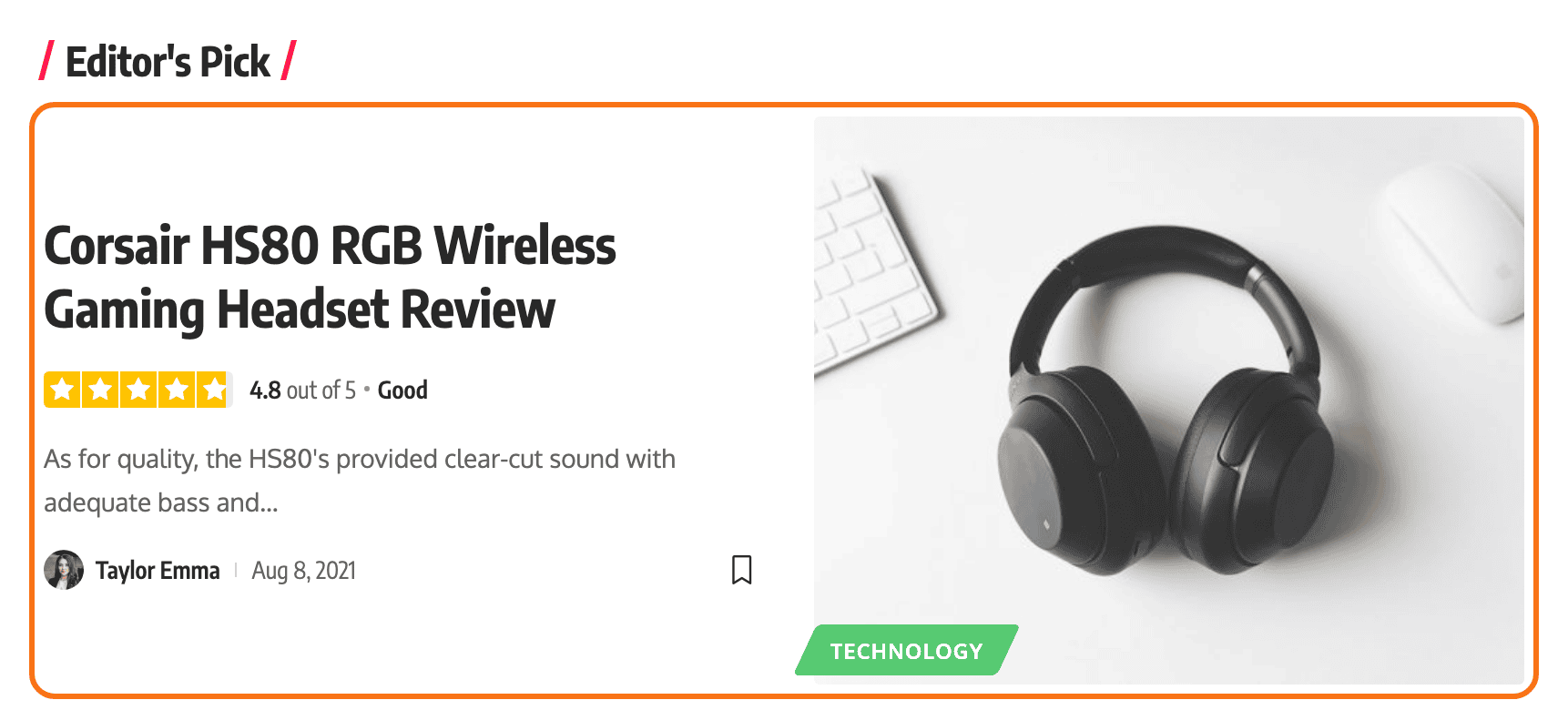
- Foxiz - List 1 for a column of posts, the image beside the text.
Grid blocks
Posts in columns, with the image on top and the text below it.
- Foxiz - Grid 1: the category label sits on the image. Three columns unless you change Columns on Desktop, and it can run as a carousel.
- Foxiz - Grid 2: the same grid, with the category printed under the image, above the title. Pick it when you would rather keep the image clear.
List blocks
One post per row, with the image beside the text.
- Foxiz - List 1: the category label sits on the image. Image Position puts the image on the left or the right.
- Foxiz - List 2: the category moves into the text column, above the title.
Overlay blocks
The title and meta are printed over the featured image instead of below it.
- Foxiz - Highlight Overlay: a large post with a bigger title, made for the top of a page. Set Slider to Enable to show the posts one at a time as a slideshow; it is off by default.
- Foxiz - Overlay: smaller overlay posts in a grid, three columns by default, and it can run as a carousel. Content Style chooses between Transparent Overlay and Boxed Background behind the text.
Hierarchical blocks
One lead post, then the rest of the posts as a list of titles. Each needs at least two posts to show anything.
- Foxiz - Hierarchical 1: the lead post is drawn like a Grid 1 post, with its image. The others follow as single title lines with a plus icon.
- Foxiz - Hierarchical 2: the same, with no image at all. The lead post is text only. Good for a narrow column.
- Foxiz - Hierarchical 3: one large image. The lead post's text and the other titles are all printed over it. It has no pagination.
Boxed blocks
Grid 1, Grid 2, List 1 and List 2 with each post inside a box. The box can be a Background, a Border or a Shadow.
- Foxiz - Boxed Grid 1: Grid 1 in boxes, set with Box Style.
- Foxiz - Boxed Grid 2: Grid 2 in boxes, set with Box Style.
- Foxiz - Boxed List 1: List 1 in boxes, set with Boxed Layout.
- Foxiz - Boxed List 2: List 2 in boxes, set with Boxed Layout.
Small blocks
Compact posts for sidebars and narrow columns.
- Foxiz - Small Grid: a grid with smaller images and titles, four columns by default. On phones each post turns into a row with the image beside the text, and Mobile Image Width sets that image's width.
- Foxiz - Small List 1: text only, no image. Title Icon can put an icon before each title, and Block Height in Scrolling Mode caps the block's height with a scroll bar.
- Foxiz - Small List 2: a 100px thumbnail beside each title, in a 4:3 shape. It can run as a carousel.
- Foxiz - Small List 3: the same with a square thumbnail. It can run as a carousel too.
Classic and Breaking News
- Foxiz - Classic: a blog feed. Each post gets a large image and a large title over its excerpt, one post per row. Columns on Desktop goes up to 3 if you want them side by side.
- Foxiz - Breaking News: a one line ticker. A label with a fire icon comes first, then post titles slide past one at a time with arrows. The label is the Heading Label field, Hot News by default. The ticker does not show on AMP pages.
Flex blocks
The Flex blocks let you choose which parts of a post show and in what order. Type the parts into Block Structure Order, separated by commas, for example thumbnail, title, meta. Leave it empty and each block uses the order given below.
All four can run as a carousel.
- Foxiz - Flex Grid 1: a grid like Grid 1, with the category on the image. Empty order: thumbnail, title, meta. Box Style can box it.
- Foxiz - Flex Grid 2: a grid like Grid 2, where the category is its own part you can place. Empty order: thumbnail, category, title, meta. Box Style can box it.
- Foxiz - Flex List: a list with the image beside the text, one column by default. Empty order: title, excerpt, meta. Box Style can box it.
- Foxiz - Flex Overlay: overlay posts in a grid, three columns by default. Empty order: category, title, meta.
Personalized blocks
These show each reader different posts. Query Source decides which:
- Recommended Based on User Followed (the default): posts from the categories and authors the reader follows. A reader who follows nothing sees this month's most viewed posts, or the latest ones.
- User Saved: the posts the reader bookmarked.
- User Read History: the posts the reader has read.
They need Theme Options > Personalized System > Global > Personalized System on, which it is by default. When it is off, the editor shows a notice in place of the block. They do not show on AMP pages.
Each one is laid out like the Flex block of the same shape, with the same Block Structure Order. None of them has a carousel.
- Foxiz - Personalized Grid 1: like Flex Grid 1.
- Foxiz - Personalized Grid 2: like Flex Grid 2.
- Foxiz - Personalized List: like Flex List.
- Foxiz - Personalized Overlay: like Flex Overlay.
Setting them up, including the cache exclusion one display mode needs, is in How to Build Personalized Pages with Elementor.
Products block
- Foxiz - Grid Products: WooCommerce products in a grid, four columns by default. You choose the products with a WooCommerce shortcode in WooCommerce Shortcodes, which starts as
[products limit="4"]. It shows nothing without WooCommerce.
Podcast blocks
The podcast blocks list episodes instead of posts and have their own panel category, Foxiz Podcast. They appear only once Theme Options > Ruby Podcast > General > Support Podcast is on.
- Foxiz - Podcast Flex Grid: episodes in a grid, like Flex Grid 1.
- Foxiz - Podcast Flex List: episodes in a list, like Flex List.
- Foxiz - Podcast Flex Overlay: episodes as overlay posts, like Flex Overlay.
How to add them and pick the episodes is in Adding Podcast to the Elementor page.
Settings every post block shares
The blocks above share most of their settings. These articles walk through them once for all of them:
- Block style and layout: what the Style and Layout tabs hold, and how to give one block its own entry meta.
- Columns: how many columns a block shows on desktop, tablet and mobile, and the gap between them.
- Query filters: which posts a block lists, by category, tag, author, order and more.
- Unique post: stop two blocks on one page from showing the same post.
- Slider or carousel: the blocks that can run as a carousel, and every carousel setting.
- Horizontal scroll on mobile: turn a block into a swipeable row on phones and tablets.
- Product block: set up Foxiz - Grid Products with a WooCommerce shortcode.
To list a custom post type or filter by a custom taxonomy in any of these blocks, see How to Display Custom Post Types and Taxonomy in Elementor Blocks.
Did this answer your question?