How to get attachment image URL?
The theme requests to input attachment URL when working with the Elementor blocks and other settings that relate to background and images. Foxiz - Sidebar Banner, for one, takes a Background Image URL and a separate Dark Mode - Background Image URL.
To get this info, follow the steps below:
-
Navigate to Dashboard > Media > Library
-
Upload your image or find an existing image you would like to work with.
-
Click on the image to open the Attachment Details box.
-
Copy the link under the "File URL:" label in this panel. The button under it is Copy URL to clipboard, and it confirms with Copied! when it has worked.
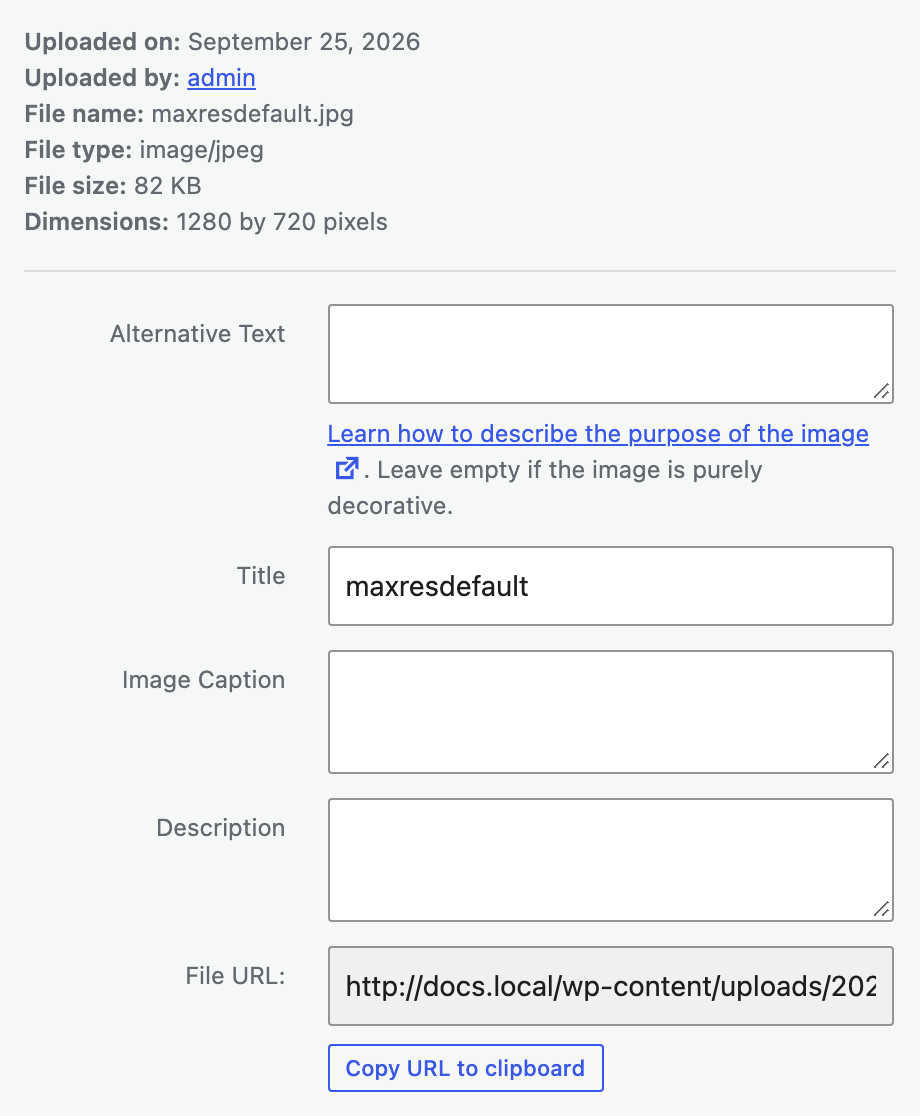
-
Paste the link to where you want.
If your media library is in list mode, click the image's title and use the File URL: field. It is the same field with the same Copy URL to clipboard button under it, inside the Save box in the right column of the attachment edit screen, so either view of the library gets you there.
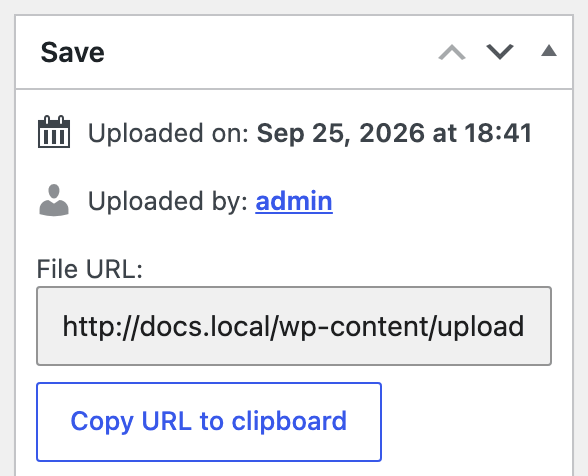
One thing that panel will not do for you is pick a size. File URL: always holds the original uploaded file, never one of the smaller copies WordPress and Foxiz generate from it, so pasting the original of a large photograph into a background field loads the full file on every view. Upload an image close to the size you need, or use a control that takes a media selection rather than a URL and let the theme choose the size.
Did this answer your question?