Changes Not Showing on the Site
You changed a setting or edited a page, and the site looks exactly as before. Work down this list in order. Most cases end at step 2 or 3.
1. Check that the change was saved
- Theme Options: click Save Changes at the top or bottom of the panel. Leaving the panel without it throws the change away.
- An Elementor page: click Publish in the editor. Closing the editor keeps only a draft.
- A post or page in the block editor: click Update or Save.
Save Changes in Theme Options also rebuilds the theme's colour and font styles. After a demo import, or after restoring settings, open Theme Options and click it once even if you changed nothing.
2. Look in a private window
Open the page in a private (incognito) window. Your browser keeps copies of pages and styles, and a private window starts without them.
- The change shows in the private window: the site is fine. Your browser was showing an old copy. Reload with Ctrl + Shift + R (Cmd + Shift + R on a Mac).
- It does not show there either: go to step 3.
3. Clear your cache plugin and your host's cache
A cache plugin saves finished pages and serves those copies to visitors. Until you clear it, visitors keep getting the page as it was before your change.
- WP Super Cache: click Delete Cache in the admin bar at the top of the site.
- Another cache plugin (LiteSpeed Cache, WP Rocket, W3 Total Cache, Autoptimize and the like): each has a purge or delete cache button, usually in the admin bar or on its own settings page.
- Your host or Cloudflare: many hosts cache pages on the server, outside WordPress. Purge it in the hosting panel, or in Cloudflare under Caching.
Clear the cache after every design change while you are still setting the site up. Turn the cache plugin off until you finish, if you prefer.
4. Clear Elementor's files
Elementor saves each page's styles to a file and reuses it. After a theme update, a demo import or a site move, that file can be out of date.
-
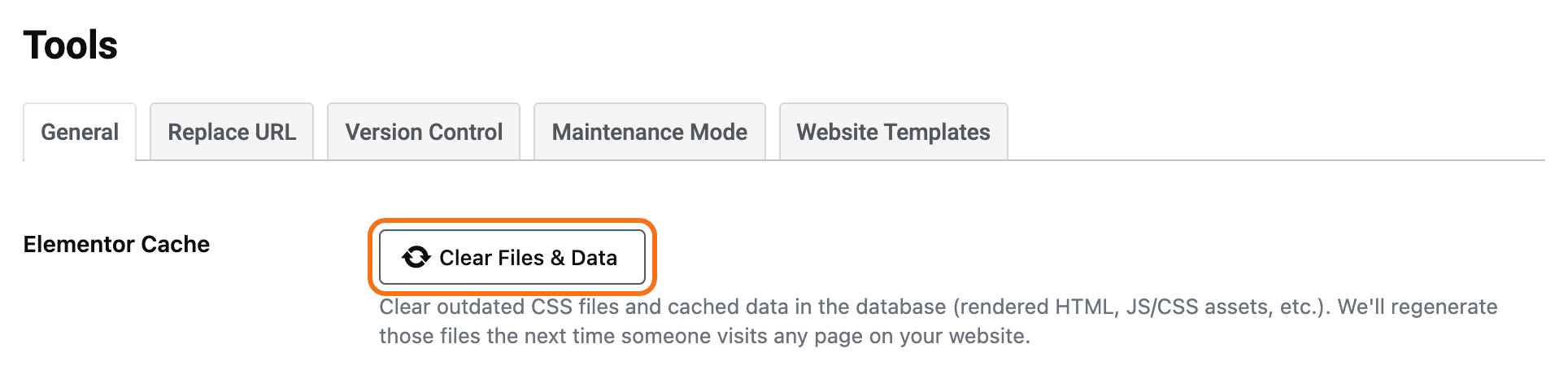
Go to Elementor > Editor. Elementor opens a second menu of its own, a white column just right of the WordPress menu. Click Tools in that column.
-
On the General tab, find Elementor Cache and click Clear Files & Data.
-
Clear your cache plugin again (step 3), then reload the page.
Nothing is deleted from your pages. Elementor builds the files again the next time someone opens each page.
5. Find the setting that decides instead
If the page still looks the same, the change saved fine but a narrower setting is deciding. Foxiz reads several screens for the same thing, and the one closest to the page wins.
The usual cases:
- You changed the header in Theme Options, and a Ruby Template draws the header. A header template replaces the predefined header and its settings. Edit the template in Elementor instead. See Header Overview: Predefined Layout or Ruby Template.
- You changed Theme Options > Single Post, and one post looks different. That post's own Single Post Settings box, under the editor, holds its own value. Set it back to - Default -.
- You changed a category in Theme Options, and one category ignores it. The category's Foxiz Category Settings box, on its edit screen, decides for that category.
- You changed Theme Design, and one Elementor block ignores it. The block's own style settings apply to that block instead.
Find Out Which Setting Is Deciding explains the order and how to check it on your own site.
6. Check the screen size
Phones get their own header. A logo, menu or colour changed for desktop does not reach a phone if the mobile header has its own value. See How to Set Up the Mobile Header.
Still stuck? Open a ticket and say which setting you changed, the page you expected it on, and whether you use a cache plugin or Cloudflare.
Did this answer your question?