The Foxiz Ad Blocks in Elementor
Foxiz adds three advert blocks to the Elementor panel, all in the Foxiz - Element category: Foxiz - Ad Image, Foxiz - Ad Script and Foxiz - Sidebar Banner. Searching the panel for "advert" finds all three, because each one carries that keyword.
- Open the page with Edit with Elementor.
- Search the panel for Foxiz - Ad, or scroll to the Foxiz - Element category.
- Drag the block you want into the section where the advert belongs.
- Fill in its Content tab, adjust the Style tab if you need to, then Publish.
The same three blocks work inside a Ruby template, which is how you get an advert into a place Elementor cannot reach on its own: a template assigned to the footer slide up, a single post template, or a widget area through the Foxiz - Ruby Template widget.
Foxiz - Ad Script
Its General section, on the Content tab:
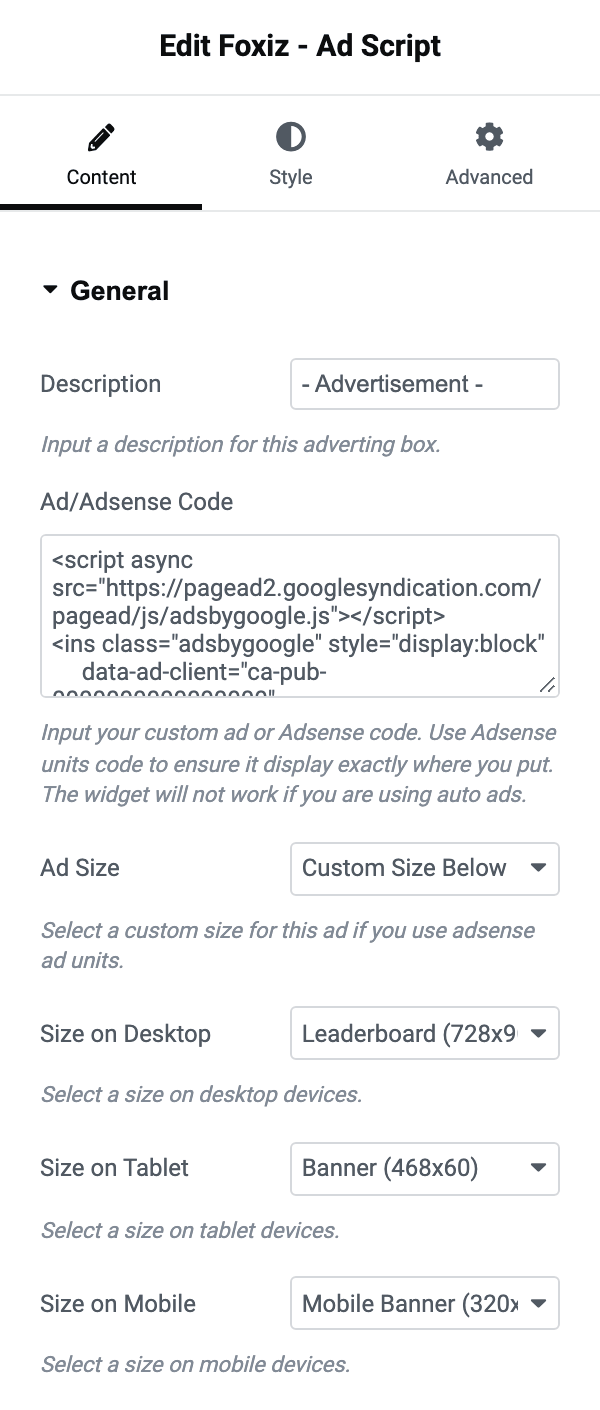
- Description is the small line printed above the advert, and its default is "- Advertisement -". Clear it and no line is printed.
- Ad/Adsense Code takes an AdSense unit code, another network's tag, or a shortcode. It is empty by default, and while it is empty the block prints nothing at all, which in the editor looks like a block that failed to save.
- Ad Size offers Do not Override and Custom Size Below, and its default is Do not Override. On Do not Override your code is printed as pasted and AdSense sizes the unit itself.
- Size on Desktop, Size on Tablet and Size on Mobile stay visible whatever Ad Size says, and only take effect on Custom Size Below with a recognised AdSense unit in the code field. All three are set to Leaderboard (728x90) by default, so set the mobile one before you publish: 728 pixels is wider than any phone.
Its Color section, on the Style tab, has two fields and both are about that description line: Description Color and Dark Mode - Description Color. Leave them empty to inherit your site's meta text colour.
Foxiz - Ad Image

Its General section, on the Content tab:
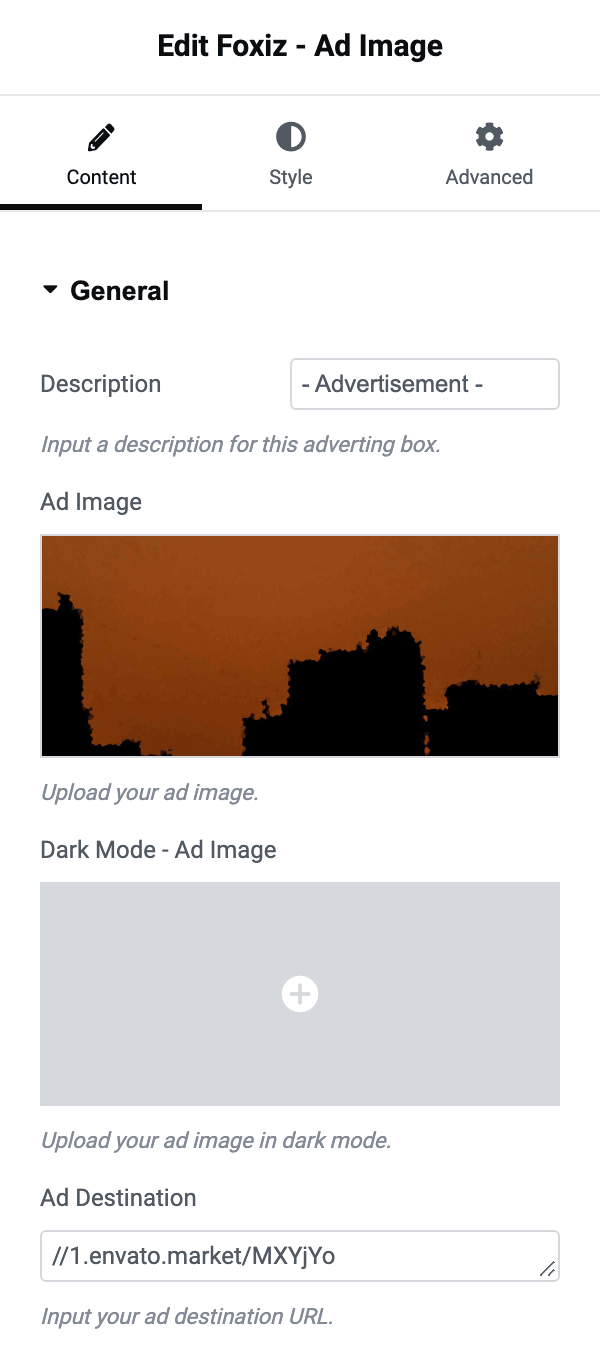
- Description is the line above the banner, with "- Advertisement -" as the default.
- Ad Image is the banner, chosen from your media library. With no image the block prints nothing.
- Dark Mode - Ad Image is the banner shown to readers in dark mode. Blank means the one banner serves both.
- Ad Destination is where the banner links. It is empty by default, and an empty destination means the banner is printed unlinked. The link opens in a new tab and carries a nofollow mark.
Its Image section, on the Style tab:
- Image Max Width caps the banner in pixels, and can be set separately for desktop, tablet and mobile with Elementor's own device switcher. Blank shows the banner at full size.
- Lazy Load offers - Default -, Enable and Disable, and its default is - Default -. Set it to Disable for a banner near the top of the page, which makes the browser fetch it immediately instead of waiting until it scrolls into view. On either of the other two values the banner is lazy loaded.
- Border Radius rounds the banner's corners, in pixels, per device.
- Description Size sets the size of the line above the banner, per device, and Description Color with Dark Mode - Description Color set its colour in each mode.
Foxiz - Sidebar Banner
The block version of the banner widget: a heading and a paragraph over a background image, with a button. It is for your own promotions rather than for network code, so nothing suppresses it. Its General section, on the Content tab, arrives filled with placeholder text you are meant to replace.
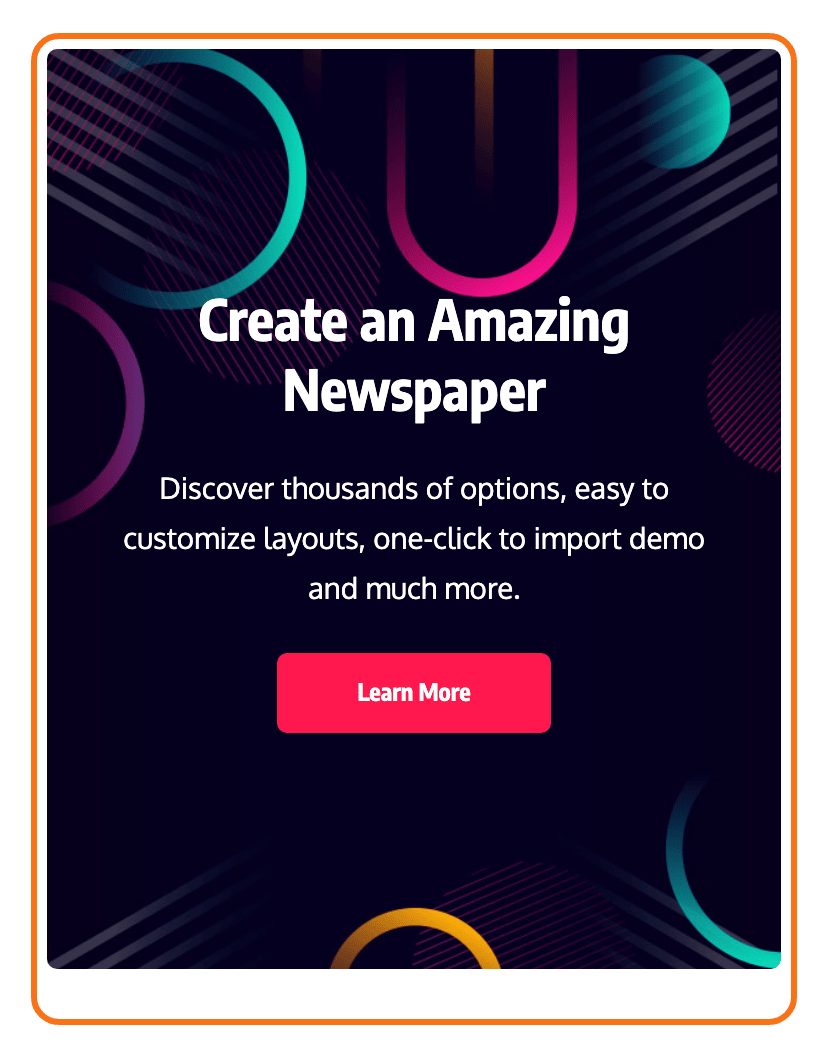
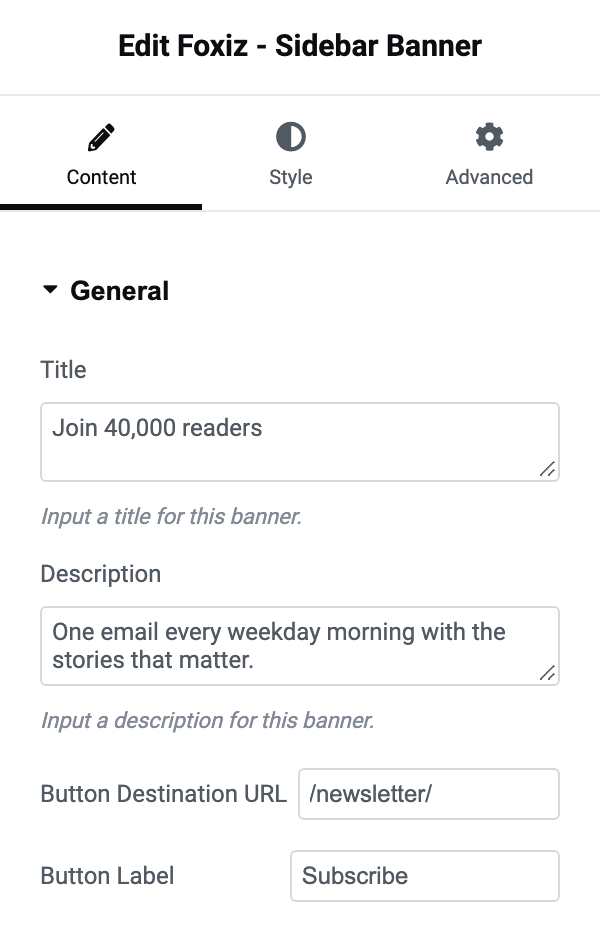
- Title is the heading, and holds "Your banner title..." by default. An empty Title draws no heading.
- Description is the paragraph, and holds a line of filler text by default.
- Button Destination URL arrives holding
#, which is a link to nowhere, and it is what decides whether a button appears at all. - Button Label is the text on the button and its default is "Learn More".
Four Style tab sections finish it.
Content holds the text layout:
- Inner Padding: the space inside the block around its text.
- Alignment: left, centre, right or justified.
- Title Font Size and Description Font Size: the two text sizes, in pixels.
- Title Font and Description Font: the two typography groups.
Button holds the button's look:
- Button Width offers - Default - and Full Width, and its default is - Default -.
- Border Radius: rounds the button's corners, in pixels.
- Button Font: the button's typography.
- Top Margin: the space above the button, in pixels.
- Text Color and Background Color: the button's colours.
- Dark Mode - Text Color and Dark Mode - Background Color: the same two in dark mode.
Cover Background holds the picture behind the text: Background Image URL and Dark Mode - Background Image URL, both media uploads despite the labels, and a Border Radius for the block itself.
Text Color Scheme holds one field of the same name, offering Default (Dark Text) and Light Text, with Light Text as the default. Match it to your background image: light text over a dark photograph, dark text over a pale one.
When a block draws nothing
The two ad blocks answer to the same site wide rules as every other Foxiz advert, and Elementor gives no warning for any of them.
- An empty code field or a missing image prints nothing.
- A snippet in Theme Options > Ads & Slide Up > Adsense - Auto Ads, left running while Allow Other Ads Placement is off, suppresses Foxiz - Ad Script along with every other AdSense unit. Foxiz - Ad Image keeps drawing.
- On the 404 page both are held back unless Theme Options > 404 Page > Ads Disabled > Ads on 404 Page is Enable.
- Neither draws on an AMP page. Adverts there come from Theme Options > AMP.
Did this answer your question?