The Foxiz Ad Widgets
Three widgets in the Appearance > Widgets list hold adverts, and all three come from the Foxiz Core plugin: Foxiz - Widget Ad Image for a banner you uploaded, Foxiz - Widget Ad Script for code from an ad network, and Foxiz - Widget Banner for a promotion you write yourself.
- Navigate to Appearance > Widgets.
- Open the widget area you want the advert in.
- Drag one of the three widgets into it, or use the plus button and search for Foxiz.
- Fill the fields, then click Save.
Which widget areas take an advert
Any of them. Three are meant for adverts; the rest are ordinary sidebars and footer strips that will hold one just as well.
- Header Advertising prints below the navigation, and is the answer to "how do I put a leaderboard under my menu". It draws on all five of the theme's own header layouts and under a header built as a Ruby template, and it draws nothing when the header is switched off.
- Single Content - Top Area prints above the body of a single post, and Single Content - Bottom Area below it. The theme's own description of both says they are usually used for adverts.
- Standard Sidebar is the sidebar beside your content, More Menu Section is the panel behind the header's more button, and Footer - Top Full Width plus Footer - Column 1 to Footer - Column 5 are the footer strips. How many footer areas you see depends on the footer layout you picked: a three column footer has no Footer - Column 4, only the five column layouts register Footer - Column 5, and a footer built from a shortcode registers none of them.
- Any area you created yourself at Theme Options > Sidebars > Unlimited Sidebars appears in this list too, under the name you gave it.
Foxiz - Widget Ad Image
Four fields, and the two image ones are text boxes rather than upload buttons. Upload your banner at Media > Add New first, copy its file address, and paste it in.
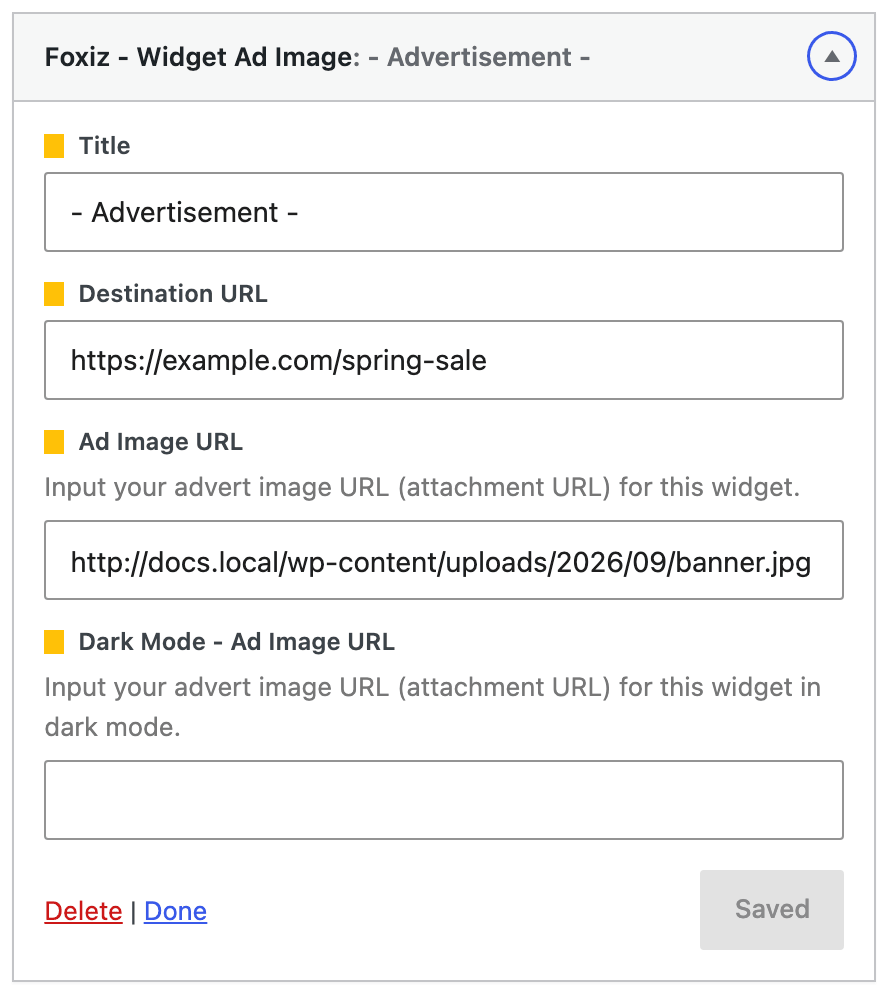
- Title is the small line of text printed above the banner, and its default is "- Advertisement -". Clear it and no line is printed.
- Destination URL is where the banner links. The link opens in a new tab and carries a nofollow mark. Leave it empty and the banner is printed without a link.
- Ad Image URL is the banner's own address.
- Dark Mode - Ad Image URL is the version shown to readers in dark mode. Blank means the one banner is used in both modes.
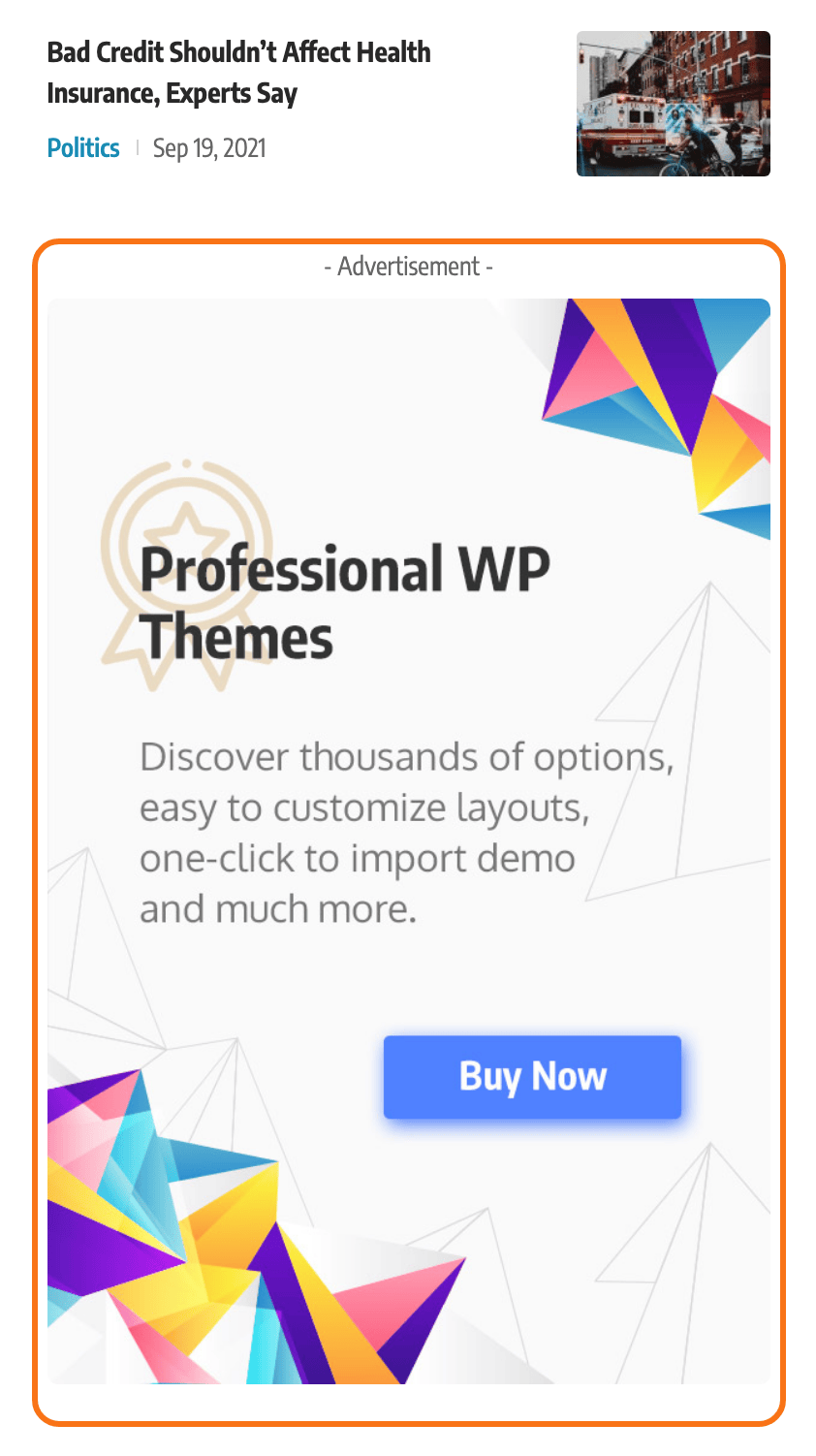
With Ad Image URL empty the widget prints its title and nothing else, which is the usual explanation for a saved widget that looks like a gap in the sidebar.
This widget does not pass alternative text through, so Foxiz writes "Ad image" as the banner's alt text. If that matters for your accessibility audit, place the banner with Foxiz - Ad Image in Elementor instead, where the image comes from the media library with its own alt.
Foxiz - Widget Ad Script
Six fields. Only the code is required, and the four size fields are for AdSense units.
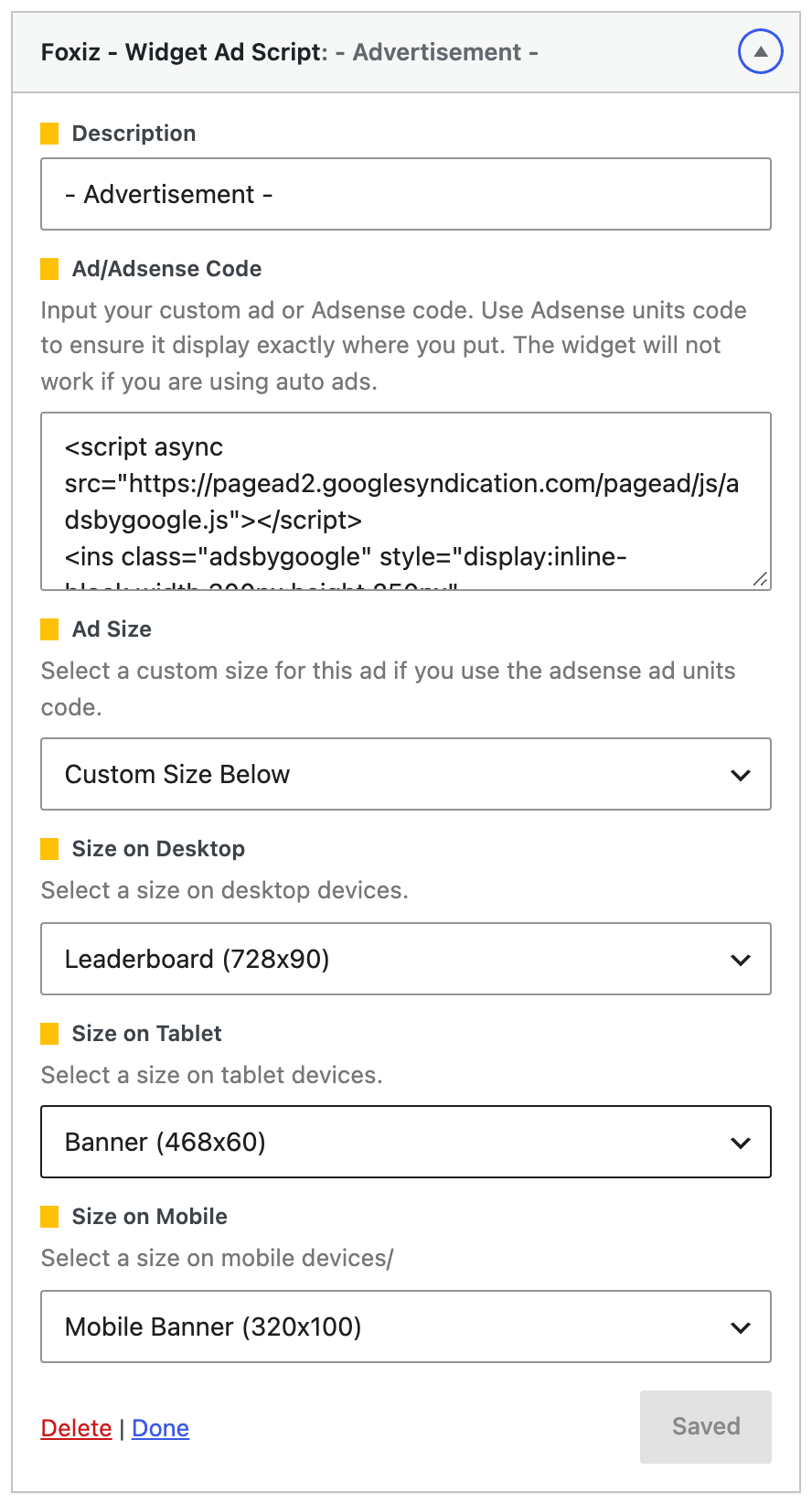
- Description is the small line above the advert, with "- Advertisement -" as the default.
- Ad/Adsense Code takes an AdSense unit code, another network's tag, or a shortcode. Nothing is printed while it is empty.
- Ad Size offers Do not Override and Custom Size Below, and arrives on Do not Override. The three fields under it only change anything on Custom Size Below, and only for a recognised AdSense unit.
- Size on Desktop, Size on Tablet and Size on Mobile arrive on Leaderboard (728x90), Banner (468x60) and Half banner (234x60). The first entry in all three lists is Hide on Desktop, which hides the advert at whichever of the three you choose it in.
Ad Types and Sizes has the full size list and the screen widths each dropdown covers.
The widget's own help text says it will not work while you are using auto ads, and that is accurate.
A snippet in Theme Options > Ads & Slide Up > Adsense - Auto Ads stops every AdSense unit on the site from drawing unless Allow Other Ads Placement is on. Foxiz - Widget Ad Image is unaffected, because there is no AdSense unit in a picture.
Foxiz - Widget Banner
The one to reach for when you have no ad code: your own promotion, drawn as a heading and a paragraph over a background image with a button under them. A sponsor's landing page, your newsletter, a paid review. Seven fields.

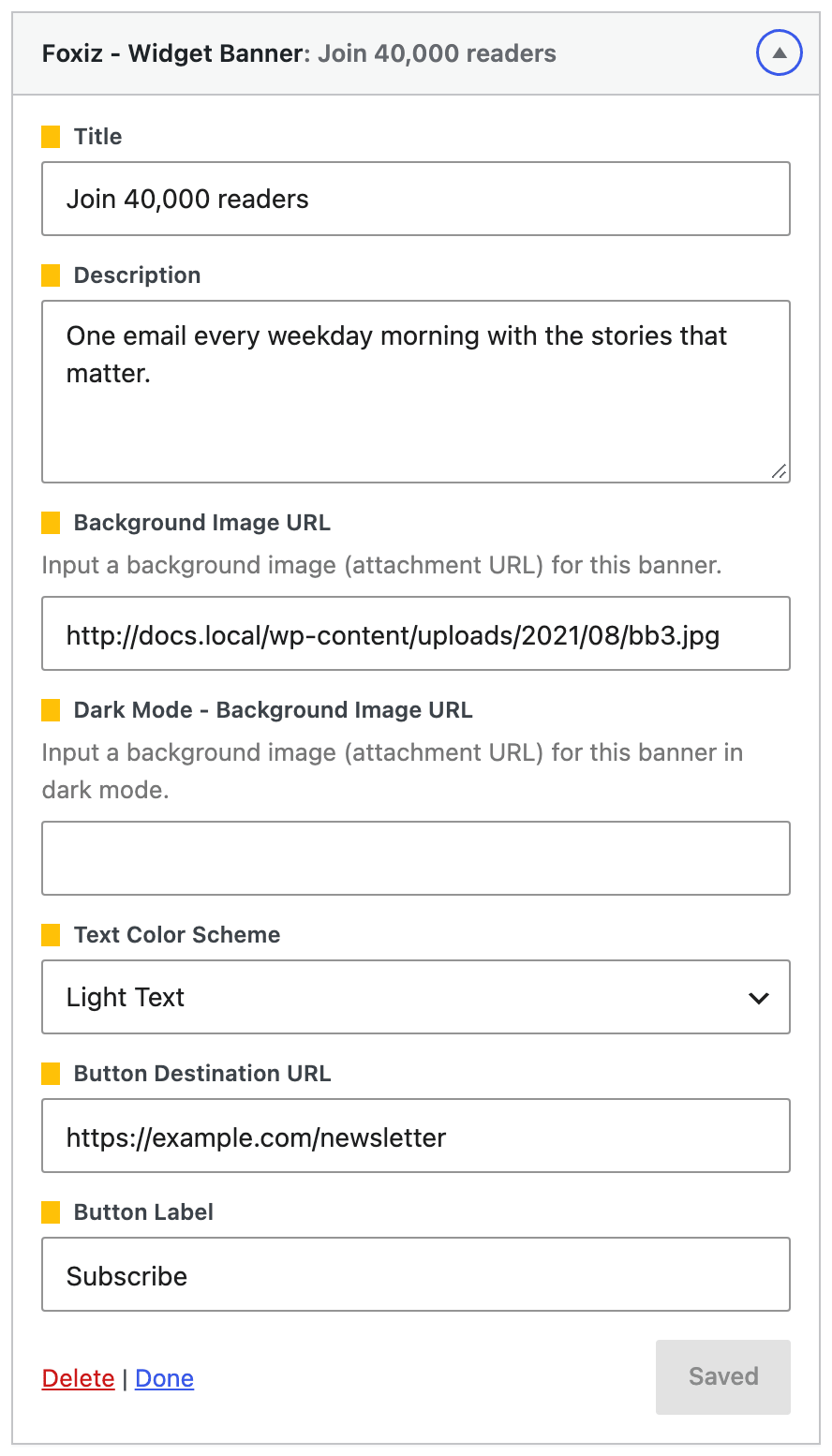
- Title is the heading. Leave it empty and no heading is drawn.
- Description is the paragraph under it, and is optional in the same way.
- Background Image URL is the picture behind the text, given as the address of an image already in your media library.
- Dark Mode - Background Image URL is the same for readers in dark mode.
- Text Color Scheme offers Light Text and Dark Text, and its default is Light Text. Pick whichever your background image can carry.
- Button Destination URL is where the button goes, and it is what decides whether a button is drawn at all. With this empty there is no button, whatever label you typed. The link opens in a new tab with a nofollow mark.
- Button Label is the text on it. Fill this whenever you fill the URL, or you will publish an empty button.
Because this widget is your own content rather than an ad network's, none of the ad suppression rules apply to it. It draws with auto ads on, and it draws on the 404 page.
Keeping a sidebar advert in view
A banner high in the sidebar scrolls away after a screen or two. Theme Options > Sidebars > Sticky Sidebar fixes that, and its default is - None -.
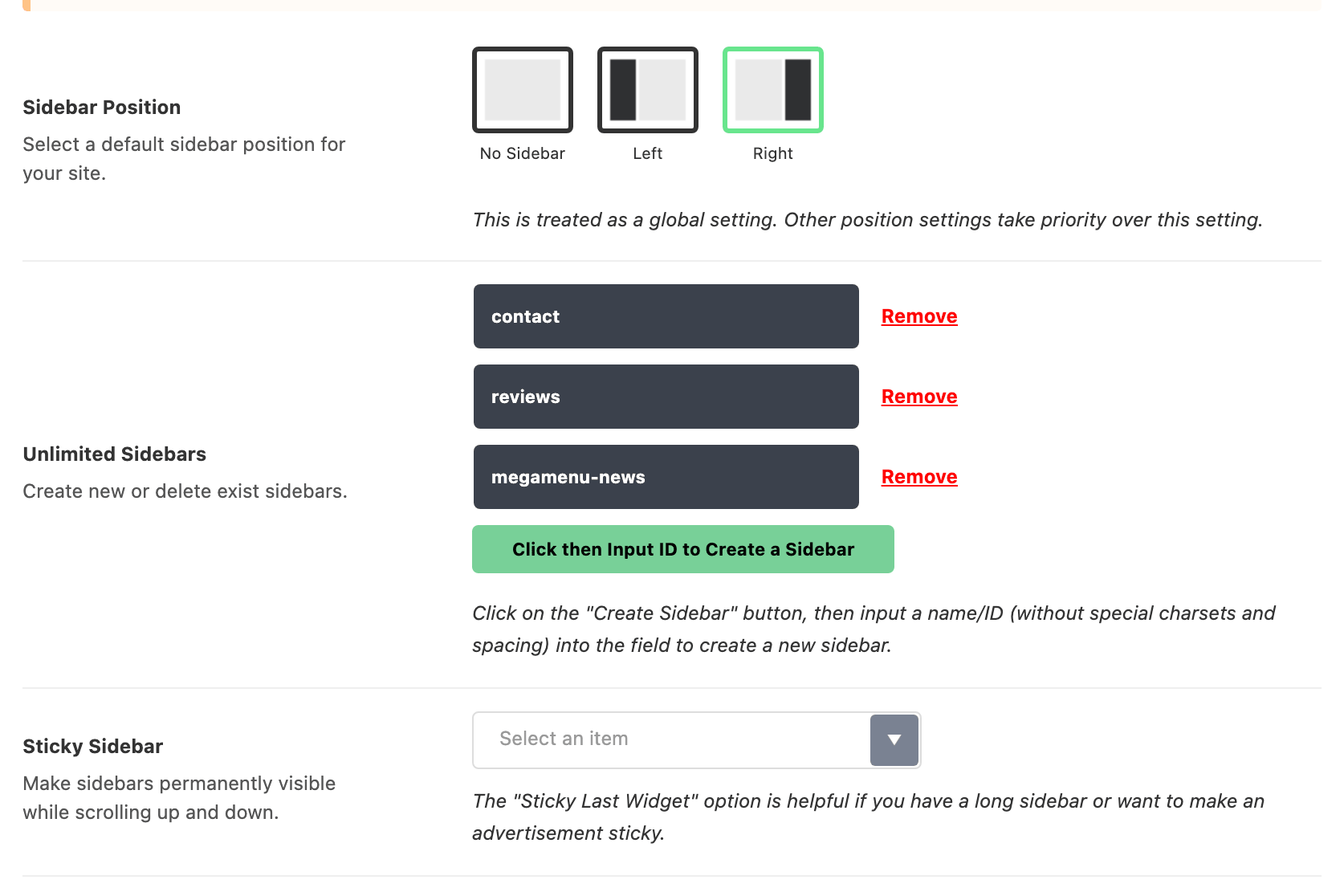
Sticky Sidebar holds the whole sidebar in view, which works when the sidebar is short. Sticky Last Widget holds only the last widget in the area, which is the one to use for an advert: put the ad widget at the bottom of the sidebar and it follows the reader down a long article while everything above it scrolls normally.
The two ad widgets are held back on the 404 page unless Theme Options > 404 Page > Ads Disabled > Ads on 404 Page is set to Enable, and neither draws on an AMP page.
Did this answer your question?