Every Setting in the Ads & Slide Up Panel
Theme Options > Ads & Slide Up is where three of the theme's own advert placements live, plus the slide up panel above the footer. It holds four subsections, and this page walks all of them in the order the panel does.
- Adsense - Auto Ads holds one AdSense snippet and lets Google choose the positions for the whole site.
- Top Site is one advert at the very top of every page, above the header.
- Inline Single Content is three adverts dropped into post content after a paragraph count you choose.
- Footer Slide Up is a panel that rises from the bottom of the window holding any shortcode.

Adverts anywhere else on the site come from a widget area or an Elementor block rather than from this panel.
Adsense - Auto Ads
Three fields, and How to Add Adsense Auto Ads covers what they do to everything else.
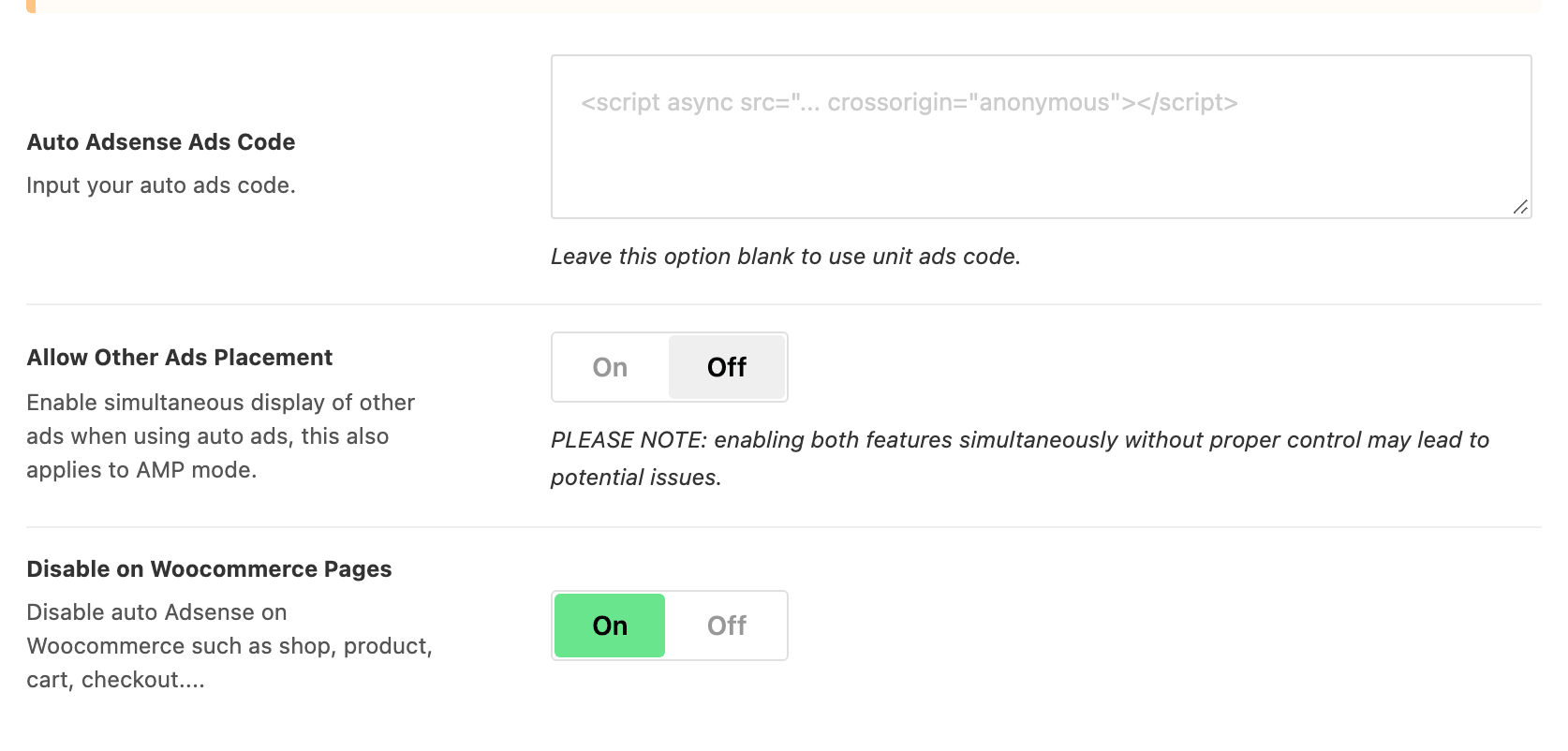
- Auto Adsense Ads Code takes the Auto ads snippet from your AdSense account. It is empty by default, and while it is empty this subsection changes nothing.
- Allow Other Ads Placement lets your hand placed AdSense units keep drawing alongside the auto ads, on AMP pages too. It is off by default, which means auto ads suppress them.
- Disable on Woocommerce Pages keeps auto ads off the shop, product, cart, checkout and account pages. It is on by default.
Top Site
This advert prints above the header, before anything else on the page, and it prints on every page of the site. There is a single Top Site advert for the whole site rather than one per template.

The advert below the navigation is a different thing and is not in this panel: it is a widget area called Header Advertising, filled at Appearance > Widgets. The subsection says so itself in a notice at the top.
Ad Type comes first and decides which of the two groups below it you can see. It offers Script and Custom Image and its default is Script.
The Ad Script group, visible on Script:
- Script - Ad/Adsense Code takes an AdSense unit code, another network's tag, or a shortcode. Nothing prints while it is empty.
- Script - Ad Size offers Do not Override and Custom Size Below, and its default is Do not Override. The three fields under it only do anything on Custom Size Below, and only for an AdSense unit.
- Script - Size on Desktop is set to Leaderboard (728x90) by default.
- Script - Size on Tablet is set to Banner (468x60) by default.
- Script - Size on Mobile is set to Half banner (234x60) by default.
The Ad Image group, visible on Custom Image:
- Ad Image is the banner, uploaded from your media library. Nothing prints while it is empty.
- Dark Mode - Ad Image is the banner for readers in dark mode. Blank means the same image is used in both modes.
- Ad Destination is the click through URL. It arrives holding
#, which goes nowhere, so replace it. - Ad Description is the small line printed above the banner. This one is empty by default, unlike the inline slots.
- Image - Max Width caps the banner in pixels. Blank shows it at full size.
The Style group applies to both types:
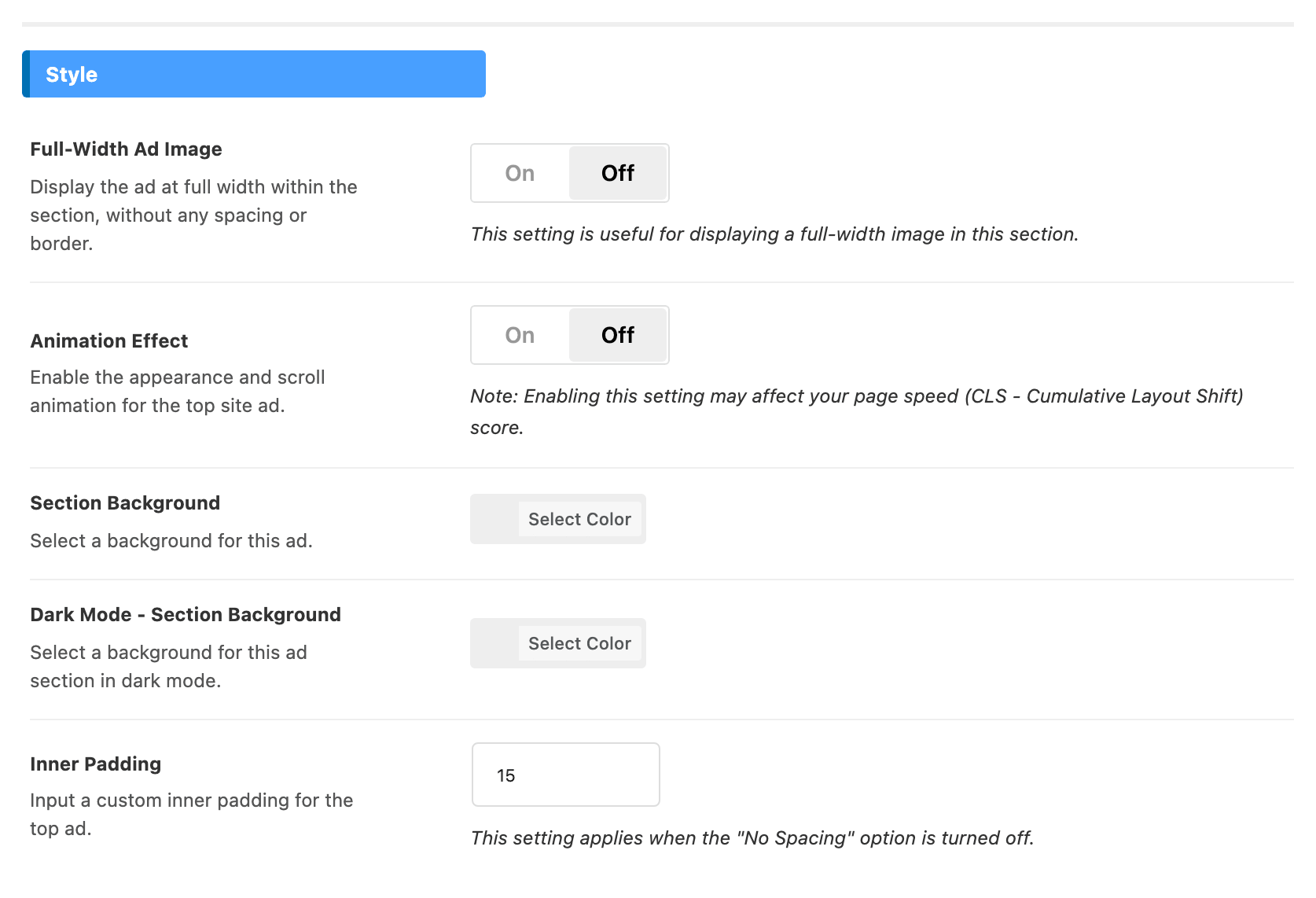
- Full-Width Ad Image runs the advert edge to edge with no padding or border, which is what you want for a full width banner image. It is off by default.
- Animation Effect fades the advert in and animates it on scroll. It is off by default, and the panel's own note is worth taking seriously: an element that moves at the very top of the page is the classic cause of a bad layout shift score.
- Section Background and Dark Mode - Section Background colour the strip the advert sits in, one for each mode. Both are empty by default, which leaves the strip transparent.
- Inner Padding is the space in pixels around the advert inside that strip, and its default is 15. It is ignored while Full-Width Ad Image is on.
One post or page can hide this advert without touching the panel. See How to Disable Ads on One Post or Page.
Inline Single Content
Three independent adverts that are inserted into the body of a single post, each after a paragraph count you set. They are the placement most people are looking for, and they only run on single posts: not on pages, not on archives.
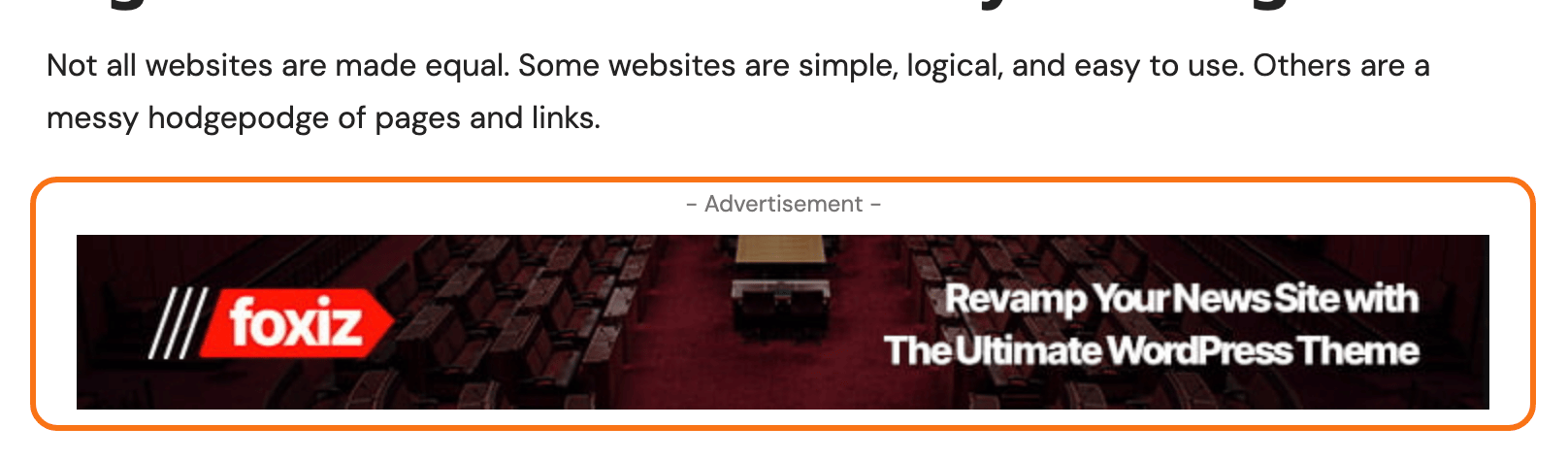
The three groups are headed for Ad 1, for Ad 2 and for Ad 3, and they carry the same thirteen fields. Taking the first:
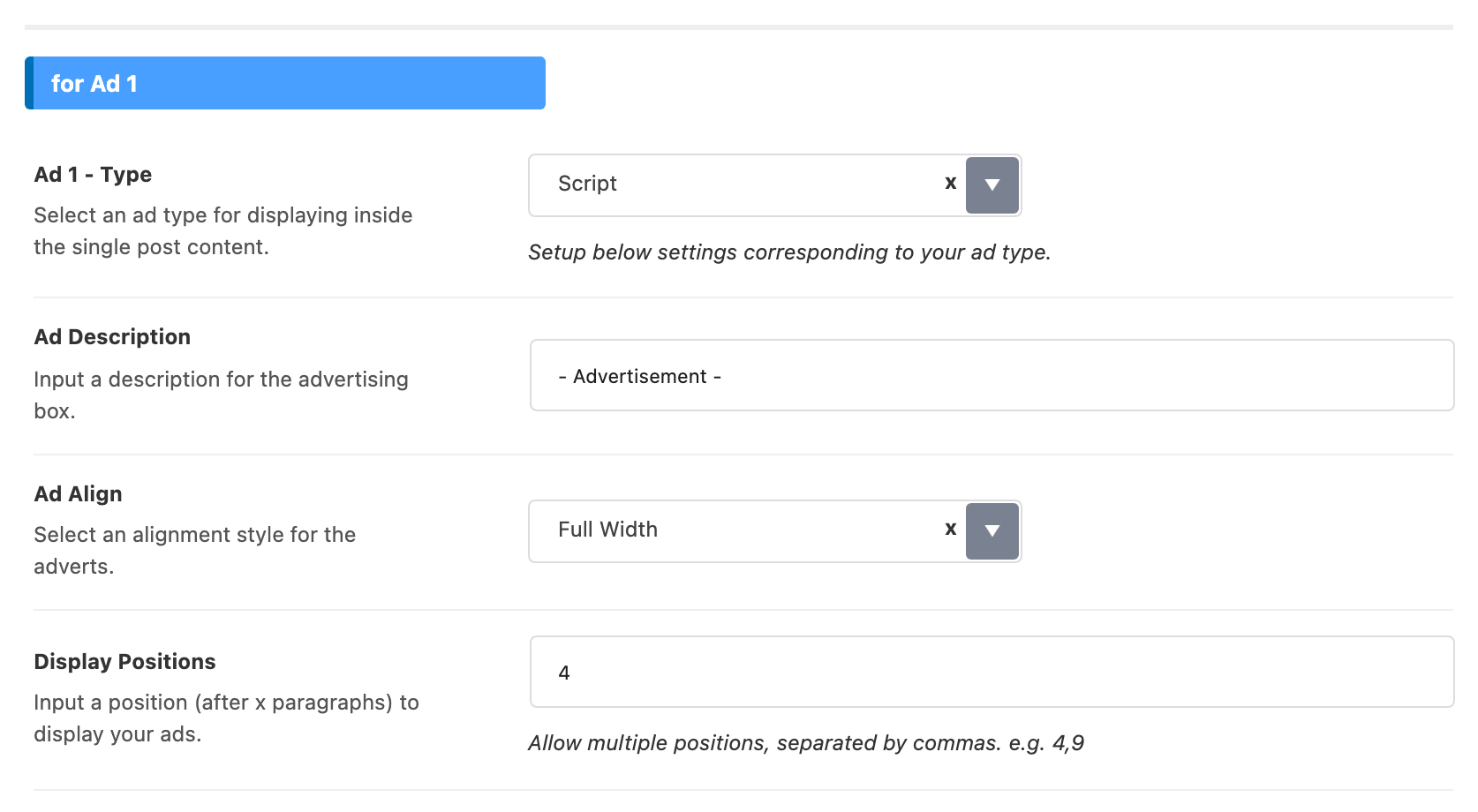
- Ad 1 - Type offers Script and Image, and its default is Script. It decides which of the fields below have any effect.
- Ad Description is the small line above the advert, with "- Advertisement -" as the default. Clear it and no line is printed.
- Ad Align offers Full Width, Float Left and Float Right, and its default is Full Width. The two floats let the article text wrap around a smaller advert.
- Display Positions is the paragraph count, and its default is 4 for this slot. More than one position is allowed, separated by commas, as in
4,9. Clearing the field switches the slot off. - Script - Ad/Adsense Code holds the code, and appears only on the Script type.
- Script - Ad Size offers Do not Override and Custom Size Below, with Do not Override as the default.
- The three size fields below appear once Script - Ad Size is on Custom Size Below.
- Script - Size on Desktop is set to Leaderboard (728x90) by default.
- Script - Size on Tablet is set to Banner (468x60) by default.
- Script - Size on Mobile is set to Half banner (234x60) by default.
- Image - Ad is the banner for the Image type, with Image - Dark Mode Ad for dark mode readers.
- Image - Ad Destination is where the banner links, and arrives holding
#. - Image - Max Width caps the banner in pixels; blank is full size.
Ad 2 - Type and Ad 3 - Type head the other two groups. Their fields are identical. The only default that differs is the paragraph count: Display Positions is set to 9 for Ad 2 and 12 for Ad 3. So out of the box the three are spread down a long article.
How Display Positions is counted
The number is a count of the paragraphs in the post, and the advert is placed after that paragraph. Only the article's own top level paragraphs count, so a paragraph inside a quote, a list or a caption is not one of them.
A position past the end of the article is skipped silently. That is the usual reason an inline advert never appears: a slot set to 12 on a piece with nine paragraphs simply has nowhere to go, and the default 12 on Ad 3 puts it beyond the end of most news posts.
Two slots may share a position, and a repeated number in one field is only used once.
A single podcast episode gets inline adverts too, while Theme Options > Ruby Podcast > General > Inline Content Ads Supported is on, which it is out of the box. The subsection carries a notice pointing at it.
Footer Slide Up
A panel anchored to the bottom of the window with a small arrow button. The reader can collapse it, and it holds whatever shortcode you give it, which makes it the place for a large advert or a promotion you want present without it sitting in the layout. It appears on every page.
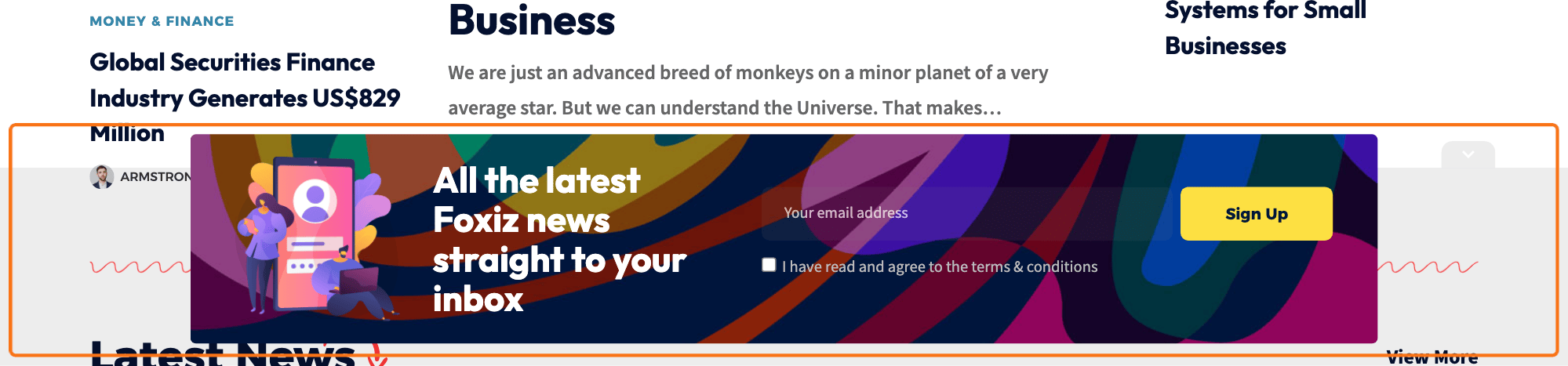
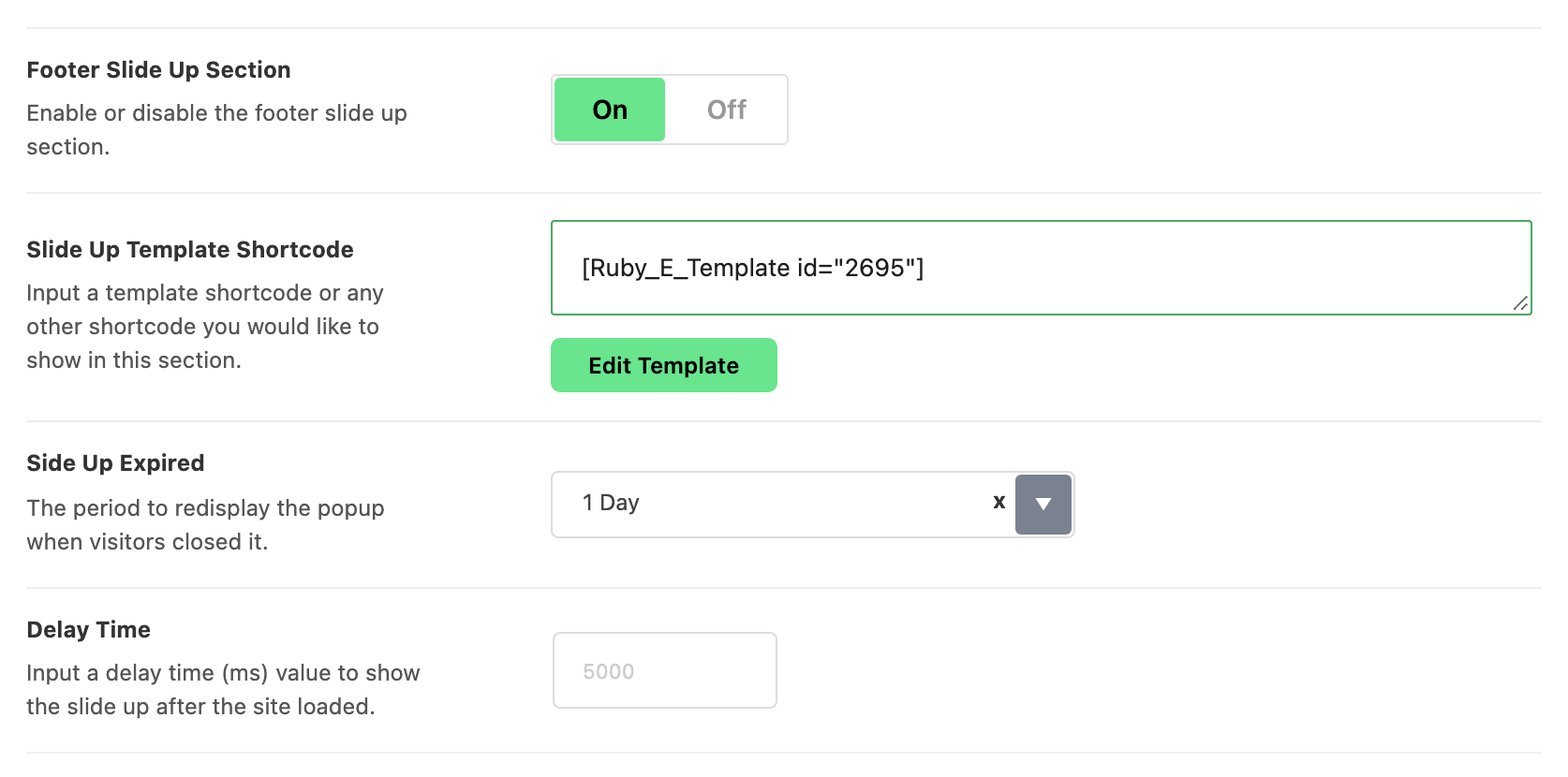
- Footer Slide Up Section is the master switch, and it is off by default. Every other field here stays hidden until it is on.
- Slide Up Template Shortcode is the content. Any shortcode is accepted; the placeholder shows the form of a saved Ruby template. Nothing is drawn while this is empty, whatever the switch says.
- Side Up Expired is how long the panel stays away after a reader closes it, with 1 Day as the default. The longer choices are 2 Days, 3 Days, 1 Week, 2 Weeks, 3 Weeks and 1 Month. The last entry, Always Display, brings it back on every page load.
- Delay Time is how long after the page loads the panel appears, in milliseconds. Leave it blank and the panel waits two seconds, even though the placeholder in the box reads 5000.
- Slide Up Background and Dark Mode - Slide Up Background colour the panel itself, one for each mode. Both accept transparency.
- Button Text Color and Dark Mode - Button Text Color colour the arrow while the panel is open.
- Not Activate - Button Text Color and Not Activate - Button Background colour the same arrow while the panel is closed. That is the state most readers see, since the panel hides itself once dismissed, so it is worth setting both.
How to Add Adverts to the Footer Slide Up walks the same subsection as a task, starting from building the template.
None of these placements are drawn on AMP pages, which have their own advert fields. See How to Add Adverts to AMP Pages.
Did this answer your question?