Assigning Image Sizes for Blog Layouts
Foxiz allows you to choose images for blog listing layouts.
For most sites, leave every one of these settings on - Default -. Each layout already uses a crop that fits its cards: Grid 1, for example, uses 420 by 280. Pick a larger size, such as 615x410, only where images look soft, typically a grid whose cards are wide because it has one or two columns.

To define your own crop sizes, you can read this documentation
Every one of the settings below is the same field, Featured Image Size, and every one of them is set to - Default - by default.
When more than one of them is set, the narrowest one wins, in this order:
- One Elementor block, or one category: the block's own setting, or the one in that category's Foxiz Category Settings.
- The listing page's panel: Category, Blog Index, Author Page, Search Page or Archives. An Elementor block skips this level.
- Theme Options > Standard Blog Design, for the layout in use.
- The crop built into the layout, when all of the above are on - Default -.
So when you do change a size, set it in Standard Blog Design first, then change only the listings or blocks that need a different one.
The list it offers holds two kinds of size:
- Theme crop sizes: the ones still switched on under Theme Crop Sizes, at Theme Options > Theme Design > Featured Image. Turn one off there and it stops being offered everywhere.
- WordPress core sizes: Thumbnail (Core WP), Medium (Core WP), Medium Large (Core WP), Large (Core WP), 1536x1536 (Core WP) and 2048x2048 (Core WP).
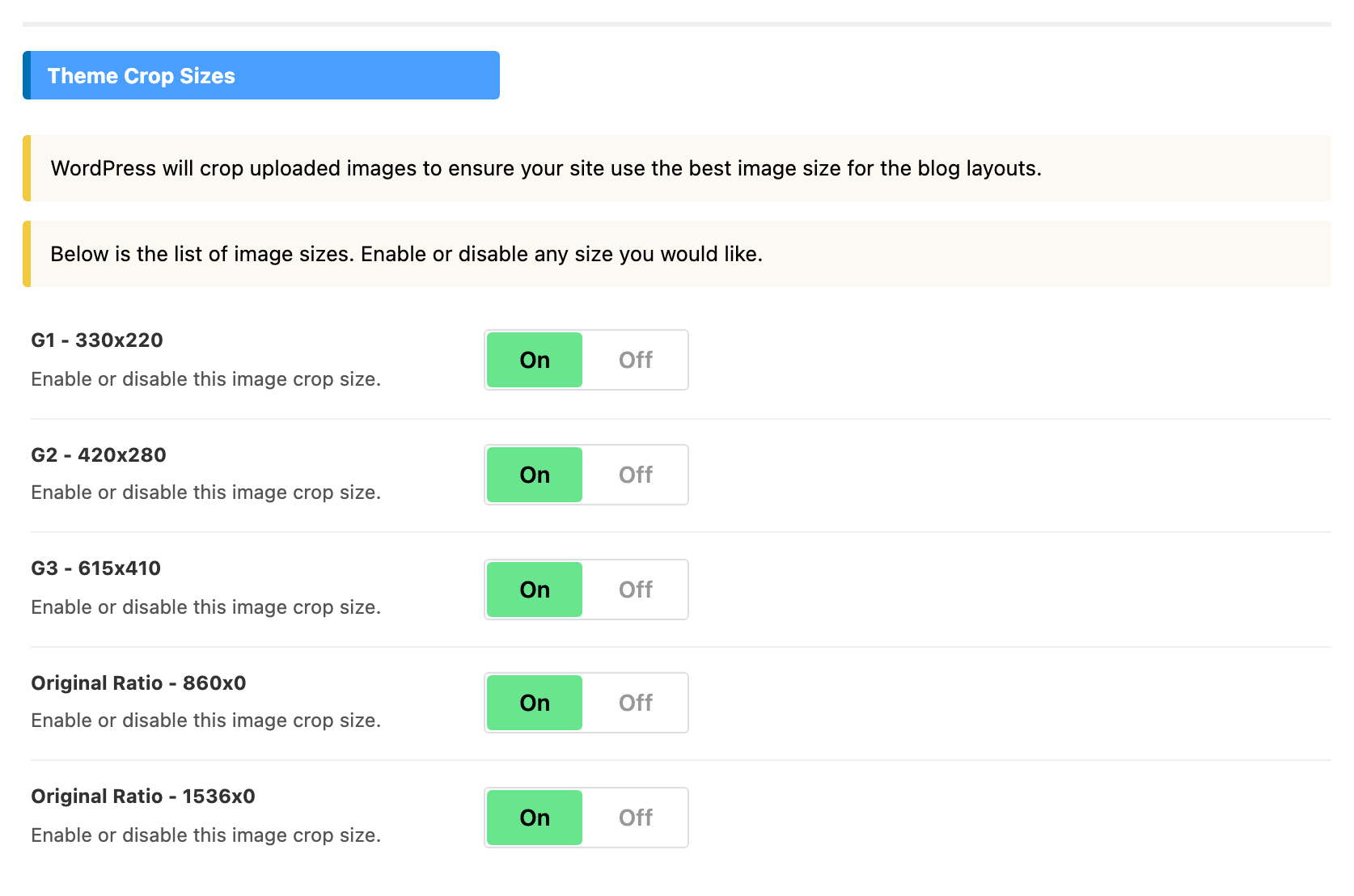
The theme's own crop sizes are:
foxiz_crop_g1: 330 by 220foxiz_crop_g2: 420 by 280foxiz_crop_g3: 615 by 410foxiz_crop_o1: 860 widefoxiz_crop_o2: 1536 wide
The dropdown labels them by their dimensions. The last two have no height, so they are resized to that width and never cropped.
Elementor Blocks
-
Open the page from Pages > All Pages with Edit with Elementor, and click the block you would like to edit.
-
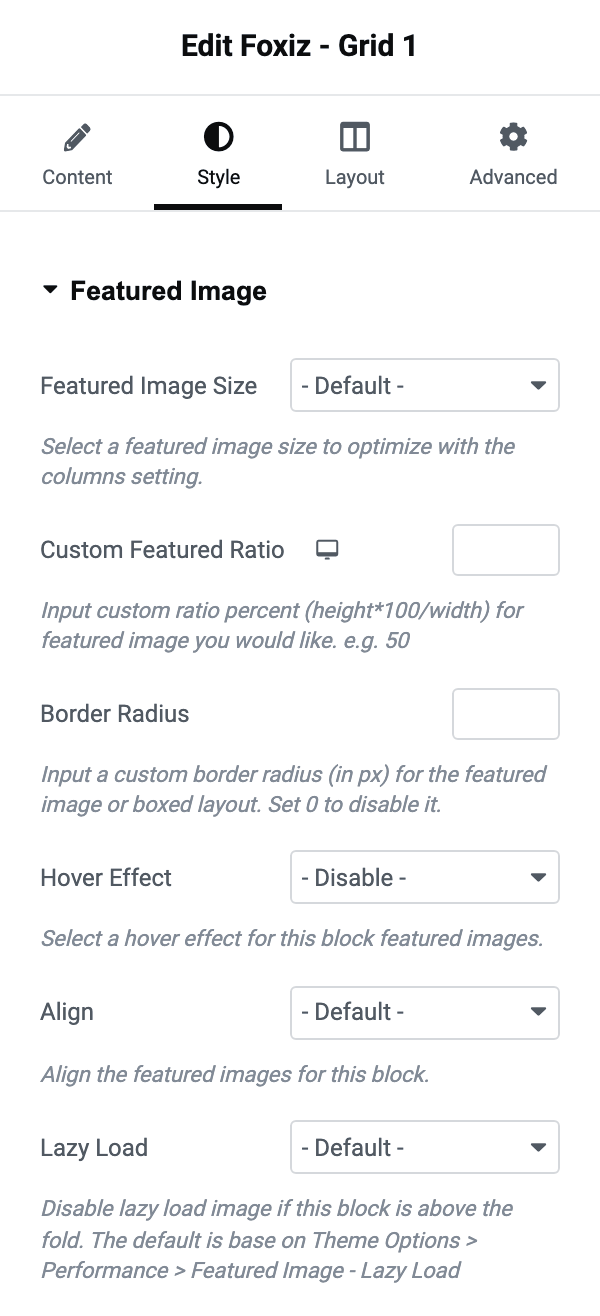
Select the Style tab, open the Featured Image section, and find Featured Image Size.
-
Then choose your image size you want.
The dropdown here is built differently from the one in Theme Options. It lists every registered image size on the site, theme or plugin, each shown as its dimensions followed by its internal name, for example 330x220 (foxiz_crop_g1), and then Thumbnail (Core WP), Medium (Core WP), Medium Large (Core WP) and Large (Core WP).
The same section carries Custom Featured Ratio, which is the height of the image box as a percentage of its width. Setting it to match the crop you picked is what stops the image being cropped a second time by the layout.
Default Modules
The settings in the default modules apply to the whole website. They are the defaults, and a block, a category or a listing panel can override them.
-
Navigate to Theme Options > Standard Blog Design
-
Select the layout you like to edit.
-
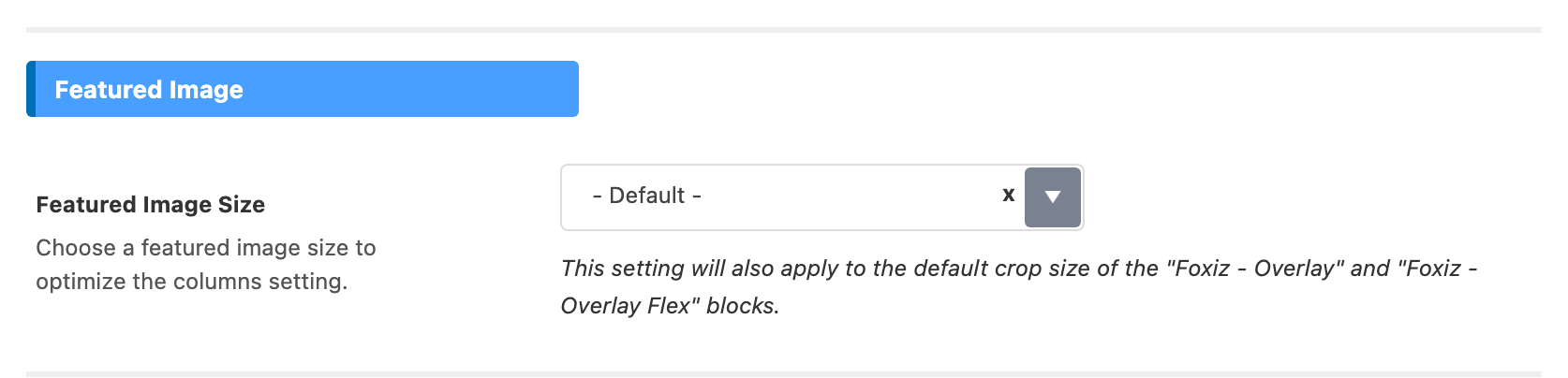
Choose your size under the Featured Image Size setting. It is the first setting in each module, in a section headed Featured Image.
Left on - Default -, each module uses a crop built into the layout. These are the ten modules and the size each one asks for:
| Module | Crop it asks for |
|---|---|
| Classic | 860 wide, uncropped |
| Grid 1 | 420 by 280 |
| Grid 2 | 420 by 280 |
| Small Grid | 330 by 220 |
| Boxed Grid 1 | 420 by 280 |
| Boxed Grid 2 | 420 by 280 |
| List 1 | 330 by 220 |
| List 2 | 330 by 220 |
| Boxed List 1 | 330 by 220 |
| Boxed List 2 | 330 by 220 |
In the code those are foxiz_crop_o1 for Classic, foxiz_crop_g2 for the four grids and foxiz_crop_g1 for Small Grid and the four lists.
That is why switching a theme crop size off can change a layout you never touched: the module still asks for the size, WordPress no longer has a file at it, and the original image is served instead.
Category Page
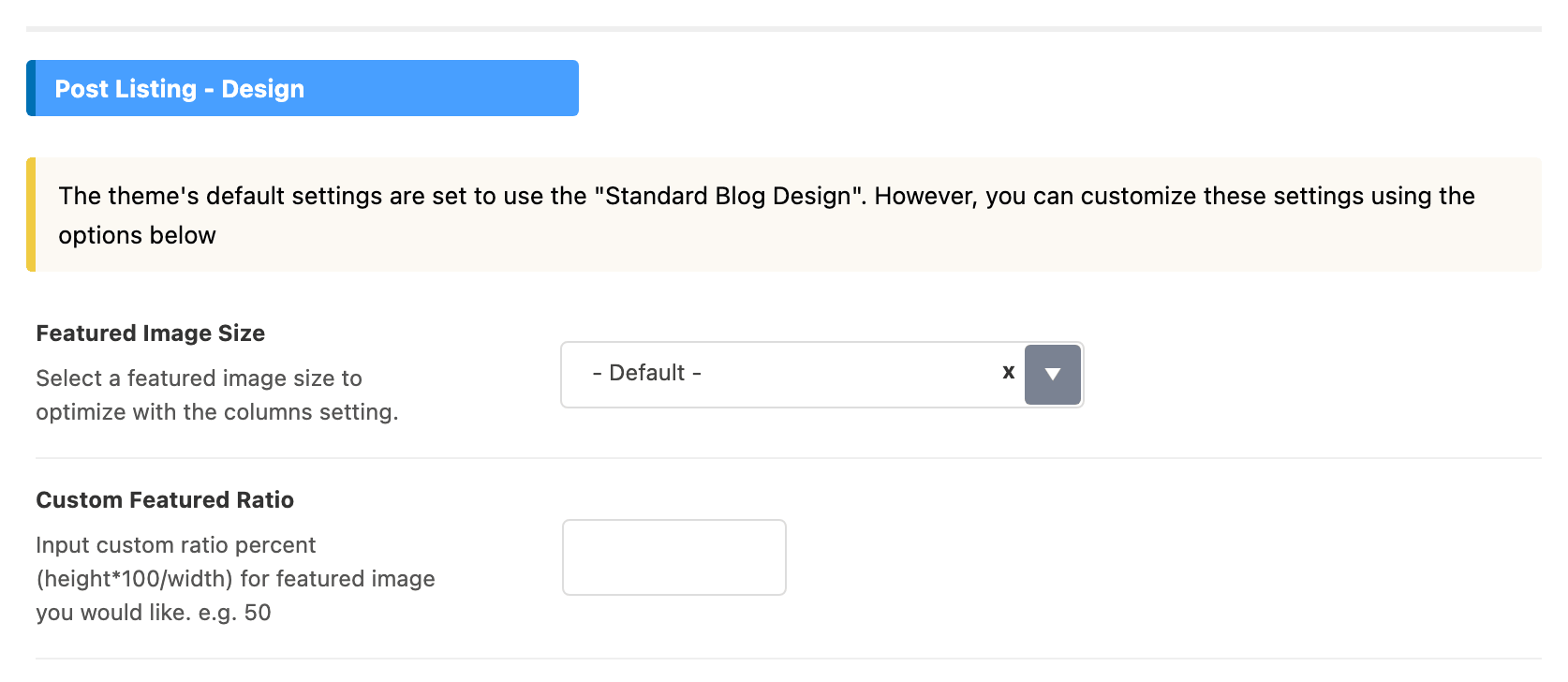
All categories: navigate to Theme Options > Category, then Post Listing - Design > Featured Image Size
Individual Category:
-
Navigate to Posts > Categories
-
Then select category you want to edit, click on the edit link.
-
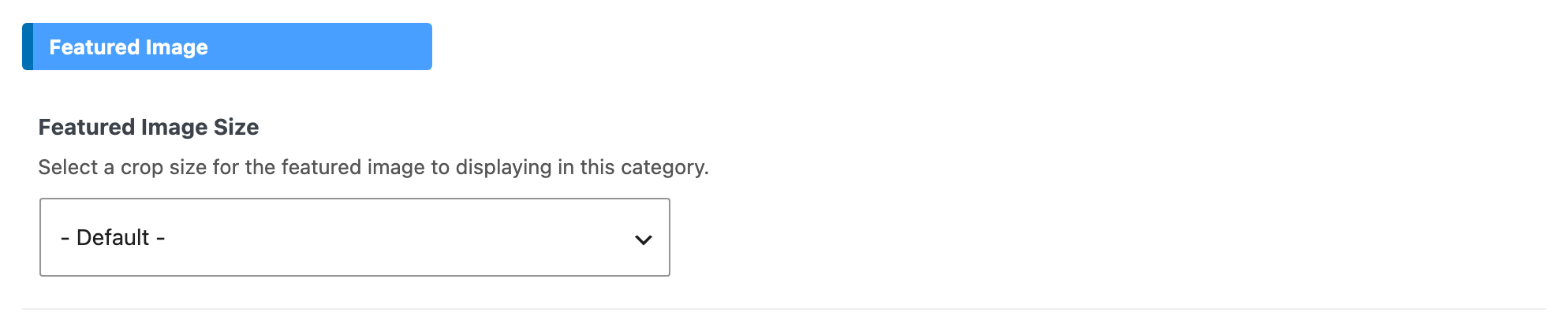
Find the Featured Image Size setting under the Predefined Blog tab of the Foxiz Category Settings box.
-
Select your size
-
Click on the Update button at the bottom of the term screen to save your changes.
Anything you set here beats the Category panel for this one category.
Blog and archives pages
Each of these is its own tab in Theme Options, at the top level of the panel, and in each one the setting sits in the Post Listing - Design section.
Blog index: Navigate to Theme Options > Blog Index, then Post Listing - Design > Featured Image Size
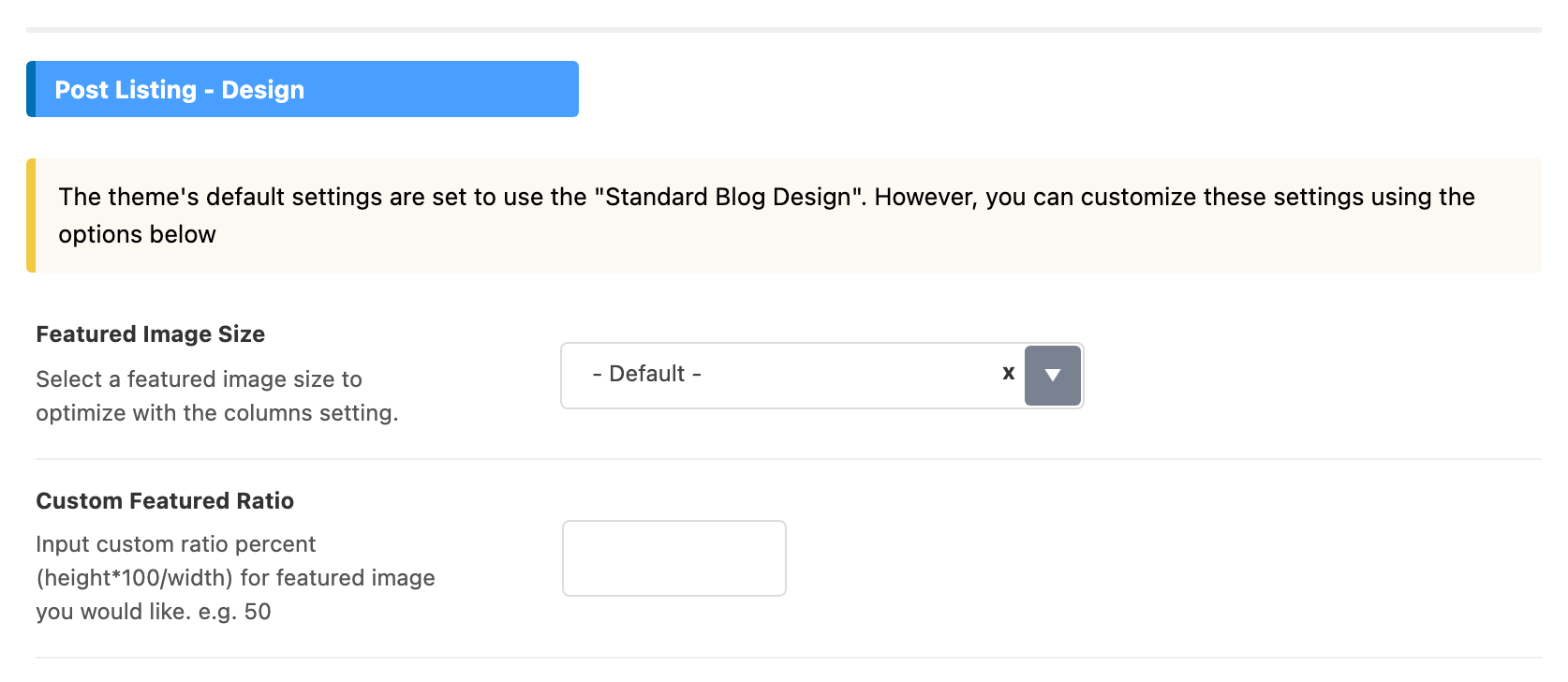
Author page: Navigate to Theme Options > Author Page, then Post Listing - Design > Featured Image Size
Search page: Navigate to Theme Options > Search Page, then Post Listing - Design > Featured Image Size
Archive page: Navigate to Theme Options > Archives, then Post Listing - Design > Featured Image Size
There is a Tag Page tab as well, and it has no Featured Image Size of its own. Tag archives take their listing design from the Archives tab, so set it there.
In all five of these panels the Post Listing - Design section disappears while or Use Ruby Template for the Post Listing on the same tab has a shortcode in it.
Did this answer your question?