Set Featured Image
A featured image is the picture that stands for a post: its listing cards show it, and so does the top of the post in every single layout except Layout 9 (No Featured). WordPress does not require one, but set one on every post.


To get started, follow the steps below:
-
Open the post from Posts > All Posts, or start a new one with Posts > Add Post.
-
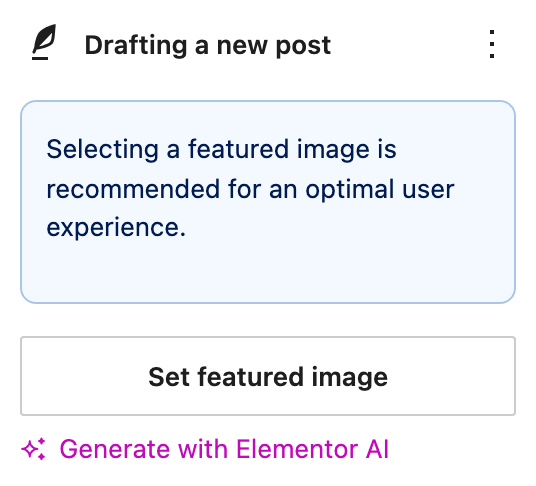
Refer to the right of the screen, click on the "Set featured image" link to set your featured image.
-
The media panel opens. Upload an image, or choose one already in the library, then click Set featured image at the bottom right of the panel.
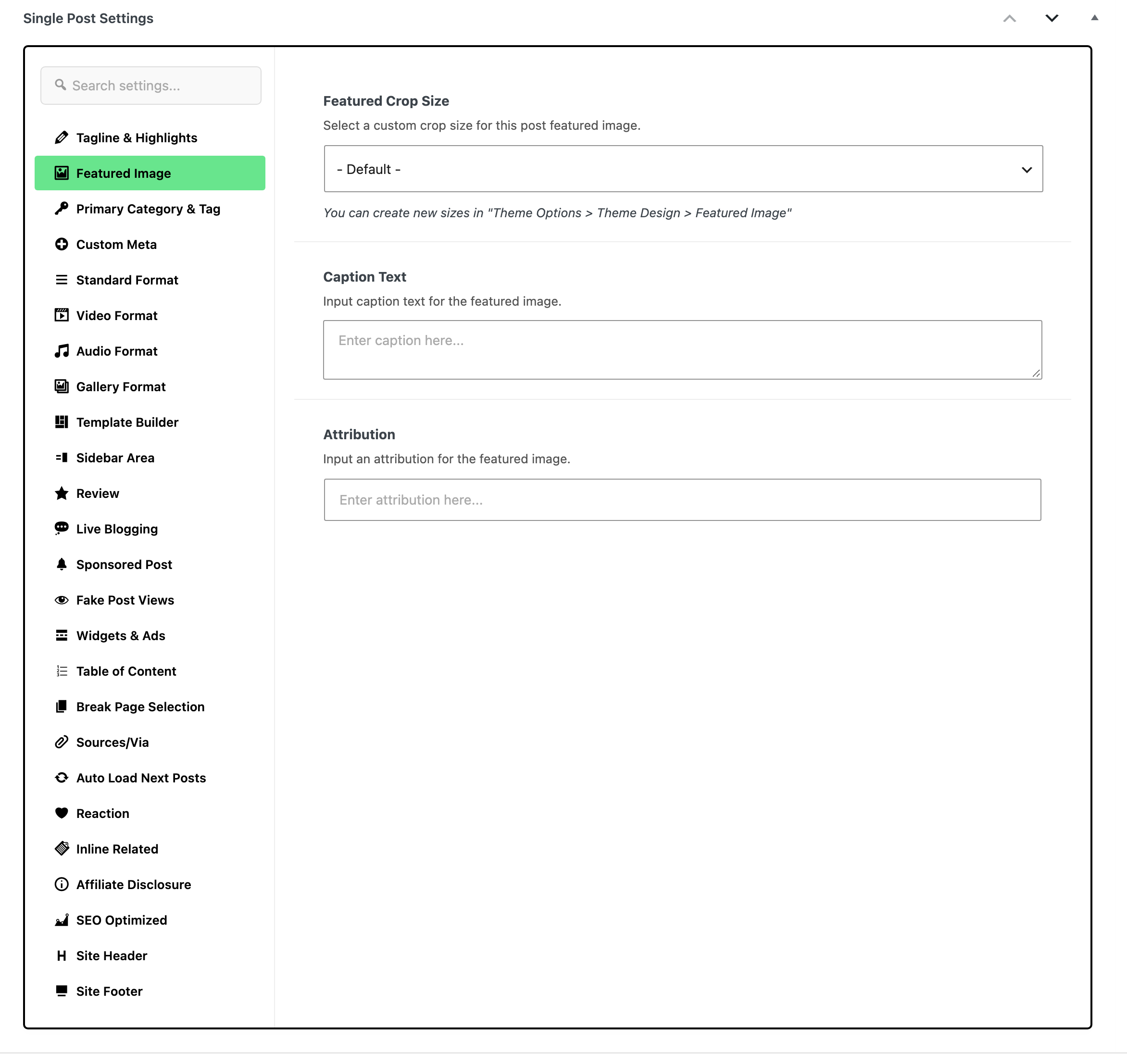
Foxiz then chooses which generated size to serve, and every layout makes that choice for itself. For one post you can override all of them: the Single Post Settings box below the editor has a Featured Image tab holding Featured Crop Size, and whatever you pick there wins over Theme Options > Single Post > Featured Image.
Featured Image size
The recommended minimum image size to upload is at least 1536px wide or bigger. If you upload images without at least that size, WordPress will not be able to generate all thumbnails as expected.
That number is the widest size the theme registers, Original Ratio - 1536x0. An image narrower than that never gets a file at that size, and the layouts asking for it fall back to the original. WordPress adds its own 1536x1536 and 2048x2048 on top, so 2048px wide covers everything either of them will ever ask for.
The cropped sizes are much smaller, at 330x220, 420x280 and 615x410, so a modest image still fills the blog listings correctly. It is the large ones, the single post header and the full width blocks, that a small upload lets down.
If uploaded images are too small, WordPress does not enlarge them. It skips the crop sizes they are too small for, and that causes layout issues.
What you see is not a gap in the page. The layout draws the image in a box of fixed shape and fills it, so the browser stretches the original to fit.
The result is a soft or blurry image at the right size rather than a missing one, which is why this is easy to miss until somebody looks closely.
Featured Image file size
The image file size should be approximately 50~300kb. This helps your site load faster.
Did this answer your question?