How to Create Image Crop Sizes?
You need a crop size of your own when a block's image box has a shape none of the theme's sizes matches, such as 16:9. Every size you add is generated for each image you upload, so switch off the ones you do not use.
The theme comes with five of its own: G1 - 330x220, G2 - 420x280, G3 - 615x410, Original Ratio - 860x0 and Original Ratio - 1536x0. All five are on out of the box, and the last two have no height, so they are scaled to that width and never cropped.
Create a new crop size
To get started, please follow the steps below:
-
Navigate to Theme Options > Theme Design > Featured Image
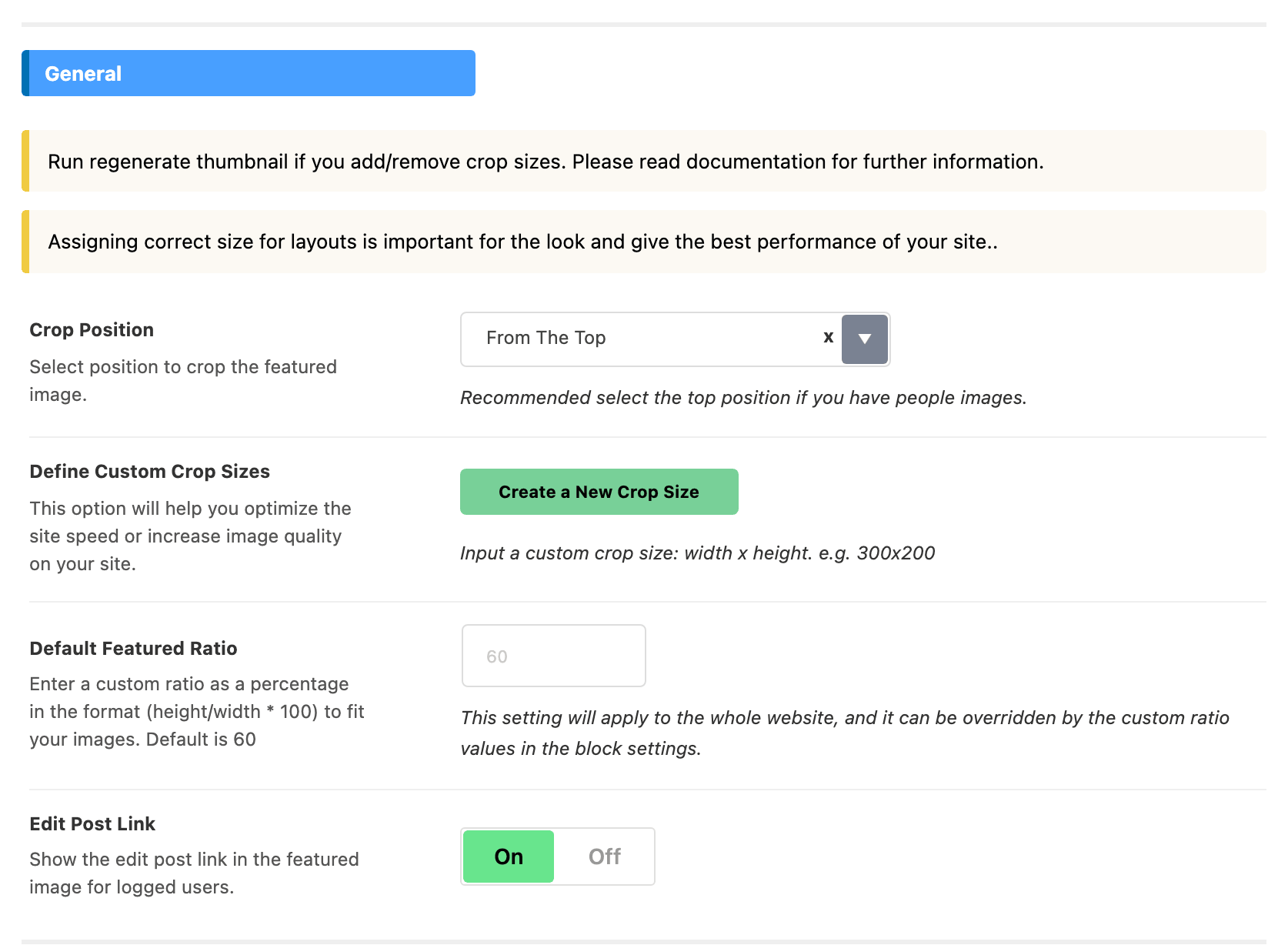
-
Click on the Create a New Crop Size button under the Define Custom Crop Sizes setting to create your own thumbnails.
-
Then type the size in exactly this format: width x height, without spaces. For example:
300x200or500x600.Any spaces you do type are stripped before the size is registered, so
300 x 200works too. What matters is thexbetween the two numbers: the value is split on it, and a value with noxin it,300on its own, registers nothing. -
Then save your changes with the Save Changes button at the bottom of the panel.
-
After creating crop sizes, regenerate thumbnails for all existing images. To do this, please read this documentation
Step 5 is what the panel's own notice asks for, and it is the step people skip. A new crop size is registered for the future, so WordPress generates a file at that size the next time an image is uploaded and for nothing already in the library.
Your new size then appears in every Featured Image Size dropdown in the theme, labelled with its dimensions, and in the Elementor blocks labelled with its dimensions and its internal name.
Delete crop sizes
To get started, follow the steps below:
-
In the same Featured Image panel, remove a custom crop size or turn off one of the theme's sizes. A custom size is removed with the Remove link beside its row under Define Custom Crop Sizes; a theme size is switched off with its own toggle under Theme Crop Sizes.
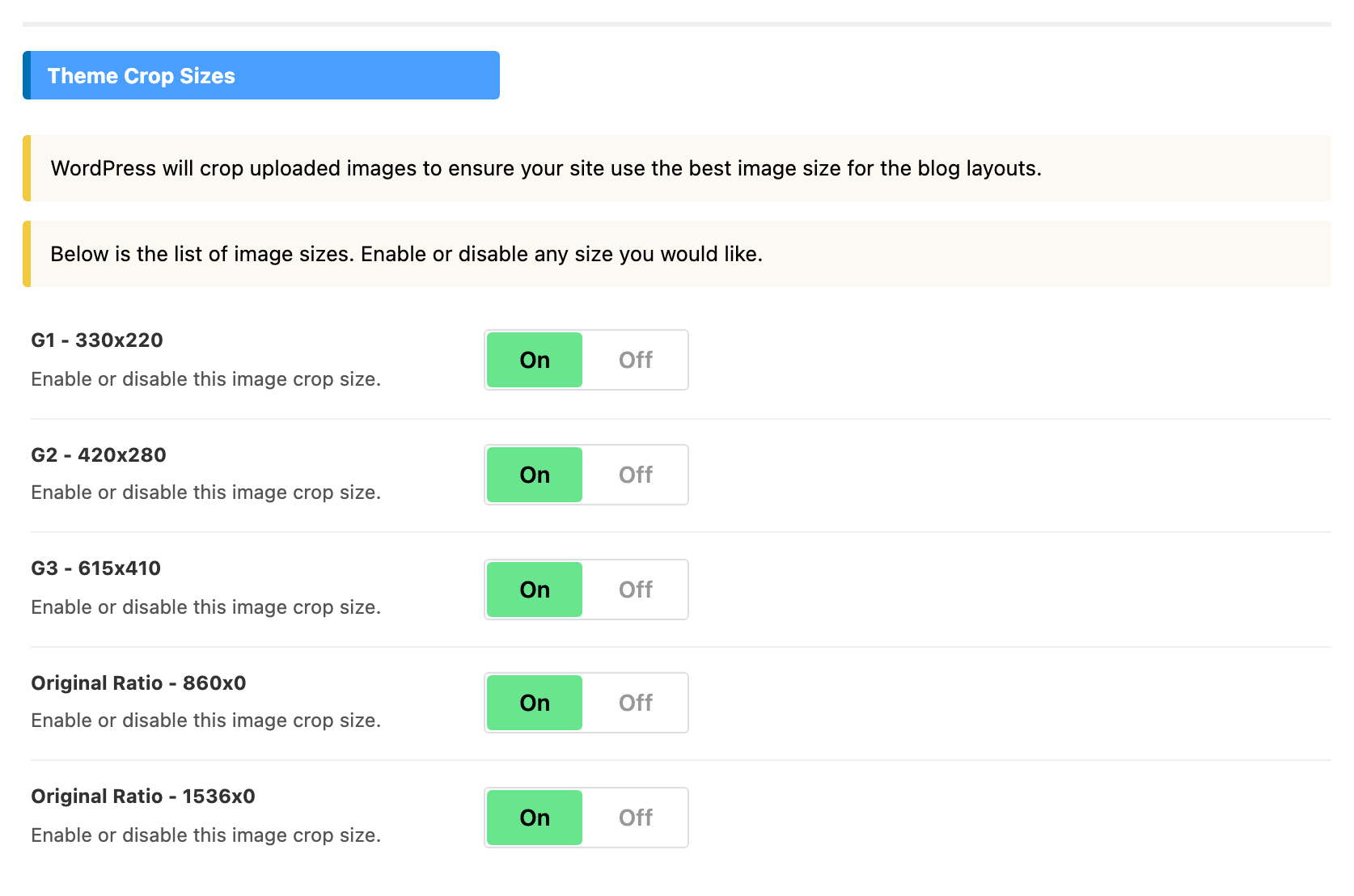
-
Then save your changes.
-
After removing crop sizes, you can regenerate thumbnails to delete their files completely. To do this, please read this documentation
Turning a size off has an effect beyond disk space. The size stops being offered in every Featured Image Size dropdown, and any layout still set to it, including a blog module using it as its built in default, no longer finds a file at that size. WordPress then serves the original image instead, so that layout quietly changes shape.
The blog modules default to 330x220, 420x280 and 860x0, so those three are the risky ones to switch off. Assigning Image Sizes for Blog Layouts lists which module uses which.
Did this answer your question?