What to do when images are not displaying consistent in size?
After you switch your WordPress theme to Foxiz, your images may not display consistently in size. Foxiz uses different image ratios and dimensions for its thumbnails than your previous theme did.
In this tutorial, we have shared a plugin called “Regenerate Thumbnails”, which allows you to regenerate the new thumbnails after changing your Wordpress Theme.
Why do you need to regenerate thumbnails after a theme change?
When you upload an image, WordPress will generate thumbnails that are needed by your WordPress theme. After you have changed the theme, these previously generated thumbnails won’t be regenerated automatically. To fix this issue, you can download and install the “Regenerate Thumbnails” plugin and run it once to make WordPress regenerate your thumbnails.
Switching theme is not the only time. Foxiz registers its image sizes once, when the theme sets itself up, and WordPress only ever writes a file for a size at the moment an image is uploaded. So three changes in the panel need the same treatment afterwards, and Foxiz says so on the screen where you make them:
- Adding a size under Define Custom Crop Sizes. Nothing already in your library has a file at it.
- Removing a size, whether a custom one or one of the five under Theme Crop Sizes. The files stay on disk until you regenerate.
- Changing Crop Position between From The Top and From The Center. Existing files keep the crop they were given on upload.
To get started, follow the steps below:
- Download and install the “Regenerate Thumbnails” plugin.
- Navigate to Tools > Regenerate Thumbnails and click the Regenerate Thumbnails For All Attachments button. Once the page has counted your library the button names the number, and a second button beside it, Regenerate Thumbnails For Featured Images Only, does the shorter job if all you changed is a featured image size.
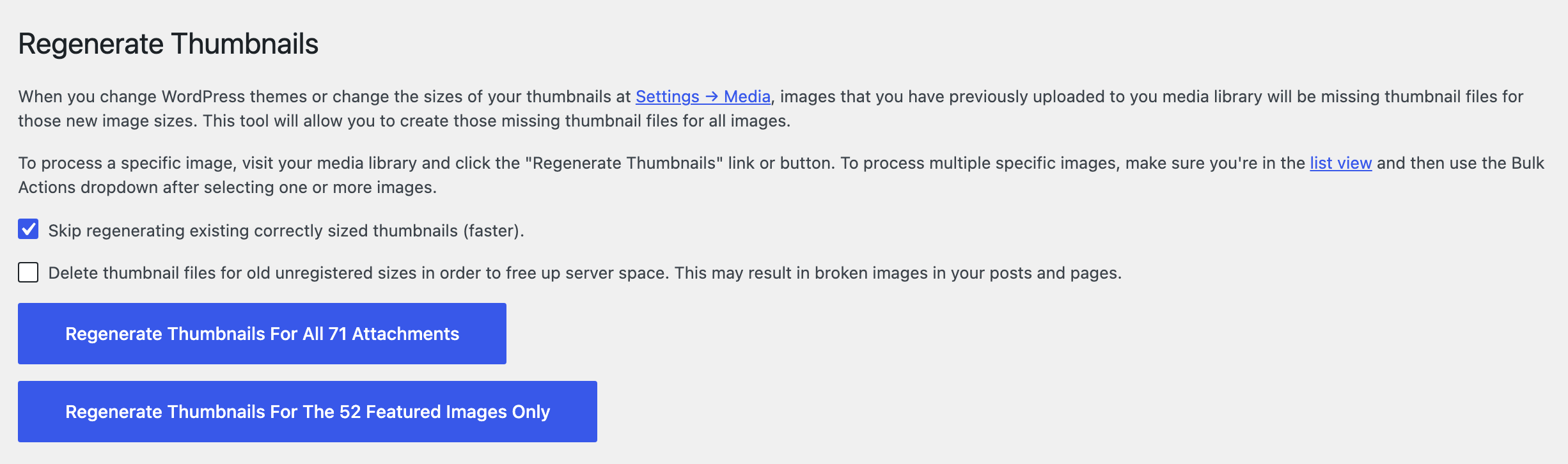
Regenerate thumbnails via The Library Page
You can also regenerate thumbnails in bulk under Media > Library. Switch the library to list view first, because the Bulk actions dropdown only exists there. Select the images you want to regenerate, choose Regenerate Thumbnails in the dropdown and click Apply.
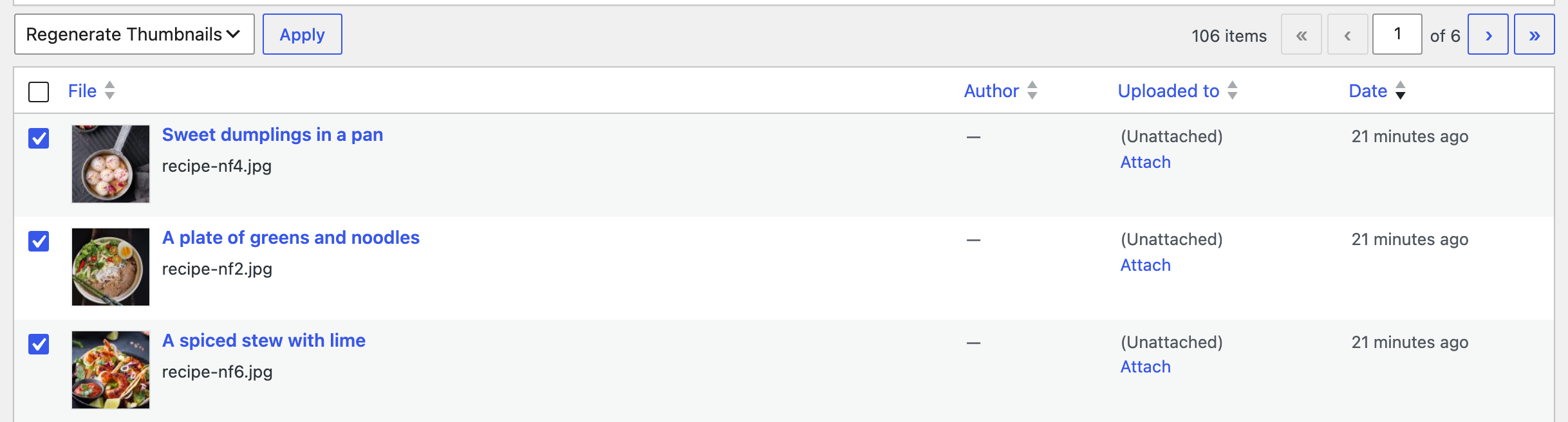
For one image, the same link sits in that image's row actions and on its edit screen.
What if regenerate your thumbnails do not help?
If you still have issues with image size after regenerating your thumbnails, it may be due to the reasons below:
Uploaded images don't meet the minimum requirements of the theme
Check if the uploaded images meet the minimum requirements of the theme. Because in case the uploaded images are too small, regenerating thumbnails usually won’t help as that process won’t enlarge your images and it will skip those images.
The recommended minimum image size to upload is at least 1536px wide. If you upload images without at least that size, WordPress will not be able to generate all thumbnails as expected.
That is the widest size Foxiz registers, Original Ratio - 1536x0. The cropped sizes are 330x220, 420x280 and 615x410, so a narrow image can still be right in the blog listings and wrong in the single post header, which is what "inconsistent" usually turns out to mean.
Two other causes are worth ruling out before you regenerate a second time.
The crop size a layout wants is switched off. If a size under Theme Crop Sizes is off, Foxiz never registers it, WordPress has no file at it, and the original image is served in its place at whatever shape it happens to be. Check that the sizes your layouts use are still enabled at Theme Options > Theme Design > Featured Image.
The ratio and the crop disagree. A listing draws its images in a box whose height is a fixed percentage of its width, so a crop of a different shape is trimmed to fit. If the images are all the same size on disk but still look wrong, it is the ratio, not the crop: set Custom Featured Ratio on the block, or Default Featured Ratio at Theme Options > Theme Design > Featured Image, to match the crop you chose.
Clear your cache plugins
Make sure you have cleared all image caches before checking your website. Each cache plugin has a button for it in its own settings; in WP Super Cache it is Settings > WP Super Cache, the Easy tab, Delete Cache. Then reload the page with your browser cache bypassed (Ctrl+Shift+R, or Cmd+Shift+R on a Mac), so you are not looking at old copies of the images.
Did this answer your question?