How to Create a Custom Featured Image without Cropping in Elementor Blocks
Each Foxiz block has a featured image size option and a custom ratio option. They allow you to adjust the size and ratio to fit specific layouts, ensuring seamless image alignment with the design without cropping.
The reason both are needed is that the image box is a fixed shape. Foxiz gives it a height equal to a percentage of its width and then fills it, so anything that does not fit the shape is trimmed away by the browser. Match the ratio to the crop size you chose and nothing gets trimmed.
Upload featured images that all share one shape, for example 16:9, and are at least as large as the crop size you pick. WordPress never enlarges an image to make a crop size, so a smaller upload comes out a different shape and the box trims it.
To get started, follow the steps below:
-
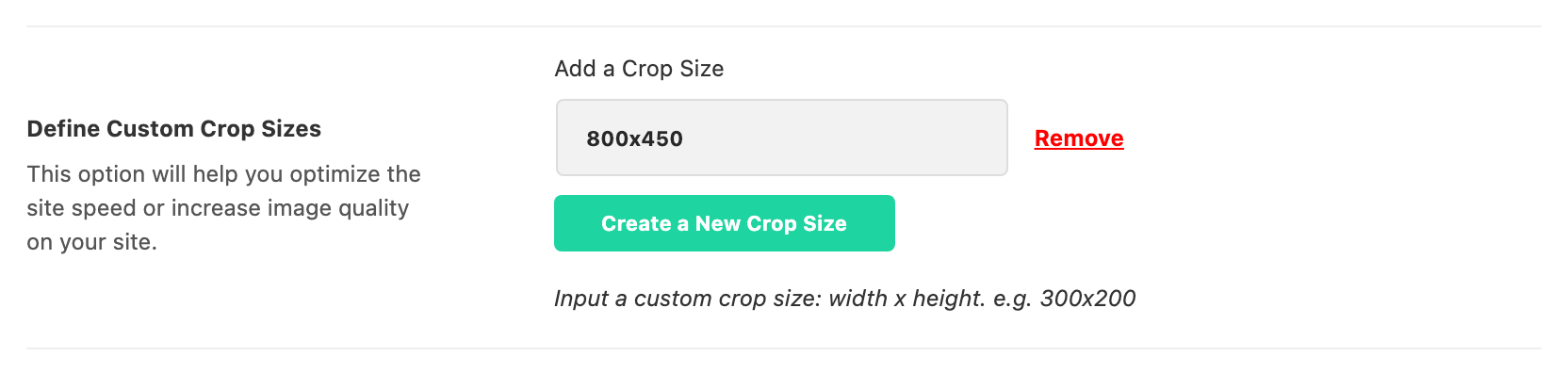
Create your custom image crop sizes. Click on this link to see the guide: How to Create Image Crop Sizes?
-
Run regenerate thumbnails to create thumbnails for existing images.
-
Navigate to Pages > All Pages.
-
Select a page you would like to edit, and click on the "Edit with Elementor" link.
-
In the Elementor editor, click the block you would like to edit
-
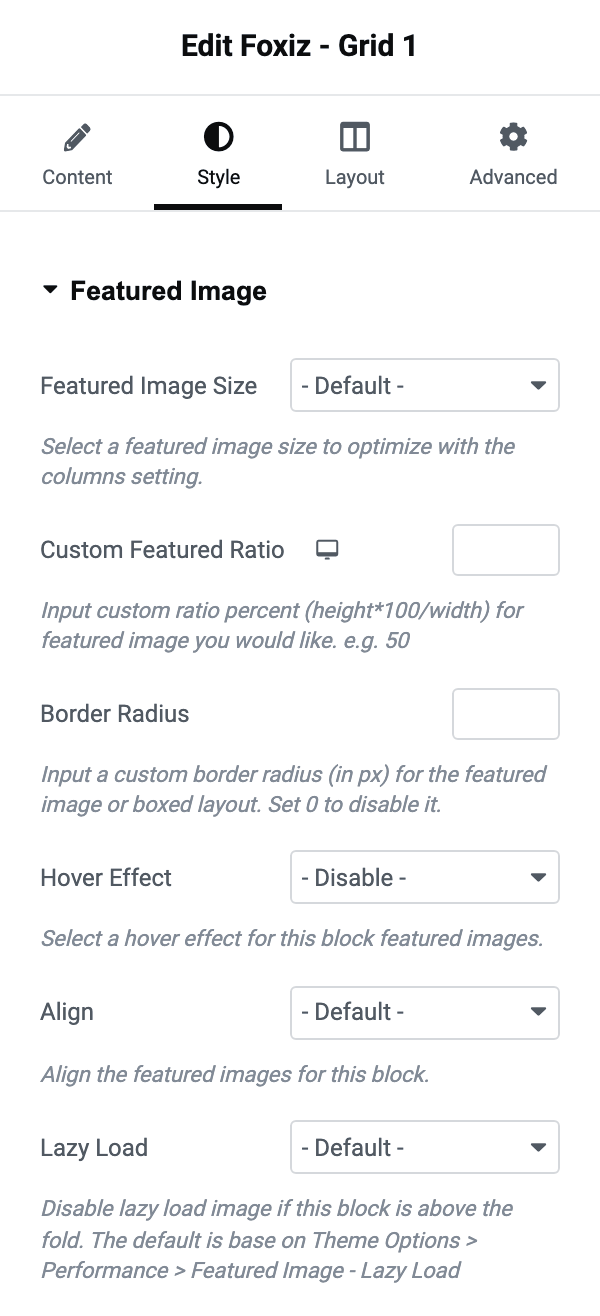
In the settings panel for Block in this template, navigate to Style > Featured Image
-
Featured Image Size: This option allows you to display the default size of the thumbnails as well as any custom sizes created in the Theme Options. You can then select a featured image size to optimize it. Its default is - Default -, and the list is every image size registered on the site, each written as its dimensions and then its internal name, for example
330x220 (foxiz_crop_g1), followed by Thumbnail (Core WP), Medium (Core WP), Medium Large (Core WP) and Large (Core WP).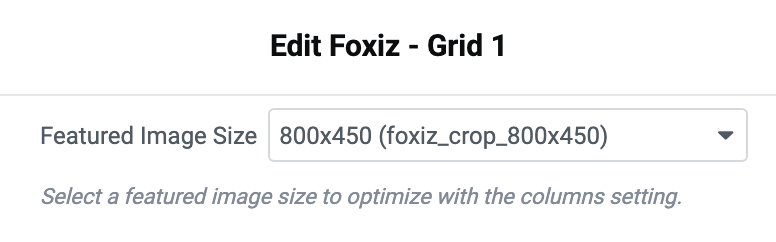
-
Custom Featured Ratio: This option allows you to input a ratio that matches the assigned block size to ensure that the image is displayed fully without any cropping. Please input the custom ratio percent (
height*100/width) for the featured image you prefer, for instance, 60. It has the desktop, tablet and mobile tabs, so you can give a narrow screen a different shape, and leaving it blank falls back to Default Featured Ratio at Theme Options > Theme Design > Featured Image. That field is empty by default too, and with both empty the layout draws at 60.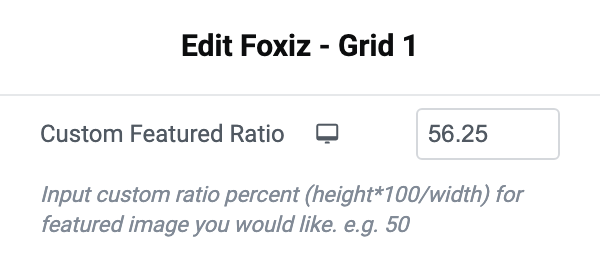
The three cropped sizes Foxiz includes are all the same shape, 330 by 220, 420 by 280 and 615 by 410, so the ratio for any of them is about 67. For a size you defined yourself, work it out from your own numbers.
A worked example for 16:9 images: define
800x450in step 1 and regenerate in step 2. Here, pick 800x450 (foxiz_crop_800x450) in Featured Image Size and set Custom Featured Ratio to56.25, which is 450 × 100 / 800.That is all the job needs. Steps 9 to 11 are optional extras for the same images.
-
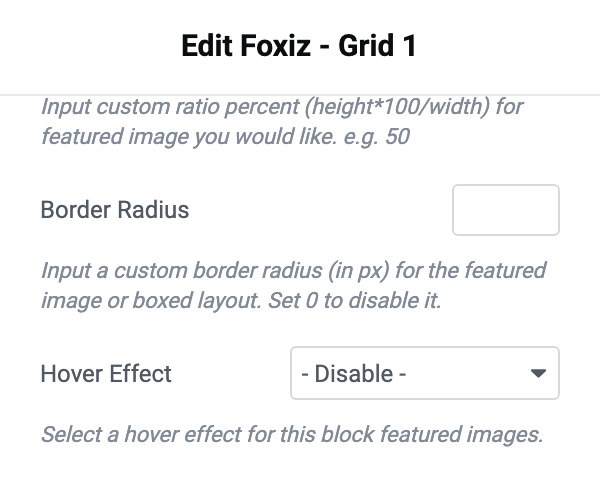
Hover Effect: Choose a visual effect that will be activated when you hover over the images in this block. The choices are - Disable -, Scale, Fade Out, Black & White and Black & White Invert, and it is disabled by default.

-
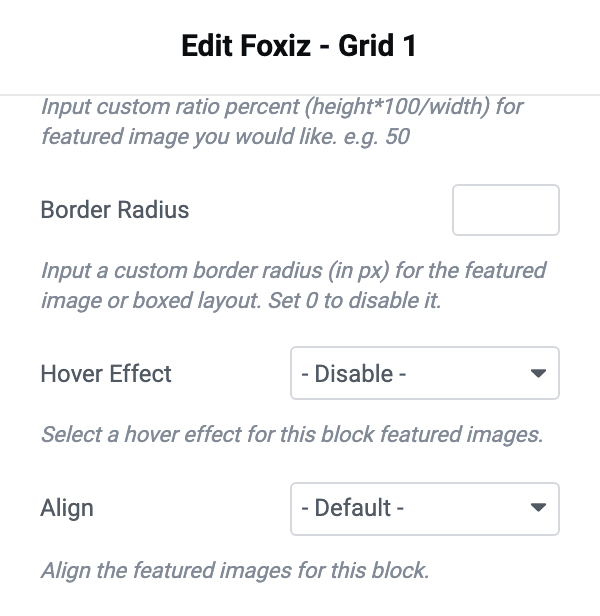
Align: Align the featured images in this block to suit your preference. It offers - Default -, Top and Bottom, and it decides which part of the image survives when the crop is taller than the box. It changes nothing about the file, so it takes effect at once and needs no regenerating.
-
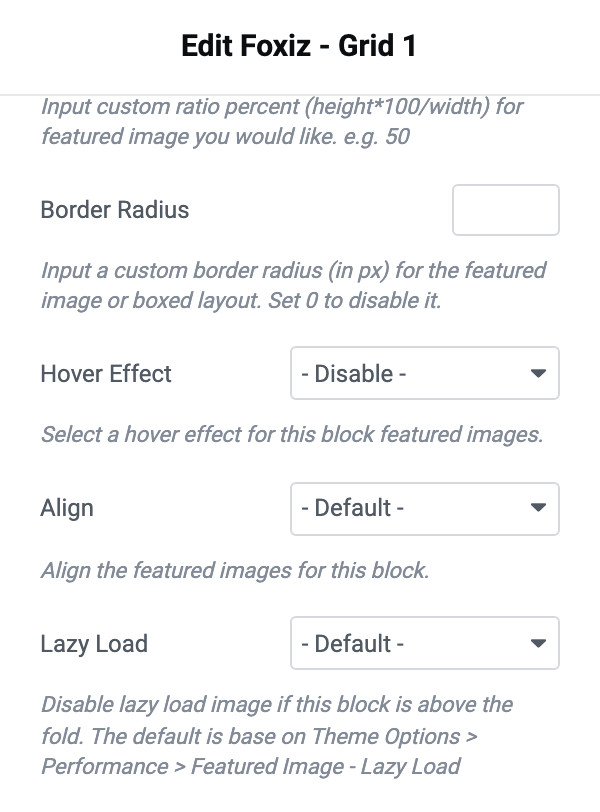
Lazy Load: Disable lazy load image if this block is above the fold. The default is based on Theme Options > Performance > Featured Image - Lazy Load, which is on. Besides - Default -, Disable and Enable, the dropdown can enable lazy loading for everything except the first one to six images, which is the setting to reach for when only the top row of a block is above the fold.
-
Click Publish at the top of the editor to save the page.
One control in that section is not in the list above. Border Radius sits between Custom Featured Ratio and Hover Effect and takes a number of pixels; it rounds the corners of the image box and has nothing to do with cropping.
Did this answer your question?