How Are Featured Images Cropped?
By default, every featured image is cropped "From The Top". Cropping from the top centre works best for a wide variety of pictures, especially pictures of people, because the head is usually at the top.
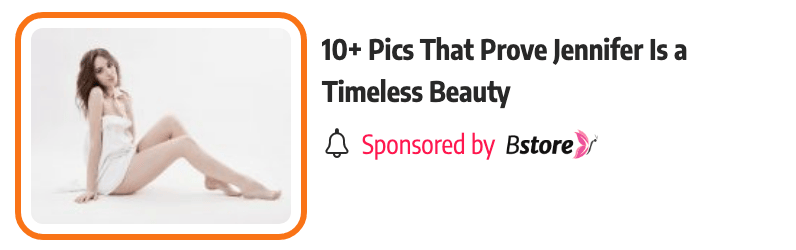
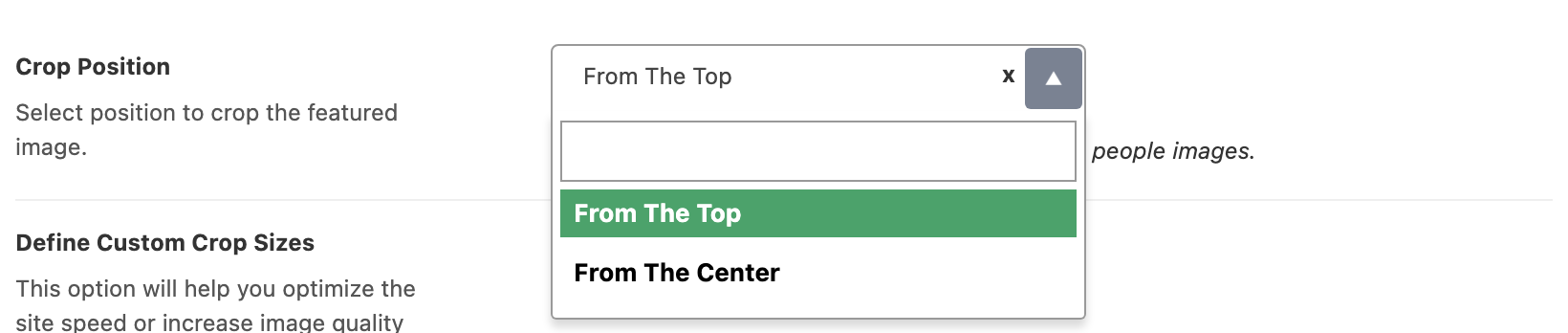
That is the default, and the panel says the same thing: the top position is recommended when your images have people in them. In code the top setting anchors the crop to the top edge and centres it left to right; the other setting crops from the middle in both directions.
Crop from the center instead
To crop from the center instead, follow the steps below:
-
Navigate to Theme Options > Theme Design > Featured Image > Crop Position
-
Select the "From The Center" option. The two choices are From The Top and From The Center, and there is no third.
-
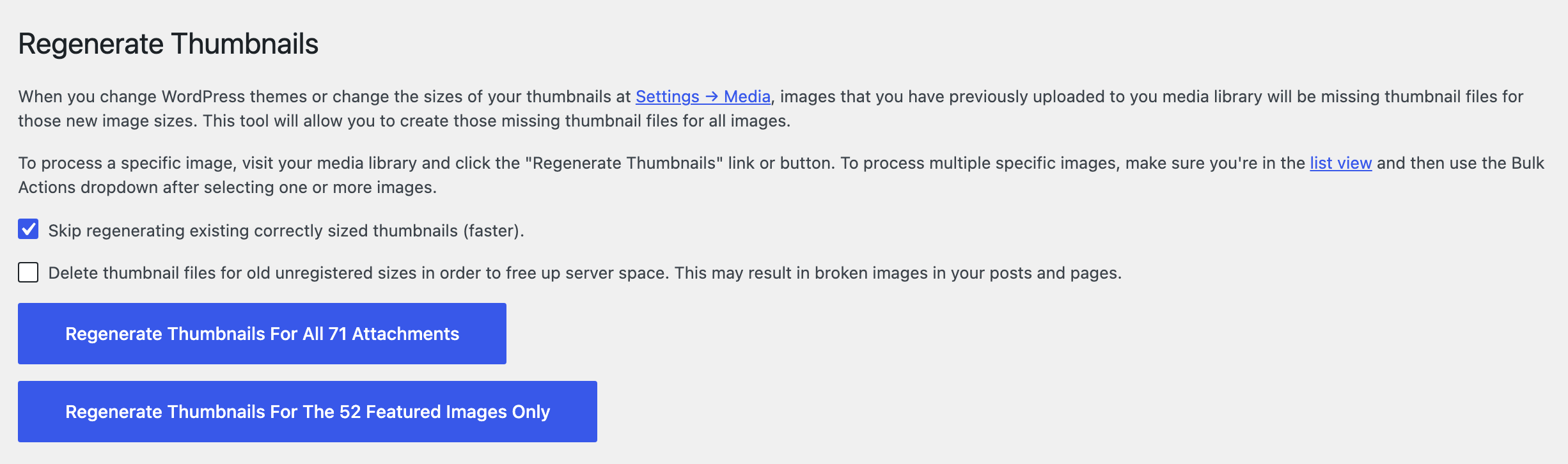
Run regenerate thumbnails to create thumbnails for existing images.
If existing images keep the old crop
Step 3 is not optional. Crop Position is read when WordPress registers the theme's image sizes, which is to say when a file is generated, so an image already in your library keeps the crop it was given on upload until it is regenerated.
Which image sizes are cropped
It only applies to the crop sizes that have a height. G1 - 330x220, G2 - 420x280, G3 - 615x410 and any size you defined yourself are cropped. Original Ratio - 860x0 and Original Ratio - 1536x0 have no height, so they are scaled to that width and keep the shape of the original whatever this setting says.
How a listing box shows the image
There is a second, later step that decides what you see, and it is easy to confuse with this one.
A listing puts the image in a box of a fixed ratio and fills it, so whichever part of the crop does not fit the box is hidden by the browser rather than by WordPress.
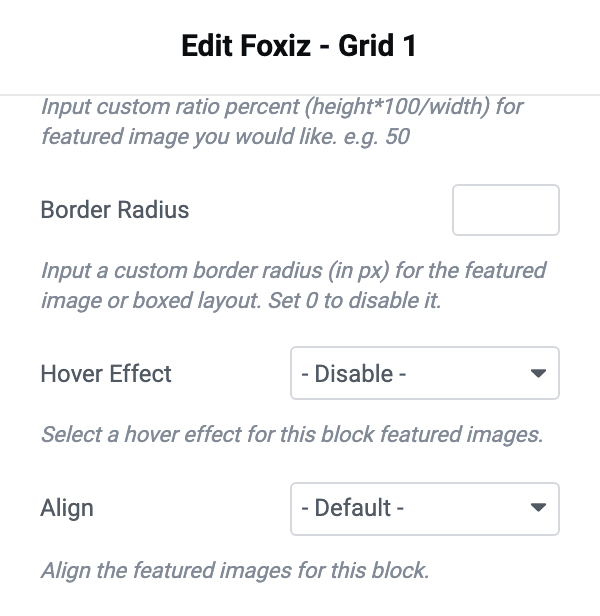
An Elementor block can steer that with Align in Style > Featured Image, which offers Top and Bottom. That one is CSS, it takes effect immediately, and it needs no regenerating.
Did this answer your question?