Backup & Restore Website Data
Backup website
We recommend using your host's own backup feature. The method below is the fallback.
In case you would like to backup your website, you can follow the steps below:
-
Install the All-in-one WP Migration plugin: go to Plugins > Add Plugin, search for All-in-One WP Migration, then install and activate it.
-
Navigate to All-in-One WP Migration > Export.
-
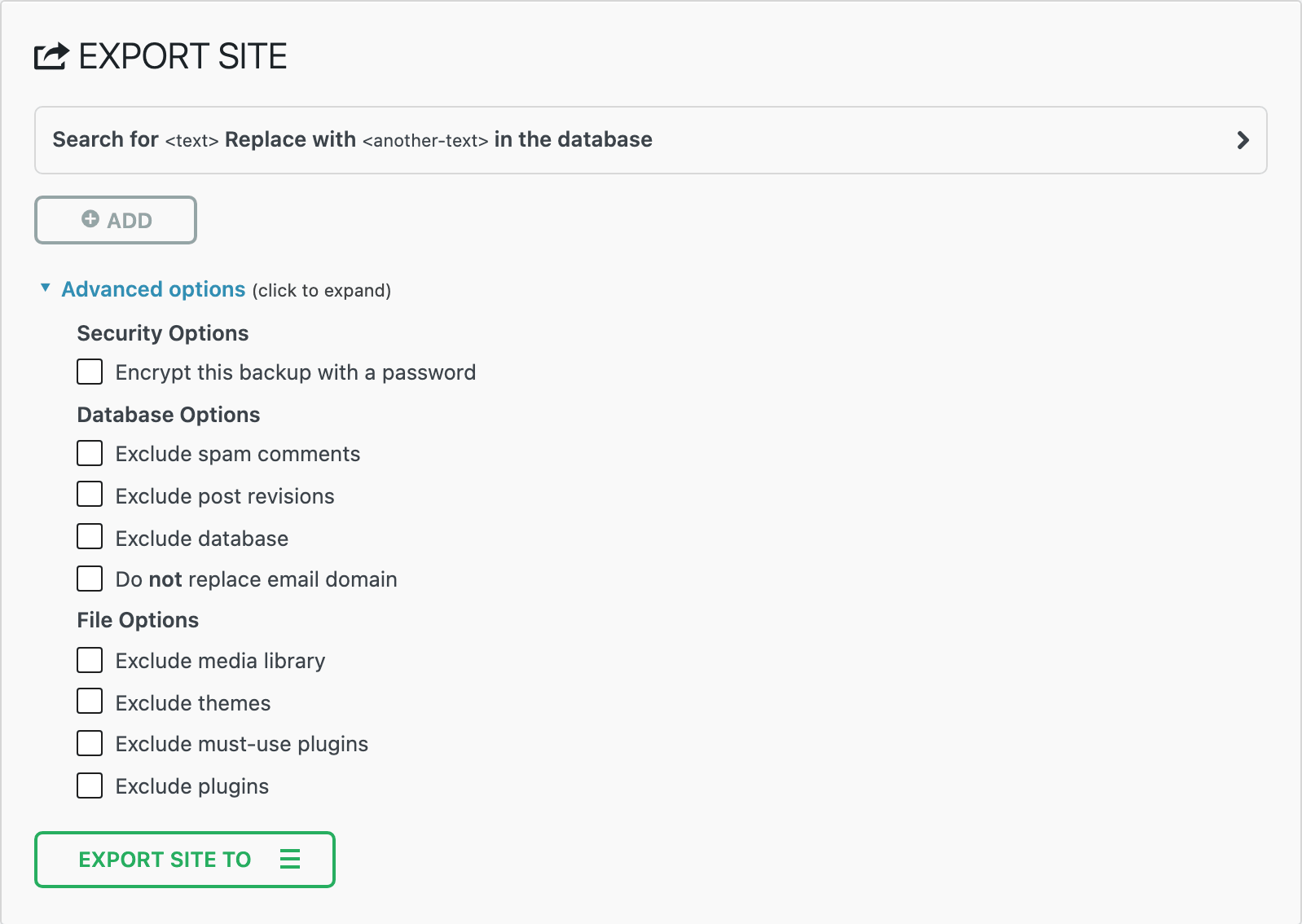
Click Advanced options to expand them. Select checkboxes to choose data that don't need to be backed-up: Exclude media library, Exclude themes and Exclude plugins are there. Exclude themes and plugins only when you will install them yourself on the new site; for a plain backup, leave all three unticked.
-
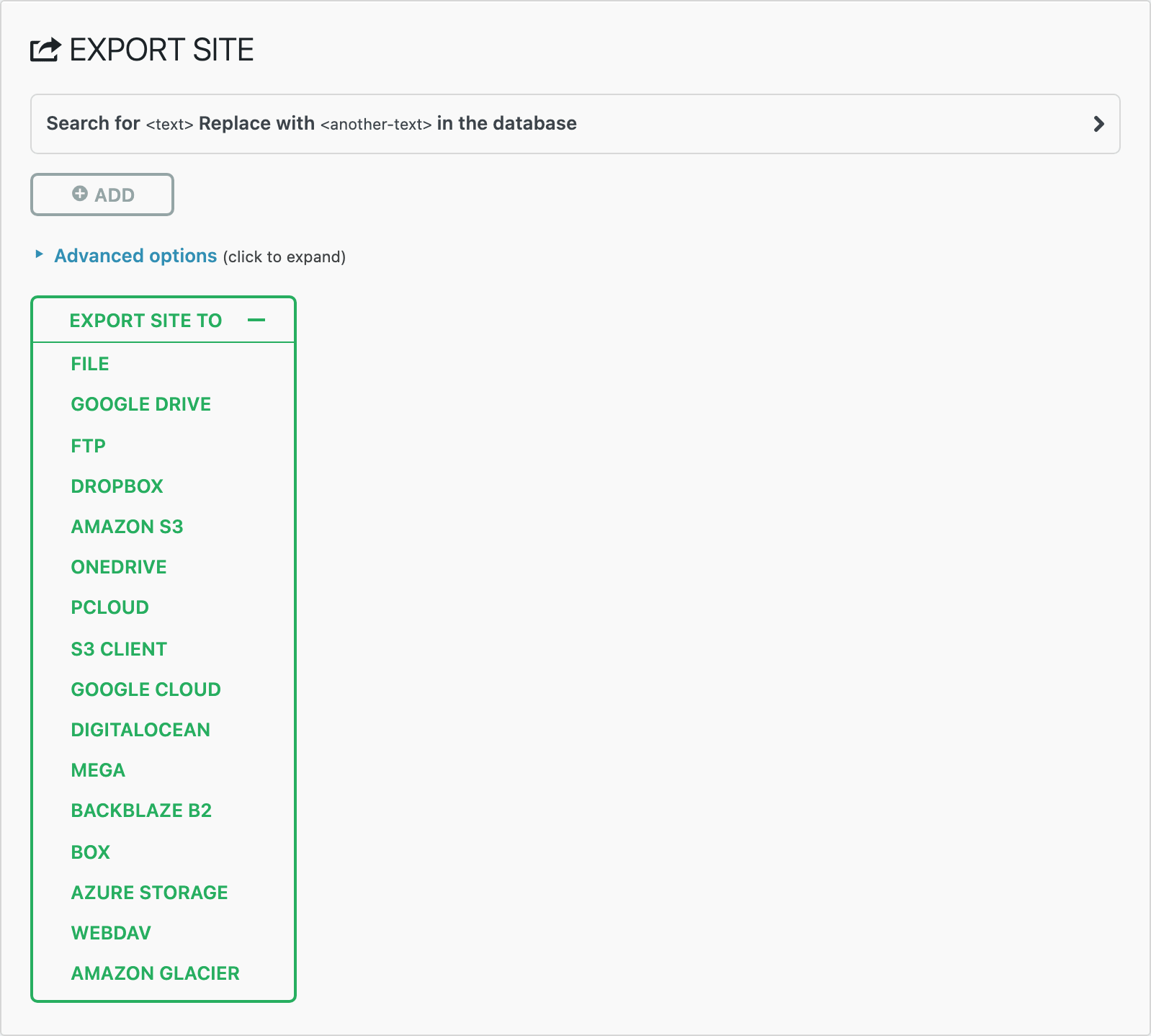
Click Export Site To and choose File to start exporting. The plugin builds the archive and then offers it for download.
Restore website
-
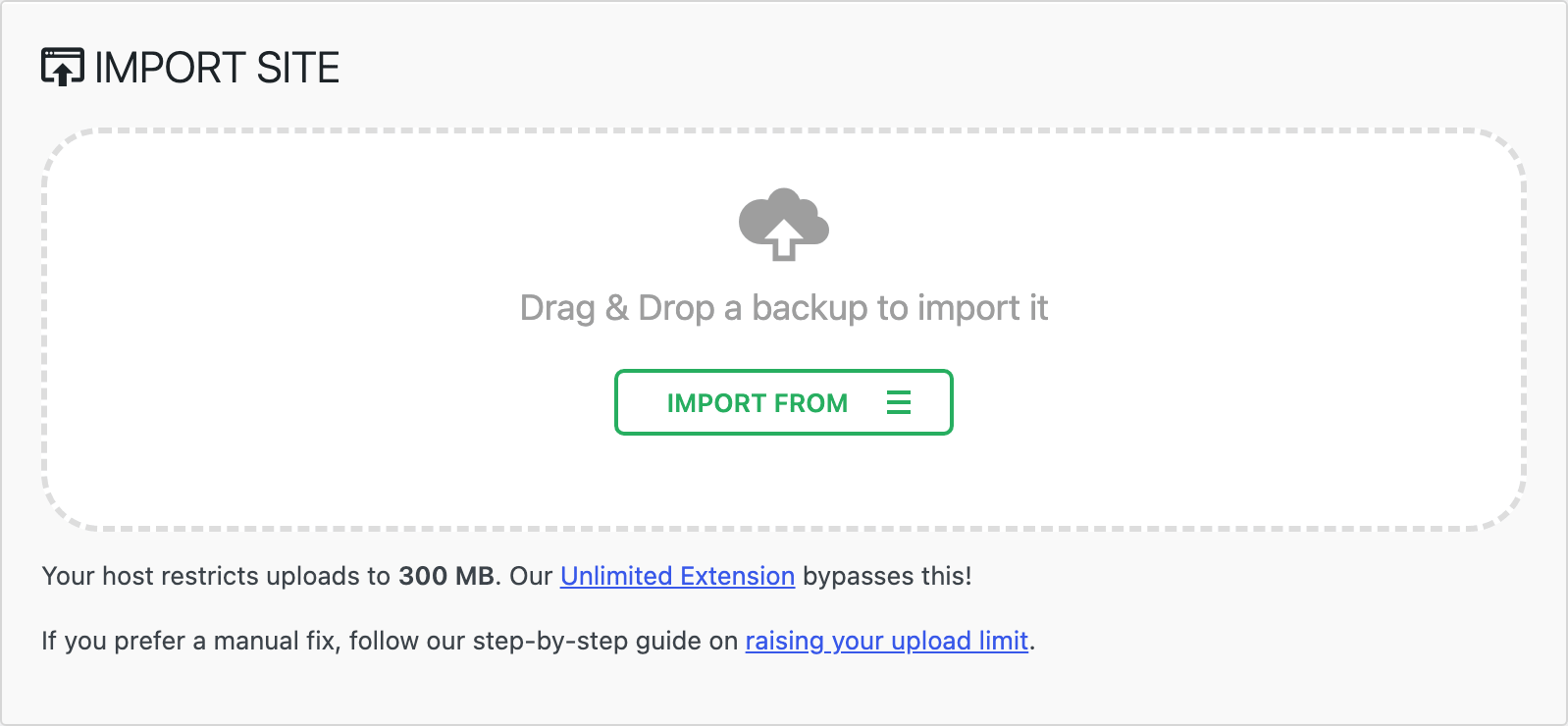
Navigate to All-in-One WP Migration > Import. Then drag&drop the backup file onto the Drag & Drop a backup to import it area, or click Import From and choose File.
-
Wait to finish.
The free plugin only imports a file up to your server's maximum upload size, which the Import screen shows. A larger backup is refused: use your host's backup or raise the upload limit (Configuring Server Settings).
The plugin asks you to confirm before it writes anything, warning that the import replaces matching content and leaves the rest alone, and asking whether you have a current backup. Answer Proceed and it runs.
If the export is still on the server, you do not need the file at all: All-in-One WP Migration > Backups lists what the plugin has kept, and each row has a Restore action.
Backup and Restore Theme Options settings
Backing up the options settings allows you to quickly restore your settings or move them to another website. To get started:
-
Navigate to Theme Options > Backup/Restore. It is the last tab down the left of Theme Options.
-
Click on "Download Data File" to download settings in to your device.
-
To restore your settings, open the downloaded file in a text editor and copy its whole contents. Then, click on "Import from File," paste those contents, and click on "Import" to restore your settings.
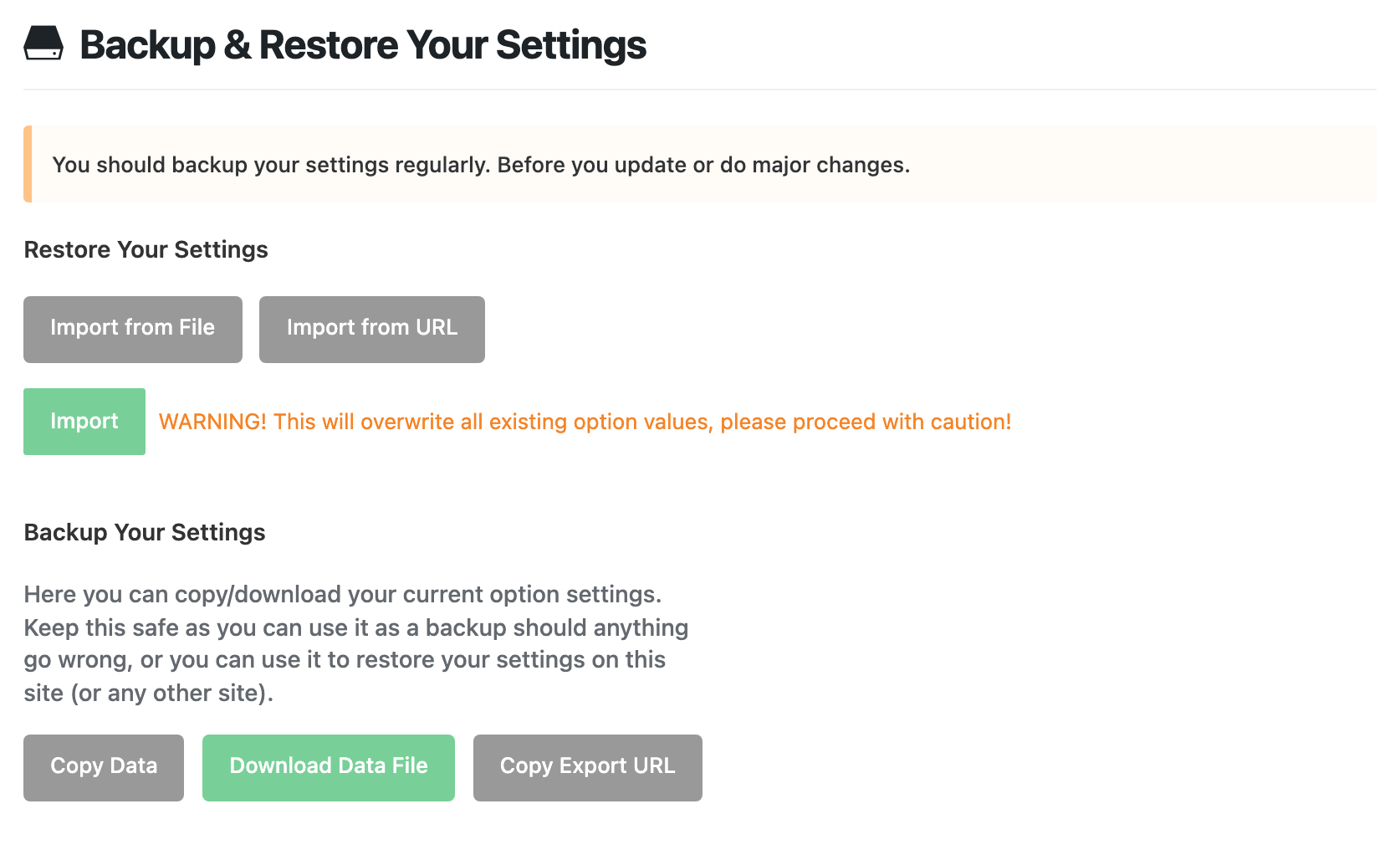
Import replaces everything. The screen warns you next to the button: it overwrites every option value, not just the ones in your file. There is no merge and no undo, so take a fresh Download Data File before you import an old one.
Moving settings to another site without a file
The same screen has two buttons that skip the file. On the site you are copying away from, click Copy Export URL and copy the address it reveals. On the site you are copying into, click Import from URL, paste it, and click Import.
Copy Data is the third option: it puts the same settings on your clipboard as text, for pasting into Import from File on the other site.
The export URL carries a secret that lets anyone holding it read your settings. Treat it like a password and do not post it in a forum or a support ticket.
What the Theme Options backup does and does not cover
The Theme Options backup is one WordPress option row, foxiz_theme_options, and nothing else.
| In the Theme Options backup | Not in it |
|---|---|
| Everything you set in Theme Options: colours, typography, layout, header and footer choices, ads, personalize | Posts, pages, podcasts and categories |
| Ruby Templates, including your header and footer layouts | |
| Menus, widgets and Elementor page content | |
| Media files. The backup records which image you picked, not the image itself, so a logo restores as a broken reference on a site that does not have it | |
| Per-post settings from the post meta box |
So the two halves of this article are not alternatives. The migration plugin backs up the site; the Theme Options file backs up the settings. Use the first before an update or a host move, and the second before you start experimenting in a panel.
Foxiz says the same thing where it matters most: the update notice on the Foxiz dashboard tells you to back up before updating, and to try the update in a staging environment first.
Other useful plugins & resources:
Did this answer your question?