Before You Go Live
Your homepage, logo, menus and footer are yours now. Run these checks before you point your domain at the site or tell anyone about it. Each takes a few minutes, and most of them are things a visitor or a search engine notices first.
1. Set your site title and tagline
-
Go to Settings > General.
-
Type your site's name in Site Title.
-
Type a short line about the site in Tagline, or leave it empty. The screen's own hint asks for "a few words" that explain what the site is about.
-
Click Save Changes.
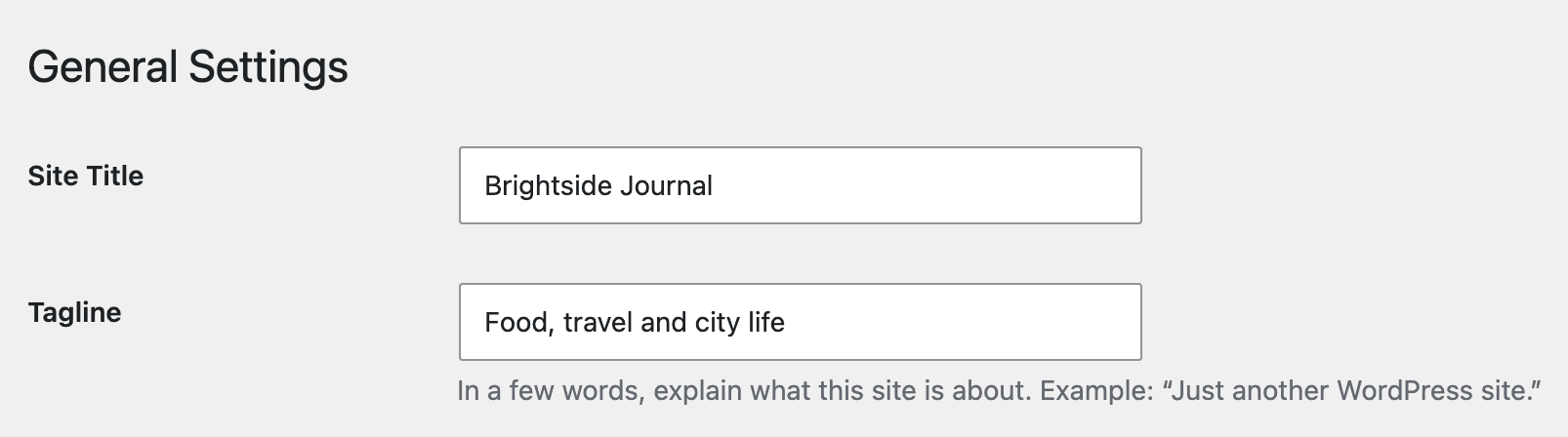
Where Foxiz shows them:
- Site Title is the name in the browser tab and in search results, after the title of each page.
- It is your logo when you have not uploaded a logo image, printed as text. With a logo image, it is the image's alternative text, read out by screen readers.
- It is the site name in a link preview when a post is shared on social networks, and in the subject of the share by email button.
- Tagline follows the site title in the browser tab of your homepage. Foxiz also prints it beside the logo, hidden from view.
Site Icon, on the same screen, is the favicon: the small picture in the browser tab. How to Upload Logo & Favicon? sets it.
2. Remove what you do not need
-
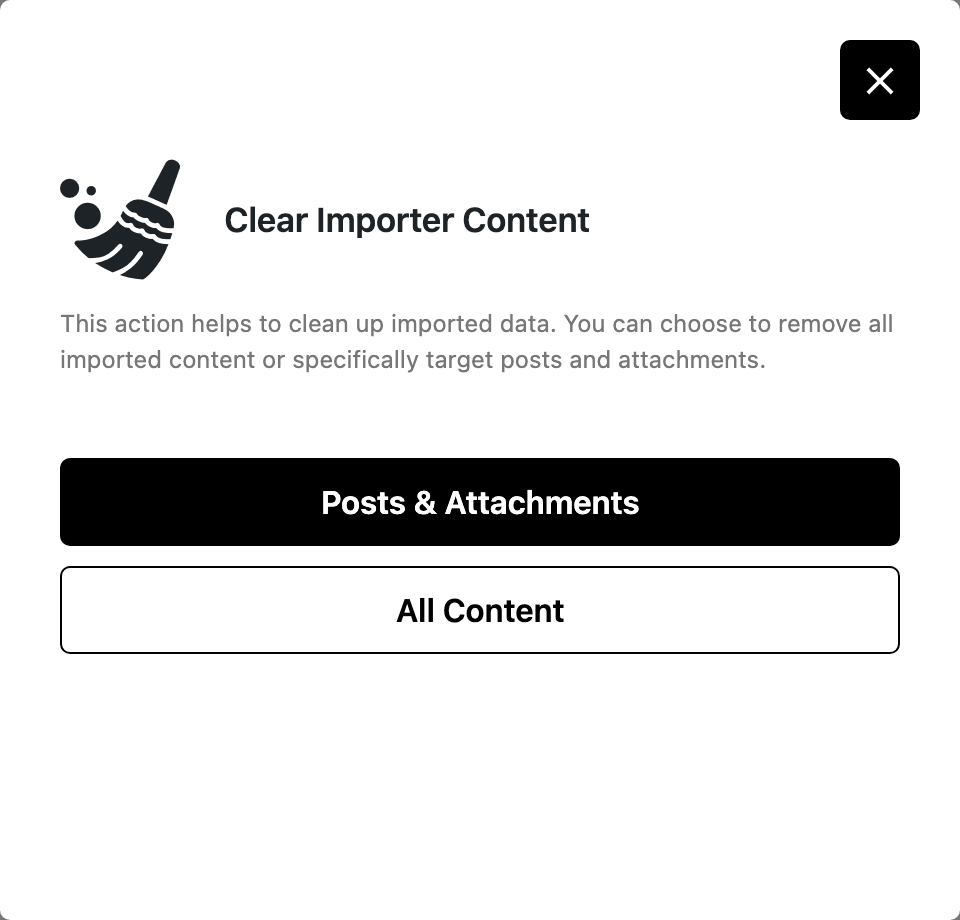
The demo's posts. If you imported a demo, go to Foxiz > Demo Importer, click Cleanup Import and choose Posts & Attachments. It deletes the posts, images, categories and tags the import brought in, and keeps the demo's pages and menus. Your own posts are not touched.
-
WordPress's sample content. A new WordPress site starts with a post called "Hello world!" and a page called "Sample Page". In Posts and Pages, hover each one and click Trash.
-
The demo's footer text. Check the copyright line and the footer links are yours: How to Add the Footer Logo, Social Icons and Copyright.
3. Let search engines in
- Go to Settings > Reading.
- Under Search engine visibility, make sure Discourage search engines from indexing this site is not ticked.
- Click Save Changes if you changed it.

The same box is offered when WordPress is installed, so it is often still ticked from when the site was being built. While it is ticked, search engines are asked to stay away and WordPress turns its own sitemap off.
4. Publish a privacy policy
WordPress creates a draft page called Privacy Policy when it is installed. Edit it to describe what your site collects, publish it, and choose it at Settings > Privacy.
Foxiz can also show a privacy notice bar with an Accept button. It is off by default. Whether you need one depends on where your readers are and what your site collects; Options GDPR, for the Privacy Notice Popup Bar turns it on and links it to your policy page.
5. Turn debug mode off
Open Foxiz > System Info and look at Debug Mode under WordPress Info. It should read Disabled. When it reads Enabled, the row turns red, because debug mode can show visitors details of your site's PHP code. Ask whoever set up the site, or your host, to set WP_DEBUG to false in wp-config.php.
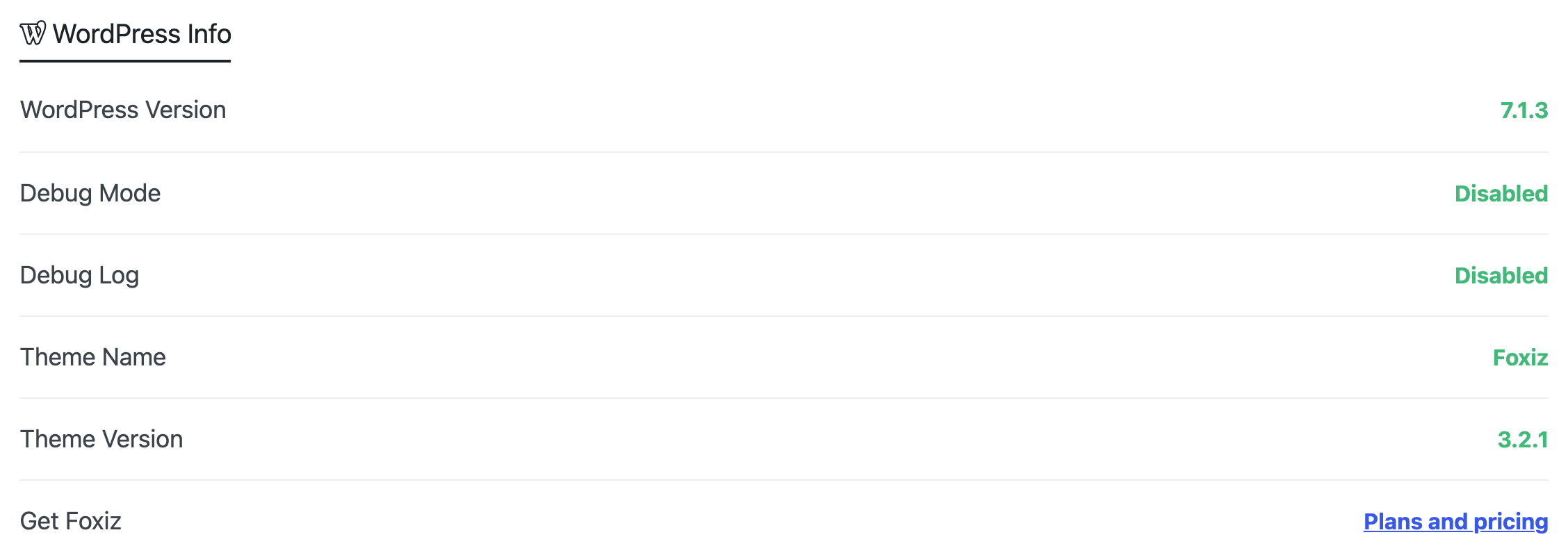
Checking Server Requirements explains the other rows on that page.
6. Activate the licence on the live domain
A local or staging address never counts against your plan, but the live domain does: when you launch, it takes one production site. Check you have one spare at store.foxiz.io before you point the domain across.
-
You built the site on its live domain: it is activated already, and it is already counted.
-
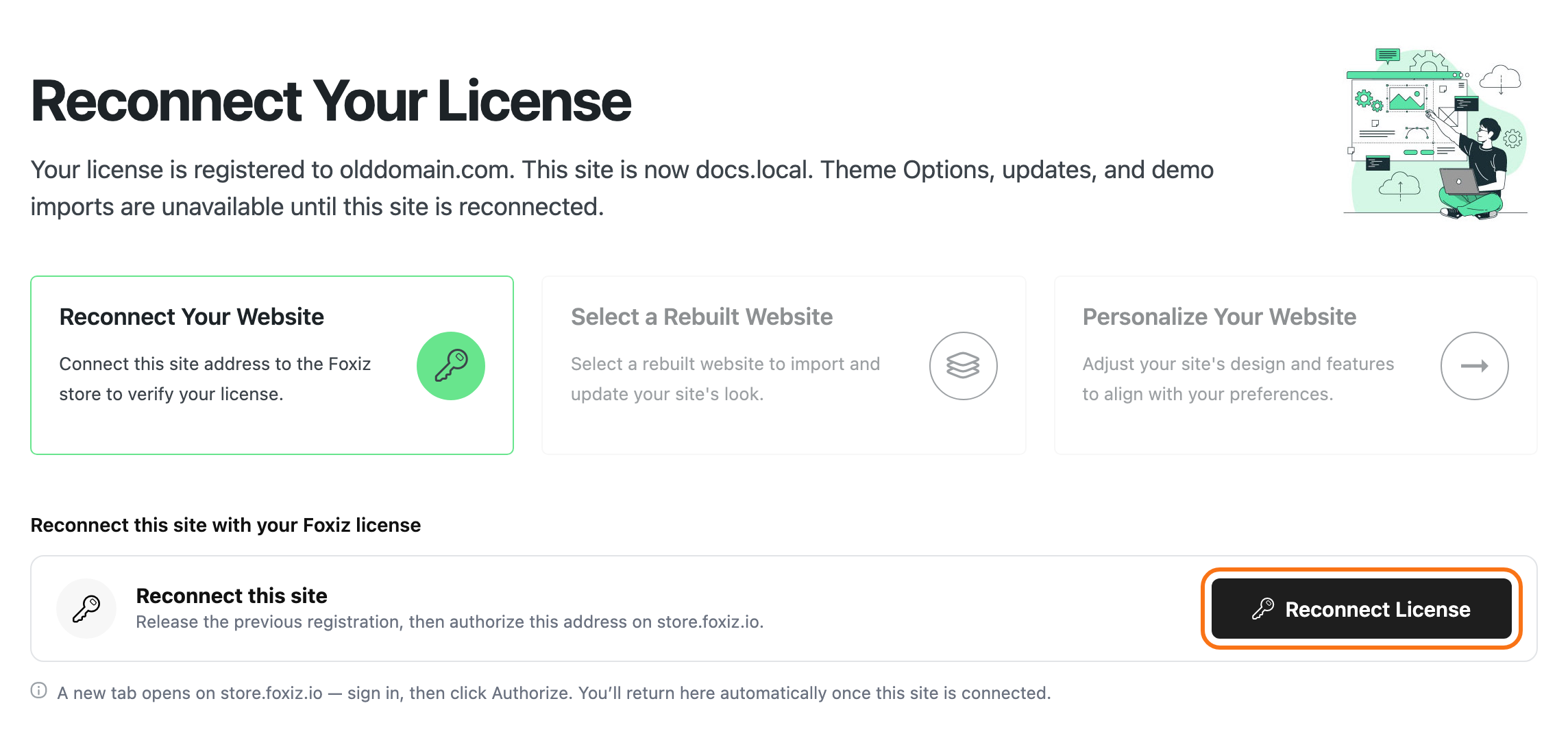
You built it on a staging or local copy and are moving it: the live site opens the Foxiz menu on Reconnect Your License. Click Reconnect License and authorize the new address. How to Move Your Site to a New Domain or Host walks the whole move.
Which sites count against your license lists the addresses Foxiz treats as staging.
7. Check that email arrives
Readers who sign up, password resets and contact forms all depend on your site sending email, and many hosts do not deliver it as it comes. Create a test account or send yourself a contact form message. If nothing arrives, Registration and Password Emails Do Not Arrive fixes it.
8. Submit your sitemap
Once the domain points at the site, tell Google where your posts are: How to Submit Your Sitemap to Google Search Console. Do it again whenever the domain changes.
Next Step
With the site live, the day to day is writing.
How to Create a New Post?
Did this answer your question?