Configuring Server Settings
Configuring server settings requires some technical knowledge. A site owner needs to be familiar with php.ini, .user.ini files and using FTP software.
Note: If you're not a technical user, please contact your host provider to configure the settings for you.
Check your hosting control panel first. In cPanel it is MultiPHP INI Editor; other hosts call it PHP Selector or PHP Settings. Change the values there, and use the files below only if your control panel has no such screen. See Troubleshooting at the end of this page.
Configuring the settings in php.ini and .user.ini files
PHP configuration file (php.ini) is a special file which holds the settings when PHP runs. On most servers, you can override the default configuration by creating a php.ini in the root directory (public_html).
-
Create an empty file called php.ini in the root directory of your website where WordPress is installed.
noteNote: You can reach the website directory through cPanel or with FTP software. In most of the servers, it's in the public_html folder.
-
Add following codes in the file. These are the values Foxiz checks for on its own System Info page:
memory_limit=128Mpost_max_size=32Mupload_max_filesize=32Mmax_input_vars=3000max_execution_time = 300 -
Check your server settings as explained in Checking Server Requirements to make sure changes are applied. If you see no change, try to rename php.ini file to .user.ini. It's possible your server does not allow overriding server settings.
Note: To increase the memory limit, you can also add the code below to your WordPress wp-config.php file:
define( 'WP_MEMORY_LIMIT', '128M' );
Configuring the settings in .htaccess file
If the above method cannot work, you can try to configure it via the .htaccess file.
.htaccess is a configuration file for the web servers running Apache Web Server software. You can also use this file to configure some of the server settings.
To add the settings in the file:
-
Open .htaccess file in an editor. You can find the file in the root directory of WordPress installation.
noteNote: You can reach the website directory through cPanel or with FTP software. In most of the servers, it's in the public_html folder.
-
Add the code below at the end of the file:
php_value memory_limit 128Mphp_value post_max_size 32Mphp_value upload_max_filesize 32Mphp_value max_input_vars 3000php_value max_execution_time 300Note there is no
=in aphp_valueline. One stray equals sign and Apache returns a 500 error for the whole site, not just for the page you were testing. -
Check your server settings as explained in Checking Server Requirements to make sure changes are applied.
Which value fixes which symptom
You rarely need all five. If you came here because something broke, this is the one to raise.
| Symptom | Raise |
|---|---|
| Theme Options saves, the page reloads, and the settings at the bottom of the panel have reverted | max_input_vars |
| Demo import stops partway, or a page goes blank white | memory_limit |
| The theme zip, a large image or a backup file is rejected at upload | upload_max_filesize, and post_max_size with it: the second has to be at least as large as the first |
| A long post or a large Elementor template will not save | post_max_size |
| Demo import fails partway or ends in a 504 error | max_execution_time, then ask your host to raise the web server timeout |
The first row is the one worth knowing on sight, because it looks like a theme bug rather than a server limit. Theme Options has around 1,500 settings and posts them in a single request, so PHP drops the ones past the limit and saves the rest without an error. The theme's own check turns red below 2000 and recommends 3000, which is the value in the snippets.
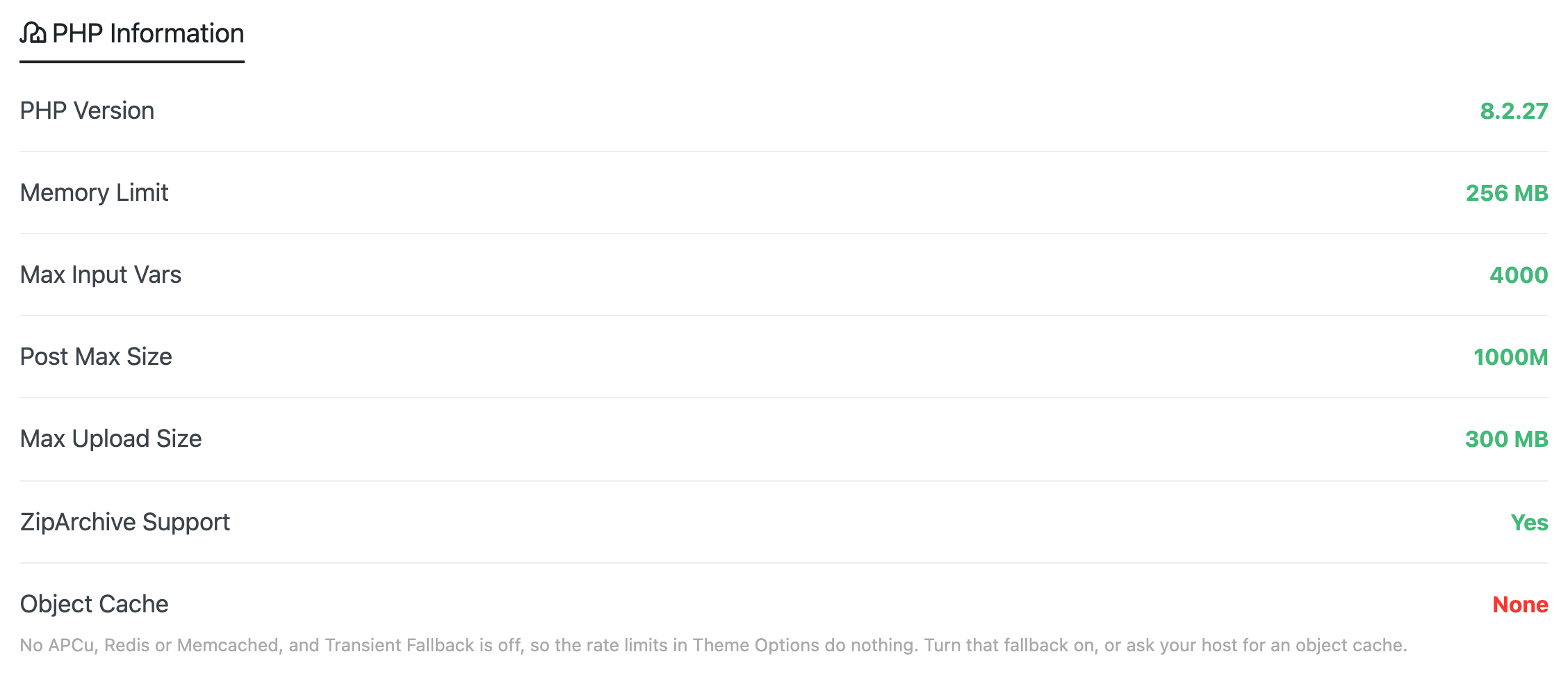
max_execution_time is the odd one out: it is the only value in the snippets above that Foxiz does not check on its System Info page, which reports PHP version, memory limit, max input vars, post max size, max upload size, ZipArchive support and object cache. It is here because the demo importer's plugin and Theme Options steps run under it. The importer's content step lifts PHP's limit itself, so an import that still stops there, often with a 504 error, has hit the web server's own timeout, which only your host can raise. The 300 in the snippets is five minutes, the longest the importer says a run takes.
Troubleshooting
If the settings do not apply, work through these steps:
-
Check which file your host actually reads. The three methods on this page are not interchangeable, and each one only works on some setups. A
php.iniinpublic_htmlworks on a server running PHP as a CGI. A.user.iniworks under PHP-FPM, and it is cached, so give it a few minutes before you decide it failed. Aphp_valueline in.htaccessonly works on Apache with mod_php, and on any other setup Apache rejects the directive and the site returns a 500 error. If that happens, take the lines back out. -
Try your control panel first. Most hosts now expose these as fields rather than files, usually under a name like MultiPHP INI Editor, PHP Selector or PHP Settings. Changing the value there works on setups where none of the three files do, and it survives a WordPress update.
-
Contact Host Provider: If you can not find the php.ini or .htaccess file or the changes don't work as expected, it's best to contact the host provider. They will be happy to help you with these issues. On managed and shared hosting the host often locks these values outright, in which case asking them is not the slow route, it is the only one.
-
Contact Support: open a ticket from the Open a Ticket link at the top of the Foxiz dashboard, or go straight to https://store.foxiz.io/account/#support/. Include a screenshot of the Foxiz System Info page: it shows every value above with the ones that failed marked.
Did this answer your question?