Checking Server Requirements
WordPress requirements
In order to proceed with the theme installation, you need to make sure you have WordPress 6.0 or newer on your self-hosted site.
If you are new to WordPress, these resources help you get started:
Theme requirements
The theme works on almost any server, but we recommend the following server settings:
- PHP: 8.0 or greater. WordPress will refuse to install the theme below that.
- MySQL: 5.6 or greater.
- memory_limit: 64MB or greater. The recommended is 128M or 256M.
- max_input_vars: The minimum value is 2000 but the recommended is 3000. Theme Options has around 1,500 settings and saves them in one request, so a low value silently drops the ones at the end.
- post_max_size: 32M or greater.
- upload_max_filesize: 32M or greater. It limits every file you upload through WordPress: the theme zip (about 3 MB), large images, and a backup file you restore with a migration plugin. The demo itself is downloaded from the Foxiz store, not uploaded, so this limit does not apply to it.
- ZipArchive: enabled. Theme updates arrive as a zip, and Foxiz's own check says it uses ZipArchive to update the theme.
Server requirements
WordPress reports all of these itself, so you do not need a plugin for it. Older instructions pointed to WP-ServerInfo; that was written before WordPress added the screen below.
-
From your dashboard, go to the Tools > Site Health page.
-
Open the Info tab.

-
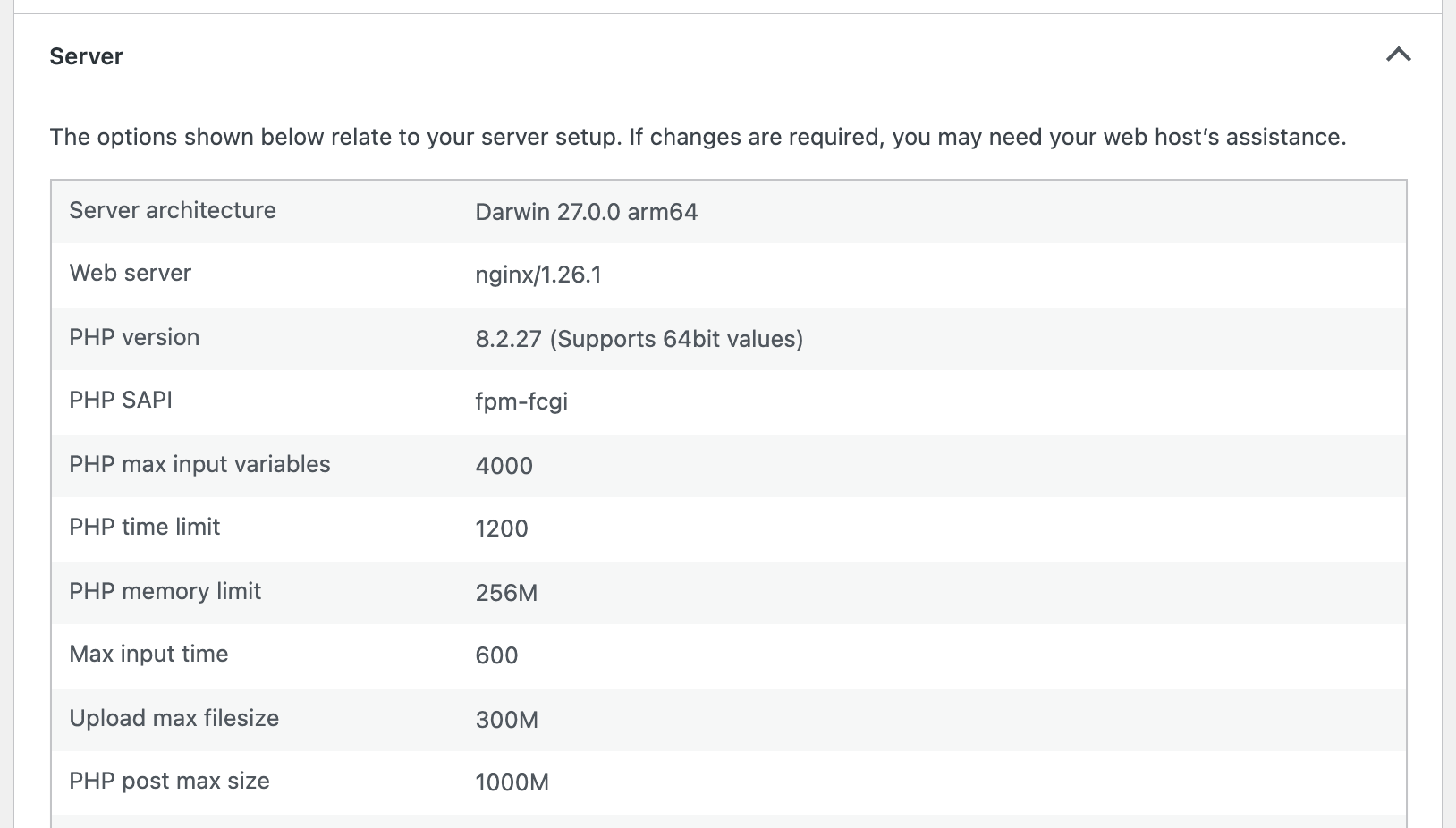
Expand Server for the PHP version, memory limit, max input vars, post max size and upload max filesize.
-
Expand Database for the MySQL version.

What each value is for
Most hosts are fine on all of them. If one comes back low, this is the symptom you would otherwise be left guessing at.
| Value | What goes wrong when it is too low |
|---|---|
| PHP version | WordPress refuses to activate the theme at all, and says so plainly |
| memory_limit | Blank white screens on heavy pages, and demo import stopping partway with no error |
| max_input_vars | Theme Options has around 1,500 settings and saves them in one request. A low value drops the ones at the end of the form, so a panel appears to save and the last settings quietly revert |
| post_max_size | Saving a long post or a large Elementor template fails and the editor loses the changes |
| upload_max_filesize | The theme zip, a large image or a backup file is rejected at upload |
| ZipArchive | Foxiz warns that it uses ZipArchive to update the theme, so ask your host to enable it |
The max_input_vars one is worth knowing on sight, because it looks like a theme bug rather
than a server limit: you save a panel, the page reloads, and only some of what you changed
is there.
When a value is too low
These belong to your host, not to WordPress, so WordPress cannot raise them for you. On shared hosting the fastest route is usually to ask support. If your plan gives you access to the PHP configuration, see Configuring Server Settings.
The PHP version is the exception. Almost every host now exposes it as a dropdown in the control panel, and raising it is the one change you can normally make yourself in a minute.
Checking values with Foxiz System Info
Once Foxiz is installed, it checks these same values for you and flags anything low, so you do not have to come back here. Foxiz > System Info reads the live values every time you open it, so it is also the quickest way to confirm a change your host made. It is the last item in the Foxiz menu and a System Info tab in the Foxiz dashboard, and it is there before the theme is activated too.
The page is titled System Information and has two lists, PHP Information and WordPress Info. A value that passes is shown in green. A value that fails turns red, and a line under it says what is wrong.
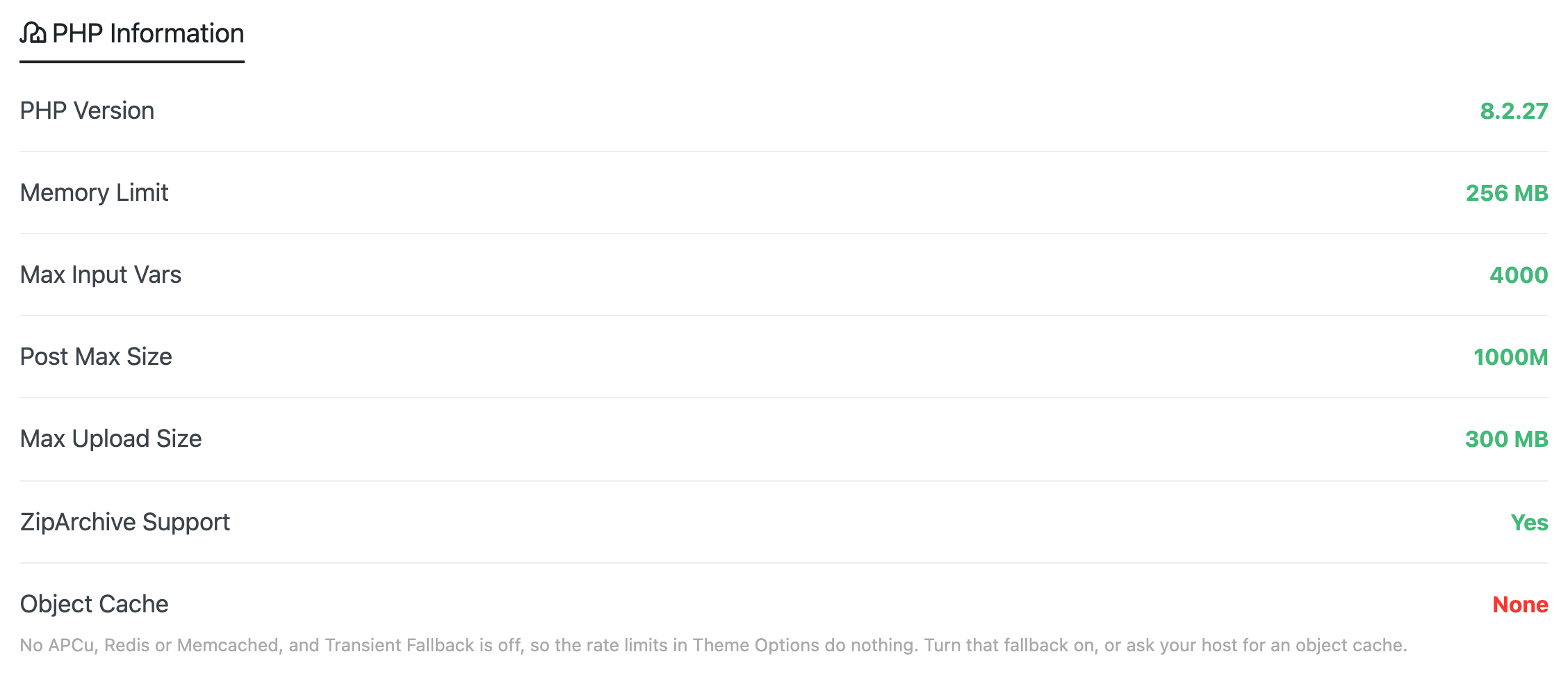
The same PHP Information list also sits at the bottom of the Foxiz dashboard's main screen.
| Row | Turns red when | What to do |
|---|---|---|
| PHP Version | below 8.0, the version the theme needs | Raise it in your hosting control panel |
| Memory Limit | below 64 MB | Ask for 128M or 256M |
| Max Input Vars | below 2000 | Ask for 3000, the value the warning names |
| Post Max Size | below 32M. A value written as 1G passes, and 0 (no limit) passes | Ask for 32M or more |
| Max Upload Size | below 32 MB. This is the smaller of upload_max_filesize and post_max_size, so raise both | Ask for 32M or more on both |
| ZipArchive Support | it says No | Ask your host to enable the PHP zip extension |
| Object Cache | it says None | See below |
| Debug Mode | it says Enabled | Turn WordPress debug mode off on a live site, because it can show visitors details of your PHP code |
Object Cache is the one red value that is not about installing or saving anything. It reads APCu or Redis / Memcached when your host has a fast cache, Database (transients) when you have turned on the fallback, and None otherwise. None means the Rate Limits in Theme Options > Performance count nothing and refuse nothing. Either turn on Transient Fallback in that section, or ask your host for APCu, Redis or Memcached. If you have no use for rate limiting, you can leave it red.
The rest of WordPress Info is there to be read rather than fixed: WordPress Version, Debug Log, Theme Name and Theme Version. The last two always describe Foxiz itself, even with a child theme active, so they are the version support asks for.
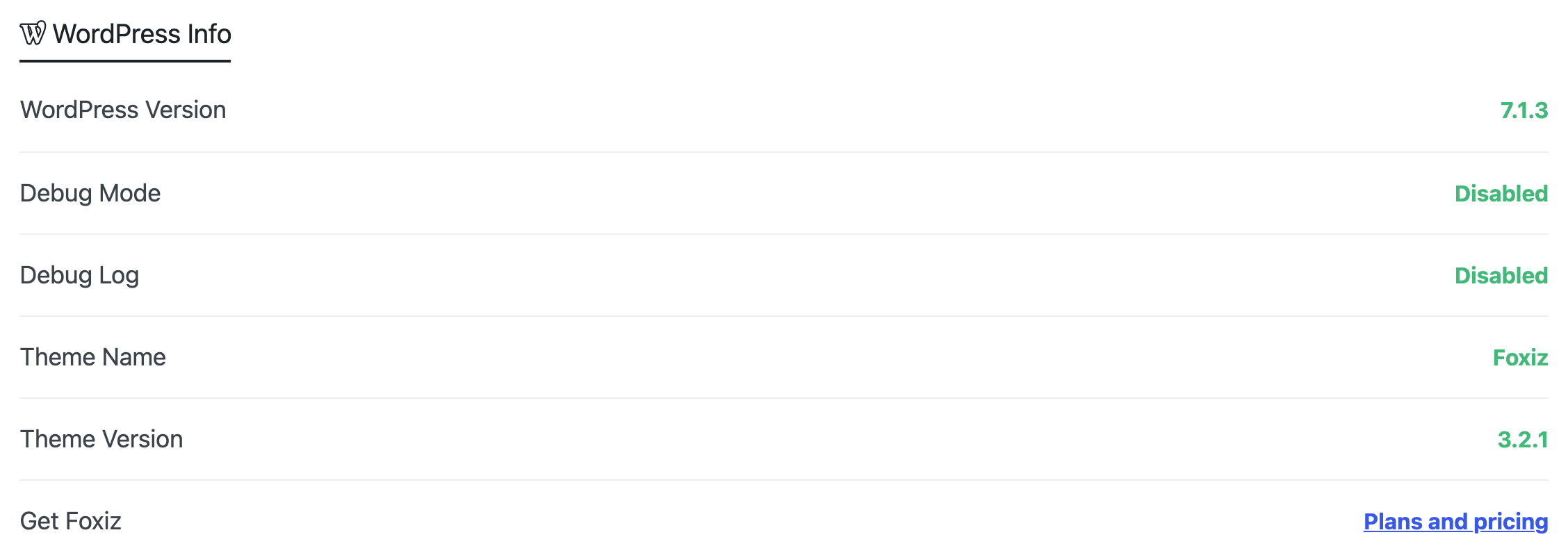
Open this page before you open a support ticket. A screenshot of it answers most of the first questions support would ask, and anything red on it is your host's setting to change, not a theme fault. See Getting Help from the Support Team.
Did this answer your question?