Where to Start
Foxiz is a WordPress news and magazine theme. You work with it in three places:
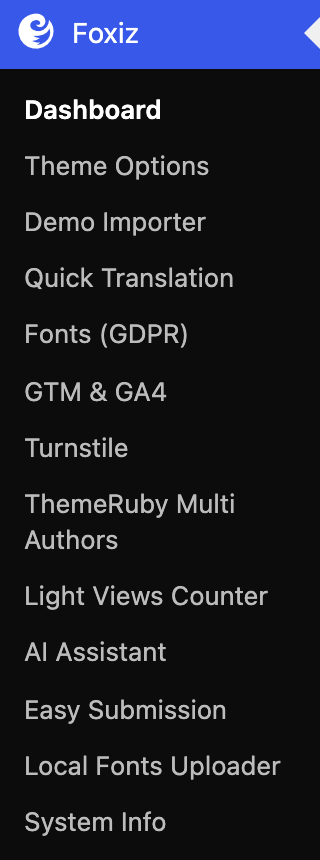
- The Foxiz Dashboard, the Foxiz menu in the admin sidebar. This is where you start: you activate your licence, install the plugins and import a demo there, and every other Foxiz page opens from it.
- Theme Options, a page of that menu, which decides how the whole site looks.
- The Elementor blocks you drop on a page, which decide what a particular page shows. Elementor is the page builder plugin Foxiz pages are built with; Elementor Builder sets it up.
First five steps
Do these in order. Each one assumes the one before it.
-
Check your server meets the PHP and memory requirements.
-
Download and install the theme. When the welcome notice Launch Your Perfect Site in No Time appears, click Let's Get Started. It installs Foxiz Core, the plugin that adds the Foxiz Dashboard.
-
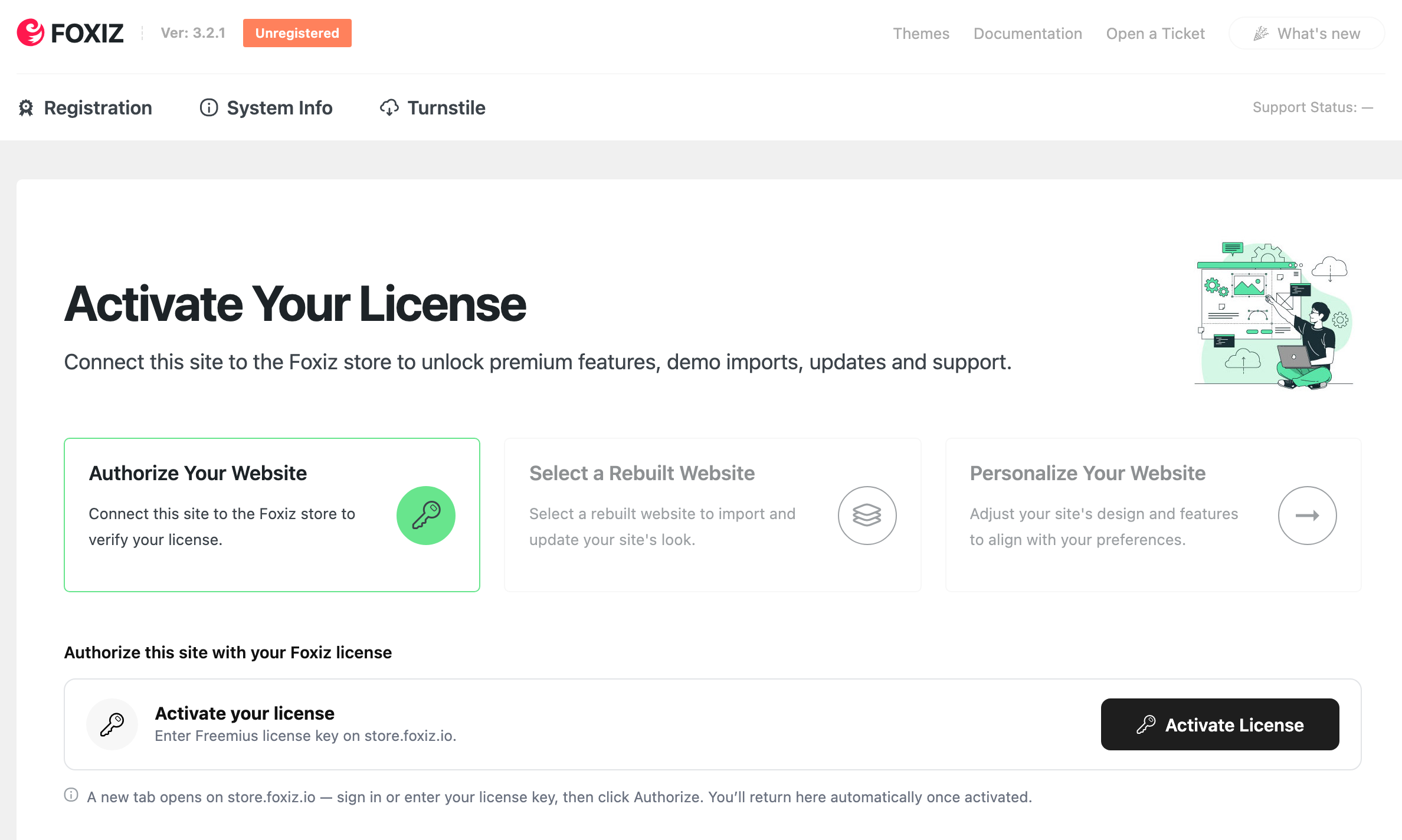
Open the Foxiz Dashboard: click Foxiz in the admin sidebar. Until the site is activated it opens on the Registration screen. Activate your licence there; that unlocks Theme Options, the demo importer and the rest of the menu.
-
Install the plugins from Foxiz > Dashboard, under Essential Plugins. For most sites, install all six. Foxiz Core is already there from step 2.
-
Import a demo from Foxiz > Demo Importer if you want a finished site to edit rather than a blank one.
What is the Foxiz Dashboard lists every page of the menu and what each one is for.
Then make the demo yours
The import already sets your homepage and your menus to the demo's own, so you edit them rather than create them.
-
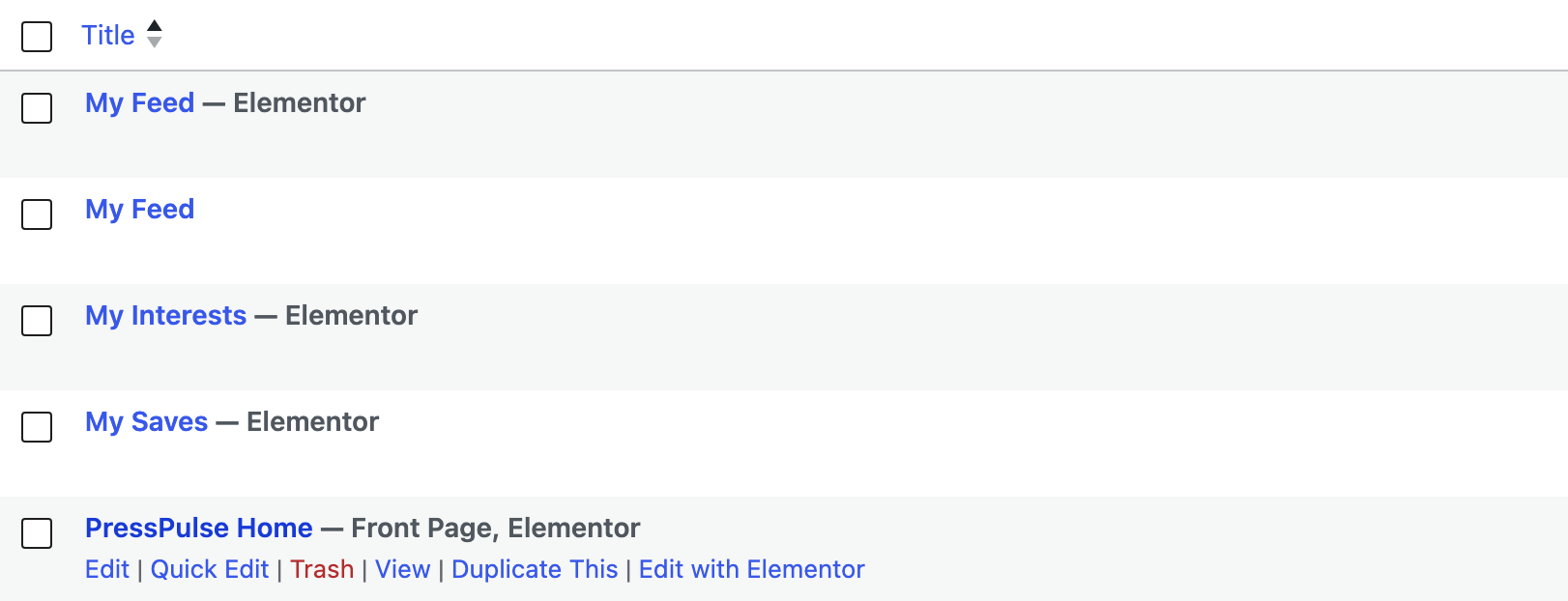
Edit the homepage. In Pages > All Pages, the page marked Front Page is your homepage. Click Edit with Elementor on it, then point each block at your own categories in Content > Query Settings, as How to Set Up Query Filters in Elementor Blocks shows.
-
Replace the logo with How to Upload Logo & Favicon?.
-
Swap the demo's menu items for your own pages with How to Create & Setup Header Menus?.
-
Edit the footer. The demo's footer logo, social links and copyright line stay until you change them. Footer Overview shows which of the two kinds of footer your site has, and How to Add the Footer Logo, Social Icons and Copyright replaces them.
-
Write your first post with How to Create a New Post?, then remove the demo's posts: Foxiz > Demo Importer, Cleanup Import, then Posts & Attachments. That deletes only the posts, images, categories and tags the import brought in, and keeps the demo's pages and menus.
-
Run the checks in Before You Go Live before you point your domain at the site.
After the import walks the same jobs in more detail. Skipped the demo? Get a Homepage and How to Build your Homepage with Elementor Builder? start you from a blank page.
Theme Options is the panel you will spend the most time in. It sits near the top of the sidebar, right after Installation and the Foxiz Dashboard, because it sets the design of the whole site, while the jobs above change one page or one part of it.
Where things are
Setting up the site. Getting Started and Installation cover the server, the licence and the demo. Foxiz Dashboard comes next, one article per page of the Foxiz admin menu, then Theme Options, the global panel behind almost every other article here.
Building pages. Homepage & Blocks is the Elementor half of the theme: one article per block, plus the query filters that decide which posts a block shows. Logo, Header & Menus, Footer and Widgets & Sidebars cover the frame around the content. Ruby Templates is how you build a header, a footer or a listing once and reuse it.
Publishing. Posts, Pages & Archives and Featured Images cover the day to day. Post Types & Taxonomies covers the cases beyond a standard blog. Author pages, avatars and co-authors are in Pages & Archives, under Authors.
Features you may not need. Advertising, Membership, Personalization, Newsletter, Podcast and Web Stories are each self contained. Skip the ones you are not using.
Running the site. Performance & SEO and Translation & RTL.
When something is wrong. Tips & Troubleshooting collects the questions support is asked most, including the blank page after a demo import and the missing stylesheet error. Support & Purchases is how to reach a human, and what your purchase covers.
If you are stuck
Two things answer most tickets before they are written. Activate the theme, because until the site is activated there is no Theme Options menu and no demo import. And which setting is deciding, for the common case where a value you set is being overridden somewhere more specific.
Did this answer your question?