Adding Site Favicon?
Upload the site icon
You can add a favicon or site icon from the WordPress admin area. Follow the steps below:
-
Navigate to Appearance > Customize.
-
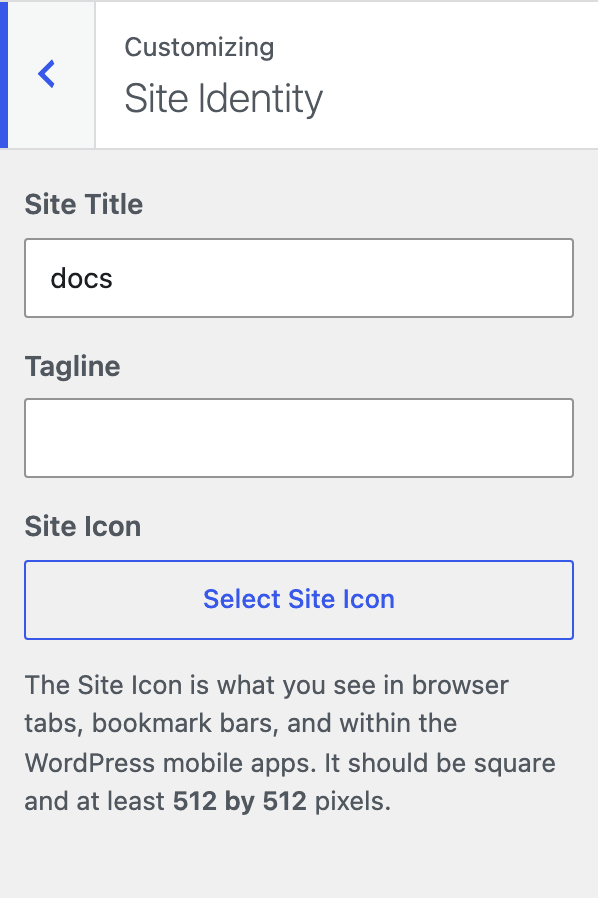
Find and click on the "Site Identity" tab.
-
At "Site Icon", click on the "Select Site Icon" button and then upload the image you want to use. The image should be square and at least 512 by 512 pixels; WordPress crops anything larger.
The same setting under Settings > General
WordPress now also exposes the same setting at Settings > General, under Site Icon, and that is the route Foxiz's own Logo panel points at. Either screen writes the same value, so use whichever is fewer clicks from where you are.
Icons for phones
The site icon is a WordPress setting, not a Foxiz one, so no Theme Options panel holds it. Foxiz adds two separate icons of its own at Theme Options > Logo > Bookmarklet: an iOS Touch Icon at 180x180px for a phone home screen, and a Windows Metro Tile Icon at 144x144px for a pinned tile. Neither replaces the site icon above.
Refer to How to add a favicon for more details.
Did this answer your question?