How to Create & Setup Header Menus?
Foxiz supports custom WordPress menus, with multiple levels of the dropdown. There are 3 areas where you can display your menus.
Navigate to Appearance > Menus.
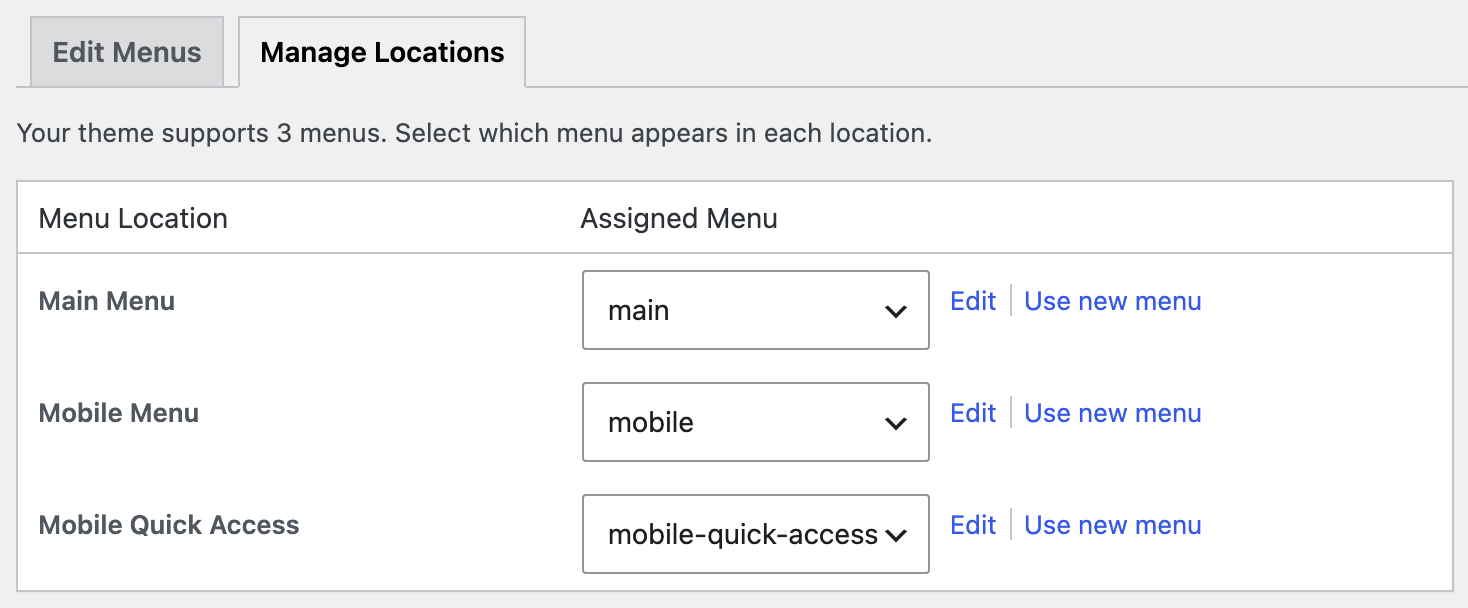
Click on the "Manage Locations" tab to see all locations.
-
Main Menu: this is the main menu area at the header. It is the only location drawn with the Foxiz walker, so mega menus, menu item icons and sub labels work here and nowhere else. It has no depth limit.
-
Mobile Menu: This is the menu that fills the panel the mobile toggle button slides open. It renders two levels deep, so a third level of submenu items is dropped.
-
Mobile Quick Access: This is the single row of links that sits under the mobile header bar. It renders one level only, and it shows nothing at all until you assign a menu to it.

Leave Main Menu or Mobile Menu unassigned and Foxiz prints a notice in their place, "Please assign a menu to the ... location under Manage Locations", with a link straight to that tab. Only administrators see it; a logged out visitor sees an empty gap. Mobile Quick Access has no such notice and simply prints nothing.
Creating a menu
To create a menu, follow the steps below:
- Navigate to Appearance > Menus.
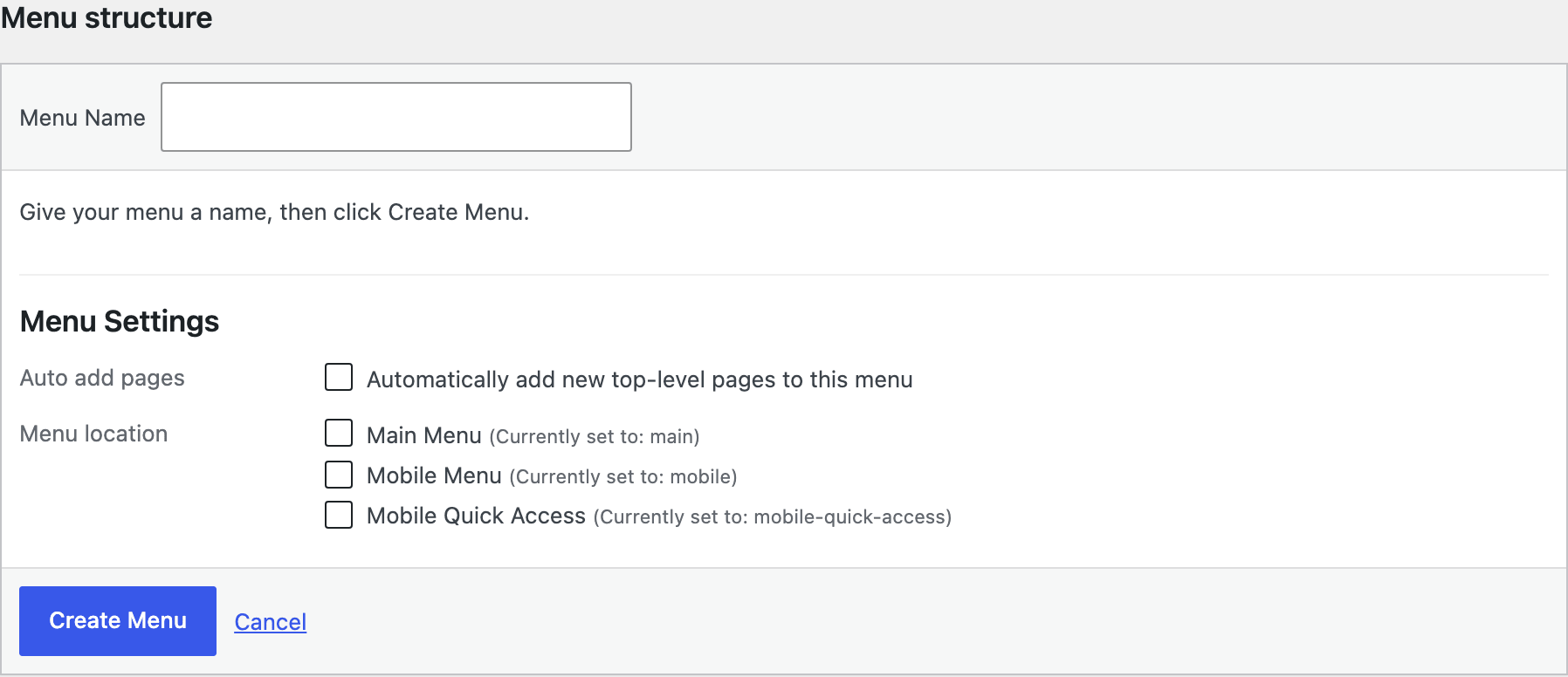
- Select Create a new menu at the top of the page.
- Enter a name for your new menu in the Menu Name box, and then click the Create Menu button.
- Now you can add items to the menu just created.
Assign your menu to the website
-
Switch to the "Manage Locations" tab.
-
Then assign a menu you created to the theme location you want.
-
Click Save Changes once you've made your selection.
One menu can hold all three locations at once, and most sites do that rather than maintaining three. Assign the same menu to Main Menu and Mobile Menu and the phone gets the same items, two levels deep instead of unlimited.
Menu Options
Foxiz has settings that control your whole menu: typography, colors and much more. They are in two places.
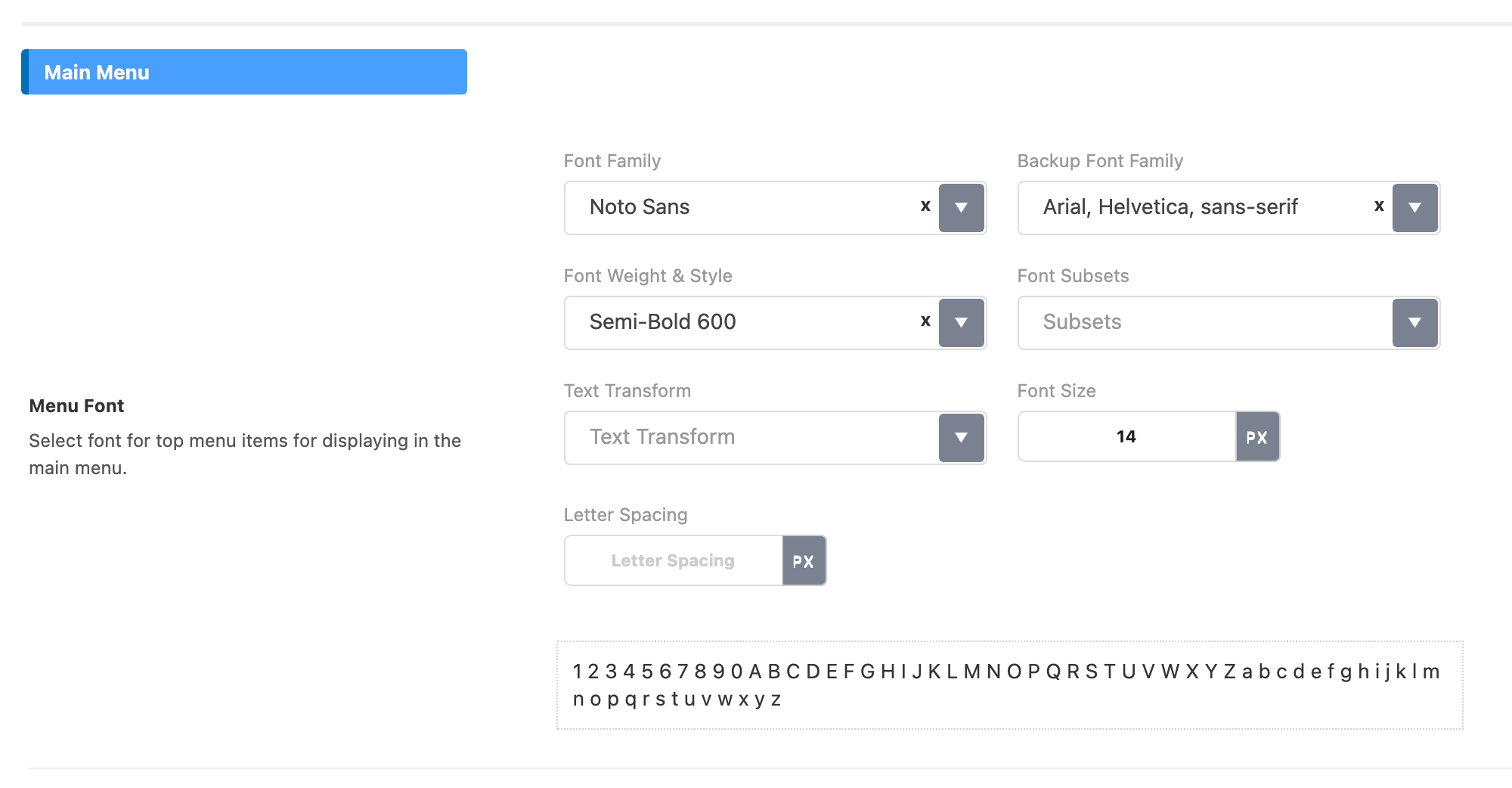
Typography: Theme Options > Typography > Header Menus, which has a group for each location:
- Main Menu holds Menu Font and Sub-Level Menu Font.
- Mobile Menu holds Mobile Menu Font and Sub-Level Mobile Menu Font.
- Mobile Quick Access holds Mobile Quick Access Menu Font.
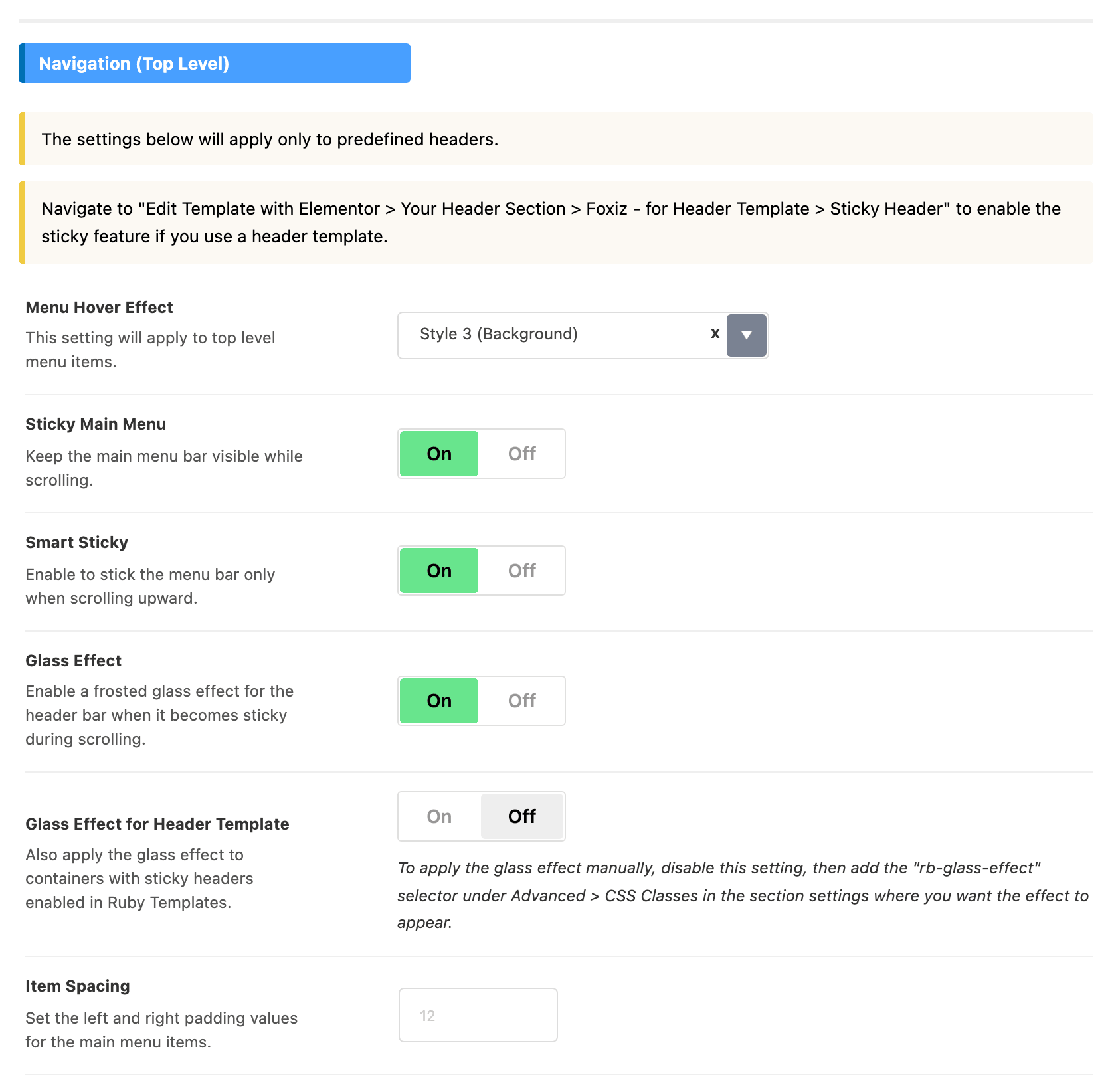
Behaviour and colour: Theme Options > Header > Main Menu, in three groups:
- Navigation (Top Level) holds Menu Hover Effect, Sticky Main Menu and Item Spacing.
- Sub-Level Menus holds the dropdown colours.
- Dark Mode - Sub-Level Menus holds their dark mode twins.
Set a colour in the light group and set its dark twin too; the dark block does not inherit from the light one.
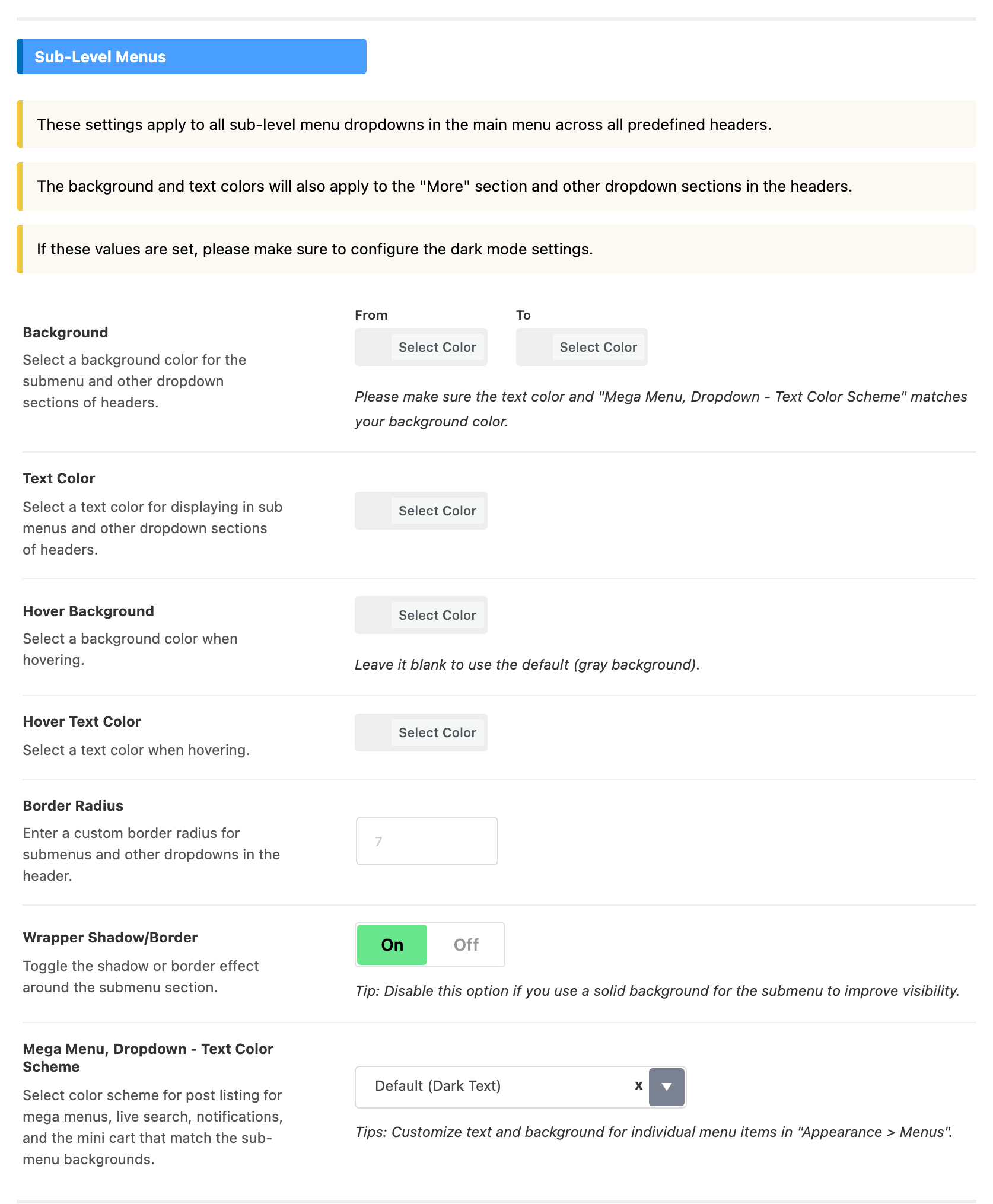
Two more fields in Sub-Level Menus decide how a dropdown looks once it is open:
- Hover Background colours a submenu link while the pointer is on it. Leave it blank and the link gets the default light gray. Its dark mode twin is the Hover Background under Dark Mode - Sub-Level Menus.
- Wrapper Shadow/Border draws the shadow, or the border on some button styles, around the main menu's dropdown. It is on by default. If you give the submenu a solid Background, turning it off usually looks cleaner.
The colour of the navigation bar itself is per layout, in for Header 1,2,3, for Header 4 or for Header 5, whichever matches the layout your site uses.
Refer to How to Config The Header? for further information.
Setting up a new site? The next job after the menus is the footer: start at Footer Overview, the order Where to Start gives.
Did this answer your question?