How to Create Header Templates and Assign It to Your Website
Foxiz theme provides you with header blocks in the Ruby Template that allow you to customize your template layout more easily for your website.

To get started, follow the steps below:
-
Create the template at Dashboard > Ruby Templates > Add New Template, give it a title and click Edit with Elementor. You copy its shortcode later, when you assign it. To create a template, you can refer to this documentation: Ruby Templates
-
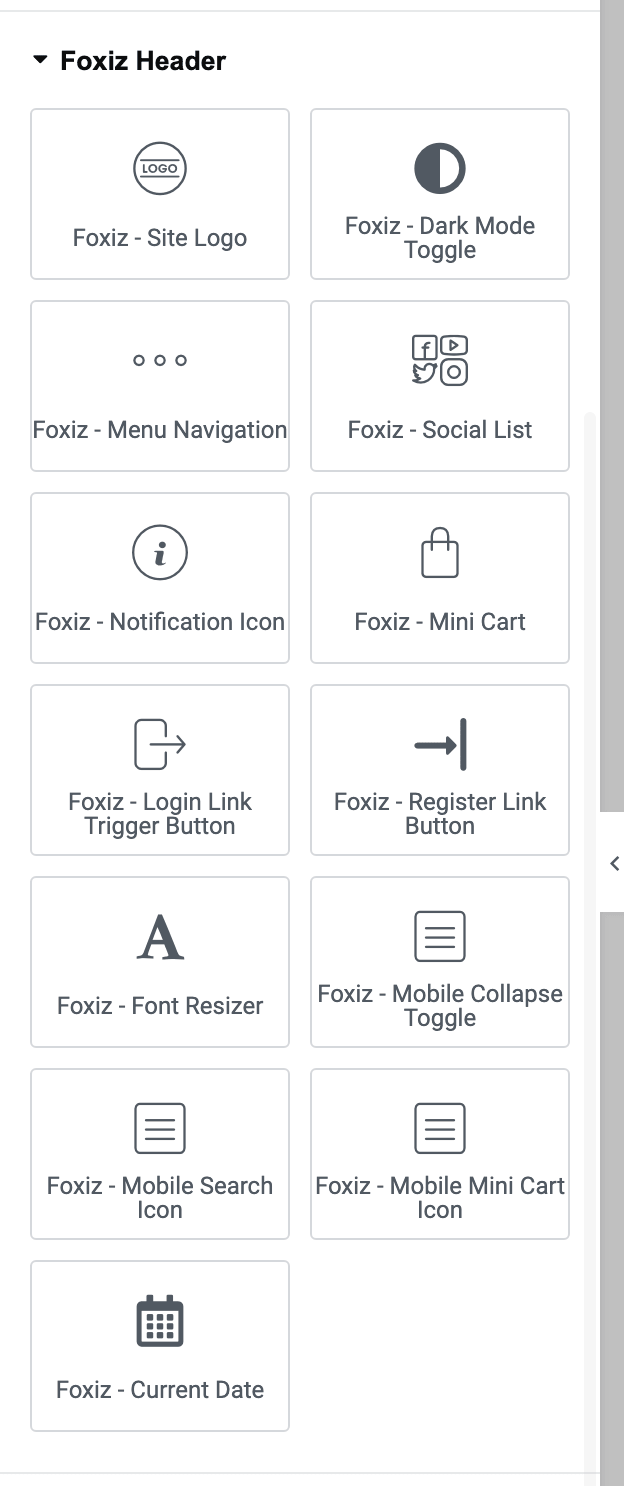
In the Elementor panel on the left, scroll down to the "Foxiz Header" section.
-
After scrolling down to the "Foxiz Header" section, you can drag and drop blocks inside.
Thirteen blocks live in that category. Ten of them are for the desktop bar:
- Foxiz - Site Logo
- Foxiz - Menu Navigation
- Foxiz - Social List
- Foxiz - Current Date
- Foxiz - Dark Mode Toggle
- Foxiz - Font Resizer
- Foxiz - Notification Icon
- Foxiz - Mini Cart
- Foxiz - Login Link Trigger Button
- Foxiz - Register Link Button
The other three are the mobile bar's own blocks, and belong in a mobile header template rather than this one:
- Foxiz - Mobile Collapse Toggle
- Foxiz - Mobile Search Icon
- Foxiz - Mobile Mini Cart Icon
The search block is not one of them, which catches people out. It is called Foxiz - Search Posts and it is filed under Foxiz - Element, although it is the same header search you get on a predefined layout. Type
headerin the panel's search box and it comes up with the rest. -
You can rearrange the placement of those blocks to create your own custom header layout.
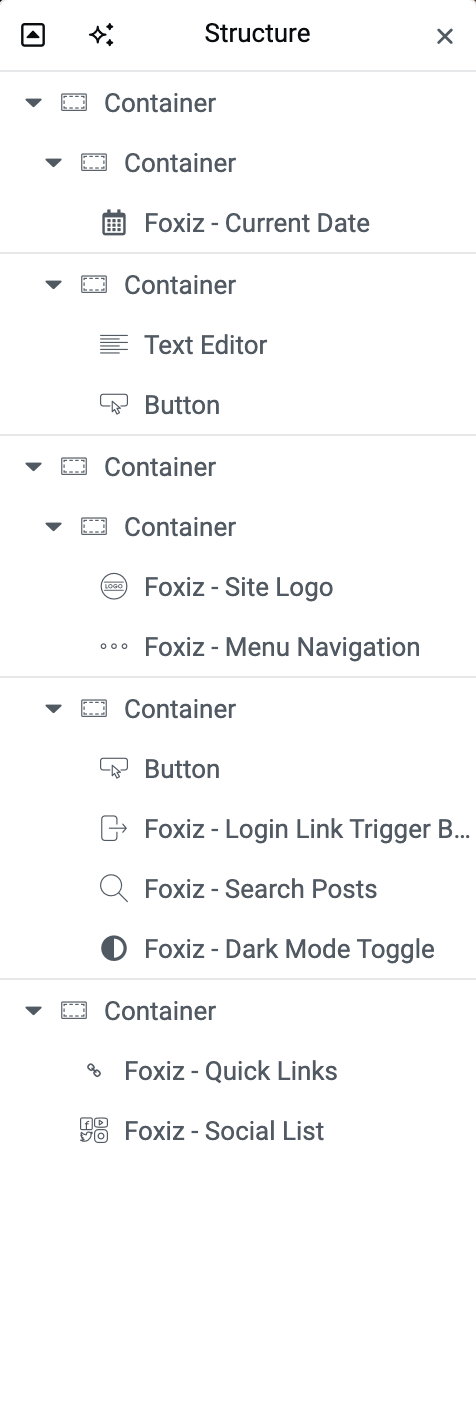
Two things behave differently once the header is a template, and both are easier to set now than to discover later.
Sticky is set per section, not in Theme Options. Sticky Main Menu and Smart Sticky under Theme Options > Header > Main Menu only drive the predefined layouts.
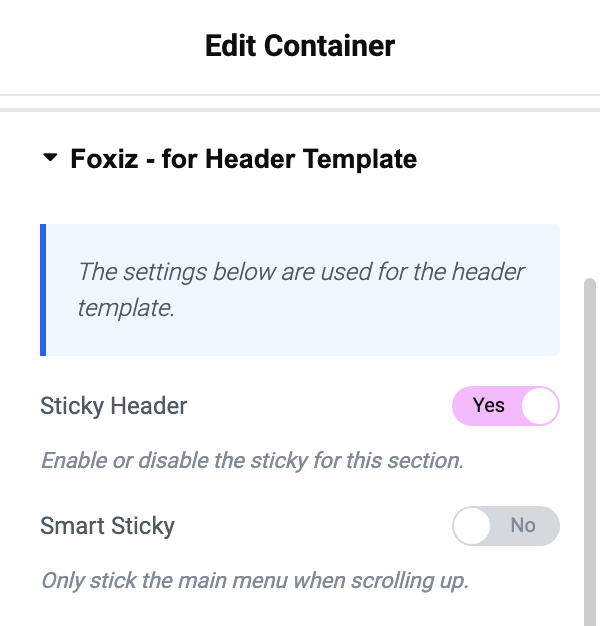
In a template, the sticky switch is on the section itself:
- Select the section or container you want to stick.
- Open its Layout tab and find the Foxiz - for Header Template panel. The panel only appears while you are editing a Ruby Template.
- Turn on Sticky Header. It is off by default.
- Turn on Smart Sticky as well if you want the section to stick only when the reader scrolls up. It appears once Sticky Header is on, and is off by default.
The mobile bar is not part of this template. On phones and tablets Foxiz shows its own mobile header in place of your template, set at Theme Options > Header > Mobile Header, unless you build a mobile template as well: see Structuring Mobile Header Layout Using Ruby Template.
To add a template, follow the steps below:
Each screen below assigns the header for a different part of the site. They are ranked rather than combined: the narrowest one holding a value wins, and an empty field hands the decision to the wider one. Paste the same shortcode into as many of them as you need; the order a single post reads them in is at the end of this page.
The blog index and the search page each have a Site Header group of their own, which wins there; left empty, it hands over to the general header. So set the general header first, then fill only the screens that should look different.
-
For the general header:
-
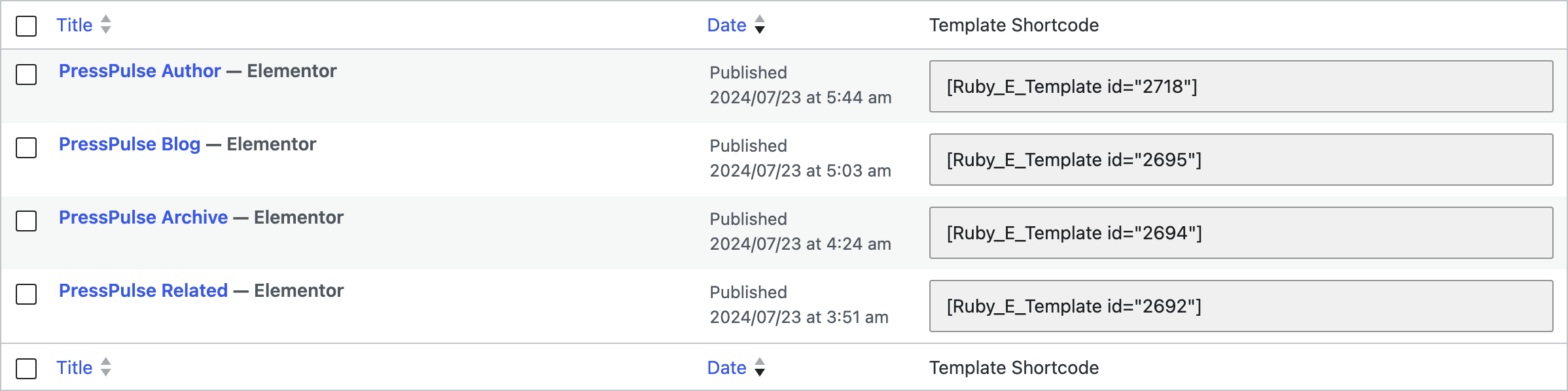
Copy the shortcode of the template, please navigate to Dashboard > Ruby Templates. The template list has a Template Shortcode column holding it ready to copy.
-
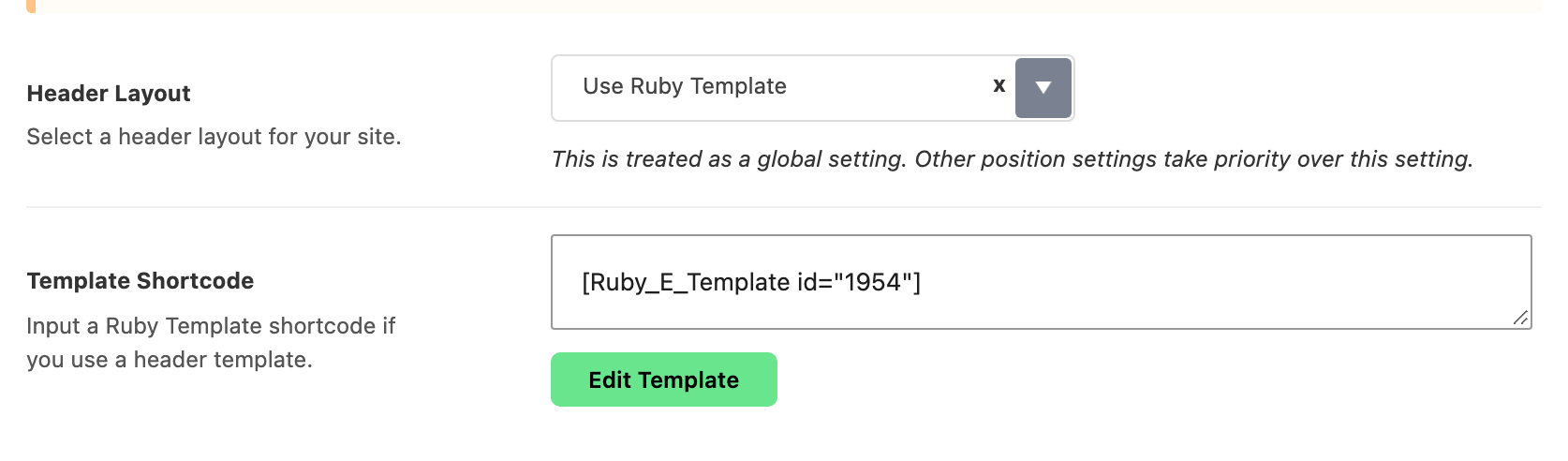
Navigate to Foxiz > Theme Options > Header > Header Layout, and set Header Layout to Use Ruby Template. The subsection is called Header Layout, not General, and the dropdown inside it carries the same name.

-
Input the shortcode into the Template Shortcode option, the textarea that appears directly underneath once Use Ruby Template is selected. There is no second control called Header Template Shortcode, and nothing to look for until you have made that choice.
-
Click Save Changes. Leave the box empty and the site falls back to Layout 1 (Left Menu) rather than showing nothing, so a blank header usually means a shortcode that was never pasted.
If you also run Elementor Pro, delete any HEADER and FOOTER template in its Theme Builder panel before you do this. The Header Layout panel says so in a warning of its own, and it is the first thing to check when a header template is saved and the site still shows something else.
-
For the blog index header:
-
Copy the shortcode of the template, please navigate to Dashboard > Ruby Templates.
-
Navigate to Foxiz > Theme Options > Blog Index > Site Header. Blog Index is a top level panel of its own in the Theme Options sidebar; there is no Blog & Archive panel to open it from.
-
Input the shortcode into the Or Use Ruby Template for Site Header option. It sits under Header Layout and overrides it, and it is always visible: the blog index has no Use Ruby Template choice to make first.
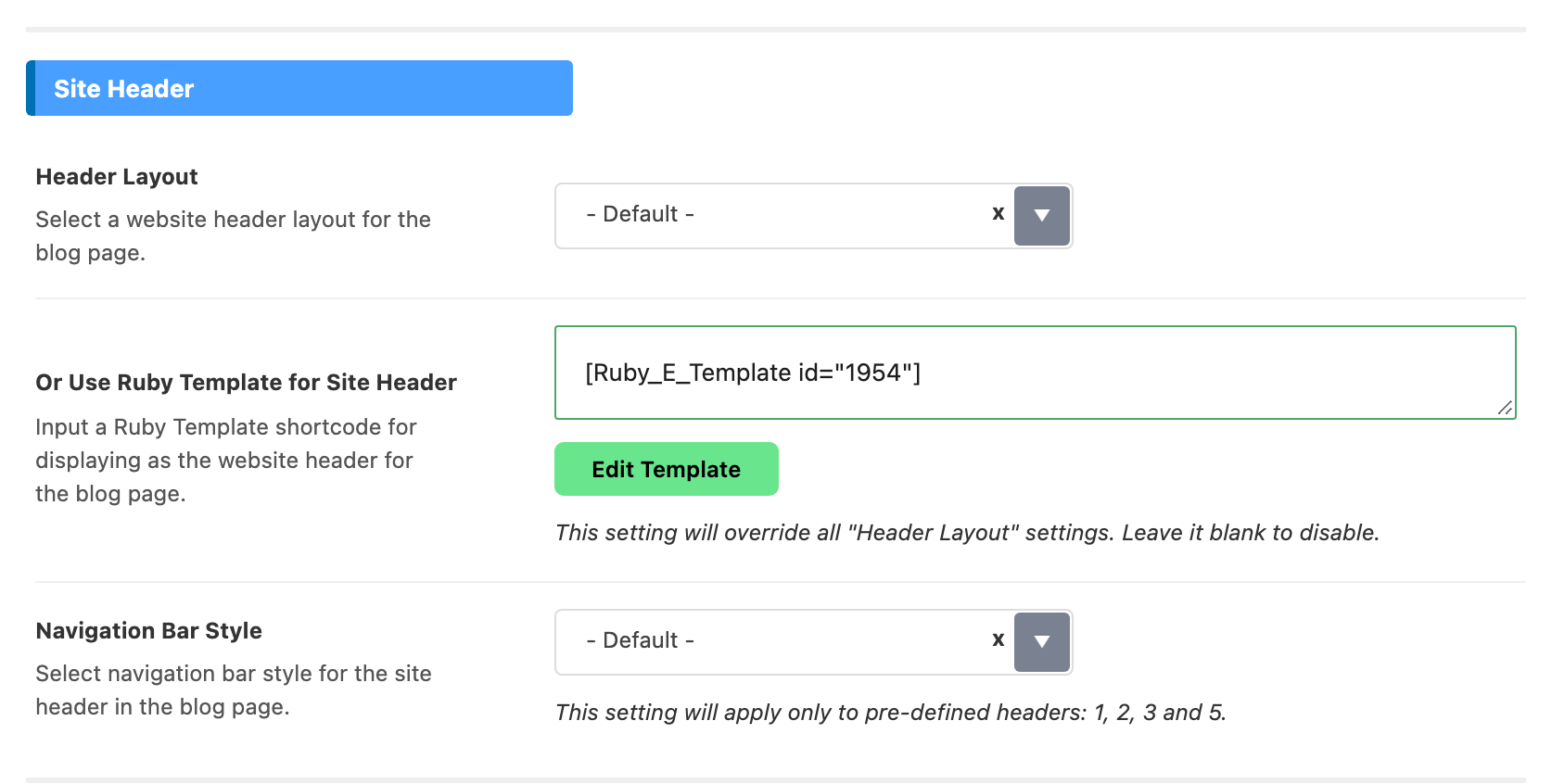
This panel governs the page WordPress uses as your posts index. If your front page is a static page instead, its header comes from that page's own Single Page Settings or from the general header above, not from here.
-
For the search header:
-
Copy the shortcode of the template, please navigate to Dashboard > Ruby Templates.
-
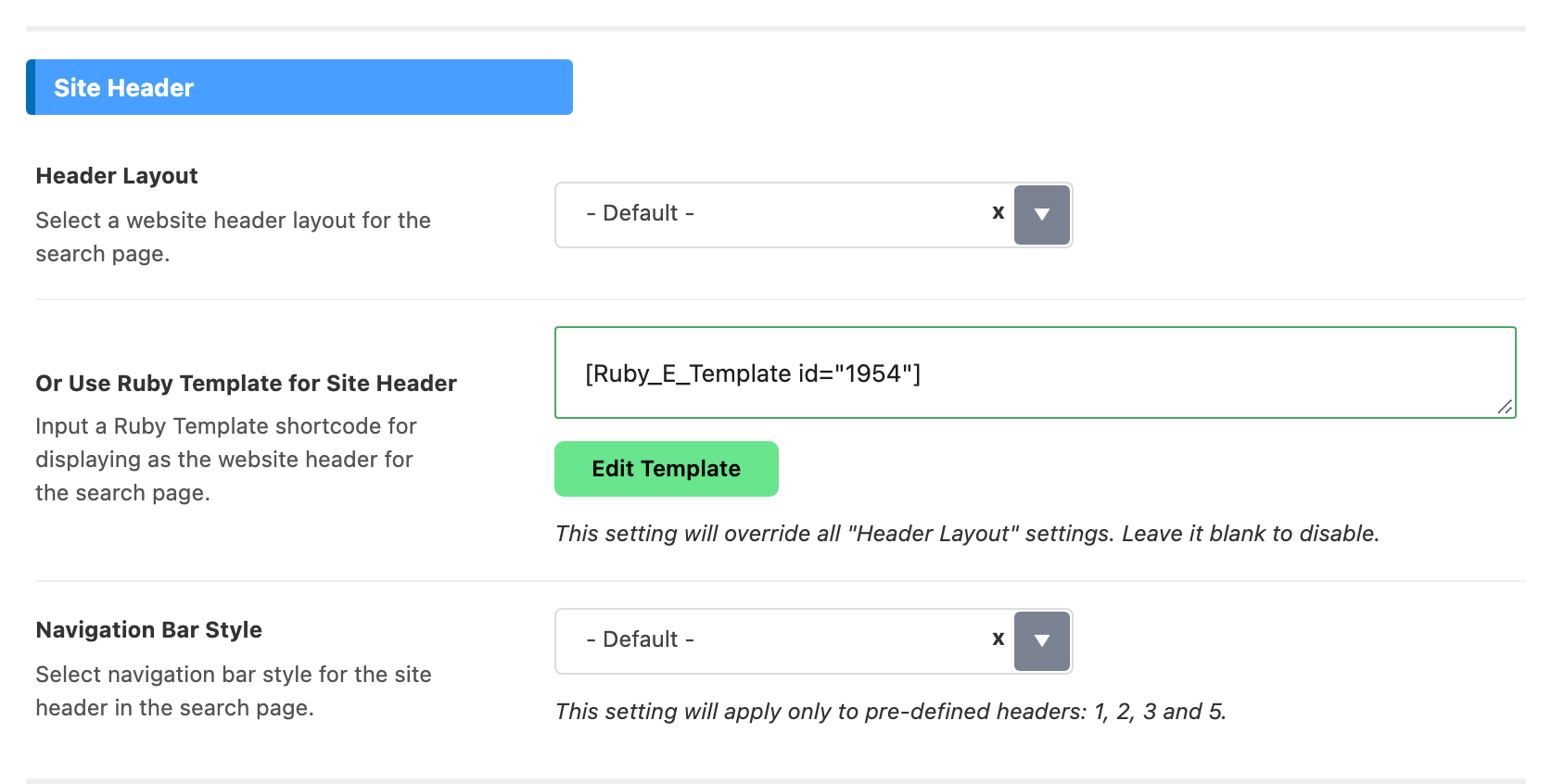
Navigate to Foxiz > Theme Options > Search Page, and open the Site Header group. Search Page is a top level panel, beside Blog Index and Category.
-
Input the shortcode into the Or Use Ruby Template for Site Header option, directly under Header Layout.
-
For the standard post header:
-
Copy the shortcode of the template, please navigate to Dashboard > Ruby Templates.
-
Navigate to Foxiz > Theme Options > Single Post, open the Site Header subsection, and find the Site Header group inside it.
-
Input the shortcode into the Template Shortcode option. It overrides the Header Layout dropdown above it.
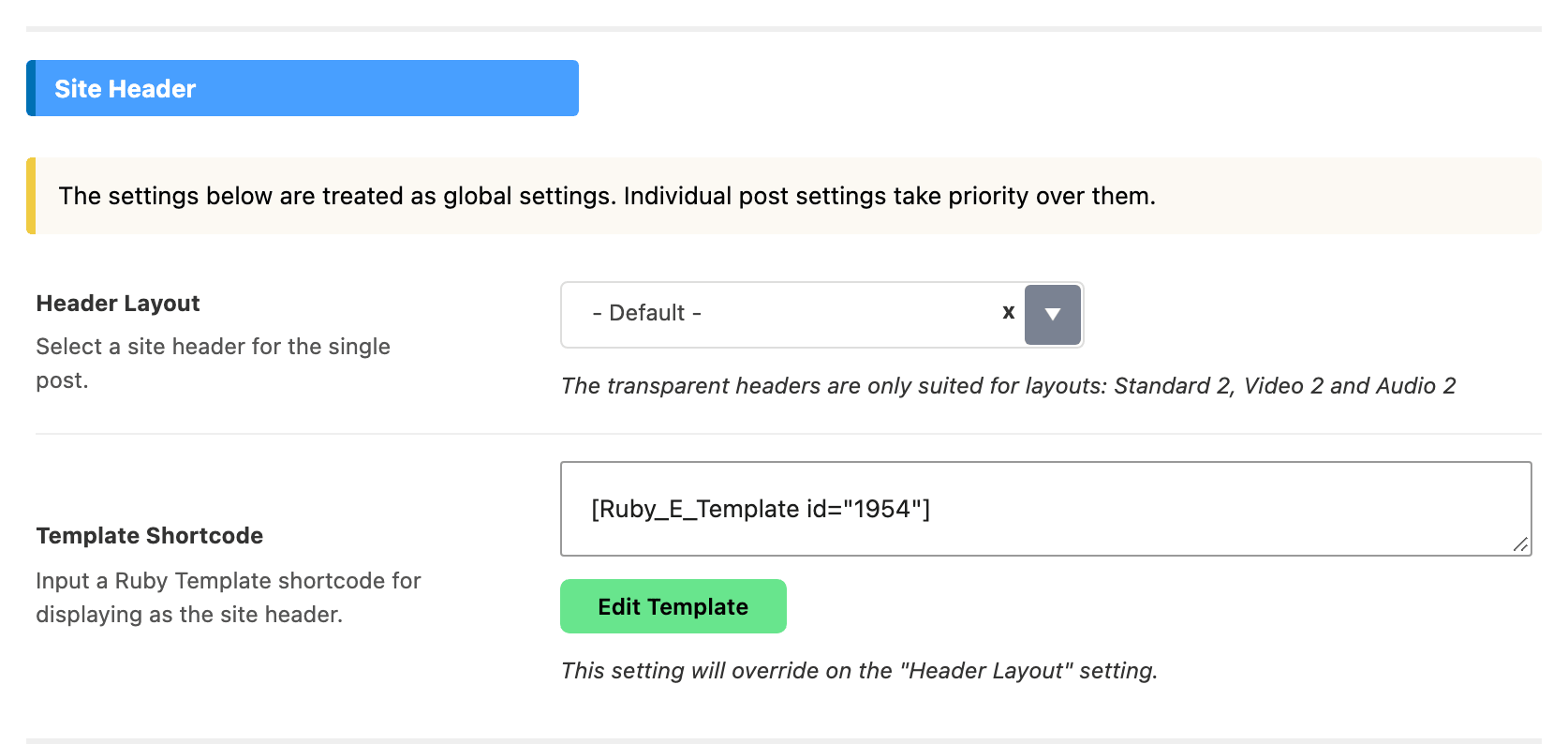
This field is the fallback for every single post, whatever its format, not only for standard ones. The three format boxes below replace it on posts of their own format; posts with no format, and posts whose format has no template, use this one.
-
For the video post header:
-
Copy the shortcode of the template, please navigate to Dashboard > Ruby Templates.
-
Navigate to Foxiz > Theme Options > Single Post, open the Site Header subsection, and scroll to the Site Header for Video group. It is further down the same subsection you used for the standard post header, not a subsection of its own.
-
Input the shortcode into the Template Shortcode option. Leave it blank to disable it and let the standard post header apply.
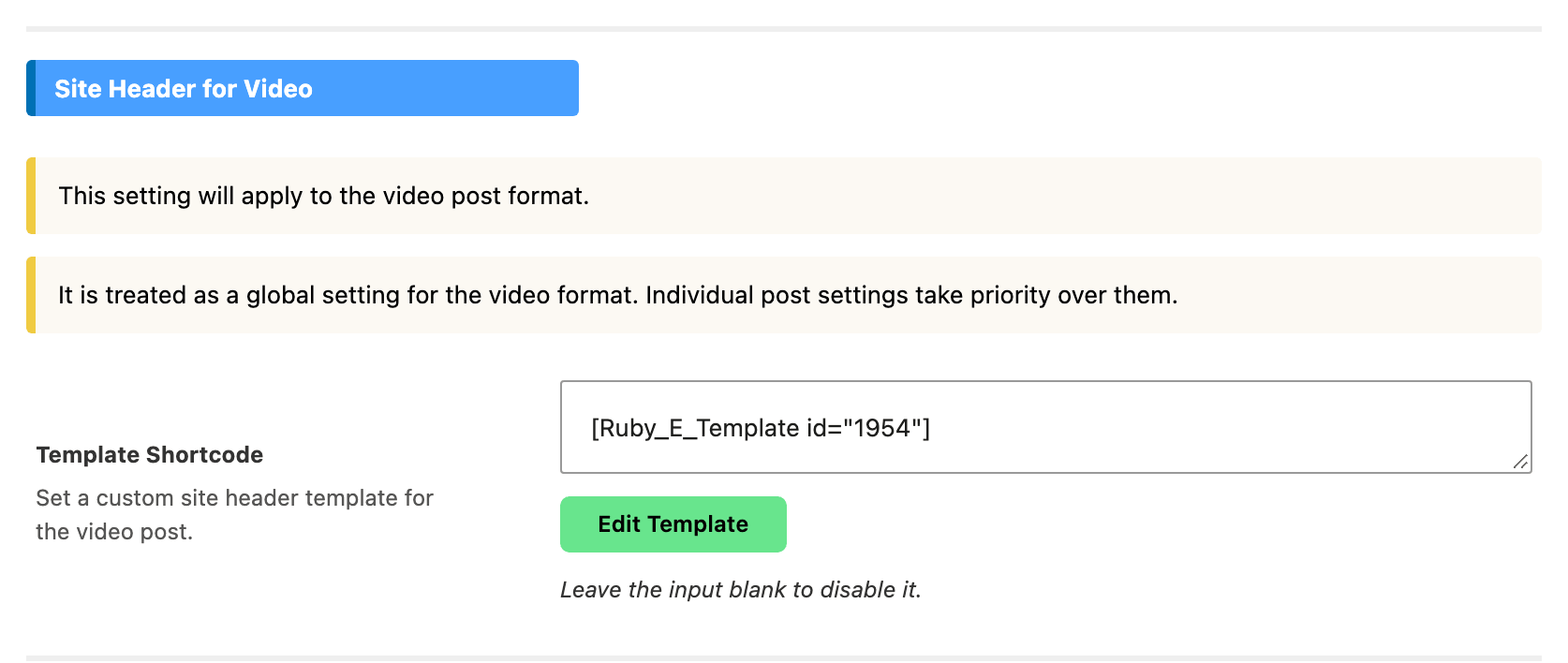
The switch is the post's WordPress post format, set in the Format panel of the post editor. A post that plays a video but is still filed as Standard gets the standard post header.
-
For the audio post header:
-
Copy the shortcode of the template, please navigate to Dashboard > Ruby Templates.
-
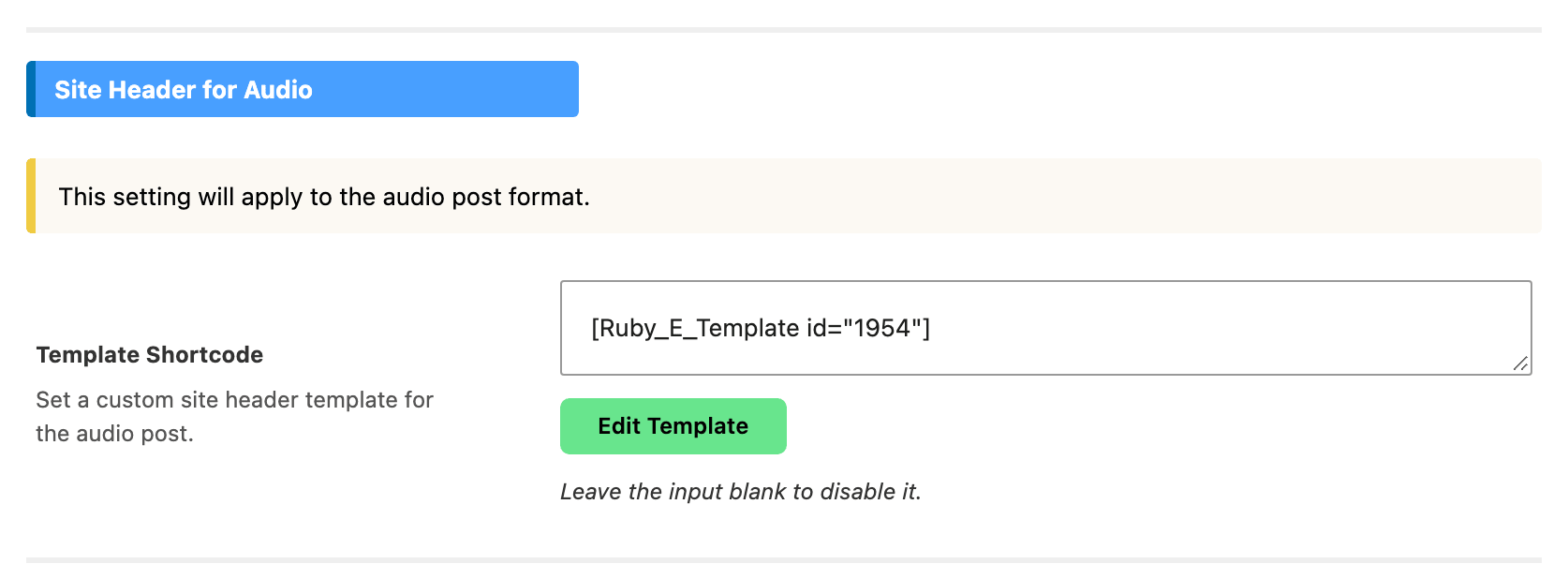
Navigate to Foxiz > Theme Options > Single Post, open the Site Header subsection, and scroll to the Site Header for Audio group.
-
Input the shortcode into the Template Shortcode option. It applies to posts whose format is Audio.
-
For the gallery post header:
-
Copy the shortcode of the template, please navigate to Dashboard > Ruby Templates.
-
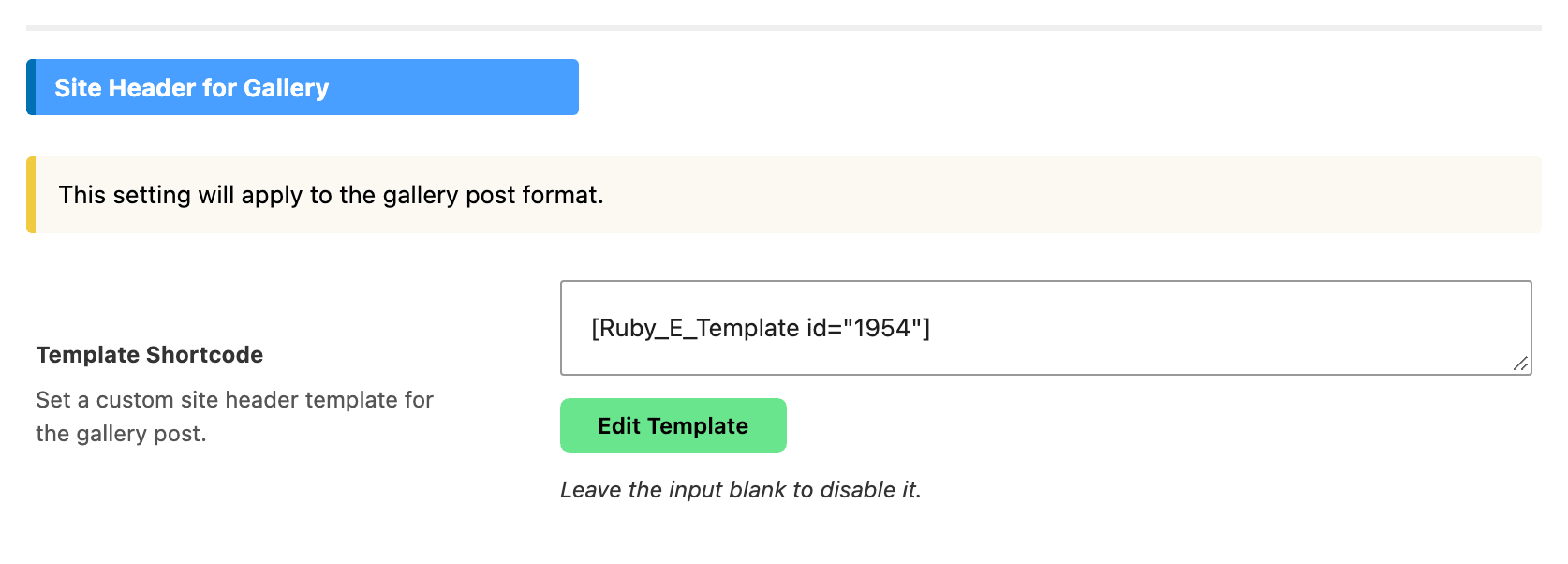
Navigate to Foxiz > Theme Options > Single Post, open the Site Header subsection, and scroll to the Site Header for Gallery group. It is the last of the three format groups.
-
Input the shortcode into the Template Shortcode option. It applies to posts whose format is Gallery.
-
For each individual post:
-
Copy the shortcode of the template, please navigate to Dashboard > Ruby Templates.
-
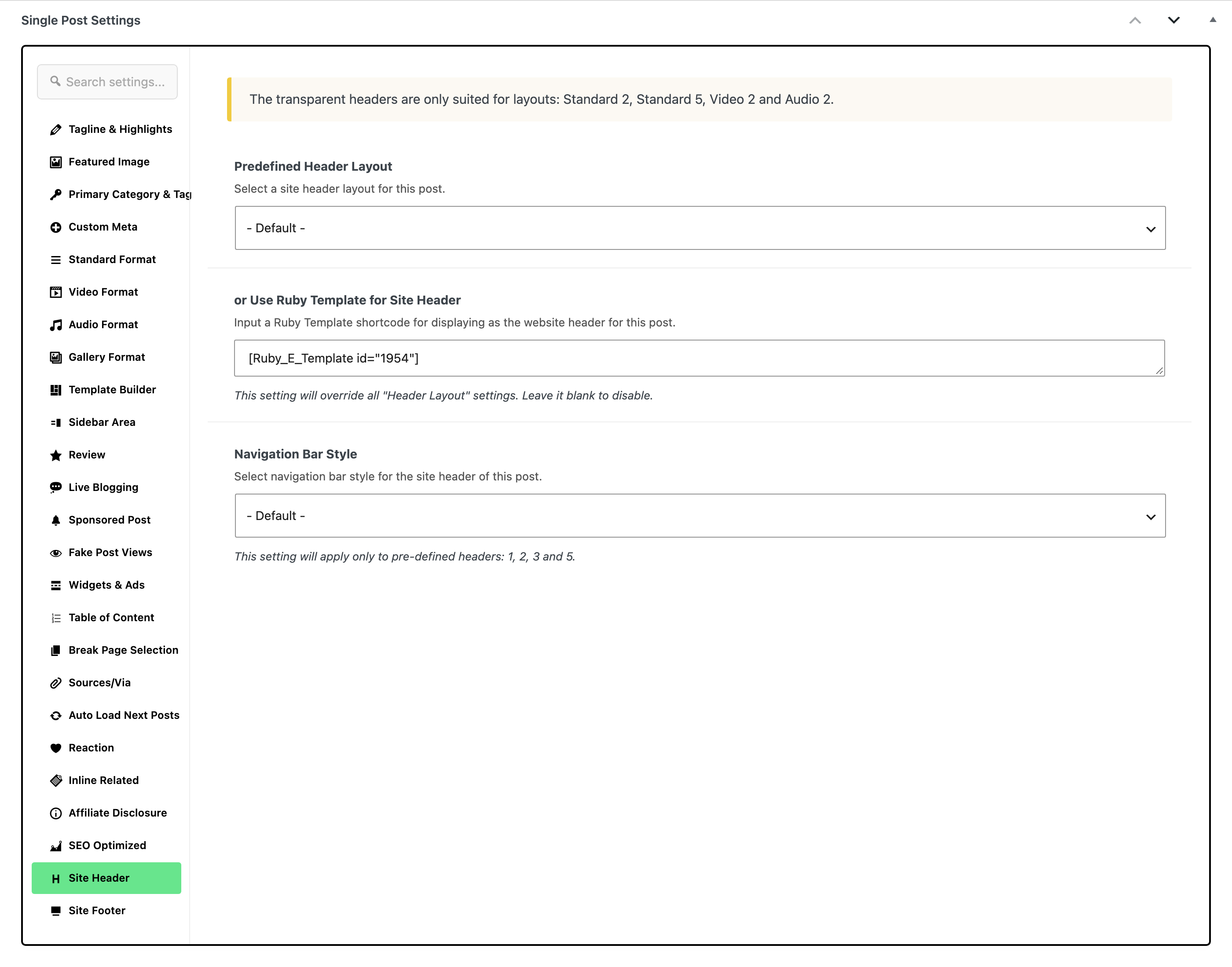
Select the post you would like to edit, then click on the edit link. At the bottom of the editor, click the Meta Boxes bar to open it, find the Single Post Settings box and open its Site Header tab.
-
Input the shortcode into the or Use Ruby Template for Site Header field. That is the per post name for the same thing; this box has no field called Template Shortcode. It beats every setting in the sections above for this post.
-
Click Save.
One trap in the same tab: Predefined Header Layout above the shortcode field. Set it to anything other than - Default - and the post uses that layout instead of any Theme Options template, including the format ones, even though you never touched this article's other screens. Leave it on - Default - unless you mean it.
A page works the same way, in a Single Page Settings box with the same Site Header tab, and a category in a Foxiz Category Settings box.
On a single post, Foxiz reads the screens above in this order and uses the first one that is set:
- The post's own Site Header tab, in its Single Post Settings: or Use Ruby Template for Site Header, or a Predefined Header Layout other than - Default -.
- Site Header for Video, Site Header for Audio or Site Header for Gallery, on a post of that format.
- Theme Options > Single Post > Site Header: its Template Shortcode, or failing that a layout picked in its Header Layout.
- Theme Options > Header > Header Layout, the general header.
Did this answer your question?