Header Overview: Predefined Layout or Ruby Template
The header is the bar at the top of every page: your logo, the main menu and icons such as search and dark mode.
In Foxiz your site has two headers:
- The desktop header shows on screens wider than 1024px: laptops and desktops.
- The mobile header shows at 1024px and below: phones and tablets.
They are set up separately. Whatever you choose for the desktop header does not change what phones show, so plan for both.


Two ways to build each one
Each header can be a predefined layout, which Foxiz draws for you from settings, or a Ruby Template, which you design yourself in Elementor.
| Predefined layout | Ruby Template | |
|---|---|---|
| Desktop header | Theme Options > Header > Header Layout: five layouts, Layout 1 (Left Menu) by default | the same field set to Use Ruby Template, then the shortcode in Template Shortcode |
| Mobile header | Theme Options > Header > Mobile Header > Header Layout: four layouts, Left Logo by default | or Use Ruby Template for the Mobile Header, in the same group |
The two choices are independent. A desktop Ruby Template still shows the predefined mobile header on phones until you build a mobile template as well.
Which should you use?
For most sites: a predefined layout on desktop and on mobile. You pick a layout, upload your logo, assign your menus, and the header is done, with no page builder.
Build a Ruby Template when a predefined layout cannot give you what you want, such as an extra row with the date and a price ticker, or your own arrangement of icons.
If you build a desktop template, keep the predefined mobile header at first. It already has everything a phone needs, and it shows your mobile logo and mobile menu. Build a mobile template only when you want the phone bar itself to look different.
Imported a demo? Open Theme Options > Header > Header Layout first and see what the demo uses. If it reads Use Ruby Template, your desktop header is a template already, and you change it by editing that template.
What the mobile header always takes from Theme Options
Even with a mobile Ruby Template, these parts come from settings, not from Elementor:
- The slide-open panel that the menu toggle opens: the mobile menu, a search box, social icons, a sign in link and a footer line. Set in Theme Options > Header > Mobile Header > Collapse Section.
- The Mobile Quick Access row, an optional row of links under the bar.
One thing catches most people out: the slide-open panel shows the menu assigned to the Mobile Menu location, and nothing else. It does not borrow your main menu. Assign a menu there, or visitors open an empty panel.
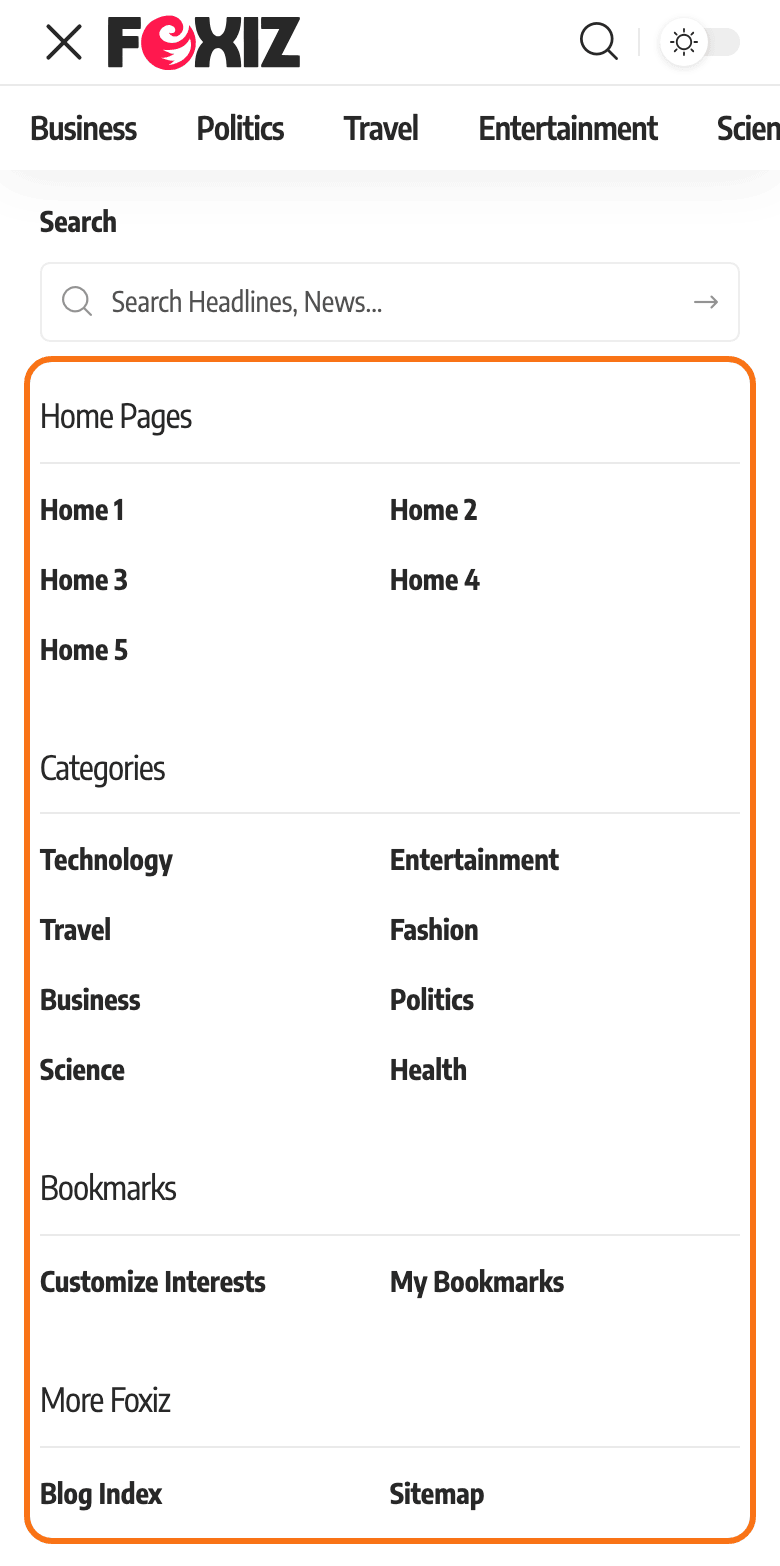
One page can have its own header
A page, post or category can show a different header from the rest of the site. Its own setting wins; leave it empty and it follows the site header. Pages also have their own field for the mobile header; posts and categories do not. The full order is in Header Layouts.
Where to go next
First, for any header:
- How to Upload Logo & Favicon?: your logo, mobile logo and dark mode logos.
- How to Create & Setup Header Menus? and How to Edit or Add Menus on Mobile Devices: the main menu and the mobile menu.
Predefined Header Layouts, in this order:
- How to Config The Header?: pick the desktop layout.
- Header Layouts: what each layout looks like, and a different layout for posts, categories or one page.
- How to Set Up the Mobile Header: the phone and tablet header.
- Then the extras: sticky menu, dark mode, alert bar.
Custom Header with Ruby Template, in this order:
- How to Create Header Templates and Assign It to Your Website: build the desktop template and make it the site header.
- How to Add the Logo on the Header Template
- How to Add Header Template Builder to Elementor Page: a template on one page only.
- Structuring Mobile Header Layout Using Ruby Template: the mobile template, if you want one.
Did this answer your question?