How to Config The Header?
Foxiz comes with many predefined header layouts, the ready-made headers you pick from a list. Additionally, you can build your own header using Ruby Templates.
To set the header for the whole site:
-
Go to Theme Options > Header > Header Layout and pick a layout in the Header Layout dropdown. Its default is Layout 1 (Left Menu). Header Layouts shows how the five differ and which to start with.
Imported a demo? Look at the dropdown before you change it. When it reads Use Ruby Template, the demo's header is a header template: a header built in Elementor and saved as a Ruby Template. You edit that header in Elementor rather than here (How to Create Header Templates and Assign It to Your Website). If one page keeps a different header, that page sets its own in its Single Page Settings box (How to Choose a Custom Header Style for a Elementor Page).
-
Click Save Changes.
-
Open your site in another tab, or reload it, to see the new header.
-
Fine tune it in the subsection named for your layout: for Header 1,2,3, for Header 4 or for Header 5, described below.
You will find almost every header option at Theme Options > Header.
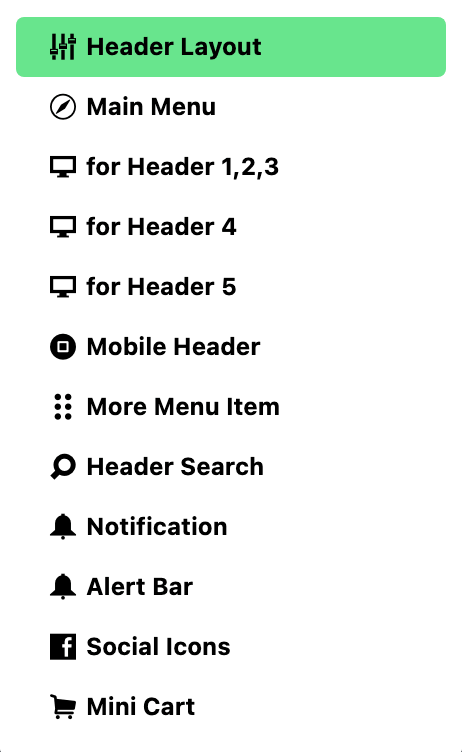
The panel is twelve subsections, and this is what each one is for:
-
Header > Header Layout: picks the layout for the whole site, and holds the Template Shortcode box for a Ruby Template header. Two settings.
-
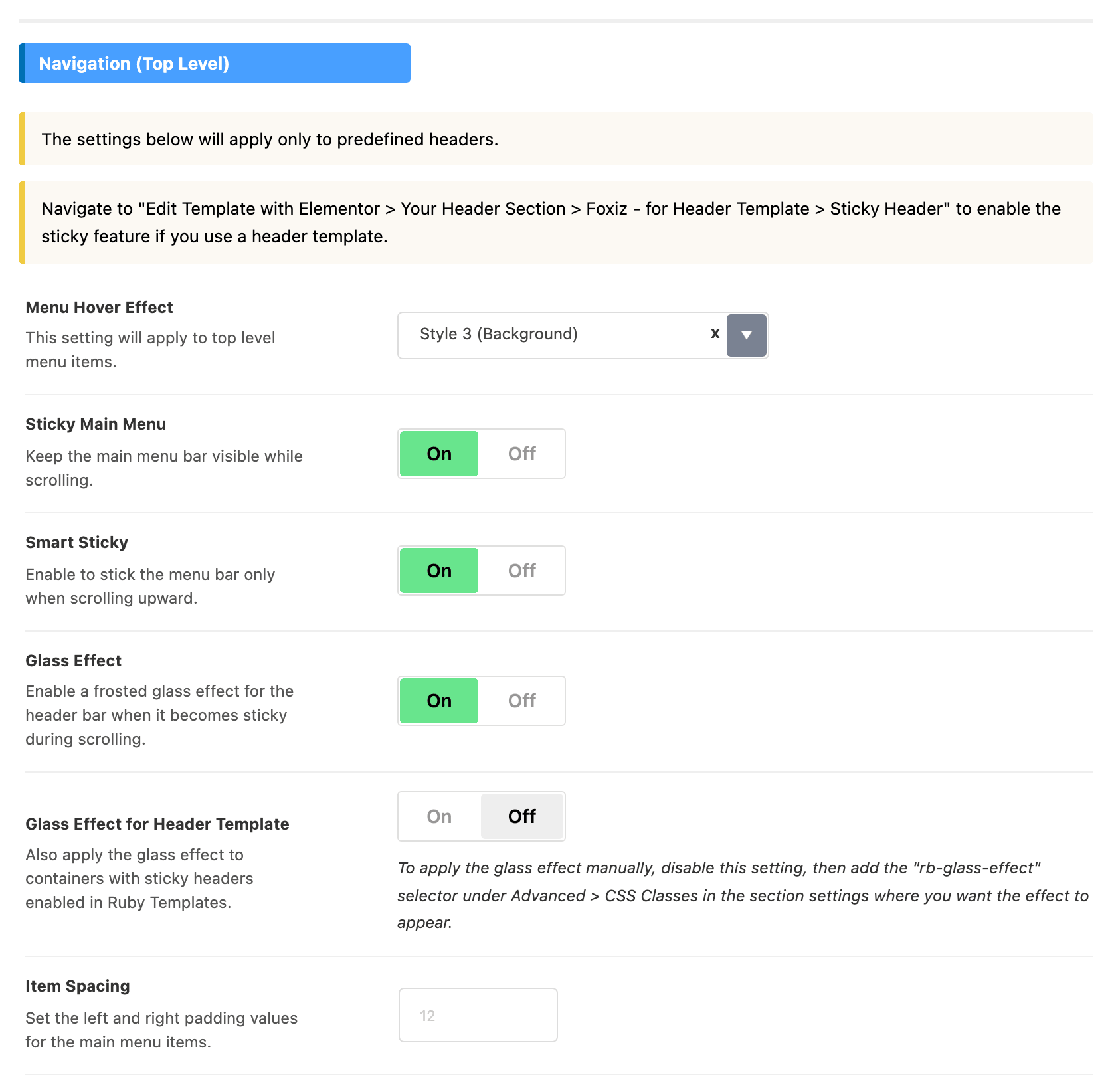
Header > Main Menu: everything about the navigation itself. Hover effect, sticky behaviour, item spacing, and the colours of submenus and every other header dropdown. These apply to all five predefined layouts.
-
Header > for Header 1,2,3, for Header 4 and for Header 5: three panels, not five. Each holds the width, navigation height, logo height, More Menu Button, Social Icons and the navigation colours for the layouts named in its title, and only those. Only for Header 1,2,3 has a Transparent Headers colour group.
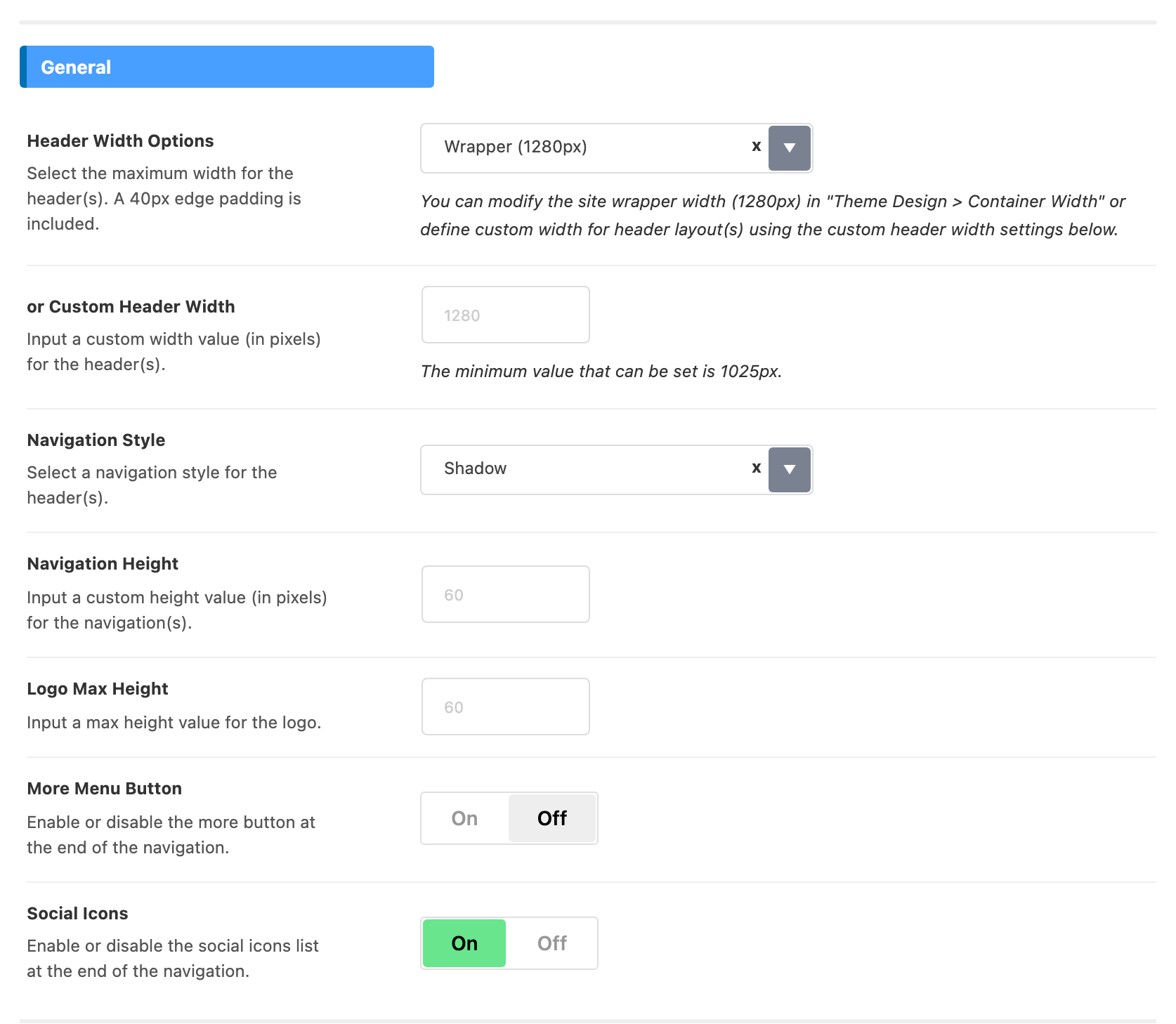
The three panels share most of their controls. In the order they appear, with the differences noted:
- Header Width Options offers Wrapper (1280px) and Full Width (100%). for Header 1,2,3 and for Header 4 default to Wrapper (1280px); for Header 5 defaults to Full Width (100%).
- or Custom Header Width swaps the 1280px wrapper for a width of your own, in pixels, for those layouts only. Anything under 1025 is raised to 1025, and the field changes nothing while Header Width Options is on Full Width (100%).
- Navigation Style is the shadow or border that separates the navigation bar from the page. In for Header 1,2,3 it offers Shadow, Bottom Border, Dark Bottom Border and None. Its default is Shadow. for Header 5 adds Top & Bottom Border, Dark Top & Bottom Border and Border Top & Bottom Shadow. Its default is Bottom Border. for Header 4 has no such field. A post or page, and the Category, Blog Index and Search Page panels, each have a Navigation Bar Style that overrides it there.
- Navigation Height is the bar's height in pixels. Blank keeps the number shown greyed in the field: 60 for Header 1, 2 and 3, 40 for Header 4 and 5.
- Logo Max Height caps the logo's height in pixels, so a tall logo file cannot stretch the bar. Blank means 60.
- More Menu Button is off by default and Social Icons is on by default, in all three panels.
- The Menu group colours the navigation bar with four fields, all empty by default: Navigation Background (use its "To" box for a gradient), Text Color, Hover Text Color and Hover Accent Color. Hover Accent Color colours the border, underline or background that Menu Hover Effect in Main Menu draws under the current and hovered item.
- Dark Mode - Menu holds the same four fields for readers in dark mode. Set them whenever you set the light ones.
- Transparent Headers, in for Header 1,2,3 only, holds Text Color, Hover Text Color and Hover Accent Color for the three transparent layouts. Their dropdowns keep the Sub-Level Menus colours.
-
Header > Mobile Header: options for the mobile header. Every field is described in Every Setting in the Mobile Header Panel.
-
Header > More Menu Item: options for the More menu button.
-
Header > Header Search: options for the search form to display in the website header. Every field is described in Every Setting in the Header Search Panel.
-
Header > Notification: options for the bell icon that shows the latest blog listing. It lists recent posts only, not the reader's bookmarks, and is off by default. Every field is described in Every Setting in the Notification Panel.
-
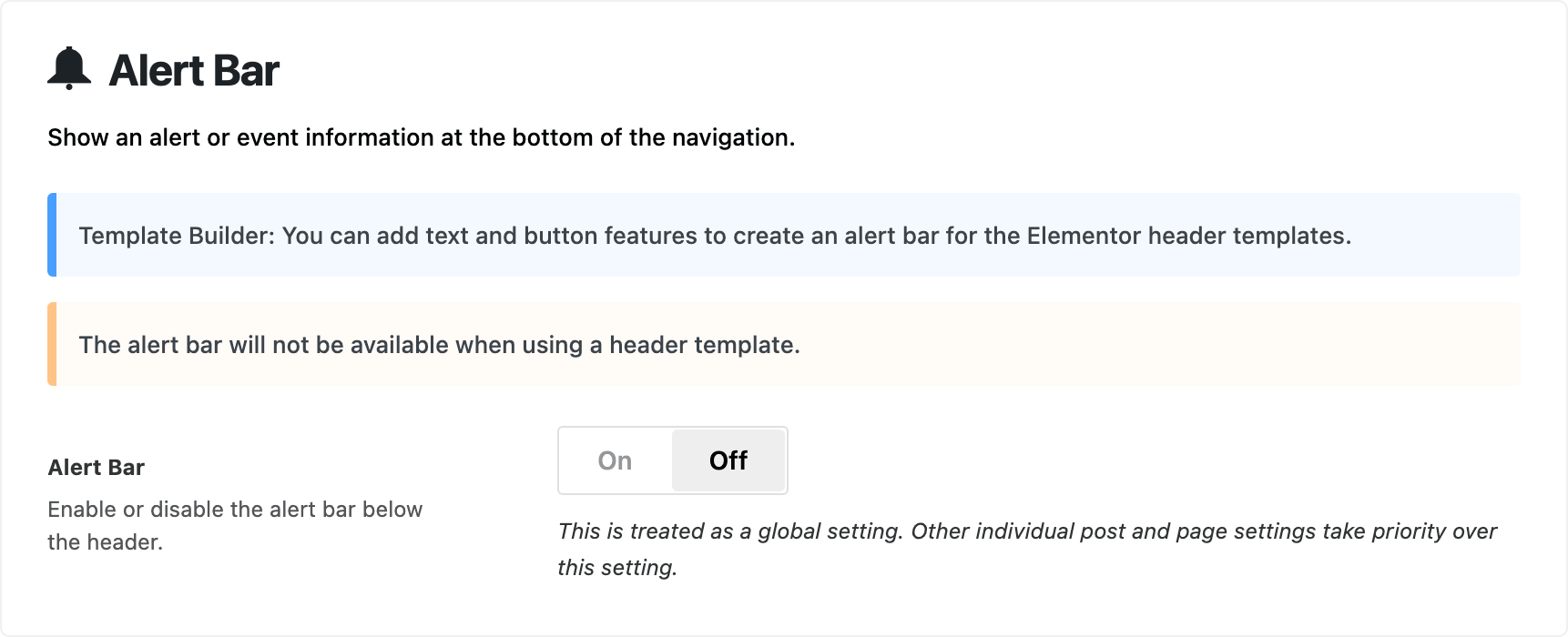
Header > Alert Bar: options for a small alert or event at the bottom of the navigation. Eight of its nine settings stay hidden until you turn Alert Bar on, so a panel showing one switch is normal.
-
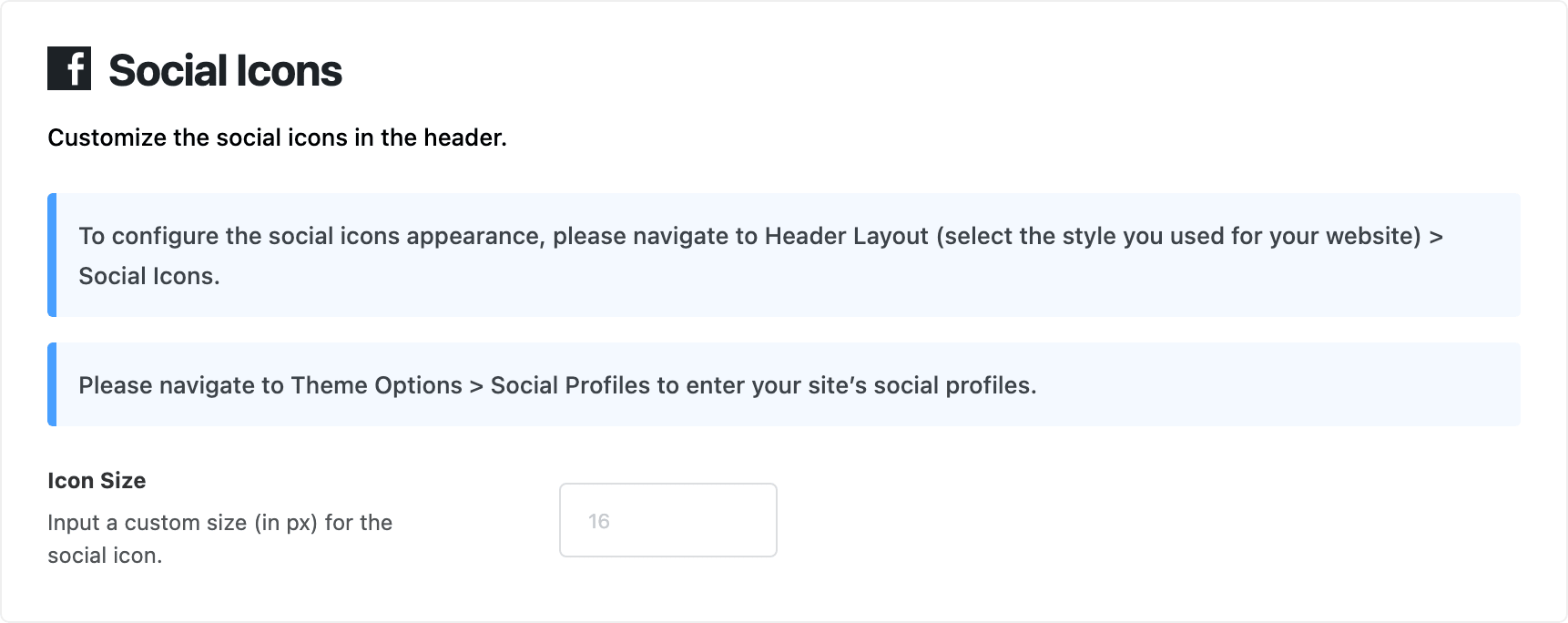
Header > Social Icons: one setting, Icon Size. The on and off switch is not here: it is Social Icons in whichever of for Header 1,2,3, for Header 4 or for Header 5 matches your layout, and the links themselves come from Theme Options > Social Profiles.
-
Header > Mini Cart: the cart icon in the header. Its six settings are registered only when WooCommerce is active; without it the subsection shows a single notice.

Two things a reader looks for under Header and will not find there:
-
Popup Sign In moved. The sign in button, its layout, the logged in user dropdown and the popup form are all at Theme Options > Login > Popup Sign In. The button is off by default.
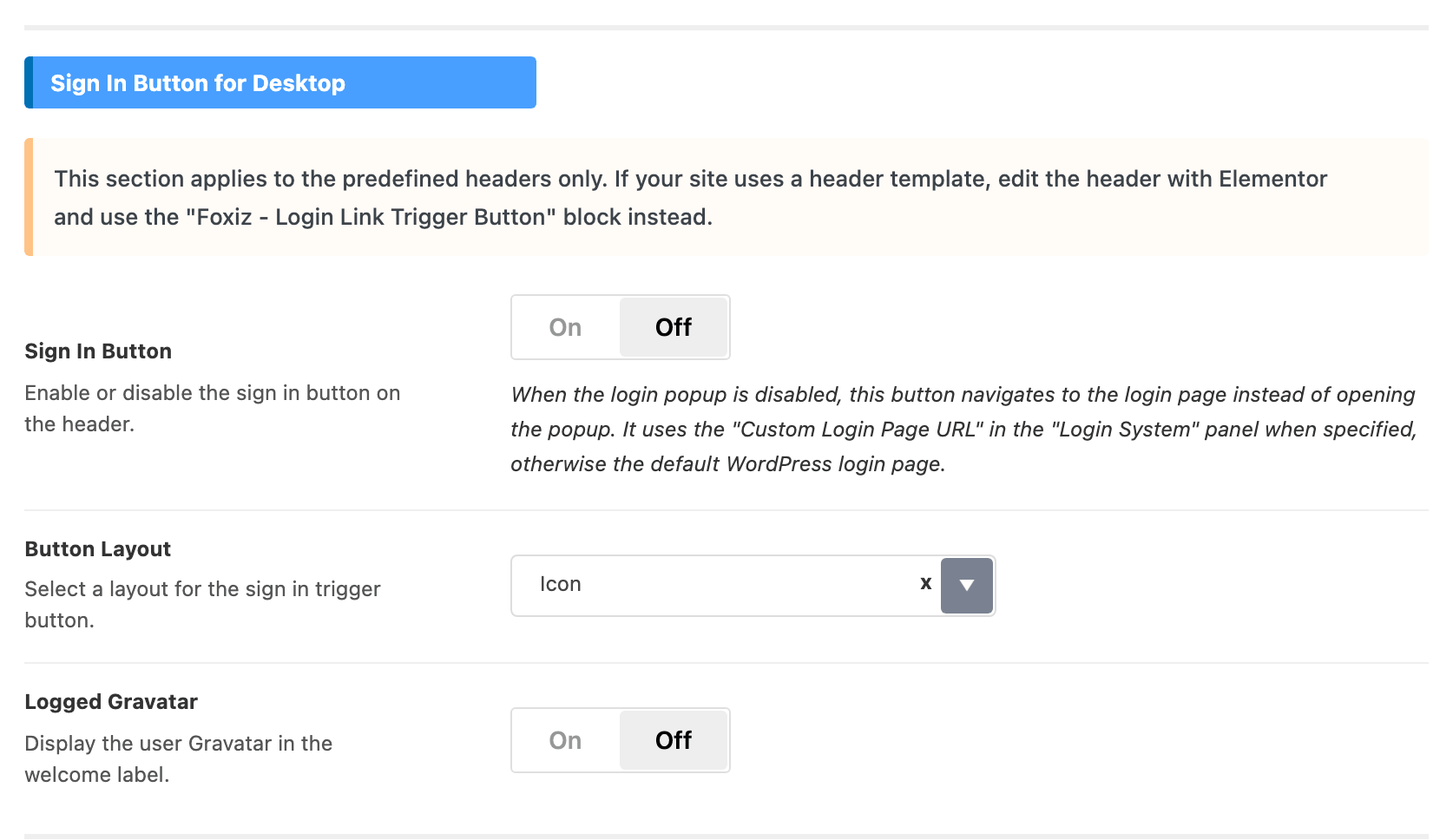
Each field in that subsection is explained in Every Setting in the Login Panel.
-
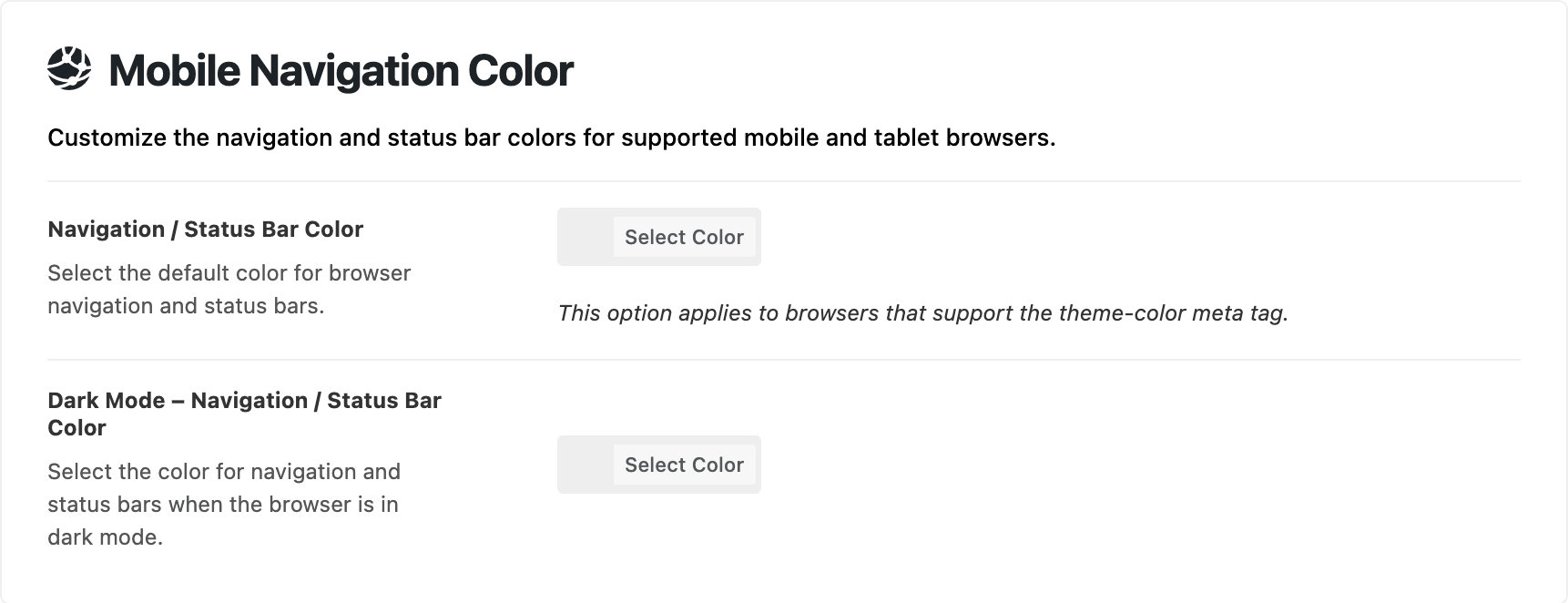
Mobile Navigation Color, which sets the colour of the browser bar on a phone, is at Theme Options > Theme Design > Mobile Navigation Color.
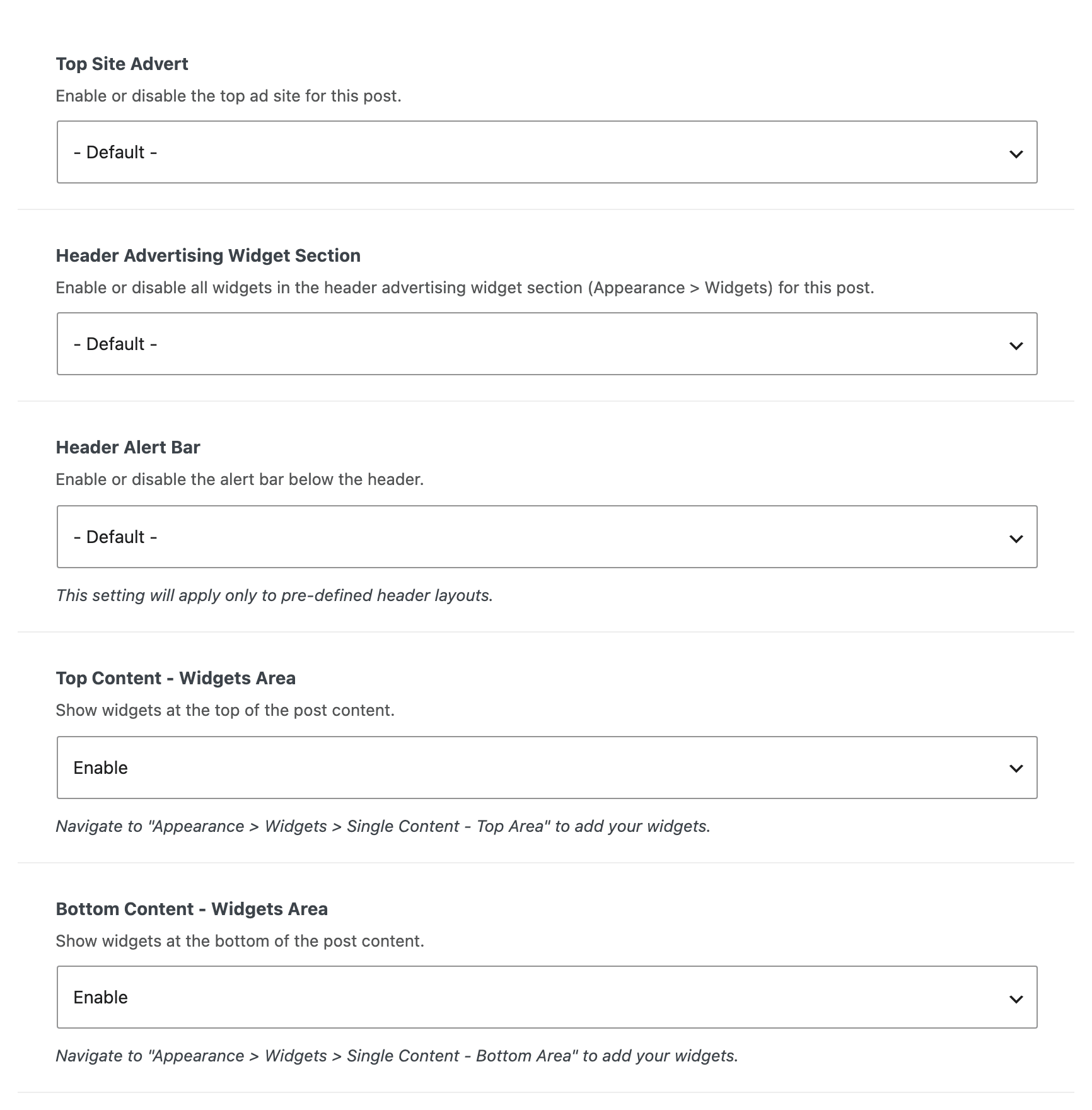
The logos are their own panel as well, at Theme Options > Logo, and the alert bar can be forced on or off for one post from the Header Alert Bar field in its Single Post Settings box.
Mobile Header
Phones and tablets show a separate mobile header, set up on its own. How to Set Up the Mobile Header walks it step by step. In short:
-
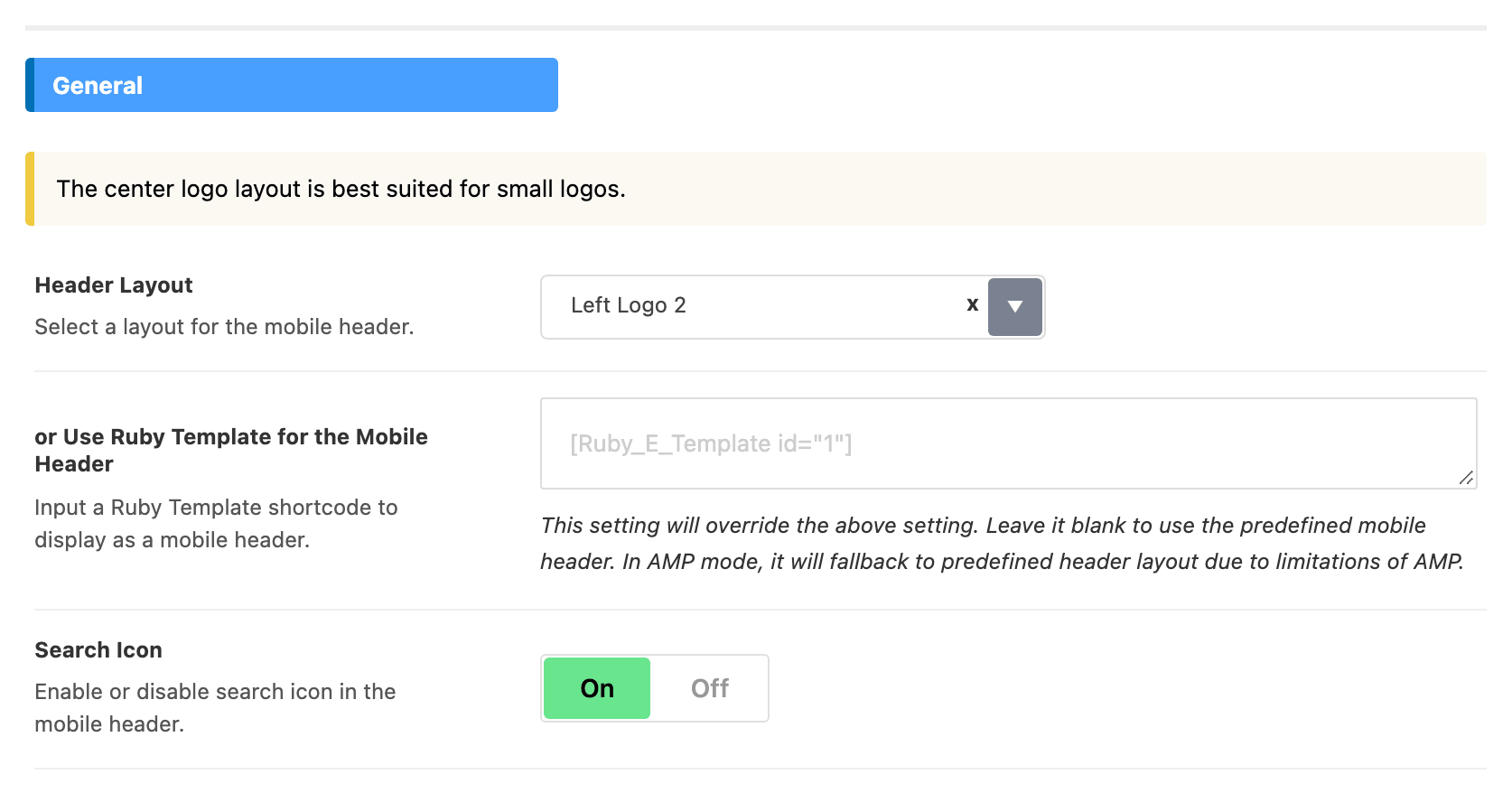
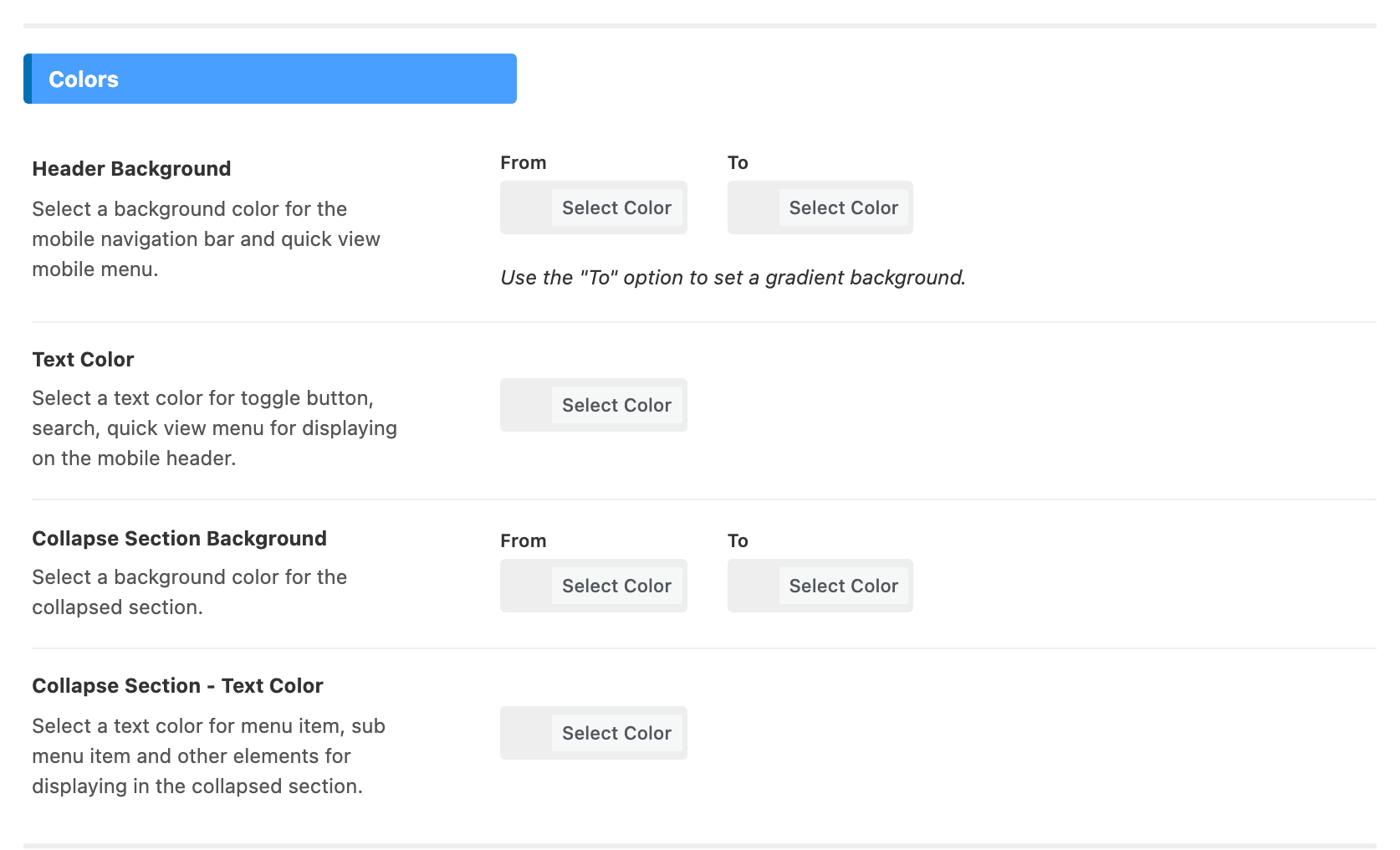
Theme Options > Header > Mobile Header: for layouts, colors and the collapse section. The subsection has five groups: General, Collapse Section, Collapse Section Template, Colors and Dark Mode Colors.

-
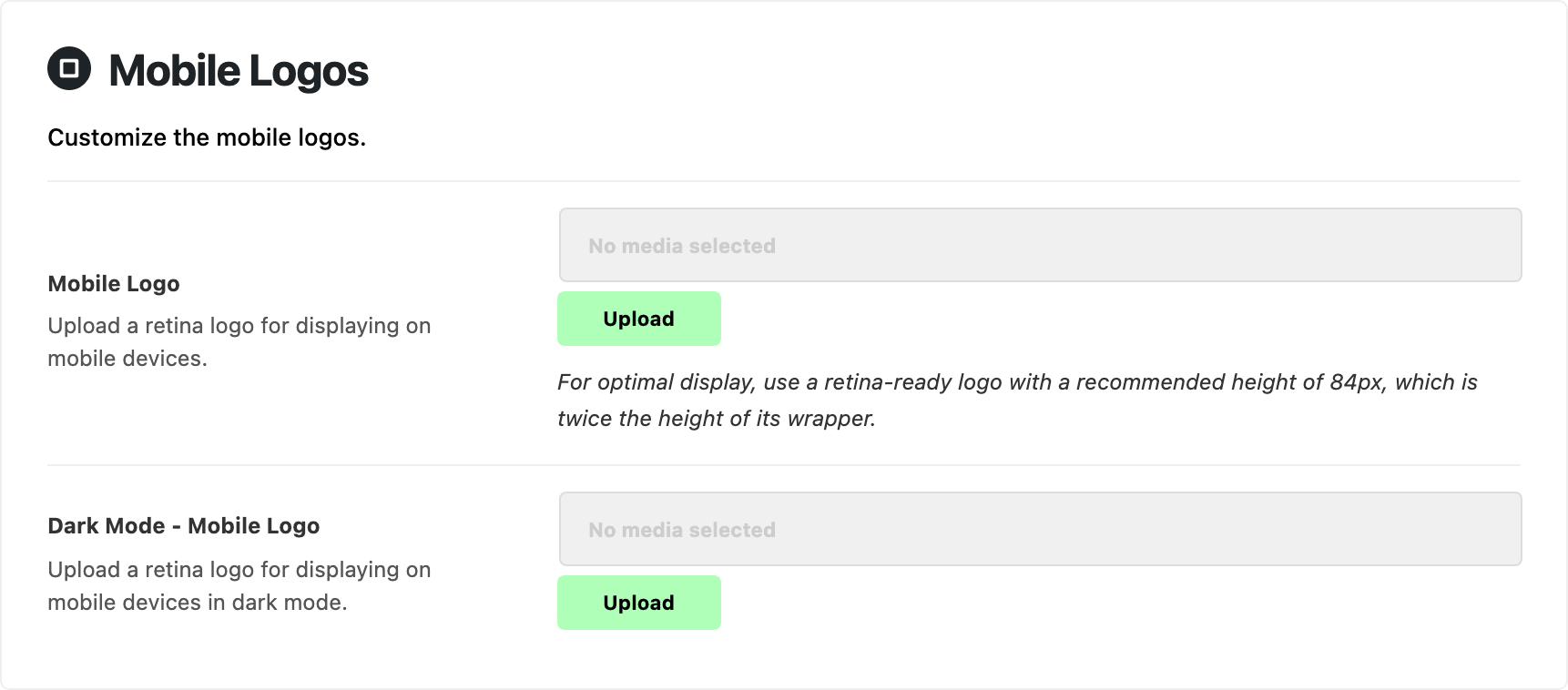
Theme Options > Logo > Mobile Logos: for logos. Leave Mobile Logo empty and the desktop Main Logo is used instead, so you only need this when the two differ.
The colour fields under Colors are blank by default, and blank means the mobile bar inherits the desktop navigation colours. If you set any of them, set the Dark Mode Colors twins as well, because they do not fall back to the light values.
There is no separate sticky switch for mobile. The mobile bar renders inside the same sticky holder as the desktop header, so Sticky Main Menu governs both.
Did this answer your question?