How to Upload Logo & Favicon?
Foxiz is coded with responsive design methods in mind. That is why it has a lot of different logos for the desktop and mobile.
Uploading Your Logo
There are several places to upload your logos. Head over to Theme Options > Logo > Default Logos
Imported a demo? Check your header before you upload here. A demo can build its header as a header template: a header made in Elementor and saved as a Ruby Template. Your site has one when Theme Options > Header > Header Layout > Header Layout reads Use Ruby Template and the Template Shortcode box under it holds a shortcode, a line such as [Ruby_E_Template id="12"].
On a header template the logo is set in the template's Foxiz - Site Logo block, in its own Logo Image and Dark Mode - Logo Image fields. It uses Main Logo from this panel only when those are empty. The Logo panel carries the same warning.
Updating the logo in Theme Options doesn't work shows how to open that block and change the logo, or clear it so this panel's logo shows.
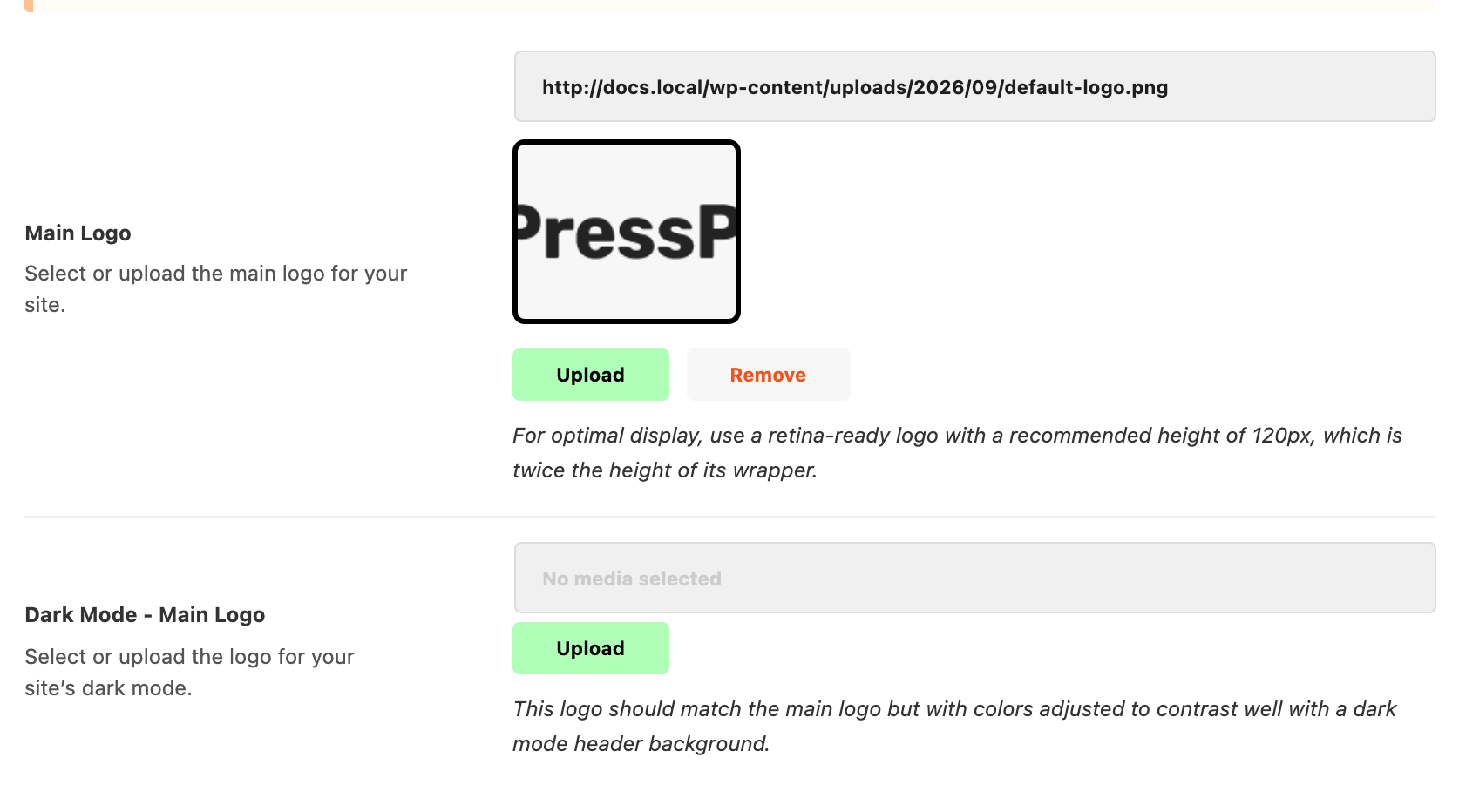
- Main Logo: This logo will be used as the default logo. It will appear on desktop devices. Upload it at twice the height you want it drawn at: the recommended logo height is 120px, because the wrapper is 60px.

- Dark Mode - Main Logo: This logo is shown in dark mode. It will appear on desktop devices. Same 120px, and it should match the main logo with its colours adjusted to read against a dark header. Leave it empty and the main logo is reused in dark mode, unchanged.
Those are the only two fields in Default Logos. There is no separate Retina Main Logo any more, and no dark twin of one: Main Logo is the retina logo, which is why its recommended height is double its wrapper.
The other logos live in subsections beside it, under the same Logo panel:
- Mobile Logos holds Mobile Logo, recommended height 84px against a 42px wrapper, and Dark Mode - Mobile Logo. Leave Mobile Logo empty and the desktop Main Logo is used on phones; leave the dark one empty and it falls back to Dark Mode - Main Logo, then to Mobile Logo.
- Transparent Logos holds one field, Transparent Logo, also 120px.
- Organization Logo is not drawn on the page at all. It goes into the schema markup and into the card social networks show when someone shares your front page. Leave it blank to use the main logo.
- Bookmarklet holds the two home screen icons: iOS Touch Icon at 180x180px and Windows Metro Tile Icon at 144x144px, plus an Add to Home Screen switch that needs the iOS icon set.
We recommend the .png format for your logo, because it allows transparent space.
Transparent Logos
The theme will use the transparent logos for displaying in the transparent headers.
To upload transparent logos, head over to Theme Options > Logo > Transparent Logos
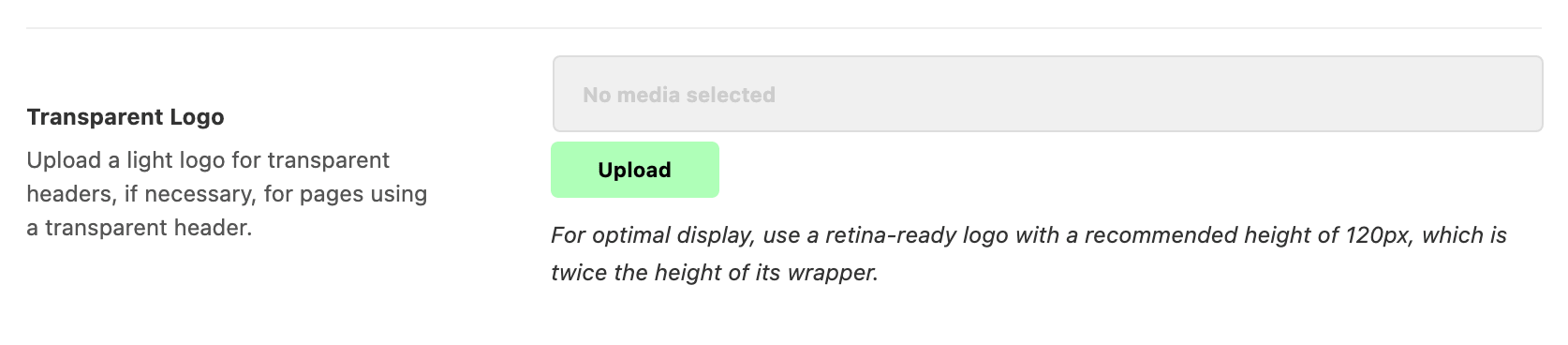
Two conditions decide whether it is ever seen, and both are easy to miss:
- Only above 1025px. The rule that reveals it lives inside a desktop media query, so a phone or a narrow tablet shows the ordinary logo even on a transparent header.
- Only until the header sticks. The rule requires a page that has not scrolled far enough to engage the sticky bar, so the moment the sticky header takes over, the normal logo comes back.
The global Header Layout has no transparent header, so the transparent logo does nothing until you pick Transparent - Layout 1, Transparent - Layout 2 or Transparent - Layout 3 somewhere narrower. They are offered in:
- Theme Options > Single Post > Site Header, for every post.
- Theme Options > Category, Blog Index and Search Page, for those pages.
- The header dropdown of a single post, a page or a term, for that one.
Header Layouts says which of these wins.
Footer Logo
To upload the footer logo, navigate to Theme Options > Footer > Logo & Socials > Footer Logo
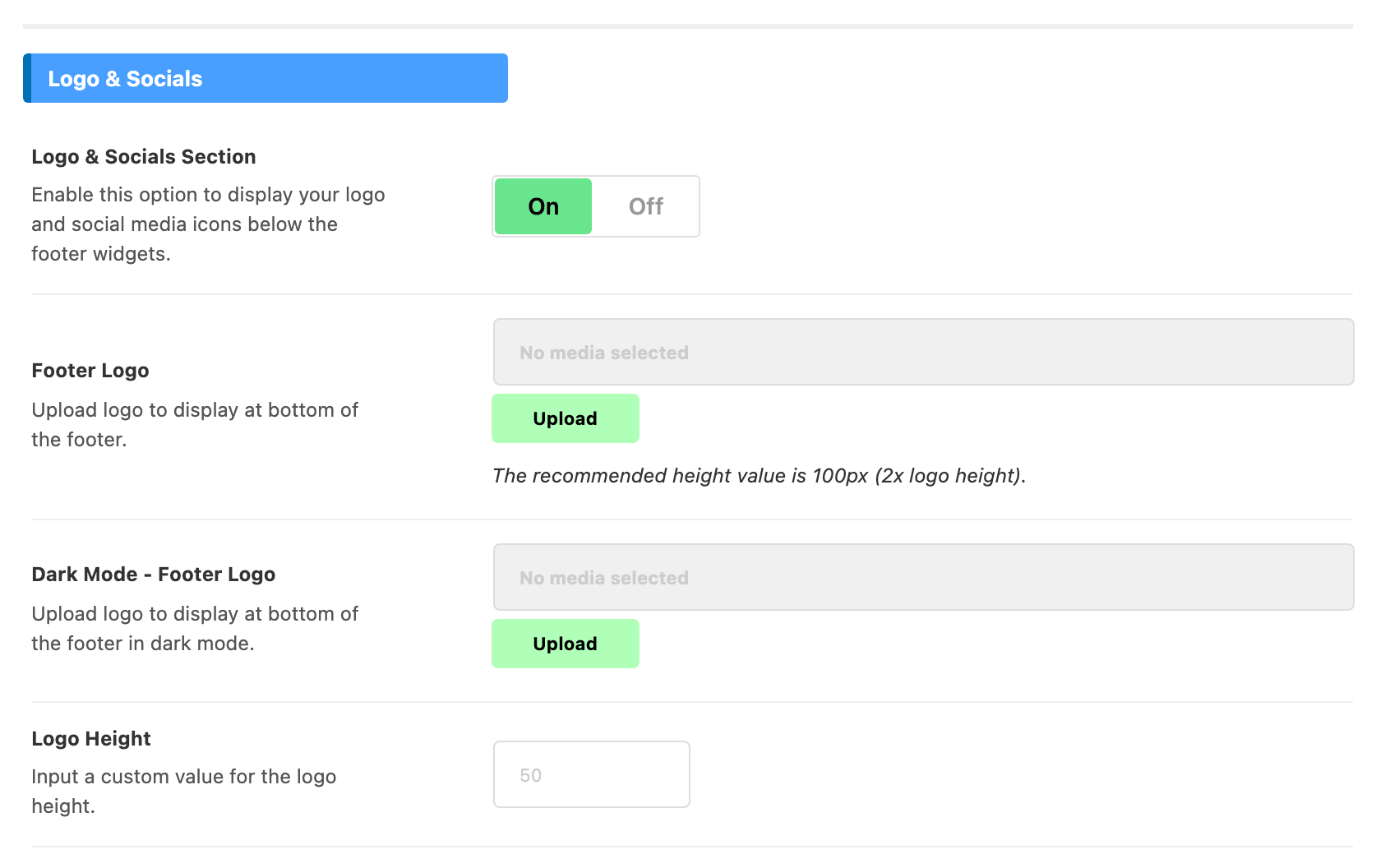

The field only appears once Logo & Socials Section above it is on, which it is by default. Its dark twin, Dark Mode - Footer Logo, is in the same group rather than with the copyright settings.
Favicon Upload
You can add a favicon or site icon from the WordPress admin area. Follow the steps below:
- Navigate to Appearance > Customize.
- Click on the "Site Identity" tab.
- At "Site Icon", click on the "Select Site Icon" button and then upload the image you want to use. It should be square and at least 512 by 512 pixels.
The same setting is also at Settings > General, under Site Icon, and that is where Foxiz's own Logo panel sends you. Either route writes the same value.
Refer to How to add a favicon for more details.
Did this answer your question?