How to Add Blog Template Builder to Archive Page
This swaps the theme's post list on archive pages for one you lay out in Elementor. The page header is still the theme's. Below it, a listing block set to Use WP Global Query shows the posts of the archive being viewed.
Here the archive page means the post listings that have no panel of their own: a date archive such as one month's posts, a custom taxonomy, a post type archive. Theme Options > Archives is the overall setting for them, and for tags until the Tag Page panel sets its own.
To get started, follow the steps below:
-
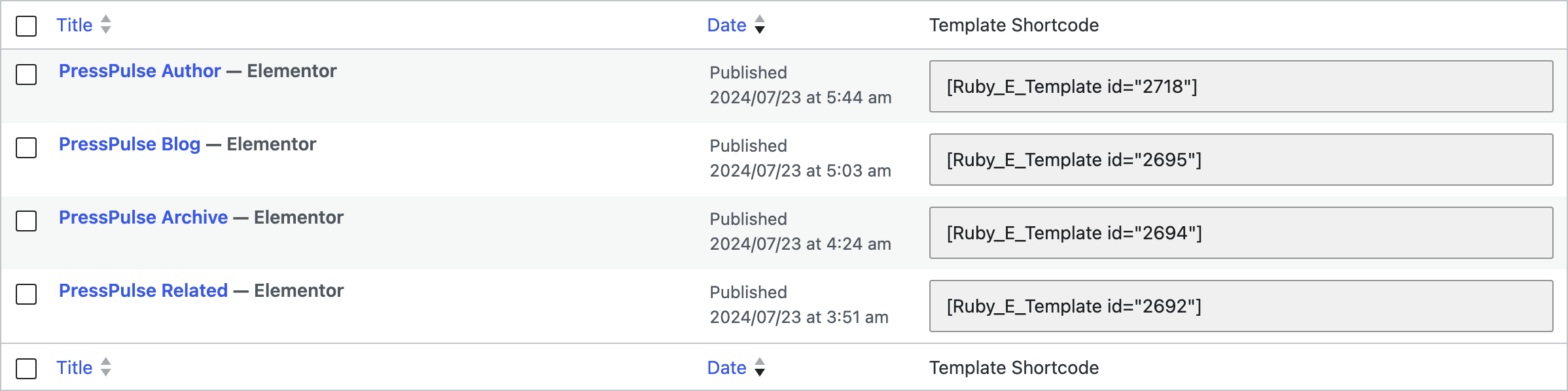
Create your template at Dashboard > Ruby Templates and copy its shortcode. Then drag one listing block from the Elementor panel into the template: it is the block that will show the archive's posts. Foxiz - Grid 1 is a good start, or Foxiz - Classic for a one column blog look; any of the fifteen blocks in step 2 works. To create a template, you can refer to this documentation: Ruby Templates
-
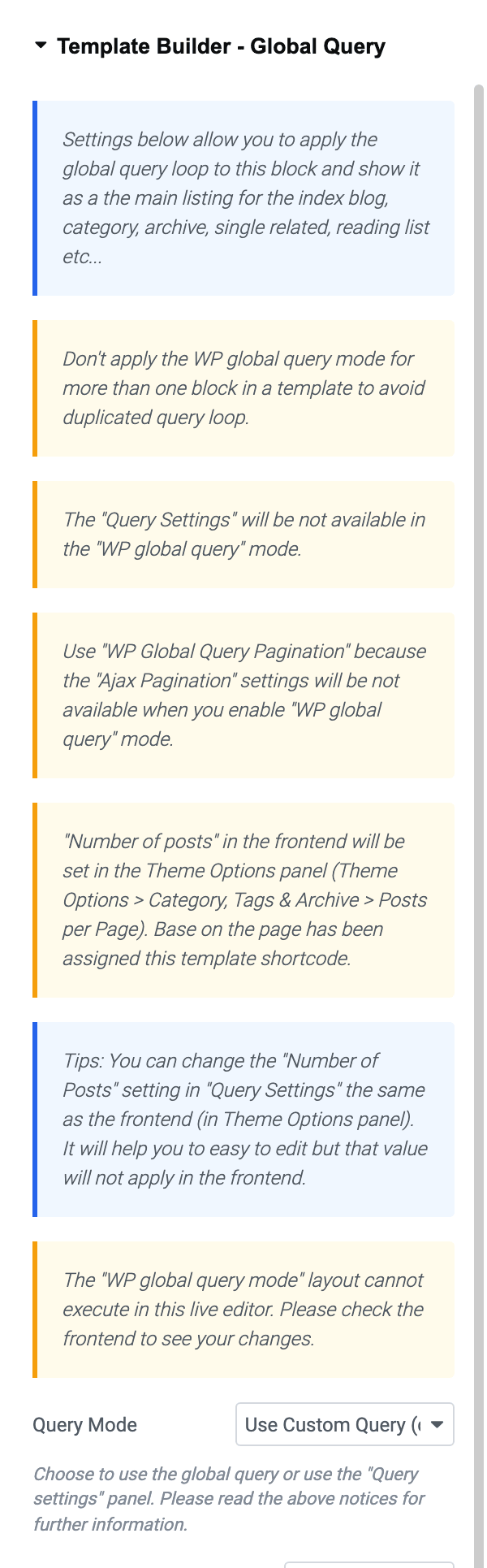
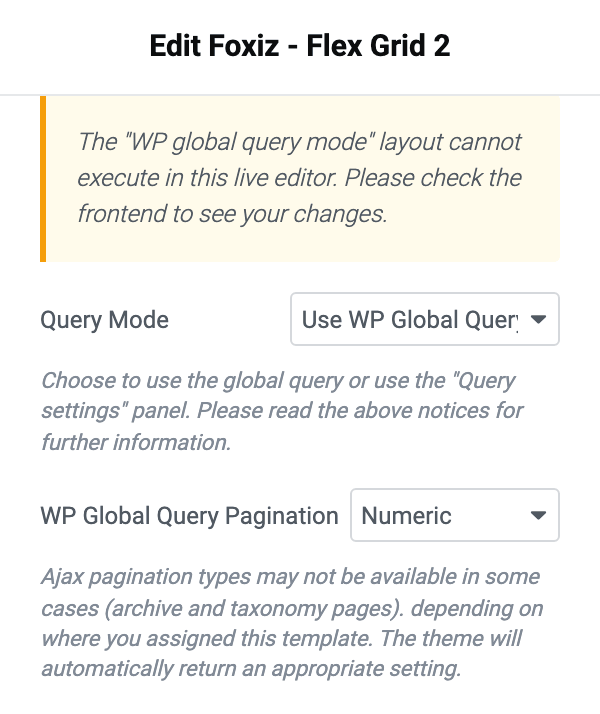
In the template, click the listing block and, in its settings panel, open Content > Template Builder - Global Query > Query Mode. That section is drawn only while you are editing a Ruby Template. It appears only on the fifteen Foxiz blocks that can take over a page's main listing:
- Classic: Foxiz - Classic
- Grids: Foxiz - Grid 1, Foxiz - Grid 2 and Foxiz - Small Grid
- Boxed grids: Foxiz - Boxed Grid 1 and Foxiz - Boxed Grid 2
- Flex grids: Foxiz - Flex Grid 1 and Foxiz - Flex Grid 2
- Lists: Foxiz - List 1, Foxiz - List 2 and Foxiz - Flex List
- Boxed lists: Foxiz - Boxed List 1 and Foxiz - Boxed List 2
- Overlays: Foxiz - Overlay and Foxiz - Flex Overlay
-
Select Use WP Global Query for displaying the main blog listing. The block then lists the posts WordPress would show on the archive page, as that page's main listing.

-
Just below Query Mode, set WP Global Query Pagination to Numeric. Its default, - Disable -, prints no page links, so readers cannot reach older posts. Pick Numeric or Simple here: on a date archive the two AJAX choices turn into Numeric anyway.
-
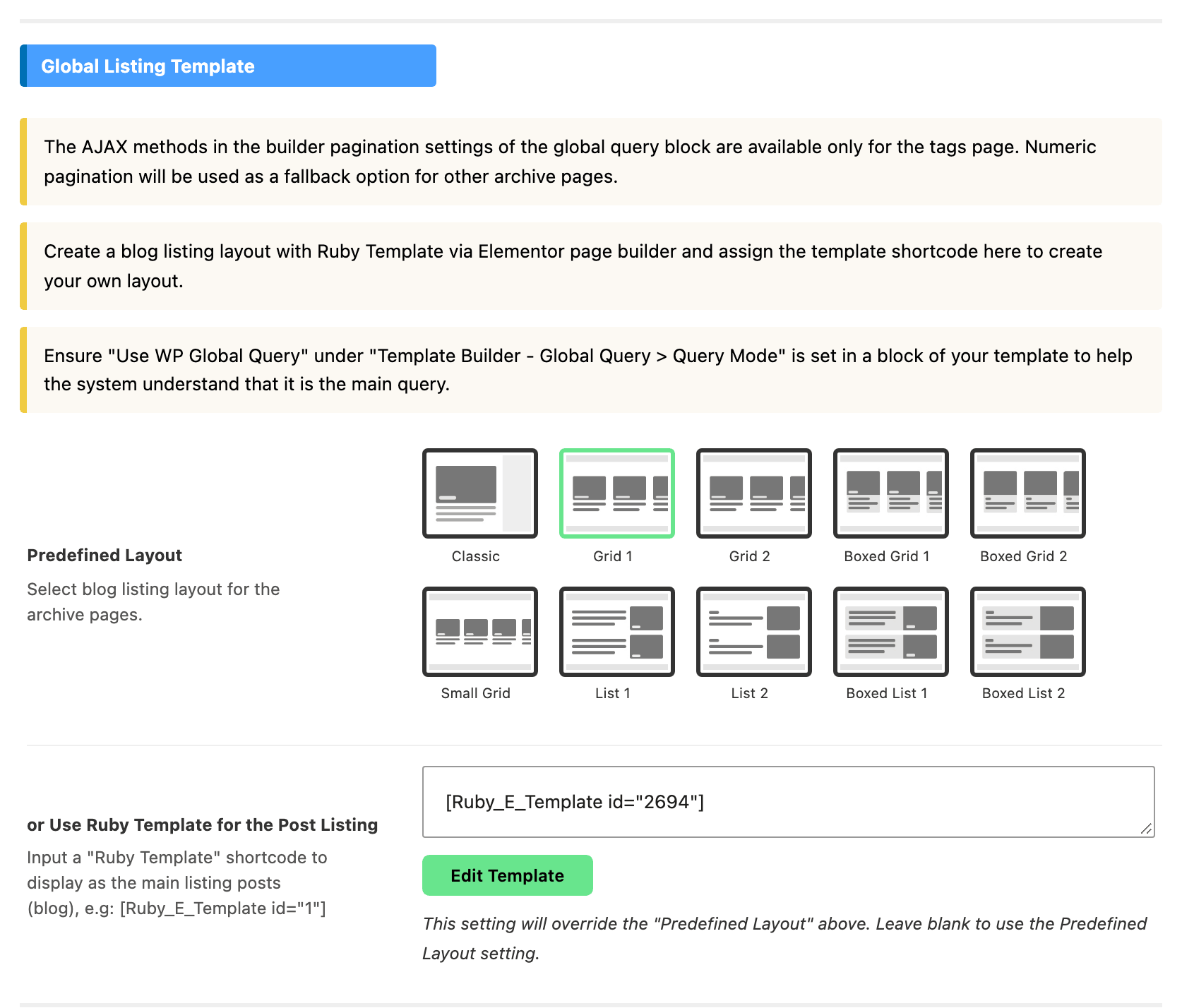
Navigate to Theme Options > Archives > Global Listing Template. Archives is a top level panel.
-
Input a ruby template shortcode into the or Use Ruby Template for the Post Listing input. It overrides the Predefined Layout picker above it, which is what the "or" in its name means; leave it blank and the archive uses that picker instead.
-
Click save changes.
Notes when using WP Global Query:
Don't apply the WP global query mode for more than 1 block in a template to avoid duplicated layouts.
The Query Settings are ignored in WP global query mode. The fields stay on screen and are simply never read: in global mode the block shows the archive's own posts, whatever the filters say.
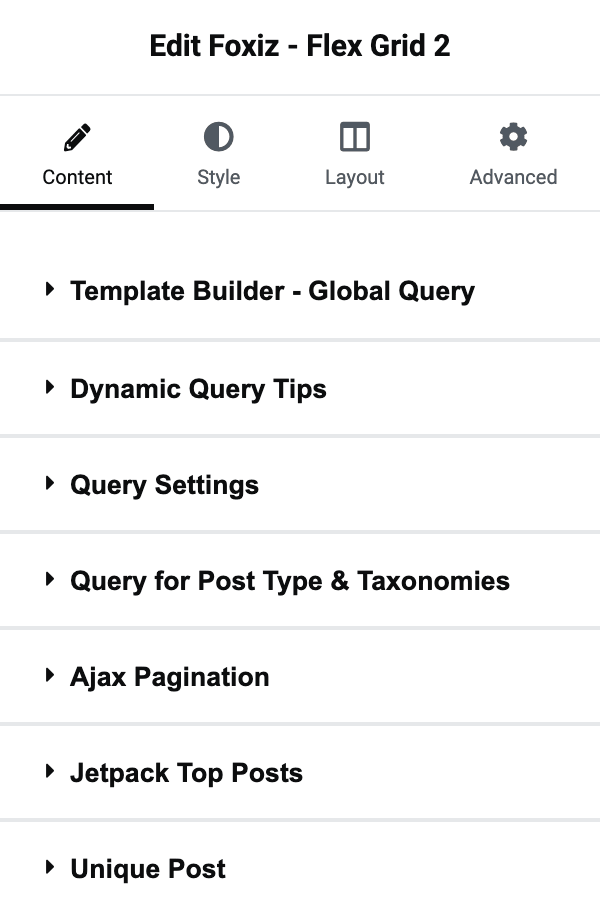
Unique Post, in its own Unique Post section, is the one query setting that keeps working in global mode: it re-runs the query excluding posts an earlier block on the page already showed. Its default is Disable.
Use WP Global Query Pagination instead of Ajax Pagination: the Ajax Pagination settings are ignored in WP global query mode. WP Global Query Pagination is in the same Template Builder - Global Query section and its default is - Disable -, and at that value the archive gets no pagination at all. Choose Numeric, Simple, Show More (ajax) or Infinite Scroll (ajax) instead.
On a plain archive the two AJAX choices do not survive. Category, tag, author, search and series listings keep them, but a date archive, a post type archive or any other taxonomy archive falls back to Numeric on output, so the setting looks ignored rather than broken. AMP does the same to every listing.
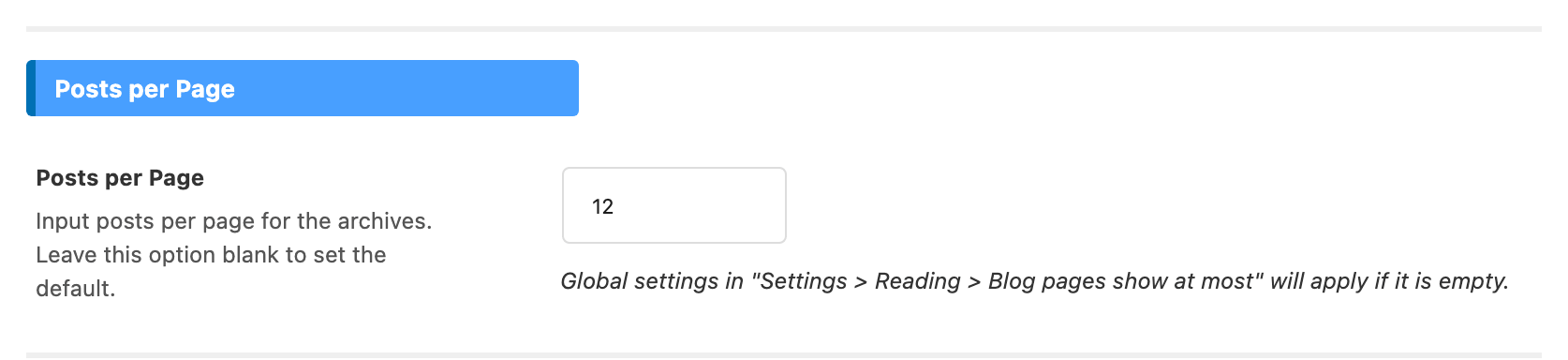
To change the number of posts per page, navigate to Theme Options > Archives > Posts per Page. The section and the field inside it are both called Posts per Page, and with the field empty the archive uses the WordPress Settings > Reading value.
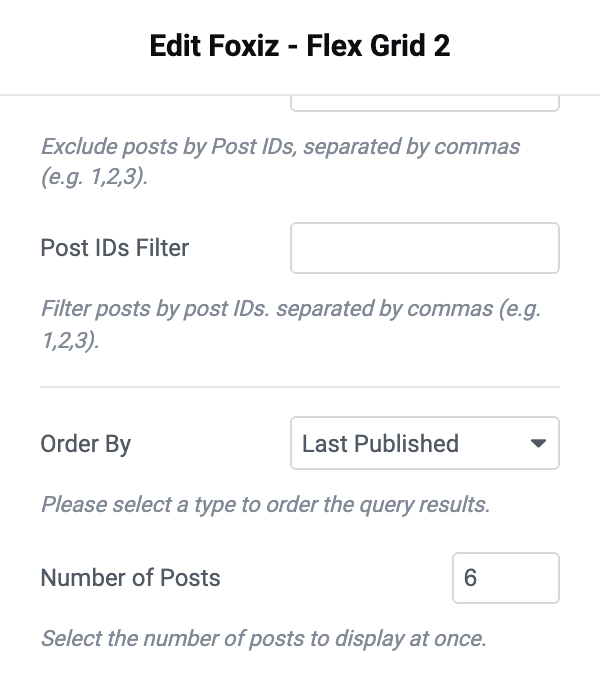
Tip: set Number of Posts in the block's Query Settings to the number the page shows on the front end, so the editor preview looks like it. That number is for the editor only and the plugin's own tip says it will not apply on the front end.
The "WP global query mode" layout cannot execute in this live editor. Check the result on the front end, once the template is assigned.
Did this answer your question?