How to Add Blog Template Builder to Blog Index
Here you design the blog page's list of posts yourself, in Elementor, instead of picking one of the theme's predefined layouts. One listing block in the template is set to Use WP Global Query, so it shows the blog's latest posts and pages through them like the theme's own list. A featured area set at the top of the blog page stays above it.
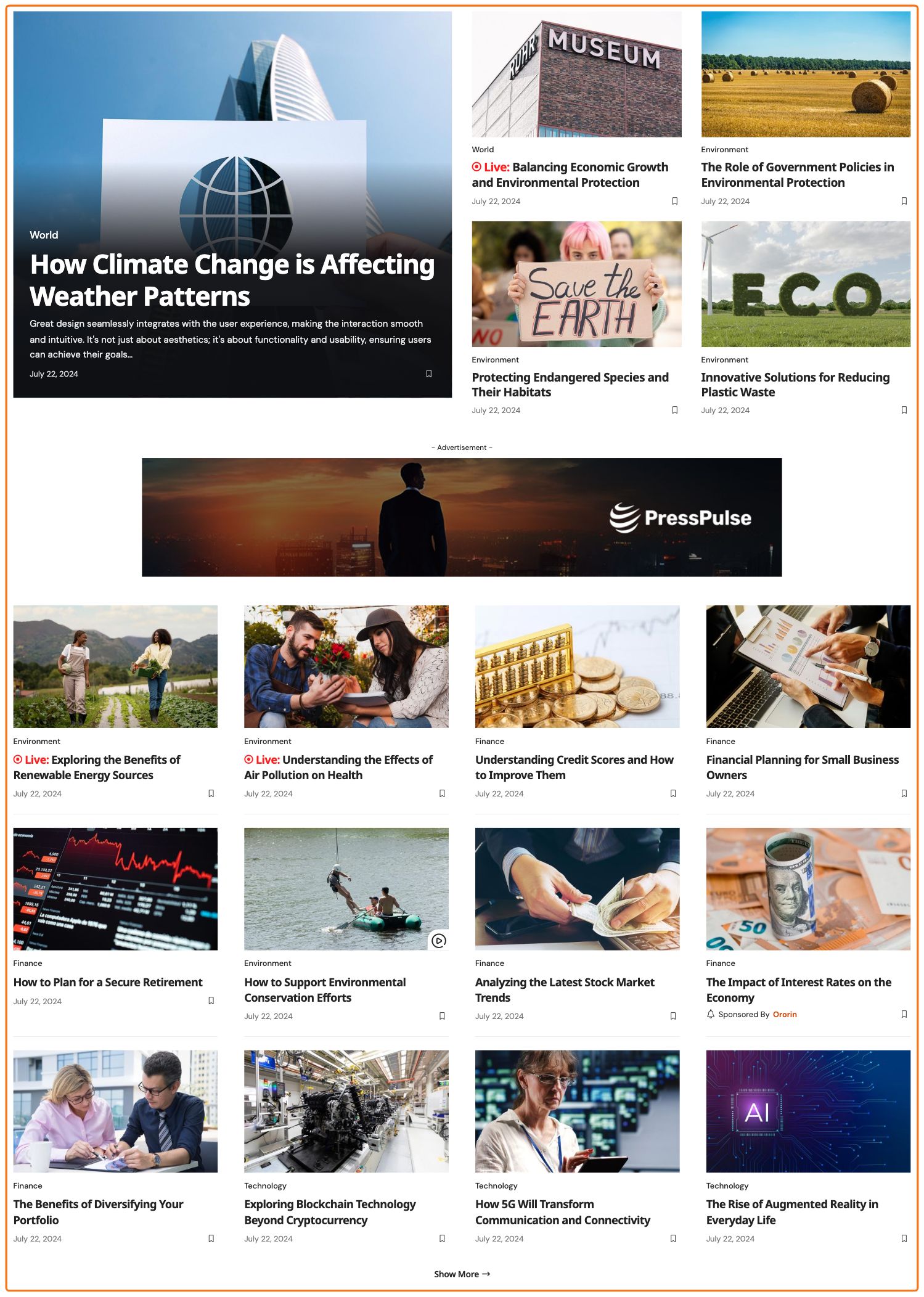
What is a Blog Index?
The blog index is the page on your site that lists your latest posts, newest first. Which page that is depends on Settings > Reading:
- Your homepage displays on A static page (select below): the blog index is the page chosen as Posts page, often one called Blog. An imported demo sets this for you.
- Your homepage displays on Your latest posts: the blog index is your homepage.
No Blog page yet? How to Create the Blog Page makes one.
For what a blog is in general:
To get started, follow the steps below:
-
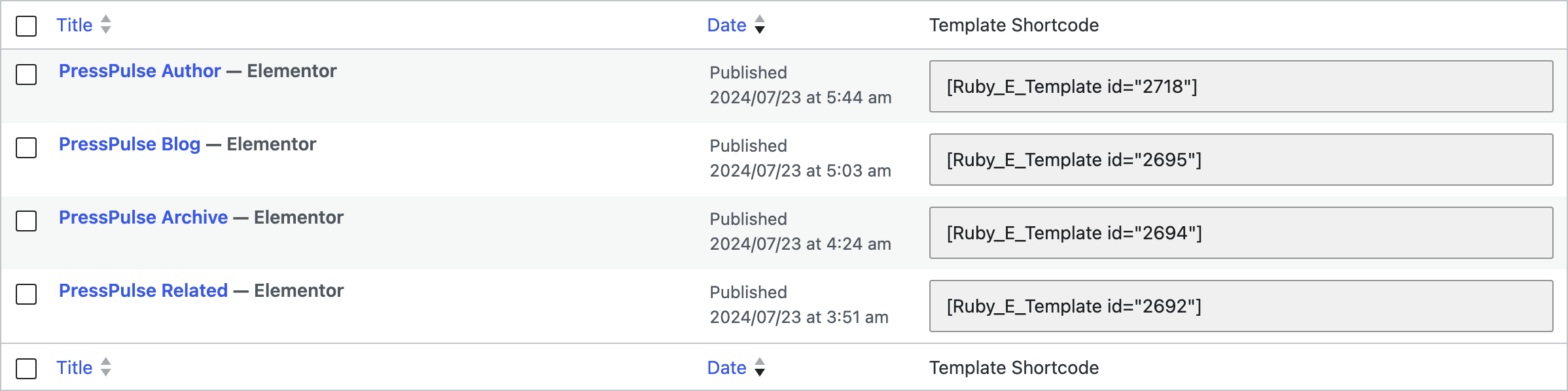
Create your template at Dashboard > Ruby Templates and copy its shortcode. Then drag one listing block from the Elementor panel into the template, to hold the blog's posts. Foxiz - Grid 1 draws a grid like the picture above; Foxiz - Classic gives a one column blog. To create a template, you can refer to this documentation: Ruby Templates
-
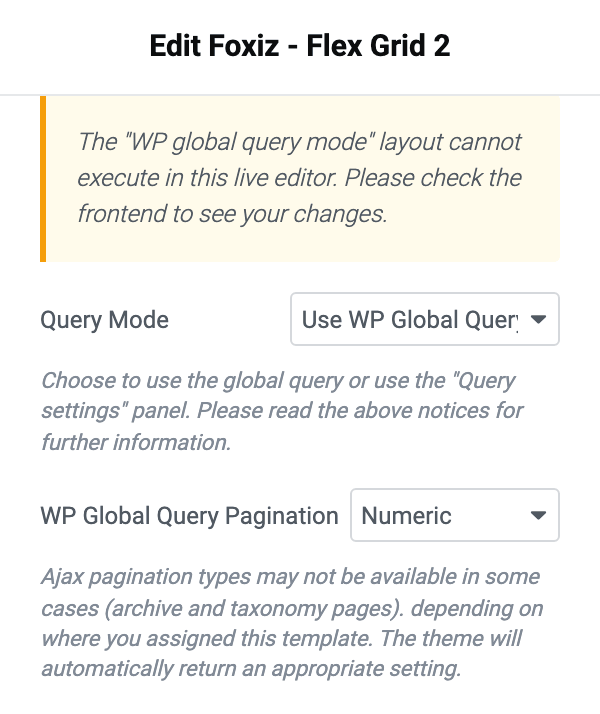
In the template, click the listing block and, in its settings panel, open Content > Template Builder - Global Query > Query Mode
The section is registered only while you are editing a Ruby Template, so the same block dropped on an ordinary Elementor page has no Query Mode control at all.
Not every block can be the main listing either: only fifteen post listing blocks (Classic and the Grid, List and Overlay blocks, all named in the archive page article) and the three podcast listing blocks have this section. A block without it cannot take over the blog query.
-
Select Use WP Global Query for displaying the main blog listing. The block then lists the posts WordPress would show on the blog page, as that page's main listing.
The control is set to Use Custom Query (default) by default, so a template assigned to the blog without this step still renders, and quietly shows whatever its own Query Settings asked for instead of the blog's posts.
-
Directly under Query Mode, set WP Global Query Pagination to Numeric. Left on its default, - Disable -, the blog shows its first page of posts and no way to the next. Show More (ajax) also works on the blog index, for a button that loads more posts in place.
-
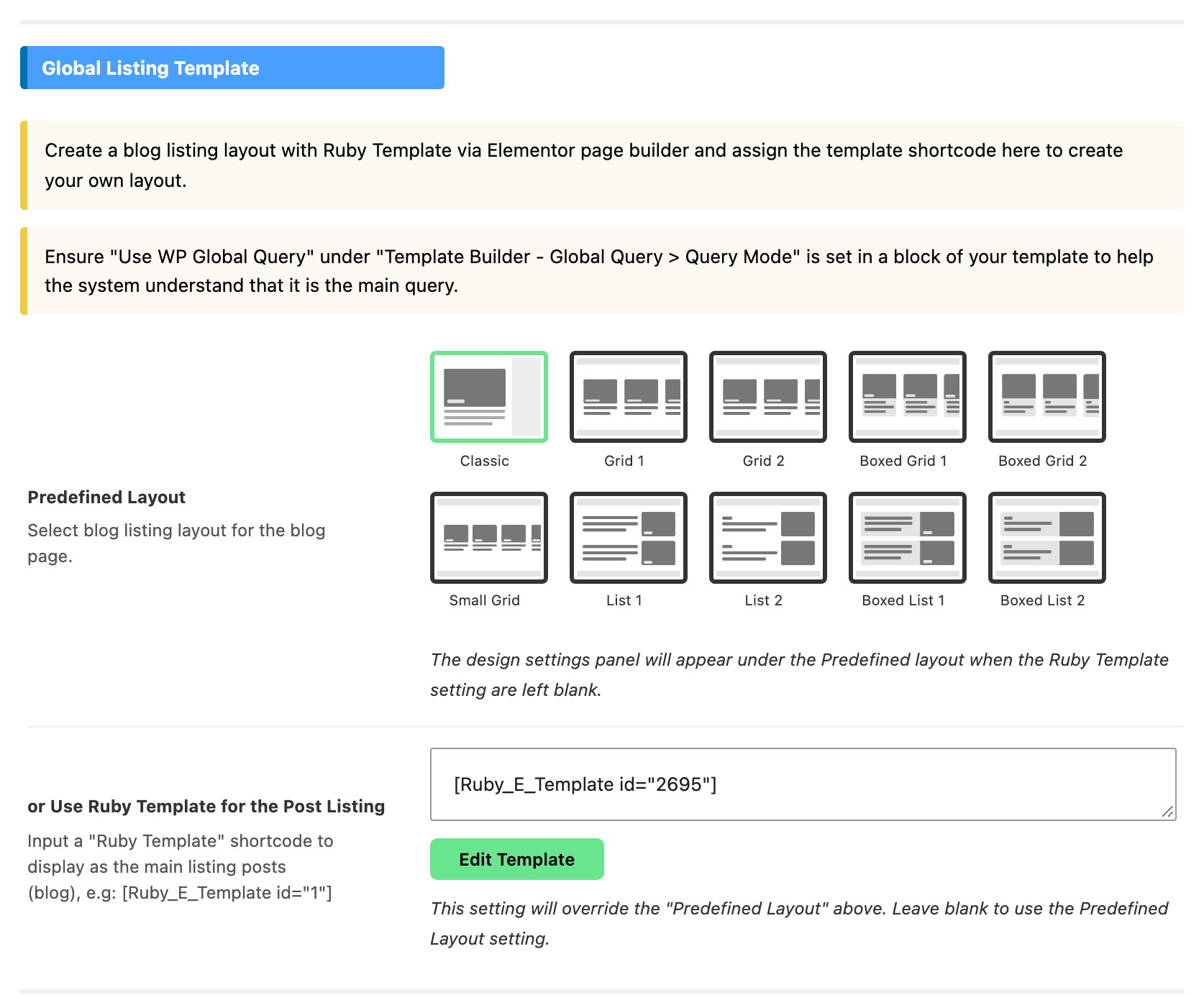
Navigate to Theme Options > Blog Index, then open the Global Listing Template section
-
Input a ruby template shortcode into the or Use Ruby Template for the Post Listing input
-
Click save changes.
Saving replaces the listing rather than decorating it. Foxiz prints your template where the posts would have gone and stops there, so the Predefined Layout chosen above the field is never rendered.
Four sections of the Blog Index panel also disappear the moment the field has a value in it, because each one is declared to show only while it is empty: Post Listing - Columns, Post Listing - Sidebar, Post Listing - Design and Post Listing - Pagination. Those jobs now belong to the blocks in your template.
Notes when using WP Global Query:
Don't apply the WP global query mode for more than 1 block in a template to avoid duplicated layouts.
The Query Settings are ignored in WP global query mode. On screen that means the section stays visible and editable, and its values are simply never read, because the block is handed the page's own query instead of building one from them.
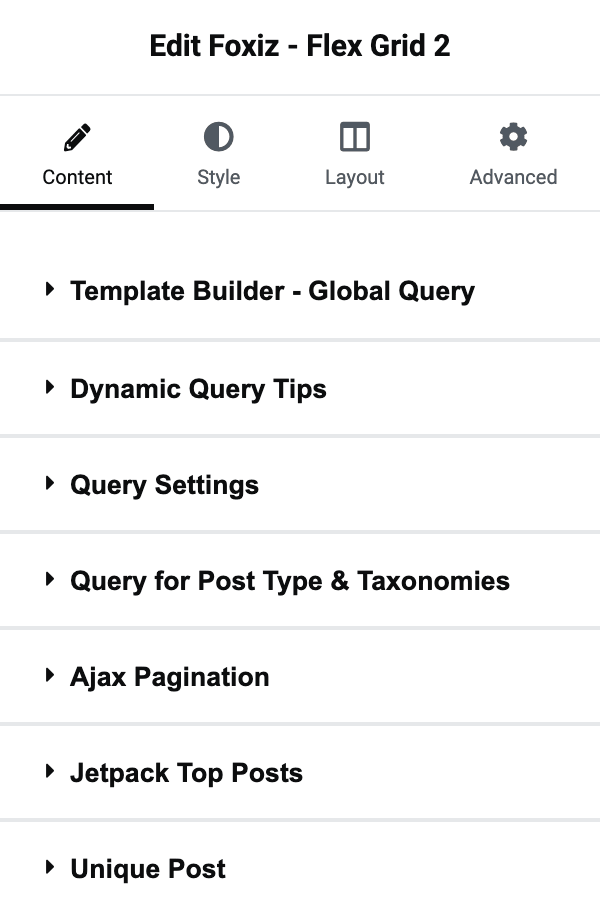
Unique Post, in a Content section of the same name, is the one query control global mode still reads: set it to Enable and the listing drops any post an earlier block in the same template has already shown. Its default is Disable, which leaves the listing whole.
Use WP Global Query Pagination instead of Ajax Pagination: the Ajax Pagination settings are ignored in WP global query mode.
WP Global Query Pagination is in the same Template Builder - Global Query section, directly under Query Mode, and its default is - Disable -. Left there, your blog index renders with no pagination at all, and page 2 is unreachable from the page itself. The four working values are Numeric, Simple, Show More (ajax) and Infinite Scroll (ajax).
To change the number of posts per page, navigate to Theme Options > Blog Index, open the Posts Per Page section and set Posts per Page.
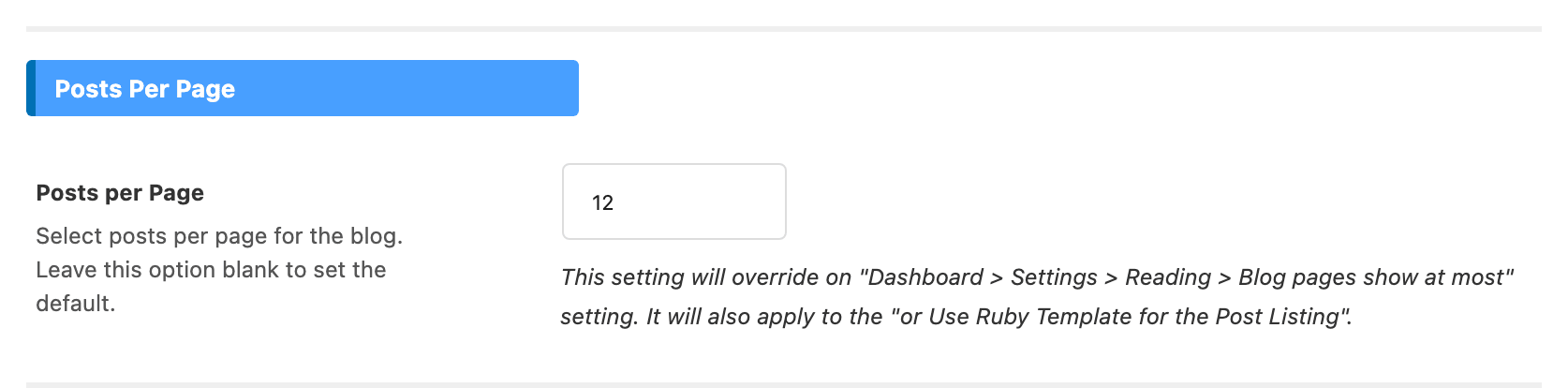
Leave that field blank and the blog uses Settings > Reading > Blog pages show at most instead, because Foxiz only overrides the main query's post count when the field has a value.
Tip: set Number of Posts in the block's Query Settings to the number the page shows on the front end, so the editor preview looks like it.
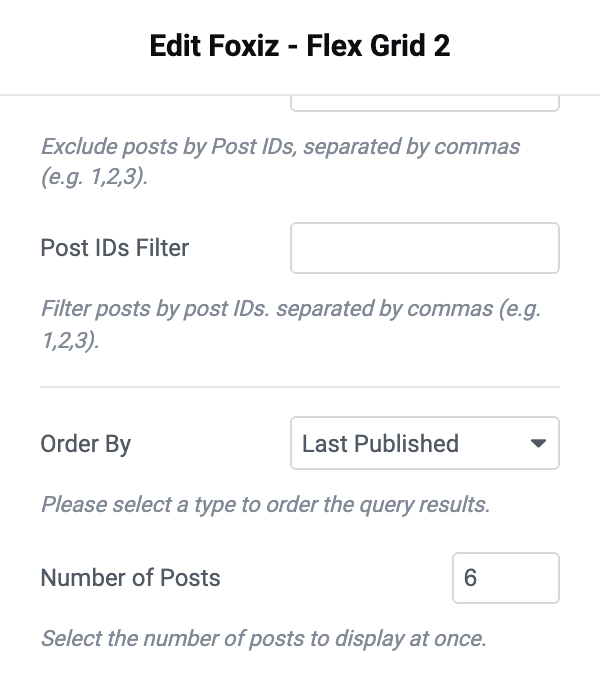
That tip works because the editor ignores global query mode and falls back to the block's own Query Settings, which is also why the number you set there never reaches the front end.
The "WP global query mode" layout cannot execute in this live editor. Check the result on the front end, once the template is assigned. In place of real pagination links the editor prints a placeholder line reading "Dynamic ... pagination", naming the type you chose.
If the front end shows the shortcode itself as text where the listing should be, Foxiz Core is inactive. This field is printed without checking that the Ruby_E_Template shortcode exists, so an inactive plugin leaves the raw text on the page.
Did this answer your question?