How to Add Blog Template Builder to Tag Page
Tag pages can use a post list you design in Elementor. The tag header stays at the top; your template replaces the list under it. Because one block in it lists whatever tag is open, a single template covers every tag.

To get started, follow the steps below:
-
Create your template at Dashboard > Ruby Templates and copy its shortcode. In Elementor, drag one listing block into the template to show the tag's posts: Foxiz - Grid 1 for cards like the picture above, or Foxiz - Classic for a one column list. Step 2 lists all fifteen that can do it. The list screen carries a Template Shortcode column with a readonly
[Ruby_E_Template id="1"]for each template. To create a template, you can refer to this documentation: Ruby Templates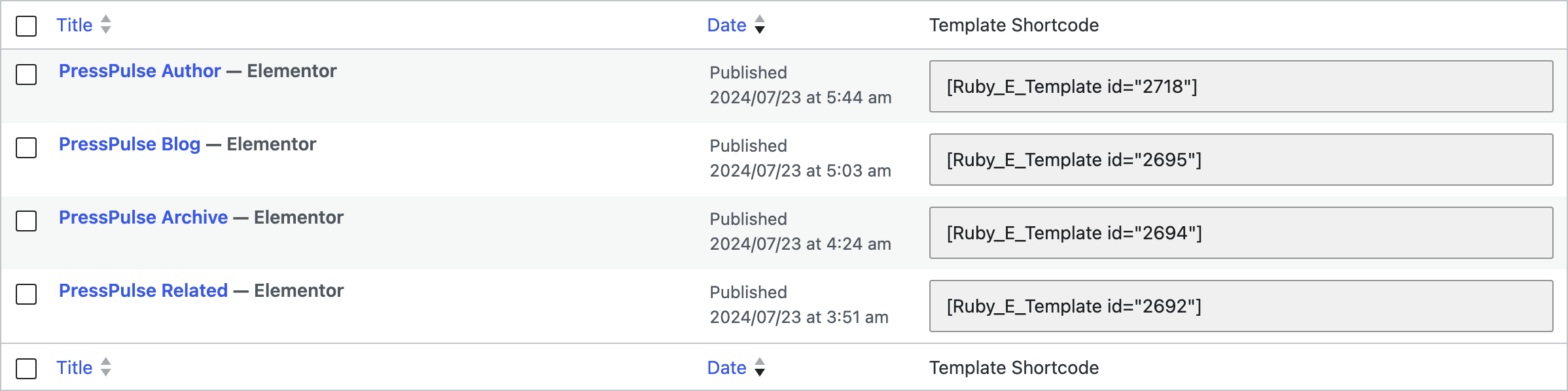
-
In the template, click the listing block and, in its settings panel, open Content > Template Builder - Global Query > Query Mode. That section only exists on the fifteen Foxiz blocks that can take over a page's main listing:
- Foxiz - Classic
- Foxiz - Grid 1
- Foxiz - Grid 2
- Foxiz - Boxed Grid 1
- Foxiz - Boxed Grid 2
- Foxiz - Small Grid
- Foxiz - Flex Grid 1
- Foxiz - Flex Grid 2
- Foxiz - List 1
- Foxiz - List 2
- Foxiz - Boxed List 1
- Foxiz - Boxed List 2
- Foxiz - Flex List
- Foxiz - Overlay
- Foxiz - Flex Overlay
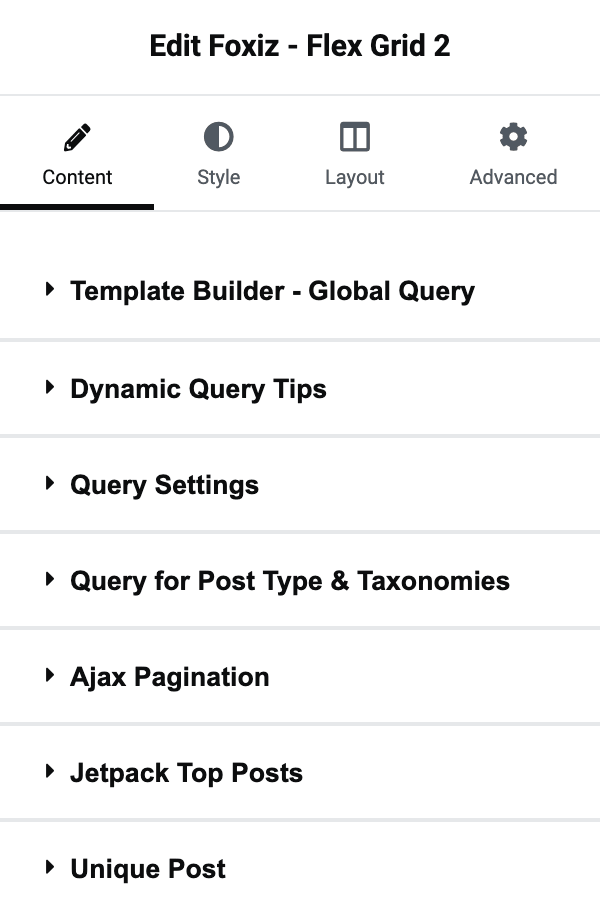
-
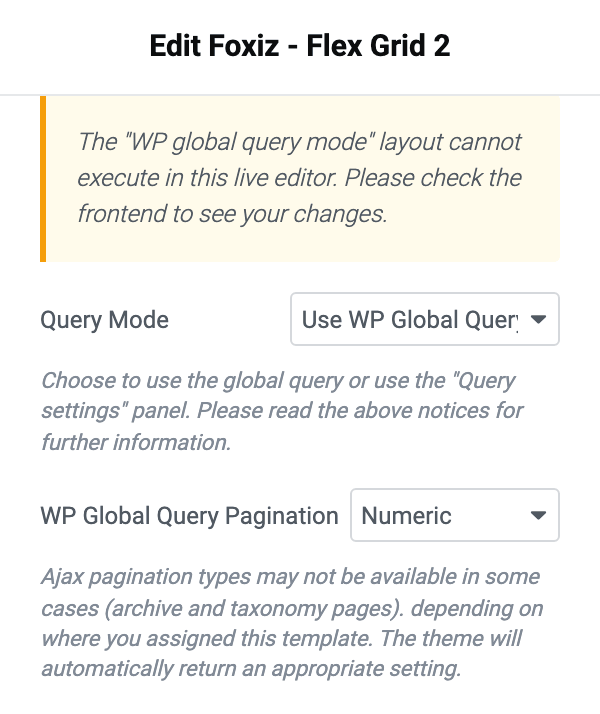
Select Use WP Global Query for displaying the main blog listing. The block then lists the posts WordPress would show on the tag page, as that page's main listing.
-
Change WP Global Query Pagination, under Query Mode, to Numeric. On its default, - Disable -, the tag page shows one page of posts and no links to the rest. Show More (ajax) works on tag pages as well.
-
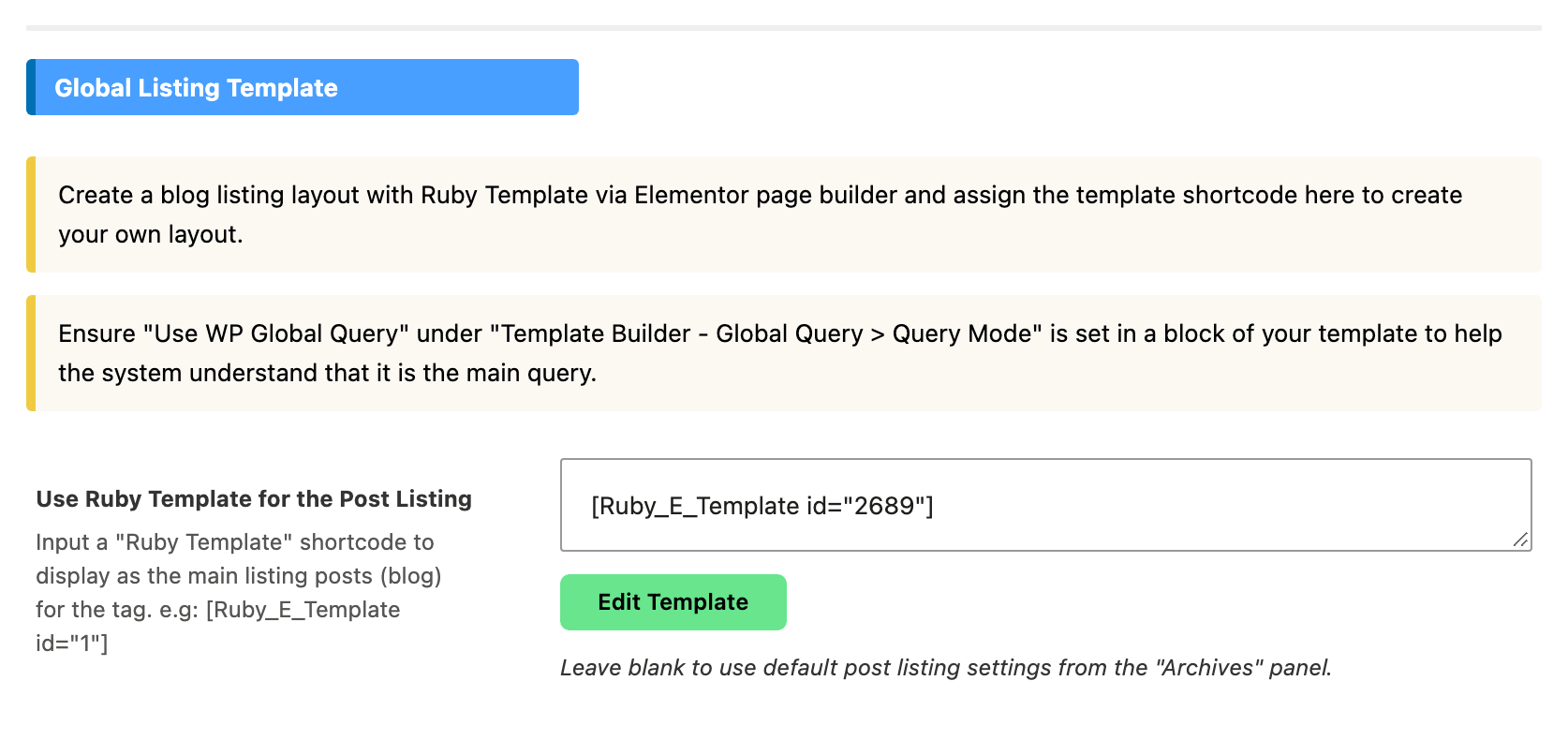
Navigate to Theme Options > Tag Page > Global Listing Template. The field is called Use Ruby Template for the Post Listing. Tag Page is a top level panel of its own.
-
Input a ruby template shortcode into the Use Ruby Template for the Post Listing input. Leave it blank and the tag page falls back to the post listing settings in the Archives panel, which is what the field's own help text says.
One tag can use a template of its own instead. The same field, Use Ruby Template for the Post Listing, is on the Listing Template tab of that tag's Foxiz Tag Settings, and it wins over this one; left empty, the tag follows this one.
-
Click save changes.
Notes when using WP Global Query:
Don't apply the WP global query mode for more than 1 block in a template to avoid duplicated layouts.
The "Query Settings" are ignored in the "WP global query" mode. Its filters stay on screen but the block never runs them: in global mode the block shows the tag's own posts, whatever the filters say.
Unique Post, the control in its own Unique Post section, is the exception. It keeps working in WP global query mode, where it re-runs the query excluding every post already shown by an earlier block on the page. Its default is Disable.
Use WP Global Query Pagination instead of Ajax Pagination: the Ajax Pagination settings are ignored in WP global query mode. WP Global Query Pagination sits in the same Template Builder - Global Query section and is set to - Disable - by default, at which value the tag page draws no pagination at all. Set it to Numeric, Simple, Show More (ajax) or Infinite Scroll (ajax).
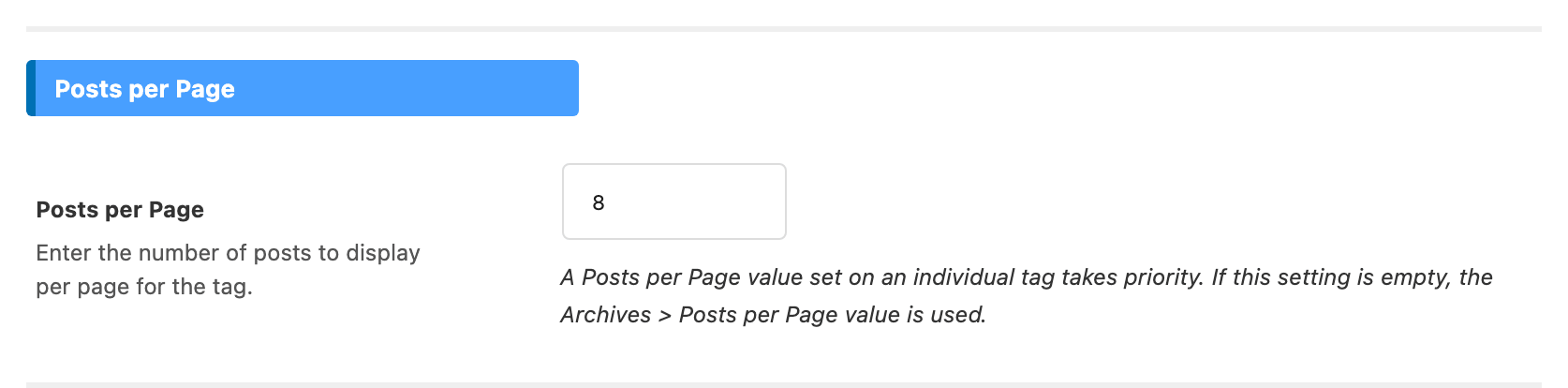
To change the number of posts per page, navigate to Theme Options > Tag Page > Posts per Page. A tag page uses the first of these that holds a value:
- Posts per Page on that one tag, in the Listing Queries tab of its Foxiz Tag Settings box.
- Theme Options > Tag Page > Posts per Page.
- Theme Options > Archives > Posts per Page.
- The WordPress Settings > Reading value.
Tip: set Number of Posts in the block's Query Settings to the number the page shows on the front end, so the editor preview looks like it. That value is for the editor only and is not applied on the front end.
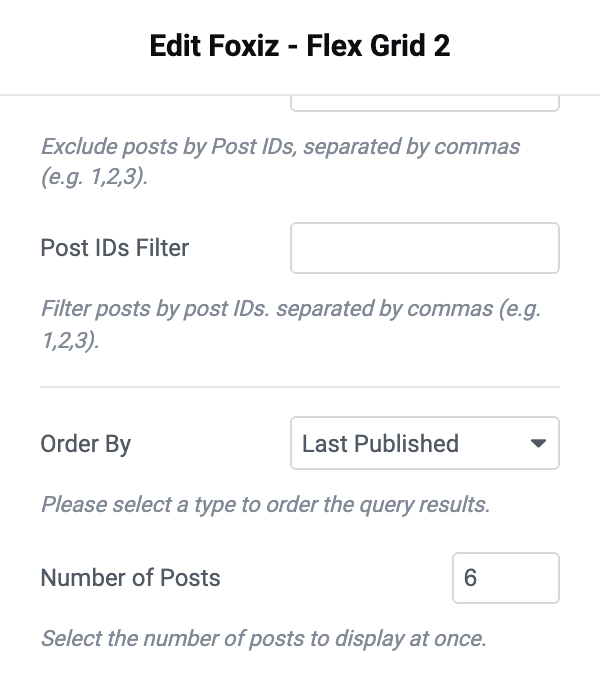
The "WP global query mode" layout cannot execute in this live editor. Check the result on the front end, once the template is assigned.
Block Dynamic Tag Query
The dynamic tag query lets one template serve every tag, without a template for each tag.
On one block it is the alternative to the first half of this article. It works through Query Settings, so that block's Query Mode has to stay on Use Custom Query (default) for the filter below to apply.
Which to use: Use WP Global Query for the main listing, because it follows the tag page's own pages and Posts per Page. Use _dynamic_tag for an extra block in the same template, such as a featured row above the main list, which keeps its own Query Settings such as order and number of posts.
To get started, please follow the steps below:
-
Navigate to Ruby Templates > All Templates, then select the template you would like to edit
-
Select a block you would like to edit
-
Select Content tab > Query Settings > Tags Slug Filter
-
At the 'Tags Slug Filter' option, you simply need to enter the keyword: _dynamic_tag. The theme also accepts
{dynamic}in the same field, and the match ignores case and surrounding spaces.
-
Paste the template's shortcode into Theme Options > Tag Page > Use Ruby Template for the Post Listing and save, exactly as in steps 5 and 6 of the first section. The keyword does nothing until the template is assigned to tag pages.
Once the keyword is set, the block shows only the posts of the tag page it is displayed on.
On any other page the keyword is stripped rather than honoured, so the same block on a category, author, taxonomy or blog index listing simply drops the tag filter and shows everything. The same is true of the Elementor editor preview, which is why the block looks unfiltered while you are building it.
Did this answer your question?