How to Build a Reading History Page
A reading history page shows each visitor the posts they opened lately, the most recent first. It takes one setting in Theme Options and one block on an Elementor page.

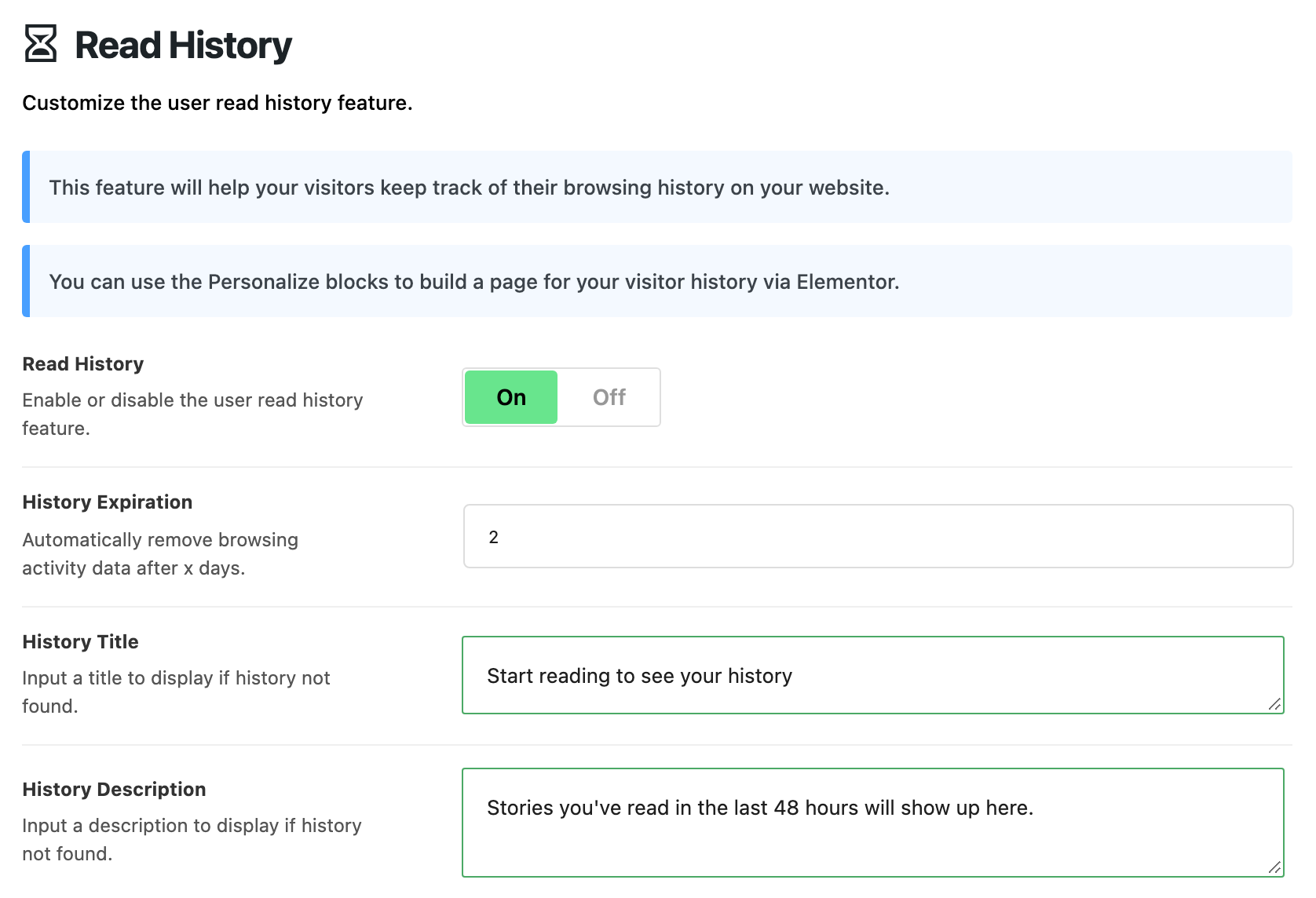
Turn on Read History
Nothing a visitor reads is recorded until you do this, so do it first.
- Go to Theme Options > Personalized System > Read History.
- Turn on Read History. It is off by default.
- Three more fields appear. Set them:
- History Expiration: how many days a read post stays in a visitor's history. Default: 2. Older entries are cleared once a day.
- History Title: the heading a visitor with no history sees. Default: "Start reading to see your history". Leave it empty and that visitor sees nothing at all where the block is.
- History Description: the line under that heading. Default: "Stories you've read in the last 48 hours will show up here." The 48 hours matches the default 2 days, so change it when you change History Expiration.
- Click Save Changes.
Personalized System in Global has to be on as well. It is on by default, and it is what gives each visitor the record their history is kept under.
When a post counts as read
- A post counts when the visitor opens it. Pages do not count.
- Opening a post again moves it back to the top. It is not listed twice.
- Posts that load below the article count too, when Theme Options > Single Post > Auto Load Next Posts is in use. With Show Continue Reading on, which is the default, a next post counts once the reader clicks Continue Reading and opens it. With it off, a next post counts as soon as it loads.
- The page lists the 150 most recent.
History is kept per visitor in the same way as saves: a signed in reader's follows the account, a guest's belongs to the browser.
Build the page
-
Go to Pages > Add Page, name the page (the demo calls it Reading History) and click Edit with Elementor.
-
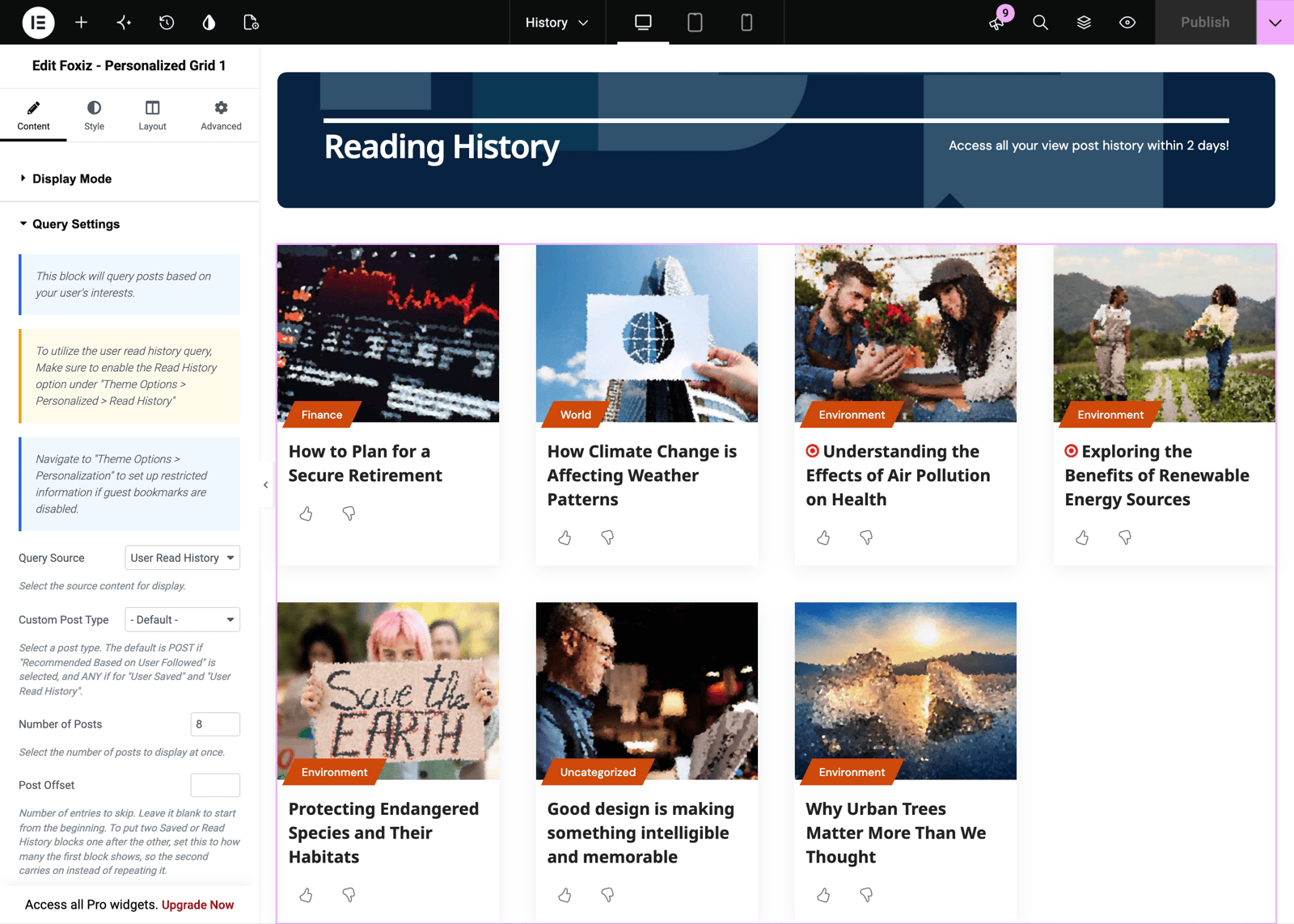
Search the Elements panel for personalized and drag Foxiz - Personalized Grid 1 onto the page. Any of the four Personalized blocks works; they differ only in layout.
-
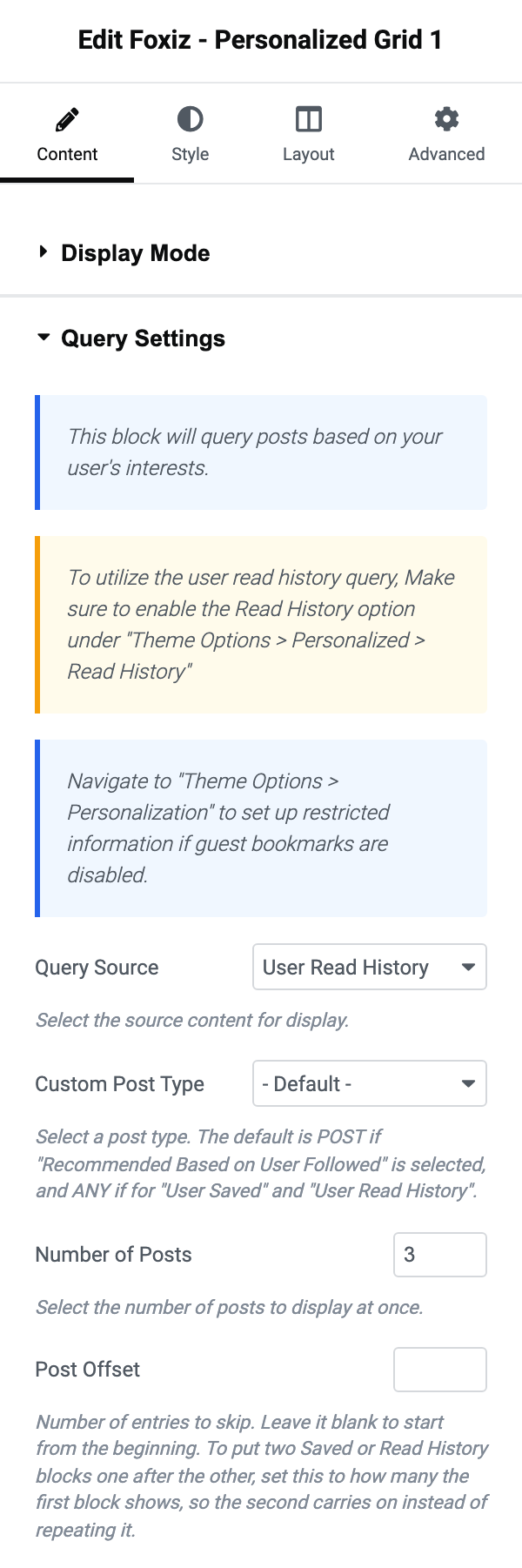
In Query Settings, set Query Source to User Read History. The panel's yellow notice is the reminder to turn on Read History.
-
Raise Number of Posts. It starts at 3.
-
Under Ajax Pagination, set Pagination Type to Show More or Infinite Scroll if the list should go further than one screen.
-
Leave Display Mode on - AJAX - unless you will exclude the page from your cache.
-
Click Publish, then open two or three posts and come back to check the page fills.
Post Offset skips the first entries. Leave it blank for a single block. With two blocks in a row, for example a large grid of the last three posts read and a smaller list of the rest, set the second block's offset to 3 and it carries on where the first stopped.
What an empty page shows
A visitor who has not read anything yet, or whose history has expired, sees History Title and History Description.
While Read History is off, an administrator sees a notice above them: "Reading history is disabled." with the place to turn it on. Visitors do not see that notice. If you see it on your page, step 2 above is the fix.
When Enable When in Global is not All Visitors, a guest sees the Restricted Title and Restricted Description instead of a history, the same as on a saved stories page.
Every other setting on the block, and the rest of the section, is in How to Build Personalized Pages with Elementor.
Did this answer your question?